|
VOOZH | about |
|
VOOZH | about |
Email/password authentication is a widely used method for users to sign in to applications securely. It offers a familiar and convenient way for users to access their accounts.
Firebase Authentication simplifies the implementation of this process by handling backend tasks securely, such as storingpasswords, managing usersessions, and integrating with popular identity providers like Google and Facebook.
In this article, we will learn about how to set up and implement email/password authentication in a web application using Firebase Authentication.
Before understanding the implementation we have to set up a Firebase Authentication in our Firebase project by following the below steps:
With Firebase set up, we are ready to implement email/password authentication in our application.
Let's understand the steps to implement email/password authentication in a web app using Firebase SDK. We'll start with a simple HTML page and add JavaScript for Firebase integration.
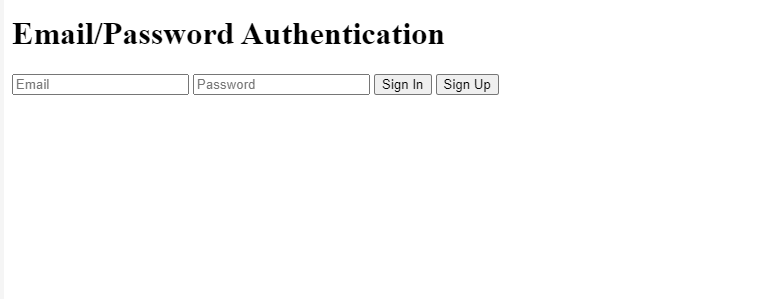
Let's Create a simple HTML file that allows users to sign in or sign up using their email and password. Use Firebase Authentication to handle the authentication process.
<!DOCTYPE html>
<html lang="en">
<head>
 <meta charset="UTF-8">
 <meta name="viewport" content="width=device-width, initial-scale=1.0">
 <title>Firebase Authentication</title>
</head>
<body>
 <h1>Email/Password Authentication</h1>
 <input type="email" id="email" placeholder="Email">
 <input type="password" id="password" placeholder="Password">
 <button onclick="signIn()">Sign In</button>
 <button onclick="signUp()">Sign Up</button>

 <script src="https://www.gstatic.com/firebasejs/9.0.2/firebase-app.js"></script>
 <script src="https://www.gstatic.com/firebasejs/9.0.2/firebase-auth.js"></script>
 <script src="firebase-config.js"></script>
 <script src="app.js"></script>
</body>
</html>
Output:
Explanation
app.js). When a user clicks the "Sign In" or "Sign Up" button, the respective function is called to authenticate the user using Firebase.Let's Create a firebase-config.js file with our Firebase project configuration:
const firebaseConfig = {
 apiKey: "AIzaSyDmaZAcK7xwQTAsQJxaGnG56oB8RIJDMnc",
 authDomain: "samplep-d6b68.firebaseapp.com",,
 projectId: "samplep-d6b68",
 storageBucket:"samplep-d6b68.appspot.com",
 messagingSenderId:"398502093281",
 appId:"1:398502093281:web:5d685b0733d4d6d66472a0",
 measurementId: "G-9E6K9YD8D1"
};

const app = firebase.initializeApp(firebaseConfig);
Explanation:
firebaseConfig). The configuration object contains properties such as the API key, authentication domain, and project ID, which are necessary for Firebase to connect to your Firebase project. This below code handles user authentication using Firebase email and password authentication. The signIn function allows existing users to sign in while the signUp function creates a new user account.
Both functions capture the email and password from input fields, then use Firebase authentication methods to sign in or sign up the user. Any errors during the process are logged to the console.
const auth = firebase.auth();

function signIn() {
 const email = document.getElementById('email').value;
 const password = document.getElementById('password').value;

 auth.signInWithEmailAndPassword(email, password)
 .then((userCredential) => {
 // Signed in successfully
 const user = userCredential.user;
 console.log('Signed in as:', user.email);
 })
 .catch((error) => {
 console.error('Sign in error:', error.message);
 });
}

function signUp() {
 const email = document.getElementById('email').value;
 const password = document.getElementById('password').value;

 auth.createUserWithEmailAndPassword(email, password)
 .then((userCredential) => {
 // Signed up successfully
 const user = userCredential.user;
 console.log('Signed up as:', user.email);
 })
 .catch((error) => {
 console.error('Sign up error:', error.message);
 });
}
Explanation
These functions use Firebase Authentication to handle sign-in and sign-up operations using email and password.
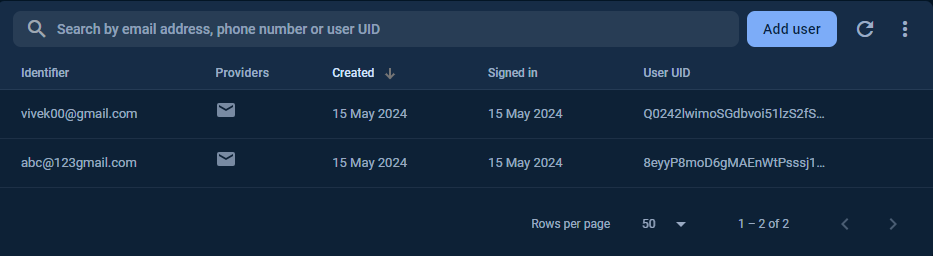
signIn(): Retrieves the email and password values from the input fields, then uses auth.signInWithEmailAndPassword(email, password) to authenticate the user. If successful it logs the users email to the console. If there's an error it logs the error message.signUp(): Similar to signIn(), but uses auth.createUserWithEmailAndPassword(email, password) to create a new user account if the provided email doesn't already exist. If successful it logs the users email to the console. If there's an error it logs the error messageNow, let's test the authentication flow in our web app:
Output:
Overall, Email/password authentication is a fundamental aspect of user authentication in web applications. Firebase Authentication provides a simple and secure way to implement this functionality, allowing users to sign in using their email address and password. By following the steps outlined in this guide, you can easily integrate email/password authentication into your web application using Firebase Authentication