|
VOOZH | about |
|
VOOZH | about |
The MID function in Google Sheets helps you extract a specific section of text from a string based on the starting position and the number of characters you want. It’s ideal for splitting structured text, such as product codes, serial numbers, or names.
The MID function extracts characters from a text string starting at a specified position and for a defined length.
=MID(text, start_num, num_chars)
Parameters:
The MID function in Google Sheets allows you to extract a specific portion of text from a string by defining the starting point and the number of characters you want to extract.
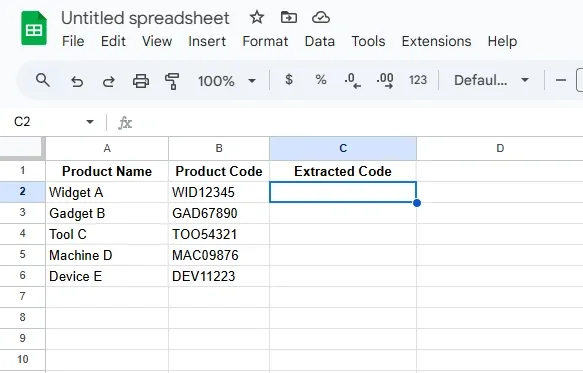
Create a table with text data. For example, let’s say you have product codes and you want to extract specific parts of them. Select a Cell for the result of formula.
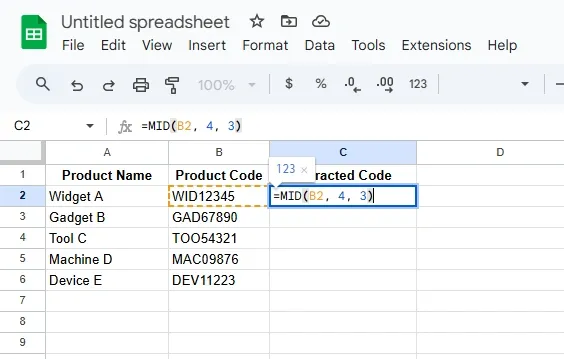
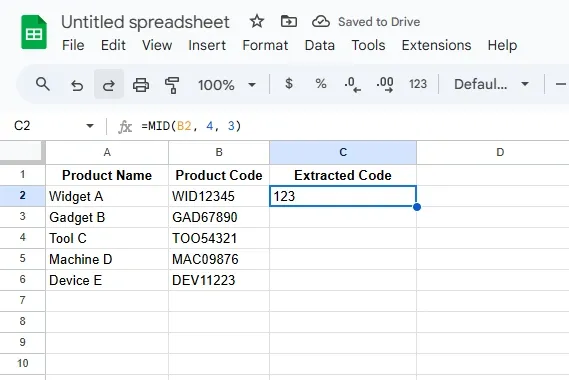
In a new column (e.g., Column C), use the MID function to extract part of the Product Code. Suppose you want to extract 3 characters starting from position 4 in the Product Code. Enter the formula in cell C2:
=MID(B2, 4, 3)
Explanation:
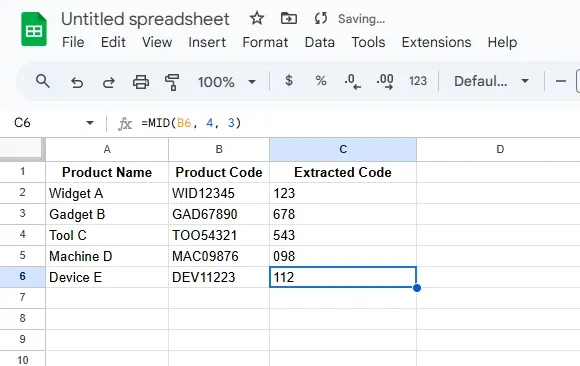
Click the small square in the bottom-right corner of the cell (C2) and drag it down to fill the formula for the remaining rows.
The MID function will extract the specified characters from each Product Code. After applying the formula, your results will look like this:
The MID function in Google Sheets is versatile for handling text. Here are some practical examples for MID function to extract and manage data efficiently using Google Sheets functions for text:
Extract the domain (e.g., "gmail.com") from email addresses in cell A1.
Formula:
=MID(A1, FIND("@", A1) + 1, LEN(A1) - FIND("@", A1))
Split a product ID like "SKU-1234-AB" to isolate the numeric portion "1234".
Formula:
=MID(A1, 5, 4)
Extract file extensions such as ".png" from filenames in cell A1.
Formula:
=MID(A1, FIND(".", A1) + 1, LEN(A1) - FIND(".", A1))
These practical examples show how to efficiently use MID and FIND functions for text extraction and data processing in Google Sheets.
The MID function becomes even more powerful when combined with other functions for advanced text manipulation. Here are some practical combinations:
Extract dynamic substrings based on specific characters or patterns.
Formula:
=MID(A1, FIND("-", A1) + 1, FIND("-", A1, FIND("-", A1) + 1) - FIND("-", A1) - 1)
Combine extracted substrings with additional text or characters.
Formula:
=CONCATENATE(MID(A1, 1, 3), "-", MID(A1, 4, 4))
Handle variable-length strings by adjusting the number of characters dynamically.
Formula:
=MID(A1, 3, LEN(A1)-2)
These combinations allow the MID function to handle dynamic scenarios like text extraction, formatting, and data manipulation efficiently in Google Sheets.
Also Read: