|
VOOZH | about |
|
VOOZH | about |
Analyzing data often involves identifying the central tendency, and the MEDIAN function in Google Sheets is an effective way to calculate it. Whether you’re working on financial data, test scores, or sales figures, the MEDIAN formula in spreadsheets allows you to find the middle value, offering a clearer picture of data distribution. In this guide, we’ll explore how to calculate the median in Google Sheets, understand its syntax, and apply it with practical examples. This function is particularly useful for making informed decisions based on statistical functions in Google Sheets.
The MEDIAN function in Google Sheets calculates the middle value of a dataset. It’s useful for finding the central tendency of a range of numbers, ignoring text or empty cells.
Here is the Google Sheet MEDIAN formula:
MEDIAN(value1, [value2, ...])The MEDIAN function is a great tool to calculate median in Google Sheets, helping you find the middle value in a dataset. It’s useful for analyzing datasets with MEDIAN to identify central trends. Below, we’ll guide you through its usage with clear steps and median value examples.
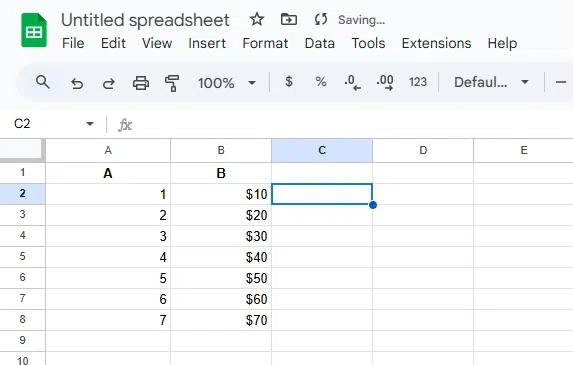
Click on the cell where you want the result to appear, e.g., C2.
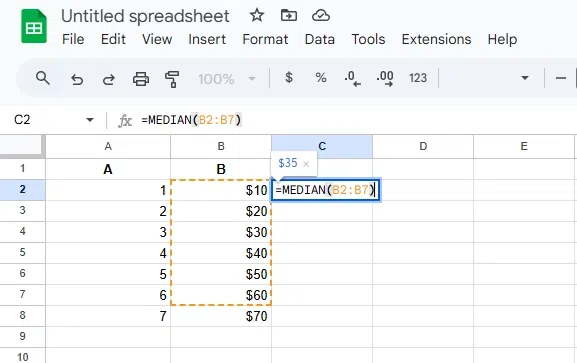
Type the following formula:
=MEDIAN(B2:B7)The function will calculate and display the median value, which is the middle number of the dataset.
Also Read:
The MEDIAN function in Google Sheets is a valuable tool for anyone looking to identify the median value within datasets. By understanding its syntax and examples, you can effortlessly apply it to real-world scenarios like analyzing financial trends or calculating average performance. Leveraging this statistical function in Google Sheets helps ensure a more accurate interpretation of your data’s central tendency.