|
VOOZH | about |
|
VOOZH | about |
NVM or Node Version Manager is a command-line tool that allows developers to manage multiple versions of Node.js on a single machine. This function offers the flexibility to work on different projects and versions of Node.js. In this guide, we'll walk you through the steps to install and use NVM on Windows OS.
Prerequisites:
- Windows 11, 10, 8, or 7
- Administrative Rights
Note: It is recommended to uninstall Node.js if your system already has one.
This will ensure that there will not be any conflict while performing a clean installation of Node.js
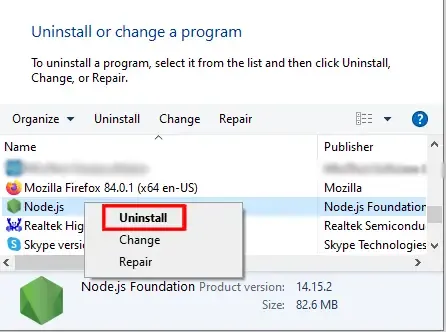
Navigate to Control Panel > Programs > Programs and Features and locate Node.js, select it, and click to Uninstall the files.
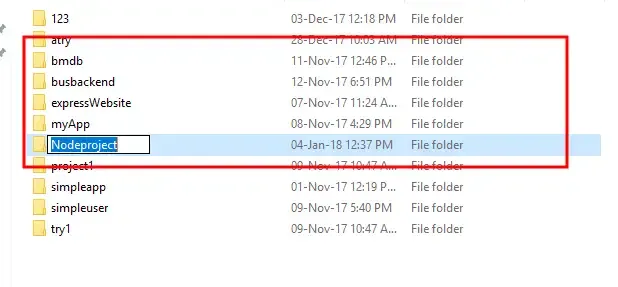
Delete the Node.js folder from C:\Program Files\ and remove the npm and npm-cache folders from C:\Users\ThisPC\AppData\Roaming\
In this article, we will learn how to install NVM for Windows. Follow the below steps:
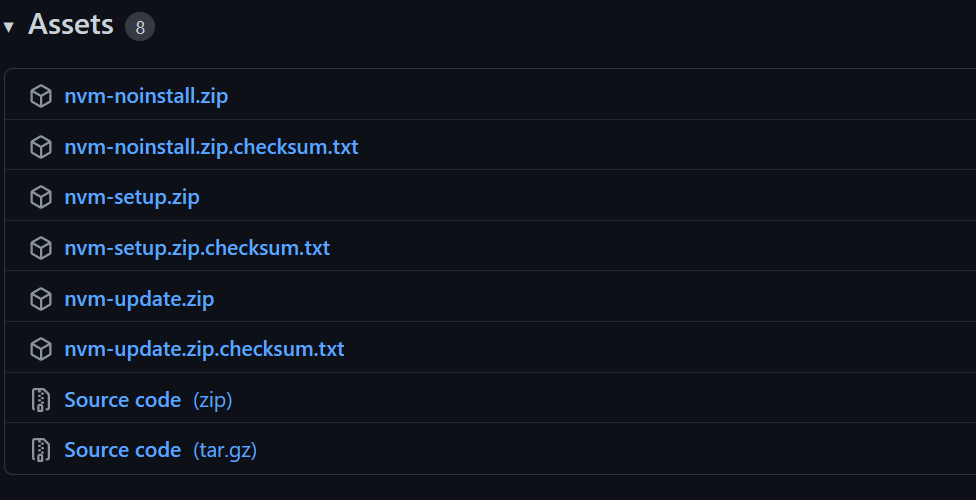
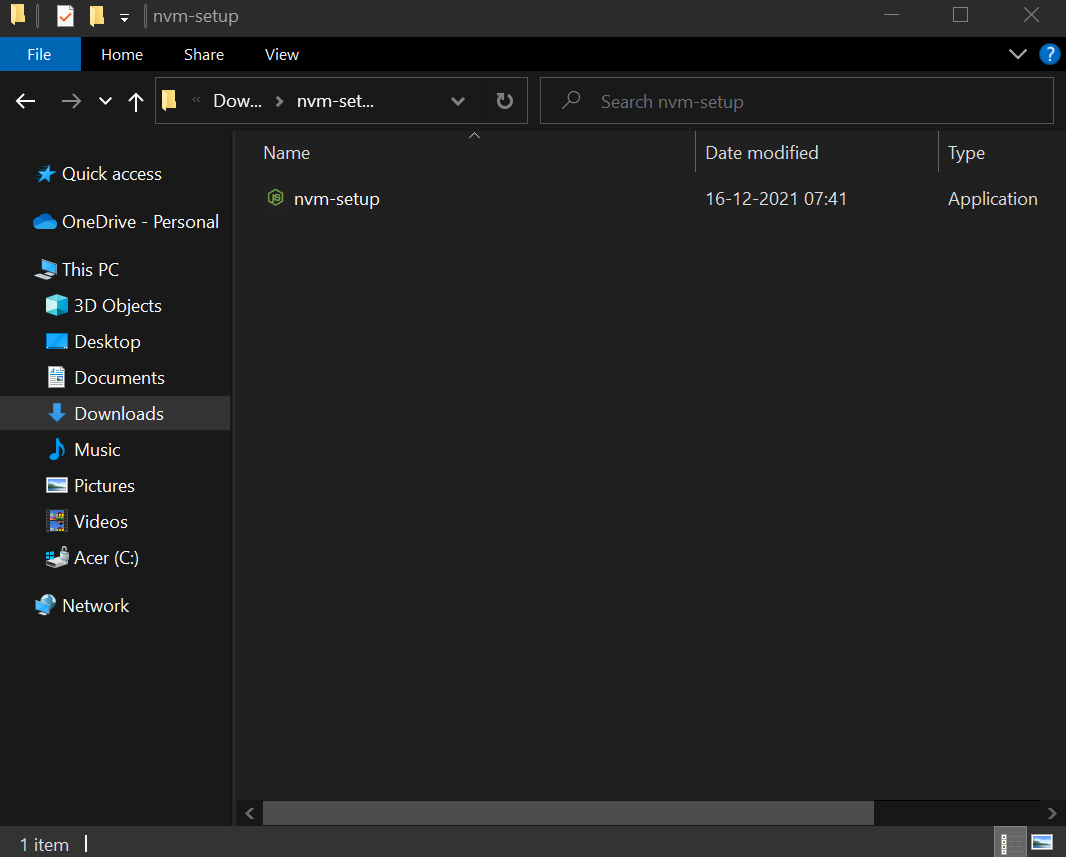
Download the nvm-setup.zip from the assets table located over here. Unzip/Extract the contents (The Zip file should be present in the Downloads folder or the destination you choose to download) by extracting it to nvm-setup.
👁 Download-the-nvm-setup.zip-fileIn the nvm-setup folder, double-click on the file named nvm-setup.exe as shown below.
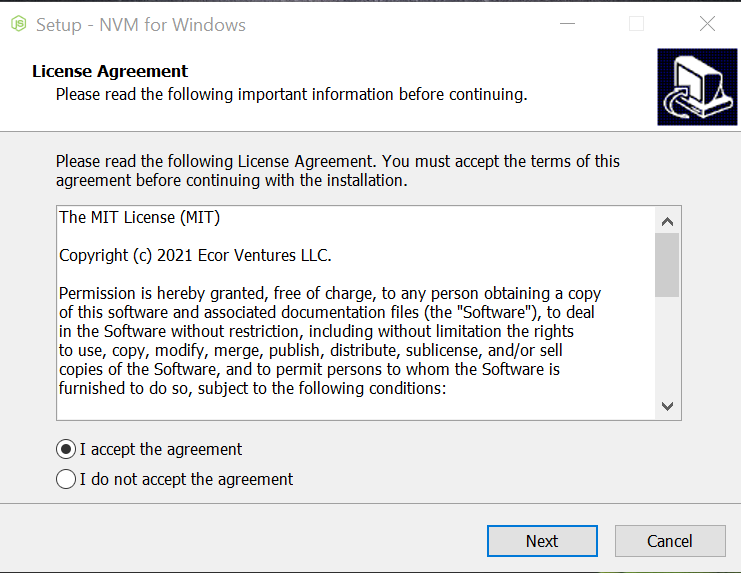
👁 Open-nvm-setup.exe-fileChoose the I accept the agreement option and click on Next to proceed further with the installation.
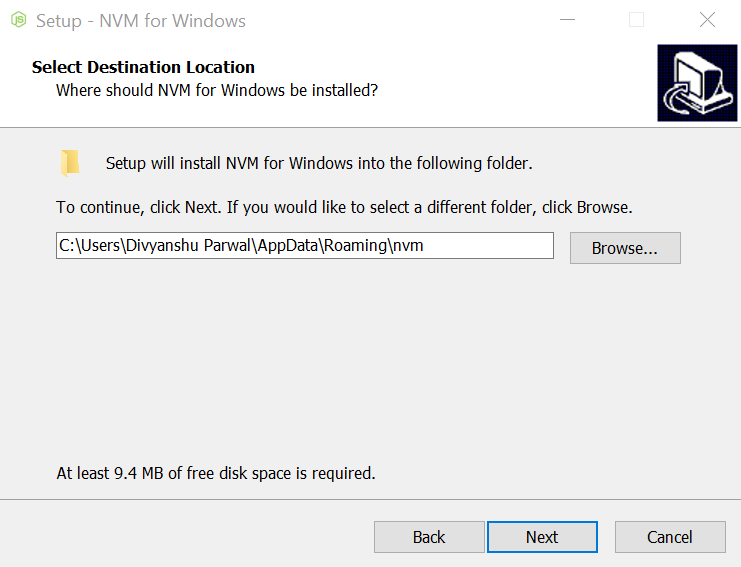
👁 License-agreementNow, select the destination to install and click on Next.
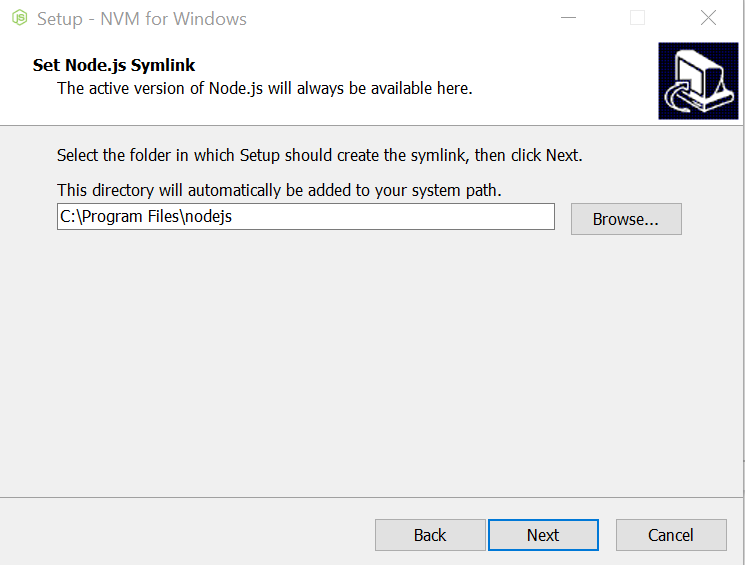
👁 Select-the-destination-locationSelect the folder in which setup should create the Node.js symlink, then click Next.
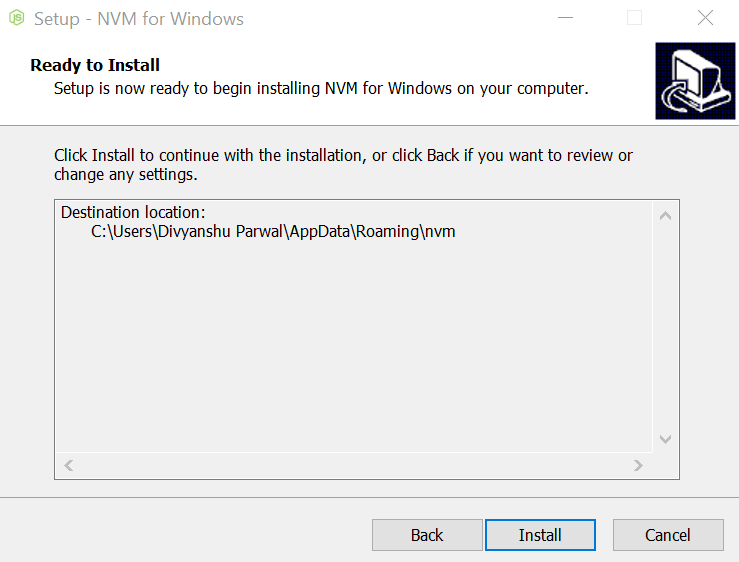
👁 Set-Node.js-symlinkClick on the Install button and once it completes, click on the Finish button.
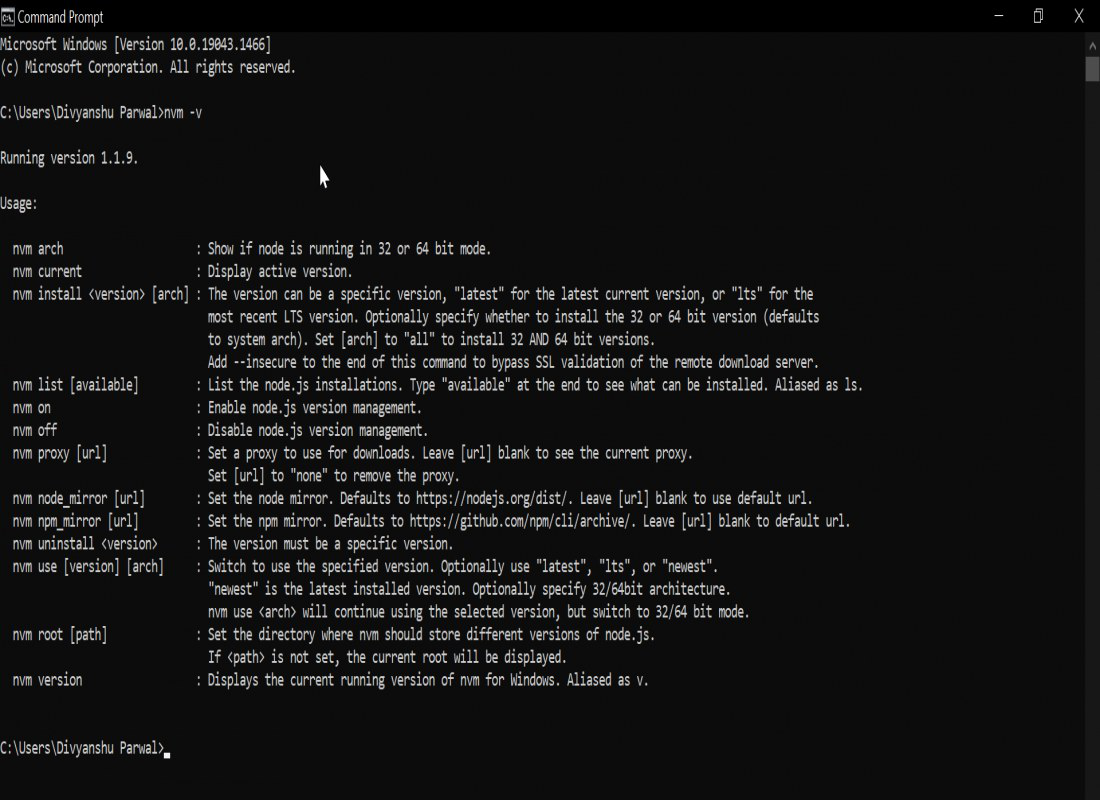
👁 Click-on-the-Install-buttonConfirm NVM is installed successfully by typing the following command in the terminal
nvm -vOutput:
👁 Verifying-the-installation-of-NVMNow, we will Install node.js versions using NVM for Windows OS.
This command will provide the list of all available Node.js versions:
nvm list availableIf you want to install any specific Nodejs version, run this command:
nvm install 21.7.3If you wish to work on any specific Node.js version, use this command:
nvm use 23.7.0Use the following command to set a default Node.js version:
nvm alias default 23.7.0This command will display the current Node.js version that you're using:
node -vThe following command will display the NPM version associated with the current Node.js version.
npm -vBy following this guide, you can easily manage multiple Node.js versions on your Windows computer using NVM. In this guide, we've installation, uninstallation, verify the NPM for Windows. This guide is helpful especially for those who are looking to work on different Node.js versions.