|
VOOZH | about |
|
VOOZH | about |
In Android Discrete SeekBar is just an advancement of progressBar just like the SeekBar, the only difference in SeekBar and discrete SeekBar being that in discrete SeekBar, we can only set the value only to discrete values like 1, 2, 3, and so on.
In this article, we will be discussing how to create a SeekBar in Kotlin.
| XML Attributes | Description |
|---|---|
| android:max | Sets the maximum value |
| android:min | Sets the minimum value |
| android:progress | Specifies the already set progress value |
| android:progressDrawable | Sets drawable of the progress mode. |
| android:thumb | Helps to draw a thumb on seekBar.. |
| android:thumbTint | Set blending mode to apply the thumb tint. |
| android:thumbTintMode | Set tint to apply on tick mark drawable. |
| android:tickMarkTint | Set blending mode used to apply the tick mark tint. |
| android:tickMarkTintMode | Set blending mode used to apply the tick mark tint. |
| android:elevation | Sets base z-depth of the view |
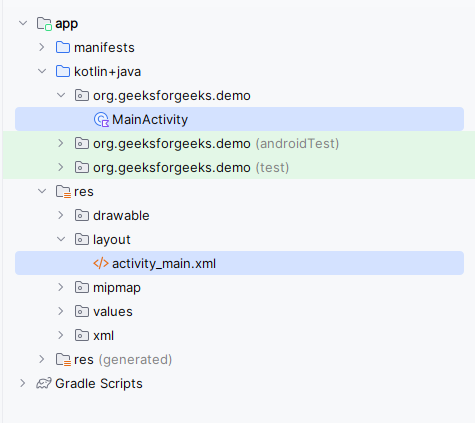
To create a new project in Android Studio please refer to How to Create/Start a New Project in Android Studio. After doing this you will see some directories on the left hand side after your project/gradle is finished loading. It should look like this:
After that, we need to design our layout. For that we need to work with the XML file. Go to app > res > layout and paste the following code.
style=”@style/Widget.AppCompat.SeekBar.Discrete”This style is used to display the seekBar to make it work for discrete values.
activity_main.xml:
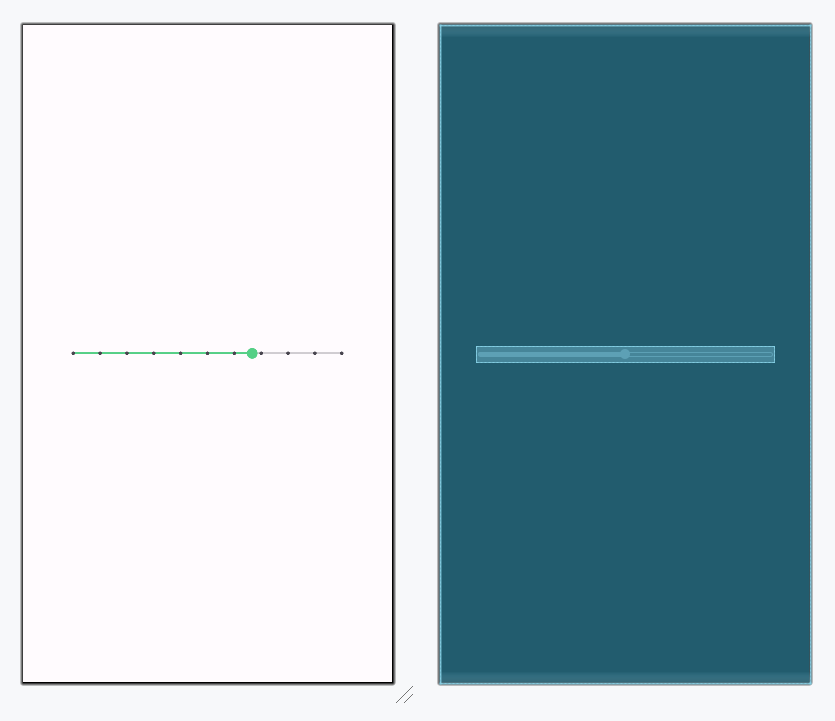
Design UI:
Open app > src > main > java > {package-name} > MainActivity.kt and do the following changes:
MainActivity.kt: