|
VOOZH | about |
|
VOOZH | about |
After successfully installing the Android Studio and opening it for the first time. We need to start with some new projects to start our journey in Android.
In this article, we will learn about How to Create a New Project in Android Studio.
Below are the steps to start and set up a new Android project in Android Studio.
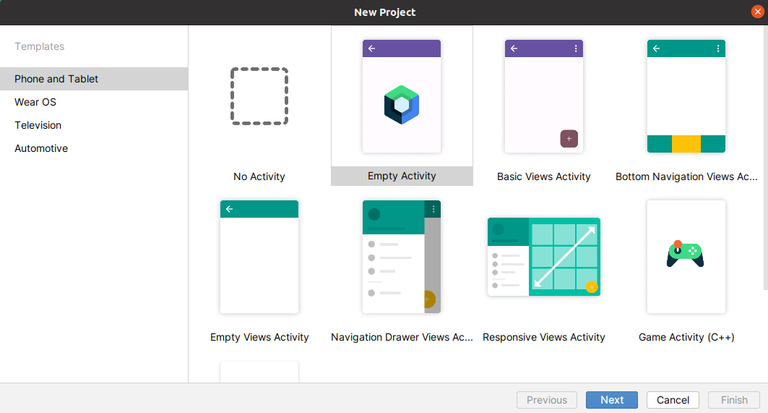
Select Activity to Mobile. Activity in Android refers to a single screen with a user interface.
👁 first_imageNote: For Beginners, “Empty Activity” is a good recommendation.
Then, Name your application in the 'Application name' Text box. By default, the application name appears as “MyApplication” and select the location of the Application you are going to Create.
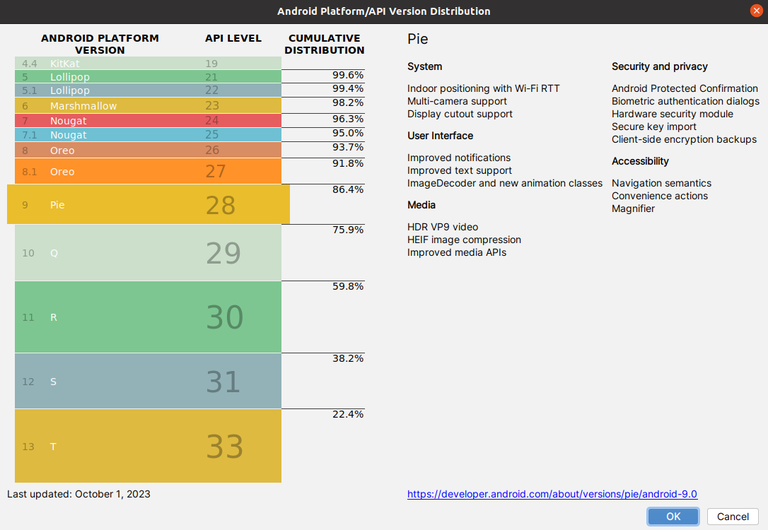
👁 Package_Name_Application_PageThen select the Minimum SDK to select the operating system which must be least version to run your app, here “Nougat” is made Minimum SDK, and phones and tablets with versions lower to this OS will not be able to run your apps. Click on “Next”.
👁 Chart_for_Android_VersionIn this Step we filled out the data which is mentioned below:
And you can now start writing the application code.
Click Here to Learn more about Android to Create Android Application Projects