|
VOOZH | about |
|
VOOZH | about |
Animation is the process of adding a motion effect to any view, image, or text. With the help of an animation, you can add motion or can change the shape of a specific view. Animation in Android is generally used to give your UI a rich look and feel. The animations are basically of three types as follows:
Property Animation is one of the robust frameworks which allows animation almost everything. This is one of the powerful and flexible animations which was introduced in Android 3.0. Property animation can be used to add any animation in the CheckBox, RadioButtons, and widgets other than any view.
View Animation can be used to add animation to a specific view to perform tweened animation on views. Tweened animation calculates animation information such as size, rotation, start point, and endpoint. These animations are slower and less flexible. An example of View animation can be used if we want to expand a specific layout in that place we can use View Animation. The example of View Animation can be seen in Expandable RecyclerView.
Drawable Animation is used if you want to animate one image over another. The simple way to understand is to animate drawable is to load the series of drawable one after another to create an animation. A simple example of drawable animation can be seen in many apps Splash screen on apps logo animation.
Methods | Description |
|---|---|
| startAnimation() | This method will start the animation. |
| clearAnimation() | This method will clear the animation running on a specific view. |
Now we will see the Simple Example to add animations to ImageView. Note that we are going to implement this project using both Java and Kotlin language.
To create a new project in Android Studio please refer to How to Create/Start a New Project in Android Studio.
Select Java/Kotlin as the programming language.
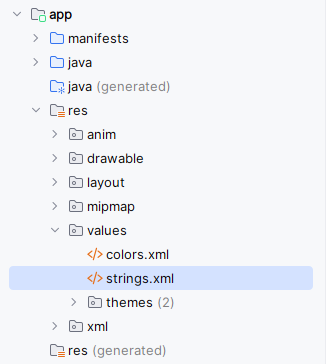
Navigate to app > res > values > strings.xml and the below code into the file. Follow the gate to the file.
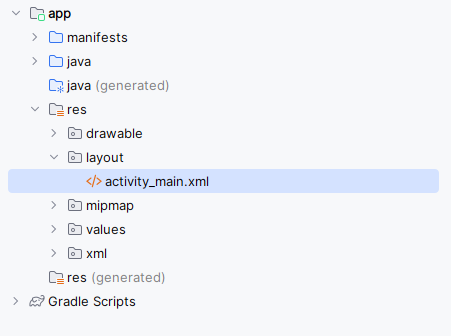
Navigate to the app > res > layout > activity_main.xml. Create ImageView in the activity_main.xml along with buttons that will add animation to the view.
activity_main.xml:
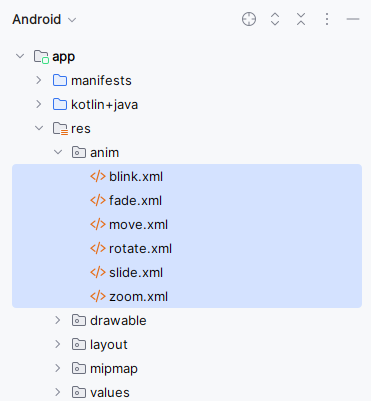
To create new animations we have to create a new directory for storing all our animations. Navigate to the app > res > Right-Click on res > New > Directory > Name your directory and type as "anim". Inside this directory, we will create our animations. For creating a new anim right click on the anim directory> Animation Resource file and give the name to your file as below. Below is the code snippet for 6 different animations.
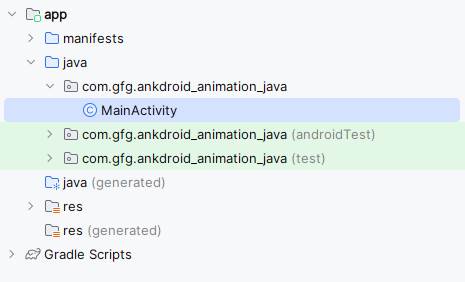
Below is how the file structure should look like:
Add animation to the ImageView by clicking a specific Button. Navigate to the app > java > your apps package name >> MainActivity. Code is provided in both Java and Kotlin.
Note: Drawables and strings can be found in the drawable folder and strings.xml file. Drawables can be found from the app > res > drawable.
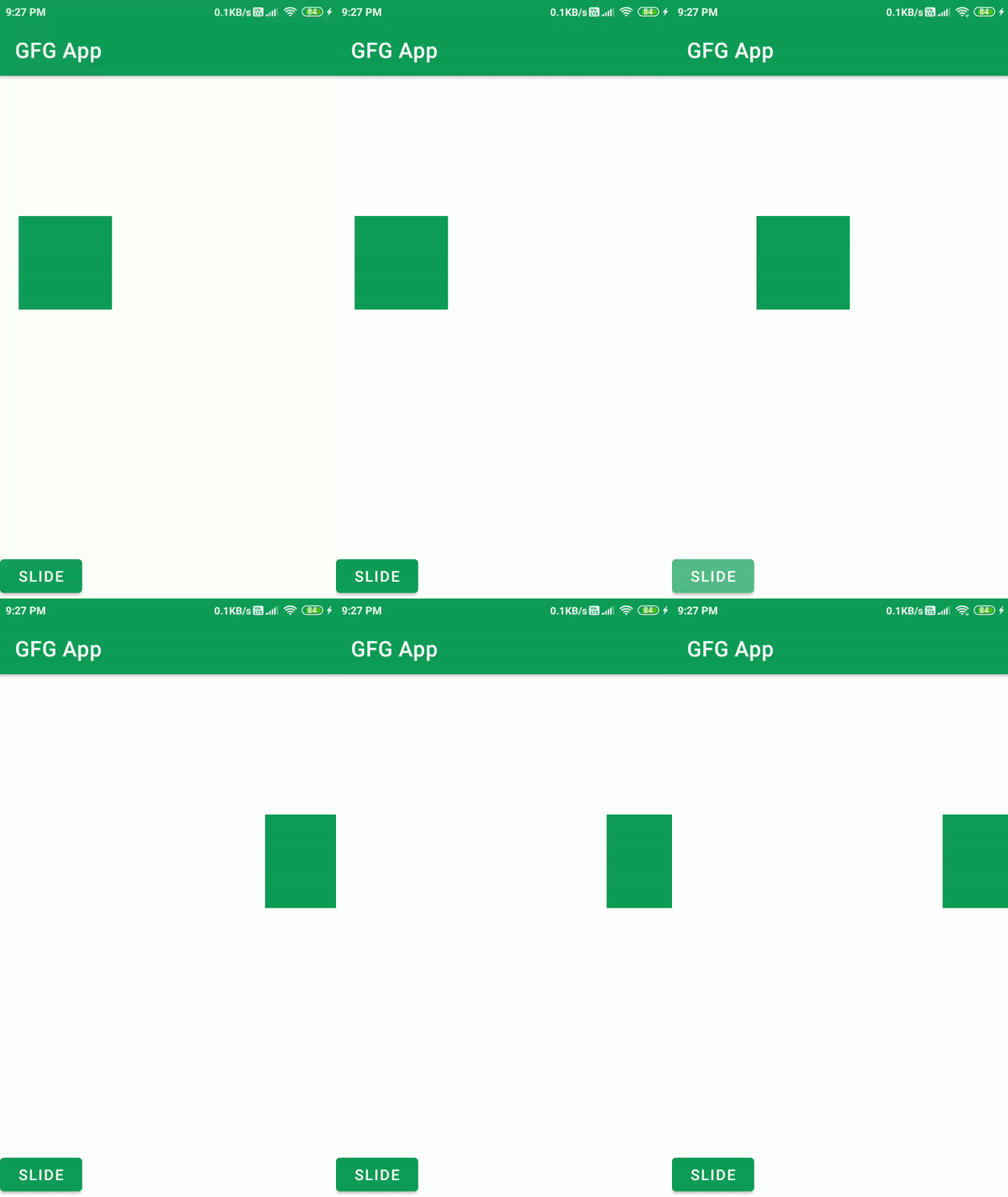
Output:
Note : To access the full android application code check this github repository: Animation in Android Application