|
VOOZH | about |
|
VOOZH | about |
To publish your Android application on the Play Store, you need to pay a particular amount to Google, and only then will Google let you publish your application. Here, the big question is, what if you don't have the money to publish your application? What will you do in that situation? The best solution is to publish your application on the Amazon App Store.
If you're an aspiring app developer but don’t have the $25 to publish on the Google Play Store, the Amazon App Store is a great alternative. It allows you to publish your Android application completely free of cost, making it an ideal platform for beginners, students, and indie developers.
Before you begin uploading your app to the Amazon App Store, make sure you have everything ready. This helps you avoid delays and makes the submission process smooth.
Below is the whole procedure that you can follow can publish your Android application.
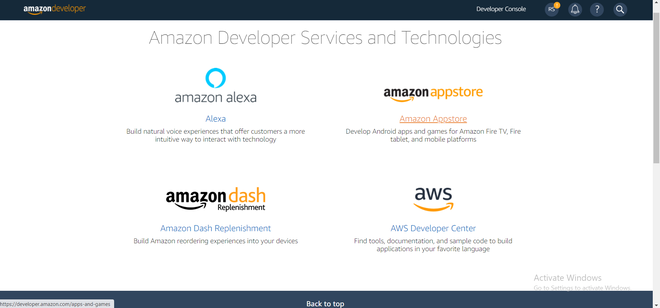
Step 1: Go to the official site. (https://developer.amazon.com/)
Step 2: Click on the Amazon App Store
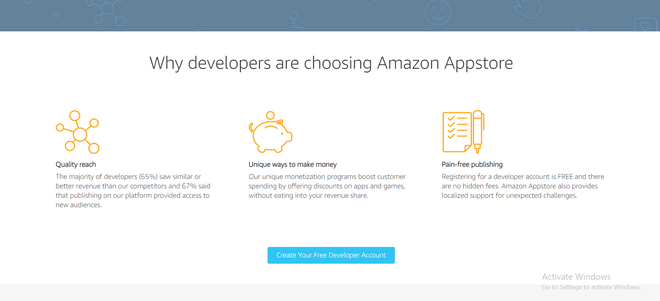
👁 Amazon App StoreStep 3: First, click on Create Your Free Developer's Account button.
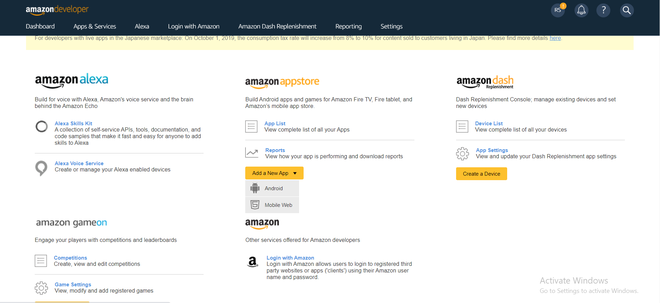
👁 Creating Free Developer's Account on Amazon App StoreStep 4: Click on Add a New App and then choose Android from the menu.
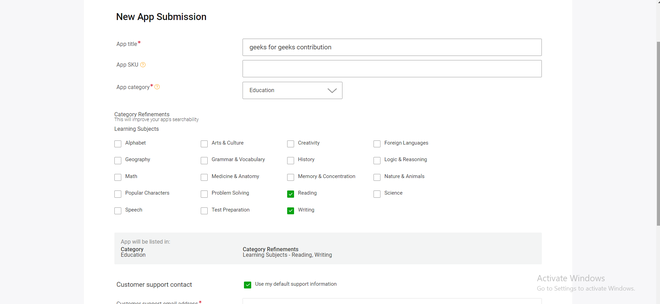
👁 ImageStep 5: The site will take you the New App Submission Page, on this page, you have to write the details as shown in the image below.
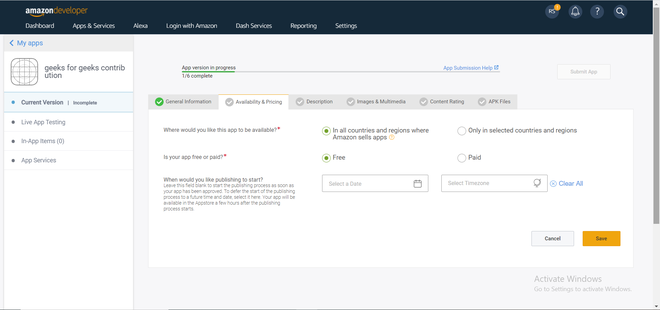
👁 New App Submission PageStep 6: Now go to Availability and Pricing, where you need to fill the following information as shown below.
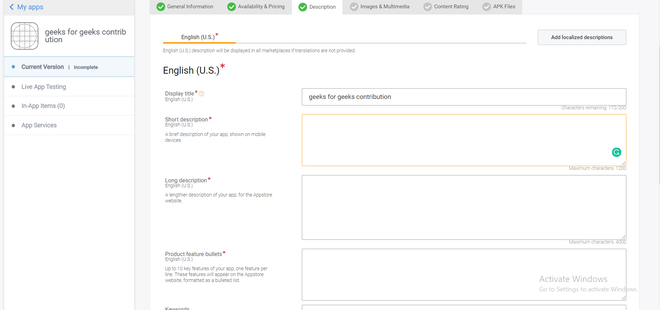
👁 Availability and Pricing - Amazon App StoreStep 7: Now it's time to add a Description of the project by just simply filling the details below.
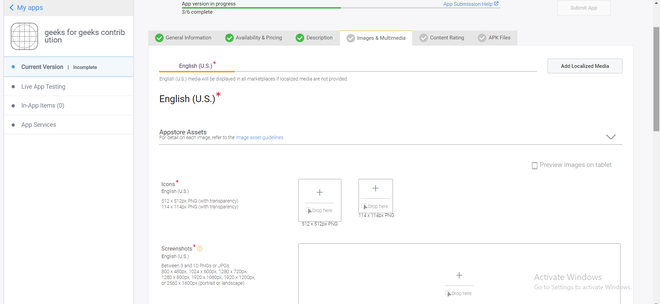
👁 Description of the AppStep 8: Add images and multimedia.
👁 Adding images and multimediaThe details which you should keep in mind are as follows:
Icon Size: 512 x 512px PNG (with transparency)
114 x 114px PNG (with transparency)
Screenshots: You can add minimum of 3 but maximum of 10 screenshots of your application.
Screenshot's Sizes: Between 3 and 10 PNGs or JPGs
800 x 480px, 1024 x 600px, 1280 x 720px,
1280 x 800px, 1920 x 1080px, 1920 x 1200px,
or 2560 x 1600px (portrait or landscape)
Promotional Image Size: 1024 x 500px (landscape only) PNG or JPG
Video Size: Up to 5 MPEG-2, WMV, MOV, FLV, AVI, or H.264 MPEG-4, 720 - 1080px wide (4:3 or 16:9); 1200 kbps or higher
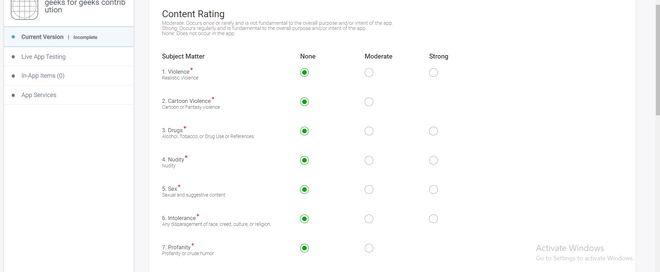
Step 9: Now it's time for Content Ratings, choose the bullets carefully, and make your ratings high.
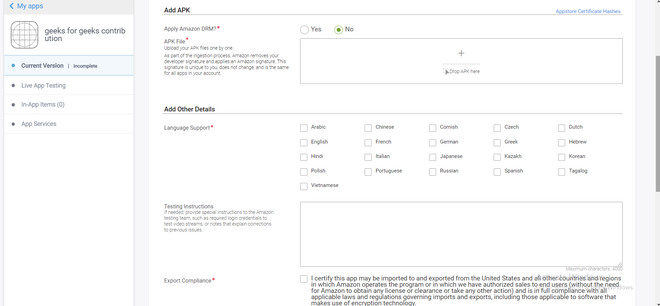
👁 Content Rating - Amazon App StoreStep 10: Add Apk Files. Just drop your APK file of the android application and if there is any issue in the APK, the platform will itself give you an error, and if not then you are all good to publish your app.
👁 Add apk file to Amazon App StoreHence, after completing all the above-mentioned process your application for app submission will be reviewed by Amazon and if they found the content of the app interesting and the working of the app excellent without any bugs then you can see your application live on amazon after almost 24 hours of the publishing time.
Must Read
If you are a beginner developer or simply an individual interested in launching an Android app for free, the Amazon App Store is an intelligent and straightforward choice. It is free, inexpensive for beginners, and gives you access to an ever-growing audience, particularly on Amazon devices such as Fire tablets and Fire TV. With a minor submission process and rapid approval time, your app can be up and ready for users in as short as a day. So, gather your app assets, follow the steps, and start sharing your app with the world — no budget required.