VOOZH about

URL: https://www.geeksforgeeks.org/android/android-how-to-display-analog-clock-and-digital-clock/

⇱ How to display Analog clock and Digital clock in Android - GeeksforGeeks


  • Courses
  • Tutorials
  • Interview Prep

How to display Analog clock and Digital clock in Android

Last Updated : 11 Jul, 2025

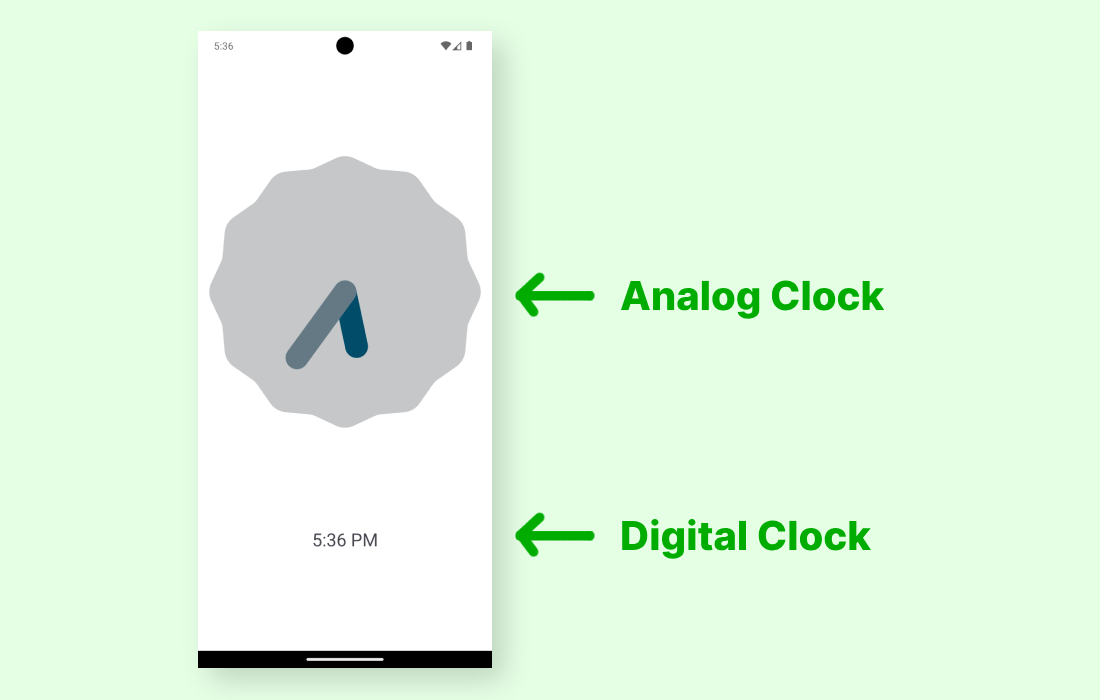
Analog and digital clocks are used for display the time in android application.

  1. Analog clock: Analog clock is a subclass of View class. It represents a circular clock. Around the circle, numbers 1 to 12 appear to represent the hour and two hands are used to show instant of the time- shorter one for the hour and longer is for minutes.
  2. Digital clock: Digital clock is subclass of TextView Class and uses numbers to display the time in "HH:MM" format.

Pre-requisites:

In this Article, a simple android application is built to display the Analog clock and Digital clock.

👁 analog-digital-image


How to create a Android Analog clock and Digital clock?

This example will help to develop an Android App that displays an Analog clock and a Digital clock according to the example shown above:

Step by Step Implementation

Step 1: Create a new project in Android Studio

Firstly create a new Android Application. This will create an XML file “activity_main.xml” and a File “MainActivity”. Please refer the pre-requisites to learn more about this step.

Step2: Working with activity_main.xml

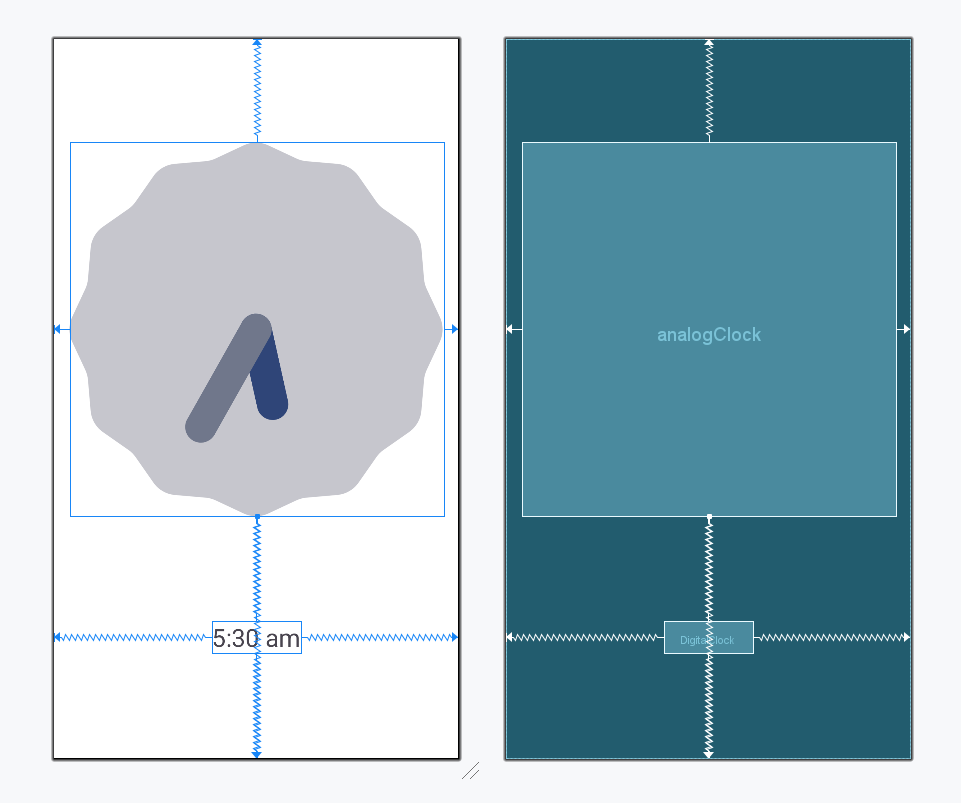
Open “activity_main.xml” file and add following widgets in a Constraint Layout:

  • An Analog clock
  • A Digital clock

This will make the UI of the Application. There is no need for assignment of IDs as these widgets will display the time by themselves.

activity_main.xml:

Design UI:

👁 design-ui-analog-dgital

Step3: Working with MainActivity File

Leave the MainActivity File code as it is, as shown below.

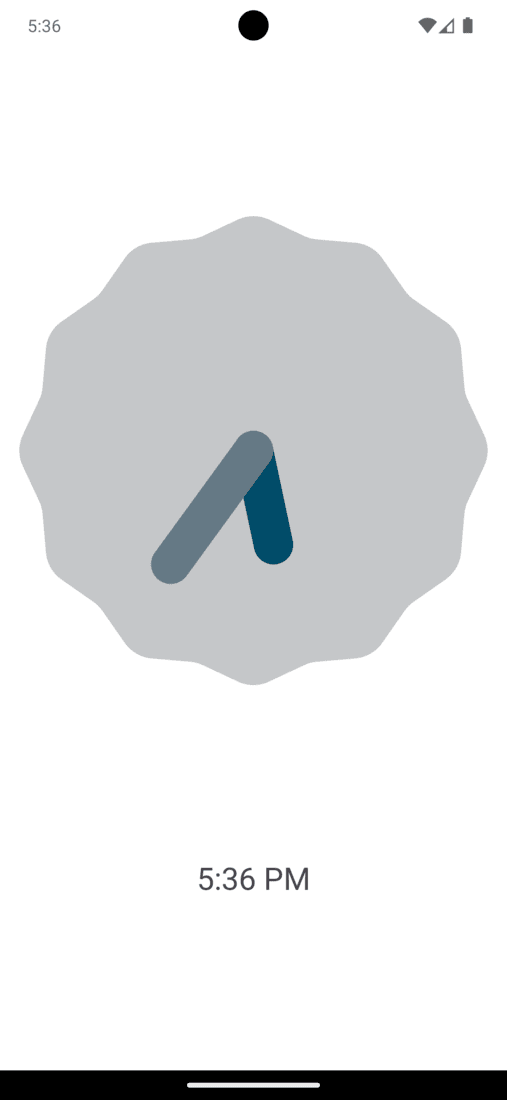
Output:

👁 analog-digital
Comment

Explore