|
VOOZH | about |
|
VOOZH | about |
Picasso is open source and one of the widely used image download libraries in Android. It is created and maintained by Square. It is among the powerful image download and caching library for Android. Picasso simplifies the process of loading images from external URLs and displays them on your application. For example, downloading an image from the server is one of the most common tasks in any application. And it needs quite a larger amount of code to achieve this via android networking API. By using Picasso, you can achieve this with a few lines of code.
Important: The Picasso library is currently depreciated and is no longer maintained.
Create an empty activity Android Studio project. Refer to Android | How to Create/Start a New Project in Android Studio? to know how to create an empty activity Android Studio project.
Note that select Java/Kotlin as the programming language.
For using Picasso in the android project, we have to add a dependency in the app-level gradle file. So, For adding dependency open app/build.gradle file in the app folder in your Android project and add the following lines inside it. Add these lines inside dependencies{}.
implementation ("com.squareup.picasso:picasso:2.8")Now click on the "Sync Now" button. So that the Android Studio downloads the required dependency files. If you get any type of error then you may check the error on stackoverflow.
Now add Internet Permission inside the AndroidManifest.xml file. Open the manifest.xml file and add the following line.
<users-permission android:name="android.permission.INTERNET"/>Open the layout file for the activity_main.xml file. We need to add an ImageView to the application's main layout.
Now Navigate to the MainActivity file and add the following block of code. In the first line, we are getting the ImageView instance from the layout. And then load the image from the remote URL mentioned in the Java/Kotlin code using the Picasso library.
Note: Make sure the mobile device or Android Emulator has the network connectivity to load the image.
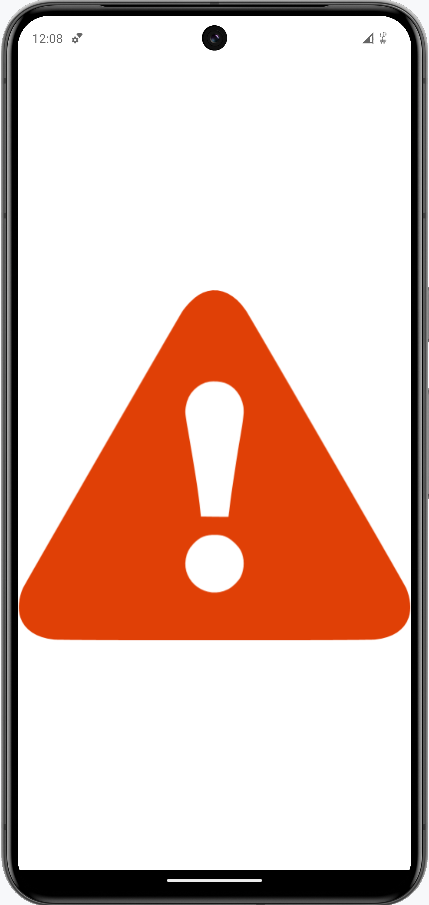
For any real-time application, we must think of all possible cases. In the above code, we just download the image from the server link. But how to display that image in the app.How to resize it and what if the image loading failed? We need to have another image showing an error message that image loading failed. This all matters for an app developer. The following code changes are made in the MainActivity file.
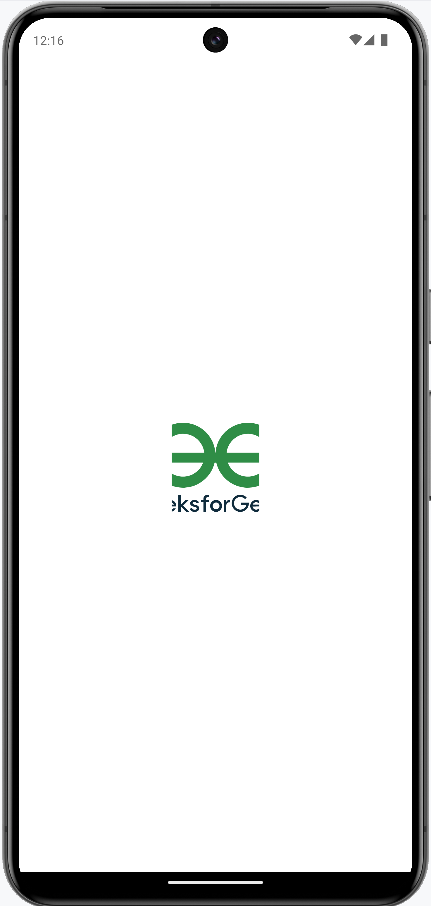
Here we are using Picasso to fetch a remote image and resize it before displaying it in an ImageView.
If your application relies on remote assets, then it's important to add a fallback in the form of a placeholder image. The placeholder image is shown immediately and replaced by the remote image when Picasso has finished fetching it.
Note: To see this result uninstall the previously loaded application and then install the fresh version of the application from the Android Studio.
If you are not sure about the size of the image loaded from the remote server that what will be the size of the image. So in this code snippet image will make the image center cropped.
If an image or set of images aren't loading, make sure to check the Android monitor log in Android Studio. There's a good chance you might see a java.lang.OutOfMemoryError "Failed to allocate a [...] byte allocation with [...] free bytes" or an Out of memory on a 51121168-byte allocation. This is quite common and means that you are loading one or more large images that have not been properly resized.
First, you have to find which image(s) being loaded are likely causing this error. For any given Picasso call, we can fix this by one or more of the following approaches: