|
VOOZH | about |
|
VOOZH | about |
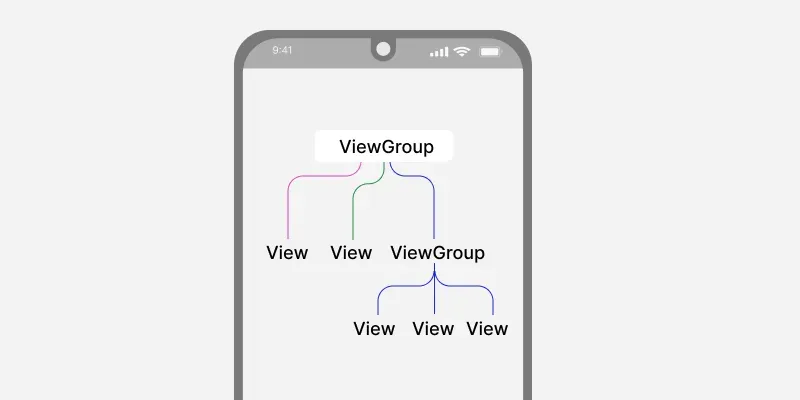
Layouts in Android define the user interface and hold UI controls or widgets that appear on the screen of an application. Every Android application consists of View and ViewGroup elements. Since an application contains multiple activities—each representing a separate screen—every activity has multiple UI components, which are instances of View and ViewGroup. These components are structured using a hierarchy of View and ViewGroup objects.
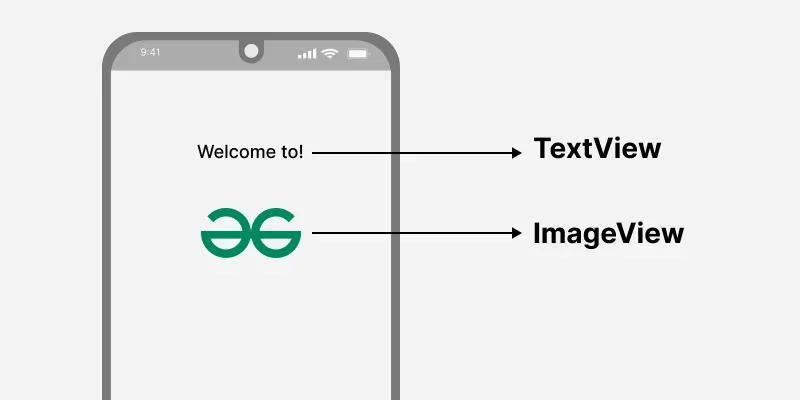
A View is defined as an interactive U which is used to create interactive UI components such as TextView, ImageView, EditText, RadioButton, etc., and is responsible for event handling and drawing. They are Generally Called Widgets.
A ViewGroup act as a base class for layouts and layouts parameters that hold other Views or ViewGroups and to define the layout properties. They are generally Called layouts.
Refer to this article to know the difference between View and Viewgroup.
The Android framework will allow us to use UI elements or widgets in two ways:
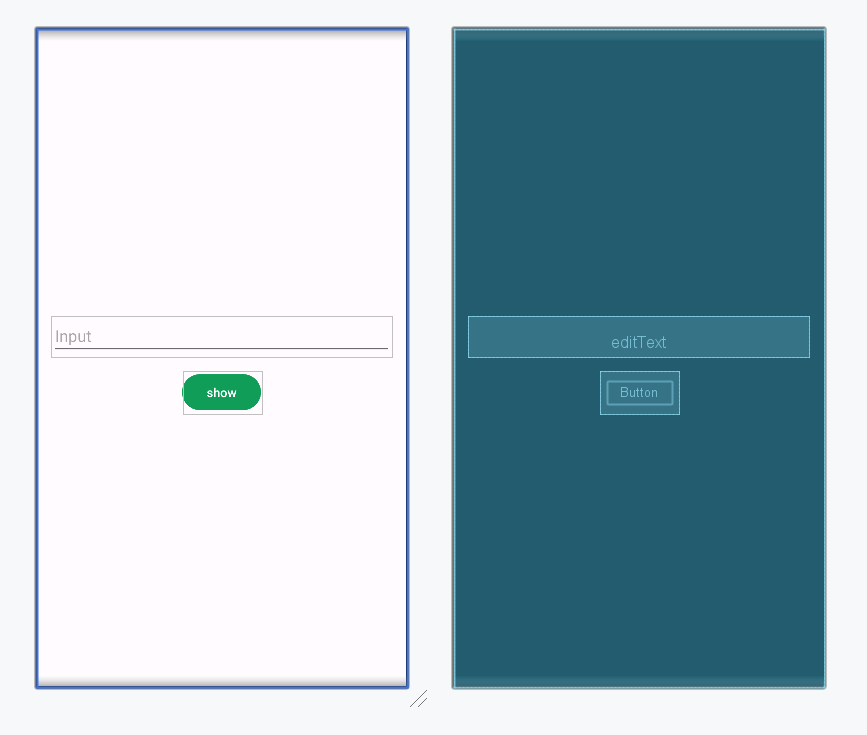
Here, we can create a layout similar to web pages. The XML layout file contains at least one root element in which additional layout elements or widgets can be added to build a View hierarchy. Following is an example.
activity_main.xml:
When we have created the layout, we need to load the XML layout resource from our activity onCreate() callback method and access the UI element from the XML using findViewById.
override fun onCreate(savedInstanceState: Bundle?) {
 ...
 // finding the button
 val button= findViewById<Button>(R.id.button)

 // finding the edit text
 val editText = findViewById<EditText>(R.id.editText)
 ...
}
Here, we can observe the above code and finds out that we are calling our layout using the setContentView method in the form of R.layout.activity_main. Generally, during the launch of our activity, the onCreate() callback method will be called by the android framework to get the required layout for an activity.
We can create or instantiate UI elements or widgets during runtime by using the custom View and ViewGroup objects programmatically in the Kotlin file. Below is the example of creating a layout using LinearLayout to hold an EditText and a Button in an activity programmatically.
MainActivity.kt:
XML attributes | Description |
|---|---|
| android:id | Used to specify the id of the view. |
| android:layout_width | Used to declare the width of View and ViewGroup elements in the layout. |
| android:layout_height | Used to declare the height of View and ViewGroup elements in the layout. |
| android:layout_marginLeft | Used to declare the extra space used on the left side of View and ViewGroup elements. |
| android:layout_marginRight | Used to declare the extra space used on the right side of View and ViewGroup elements. |
| android:layout_marginTop | Used to declare the extra space used in the top side of View and ViewGroup elements. |
| android:layout_marginBottom | Used to declare the extra space used in the bottom side of View and ViewGroup elements. |
| android:layout_gravity | Used to define how child Views are positioned in the layout. |