|
VOOZH | about |
|
VOOZH | about |
One of the most Interesting Data Storage options Android provides its users is Shared Preferences. Shared Preferences is the way in which one can store and retrieve small amounts of primitive data as key/value pairs to a file on the device storage such as String, int, float, Boolean that make up your preferences in an XML file inside the app on the device storage. Shared Preferences can be thought of as a dictionary or a key/value pair. For example, you might have a key being “username” and for the value, you might store the user’s username. And then you could retrieve that by its key (here username). You can have a simple shared preference API that you can use to store preferences and pull them back as and when needed. The shared Preferences class provides APIs for reading, writing, and managing this data. A sample GIF is given below to get an idea about what we are going to do in this article.
Shared Preferences are suitable for different situations. For example, when the user’s settings need to be saved or to store data that can be used in different activities within the app. As you know, onPause() will always be called before your activity is placed in the background or destroyed, So for the data to be saved persistently, it's preferred to save it in onPause(), which could be restored in onCreate() of the activity. The data stored using shared preferences are kept private within the scope of the application. However, shared preferences are different from that activity’s instance state.
Shared Preferences | Saved Instance State |
|---|---|
| Persist Data across user sessions, even if the app is killed and restarted, or the device is rebooted | Preserves state data across activity instances in the same user session. |
| Data that should be remembered across sessions, such as the user's preferred settings or game score. | Data that should not be remembered across sessions, such as the currently selected tab or current state of activity. |
| A common use is to store user preferences | A common use is to recreate the state after the device has been rotated |
The first thing we need to do is to create one shared preferences file per app. So name it with the package name of your app- unique and easy to associate with the app. When you want to get the values, call the getSharedPreferences() method. Shared Preferences provide modes of storing the data (private mode and public mode). It is for backward compatibility- use only MODE_PRIVATE to be secure.
public abstract SharedPreferences getSharedPreferences (String name, int mode)
This method takes two arguments, the first being the name of the SharedPreference(SP) file and the other is the context mode that we want to store our file in.
- MODE_PUBLIC will make the file public which could be accessible by other applications on the device
- MODE_PRIVATE keeps the files private and secures the user's data.
- MODE_APPEND is used while reading the data from the SP file.
val sharedPreferences = getSharedPreferences("UserPreferences", MODE_PRIVATE)
val editor = sharedPreferences.edit()

editor.putString("user_name", nameEditText.text.toString())

val ageInput = ageEditText.text.toString()
val userAge = if (ageInput.isEmpty()) 0 else ageInput.toInt()
editor.putInt("user_age", userAge)
editor.apply()val sharedPreferences = getSharedPreferences("UserPreferences", MODE_PRIVATE)
val savedName = sharedPreferences.getString("user_name", "")
val savedAge = sharedPreferences.getInt("user_age", 0)
nameEditText.setText(savedName)
ageEditText.setText(if (savedAge > 0) savedAge.toString() else "")If you don’t know how to create a new project in Android Studio then you can refer to How to Create/Start a New Project in Android Studio?
The code for that has been given in both Java and Kotlin Programming Language for Android.
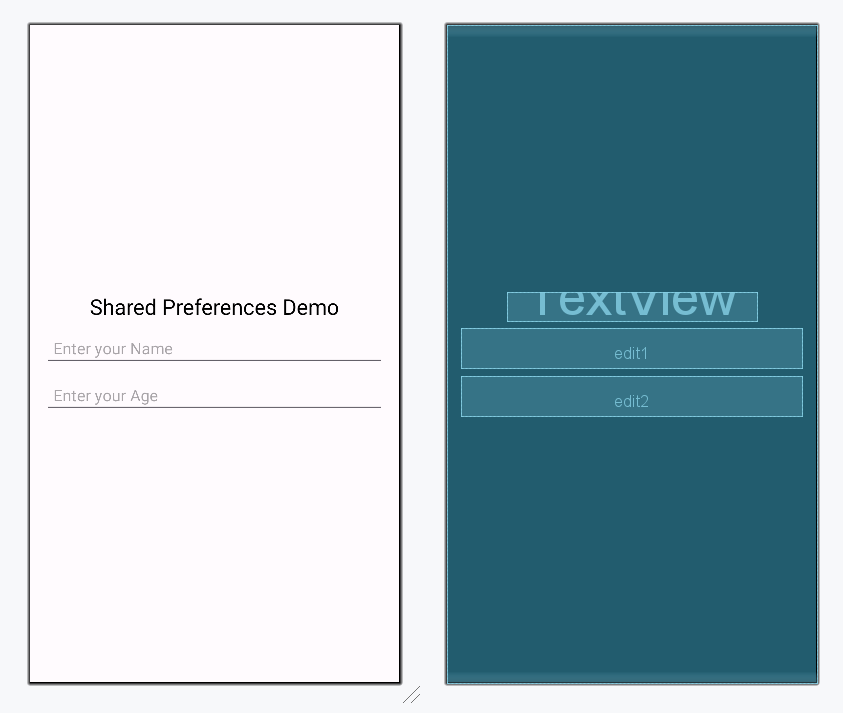
Below is the small demo for Shared Preferences. In this particular demo, there are two EditTexts, which save and retain the data entered earlier in them. This type of feature can be seen in applications with forms. Using Shared Preferences, the user will not have to fill in details again and again. Invoke the following code inside the activity_main.xml file to implement the UI.
activity_main.xml:
This file will be used to handle the two of the EditText to save the data entered by the user inside the SharedPreferences. Below is the code for the MainActivity file. Comments are added inside the code to understand the code in more detail.
MainActivity file: