|
VOOZH | about |
|
VOOZH | about |
In Android applications, Toolbar is a kind of ViewGroup that can be placed in the XML layouts of an activity. It was introduced by the Google Android team during the release of Android Lollipop(API 21). The Toolbar is basically the advanced successor of the ActionBar. It is much more flexible and customizable in terms of appearance and functionality. Unlike ActionBar, its position is not hardcoded i.e., not at the top of an activity. Developers can place it anywhere in the activity according to the need just like any other View in android. Toolbar use material design theme features of Android and thus it provides backward compatibility up to API 7(Android 2.1). One can use the Toolbar in the following two ways:
Features supported by the Toolbar are much more focused and customizable than the ActionBar. Following are the components that can be added to make a user-appealing Toolbar:
Working with Toolbar is very similar to any operate a View. One can easily assign constraints, change height and width, choose a background color, and much more. To carry out these same tasks in ActionBar, extra lines of code is needed to be written. Here is an example to use the Toolbar as an ActionBar. Following is the step by step method which covers the complete procedure.
Note: Following steps are performed on Android Studio Ladybug 2024.2.2
In order to use Toolbar as an ActionBar, one has to include the following dependencies in the build.gradle.kts file of app module. These dependencies might be already present in the file but it always good to check it once.
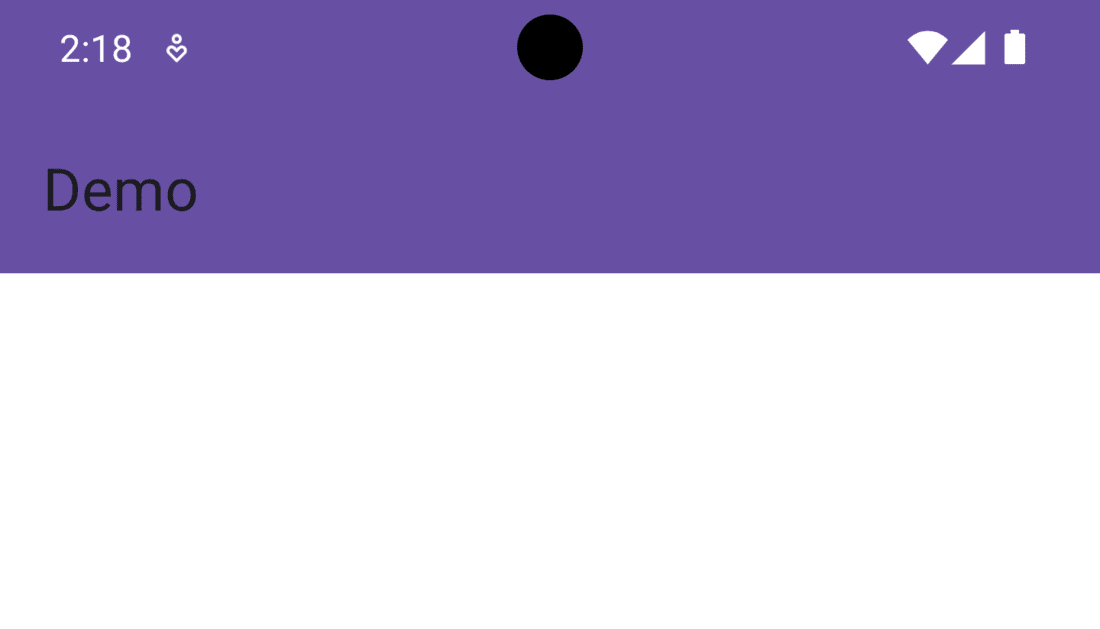
implementation ("com.google.android.material:material:1.12.0")Search the Toolbar View from the Palette menu present at the top left portion of the Design window. Drag and place it as a child of ConstraintLayout. To make its appearance similar to ActionBar, add the AppBarLayout in the activity_main.xml file in such a manner that the Toolbar becomes its child. Add the top, left, and right constraint of the AppBarLayout. By running the application at this point in time, one can observe both Toolbar and ActionBar(as it is the default setting) on top of the activity. Below is the code of the activty_main.xml file that will produce the discussed output.
activity_main.xml:
The easiest way to remove the Action Bar from the entire app is to change the default code of the themes.xml file. The theme of the parent/base application must be changed to Theme.Material3.DayNight.NoActionBar. Below is the code that will make the desired changes.
The Toolbar will not display the application title unless it is declared as an ActionBar. To make the desired change, the ID of the Toolbar must be passed as an argument in the setSupportActionBar() method written inside the MainActivity file. Below is the code to do the same.
MainActivity File:
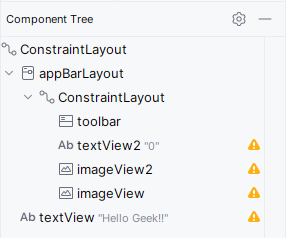
Each and every component/element that will be displayed on the Toolbar is customizable. The text of the application title, its color, background color of the Toolbar can be easily modified through XML attributes. While placing various kinds of Views in the Toolbar such as ImageView, Vectors, TextView, etc. one must have the capability to control its position and dimensions. In order to do so, ConstraintLayout must be added under the AppBarLayout. With this, the hierarchy of Component Tree becomes parent ConstraintLayout of activity, after that AppBarLayout, then again ConstraintLayout as its child and finally the Toolbar view.
Further, a TextView and two ImageView are added in the same hierarchy as that of Toolbar. For the content of ImageView, vectors are used in this example. Right-click on the res folder and select new then Vector Asset. Click on the icon written beside Clip Art and select the desired image. Don't forget to give a unique name to that vector file as it will be easy to remember and to be used in code. Click on Next and then Finish.
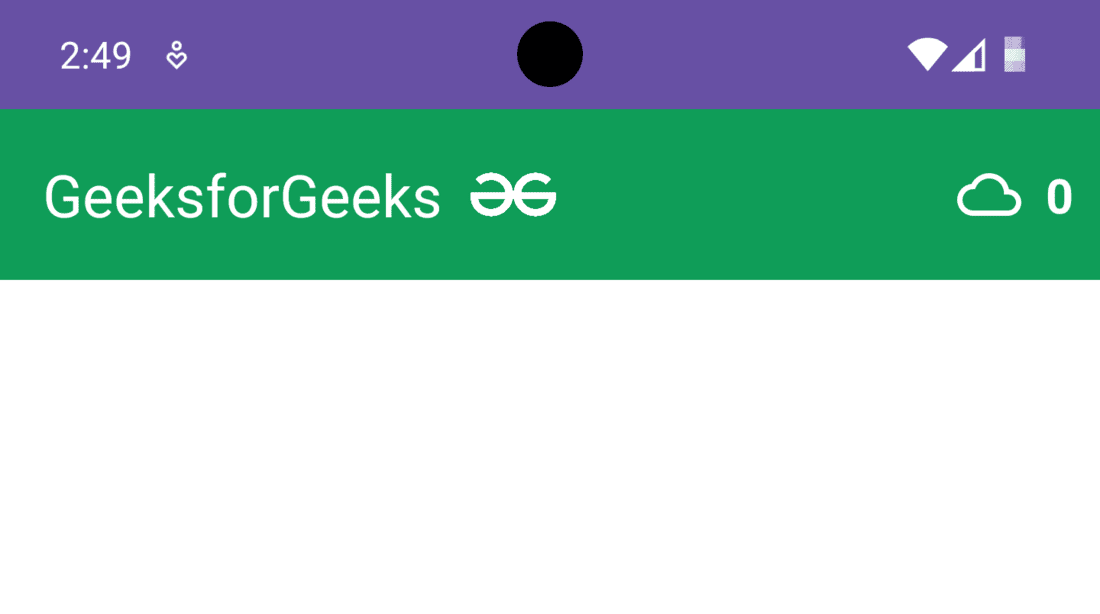
👁 ImageThe code of the activity_main.xml file given below will add two ImageView, one TextView, custom title, and background color in the Toolbar.
As mentioned earlier, the developers add a logo/icon to give a unique identity to the application. While using Toolbar as an ActionBar, the logo of the application is designed exactly the same as in the ActionBar. One has to add the required code in the MainActivity file in order to add the logo in the Toolbar. Moreover, the Views added in the Toolbar can be programmed to perform some operations in the same manner as they are present in the activity. In this example, the TextView added in the Toolbar will increment its value by one on every click. Below the complete code to carry out this task.
MainActivity File: