|
VOOZH | about |
|
VOOZH | about |
Firebase is a platform that helps developers build mobile and web apps. It provides useful tools like databases, cloud storage, and hosting. One of its main features is email and password login, so developers don’t have to create their own system for user authentication. This makes app development easier, faster, and more secure.
Refer to Adding firebase to android app and follow the steps to connect firebase to your project.
Go to Firebase console and navigate to your project, and under Project Overview, scroll down.
Select Authentication and Click on Get Started on the next screen.
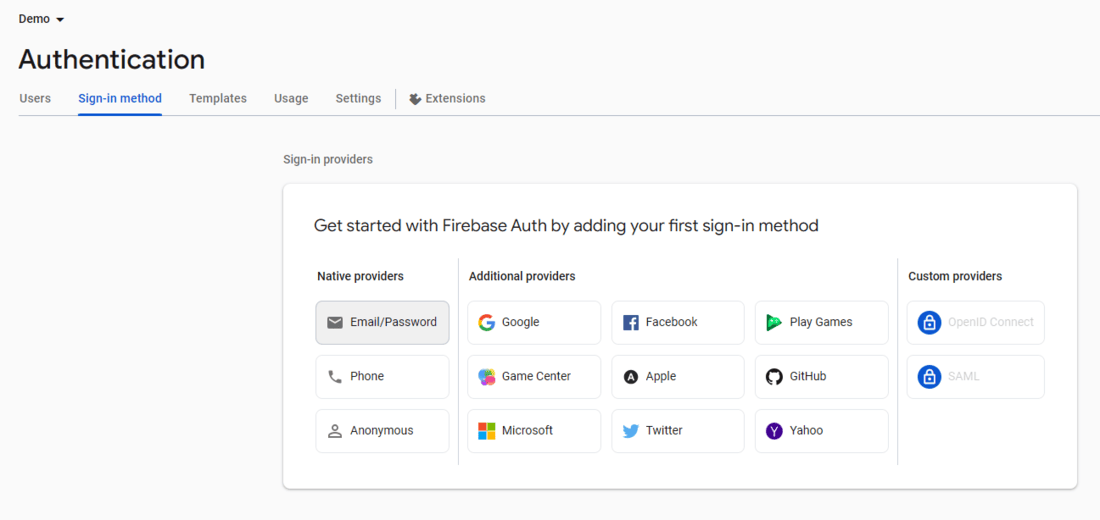
Select Email/Password under Sign-in method > Native providers.
Enable Email/Password sign-in and click on Save.
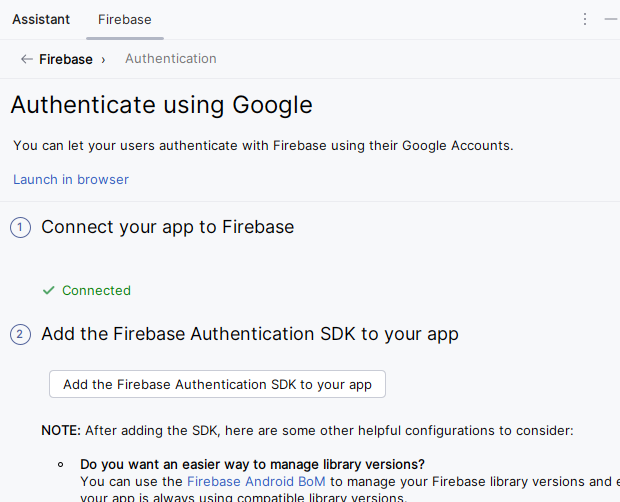
Go to Tools > Firebase which should open the Firebase Assistant tab. Then Select Authentication > Authentication using Google. On the next screen, select Add the Firebase Authentication SDK to your app. Select Accept Changes on the dialog box that appears next. This will add the necessary dependencies of Firebase Authentication to your app.
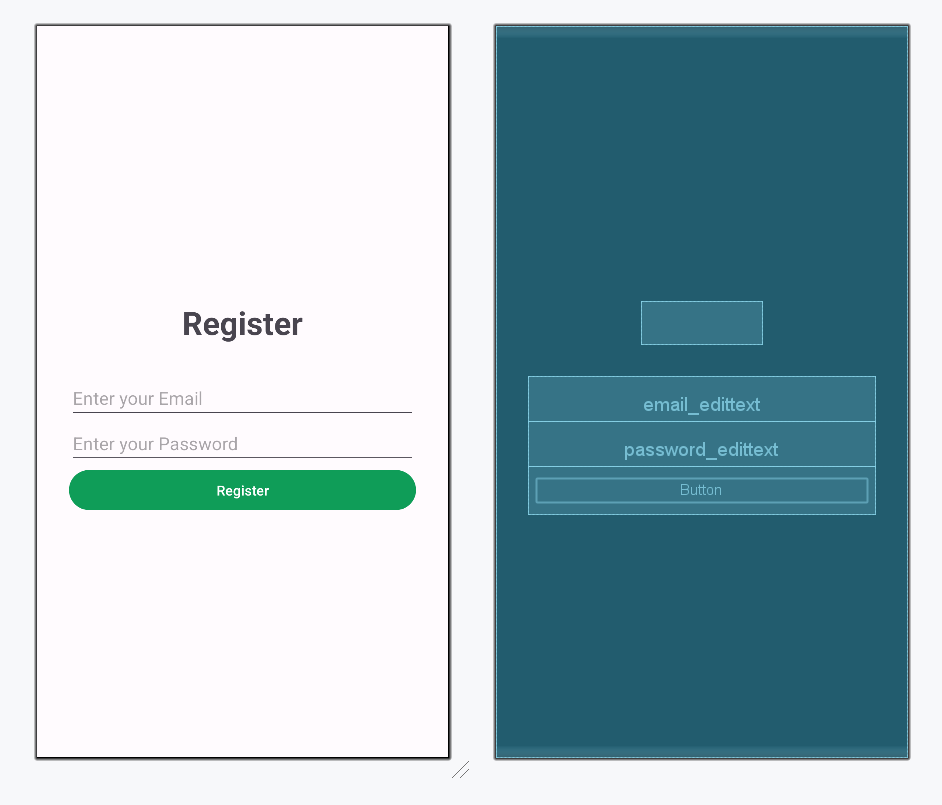
Create a new activity by right clicking on app folder, then New > Activity> Empty views activity. Then add the following code to the RegisterActivity file in Java or Koltin and the xml code to the activity_register.xml file.
Design UI:
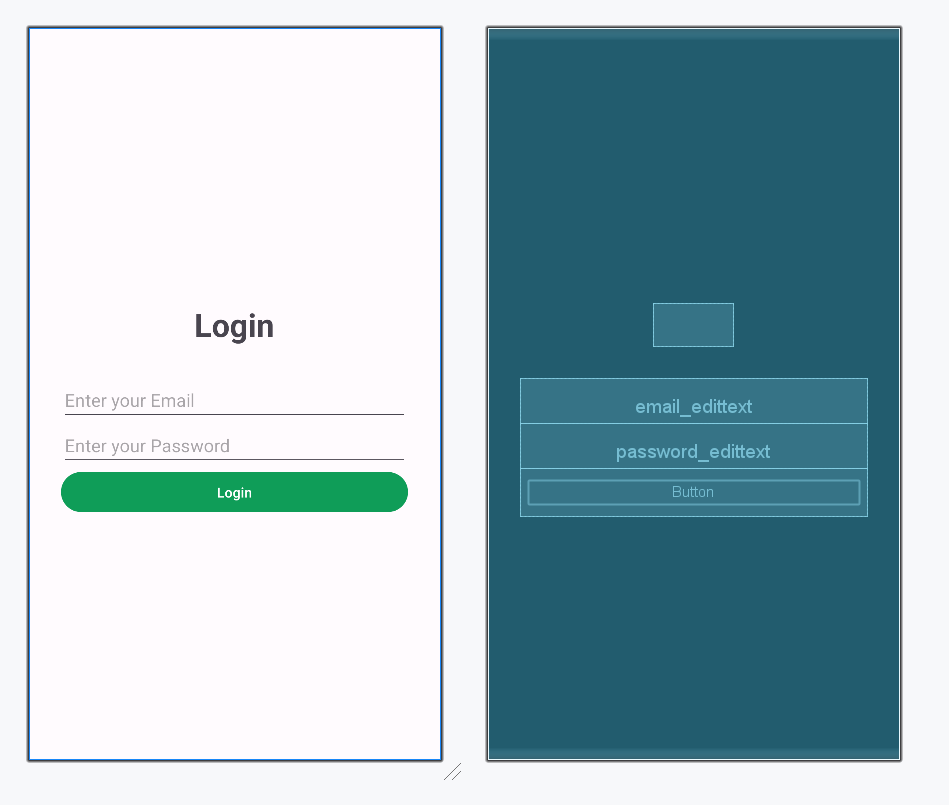
Create a new activity by right clicking on app folder, then New > Activity> Empty views activity. Then add the following code to the LoginActivity file in Java or Koltin and the xml code to the activity_login.xml file.
Design UI:
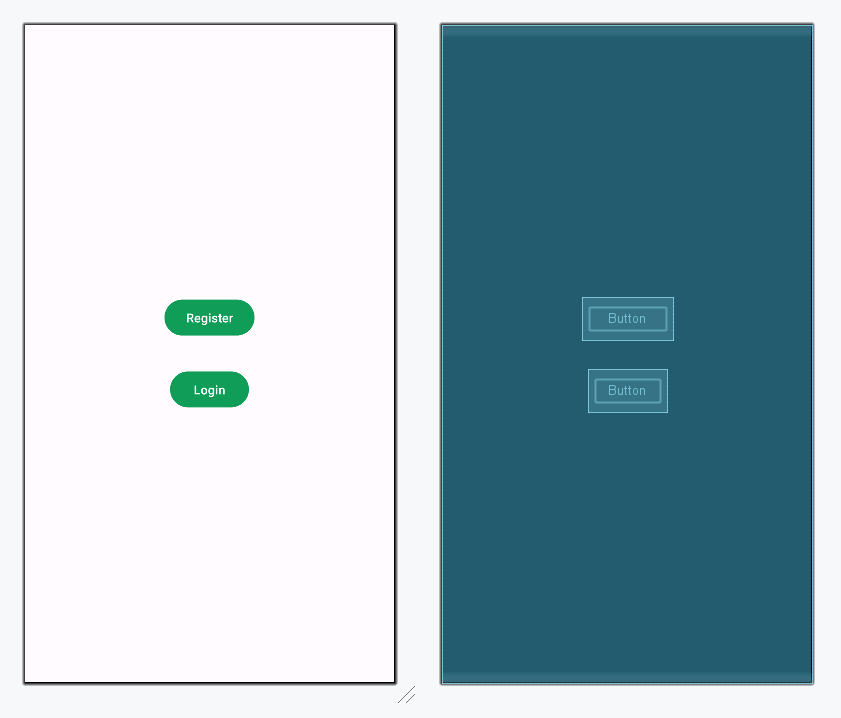
Navigate to app > java > package name > MainActivity and app > res > layout > activity_main.xml. Then add the following code to the MainActivity file in Java or Koltin and the xml code to the activity_main.xml file.
Note: If you face any unknown compilation error while running the app, consider downgrading the Firebase auth dependency in build.gradle.kts from 23.2.0 to 21.0.1
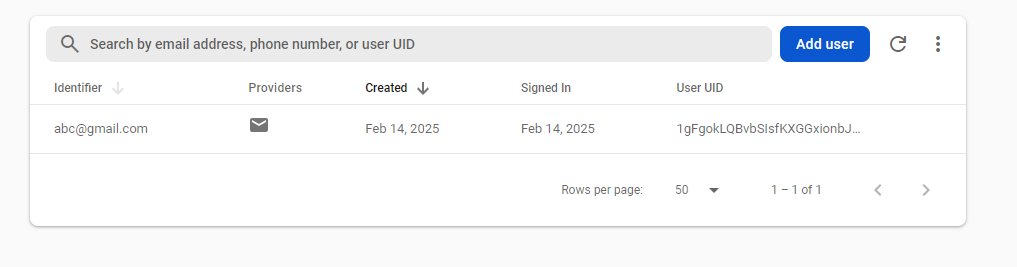
A new user will be added to Users section in Authentication.