|
VOOZH | about |
|
VOOZH | about |
The Java Development Kit (JDK) is an essential tool for building and running Java applications. It provides everything a developer needs to compile, execute, and manage Java programs efficiently. Whether you are just starting or working on advanced projects, JDK is the foundation of Java development.
The system will execute the code using a set of Libraries and Compilers. JDK, JRE and JVM should not be confused with one another.
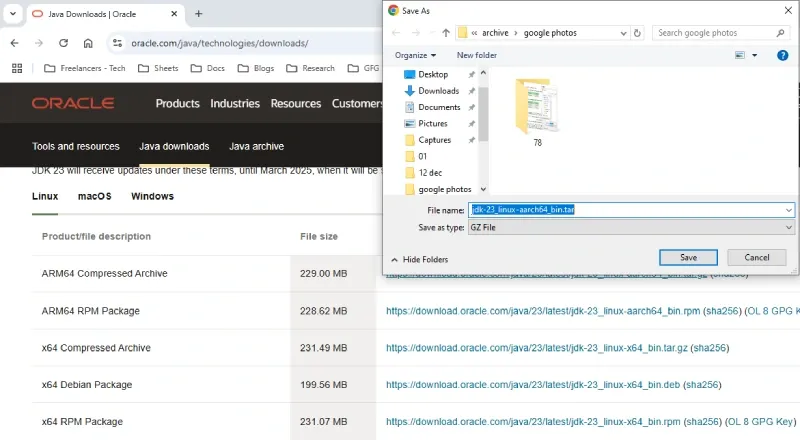
We need to download the JDK first, find the steps below to get started:
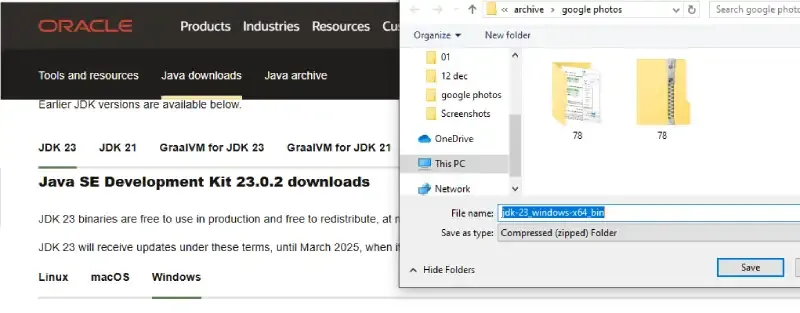
Go to the Official JDK website to download the file.
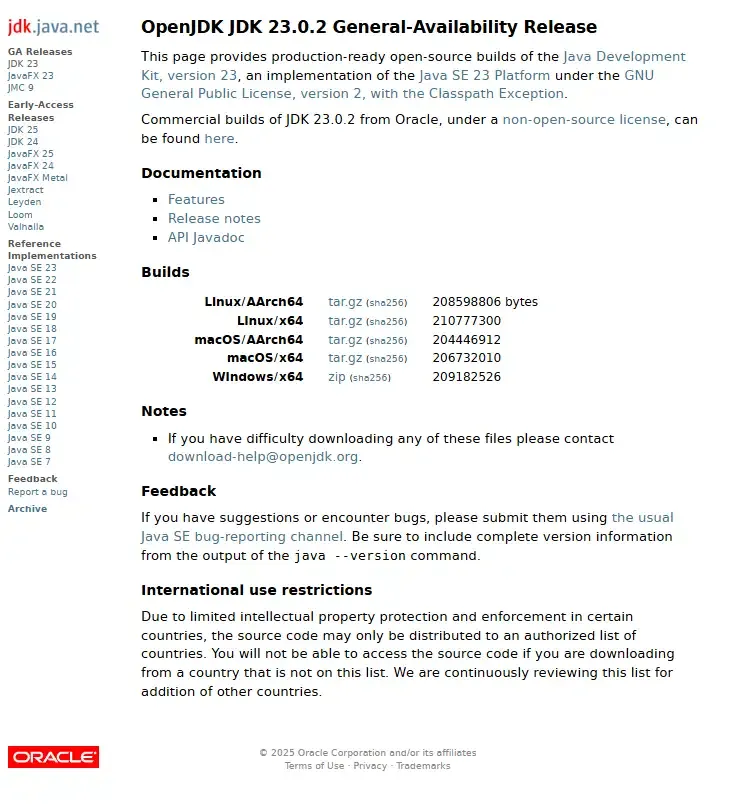
Since JDK is an open-source, so you can get it from OpenJDK in a few clicks.
As of 2025, the latest stable versions are JDK 23 (SE) and JDK 21 (LTS). Select the compatible version as per your operating system (Windows, Mac or Linux)
Go through all the License and Agreement before downloading (from Oracle website), it will not ask if you'll download it from OpenJDK website.
Follow the below steps to install JDK on Windows environment i.e.Windows 7, Windows 8, Windows 8.1, Windows 10 and Windows 11.
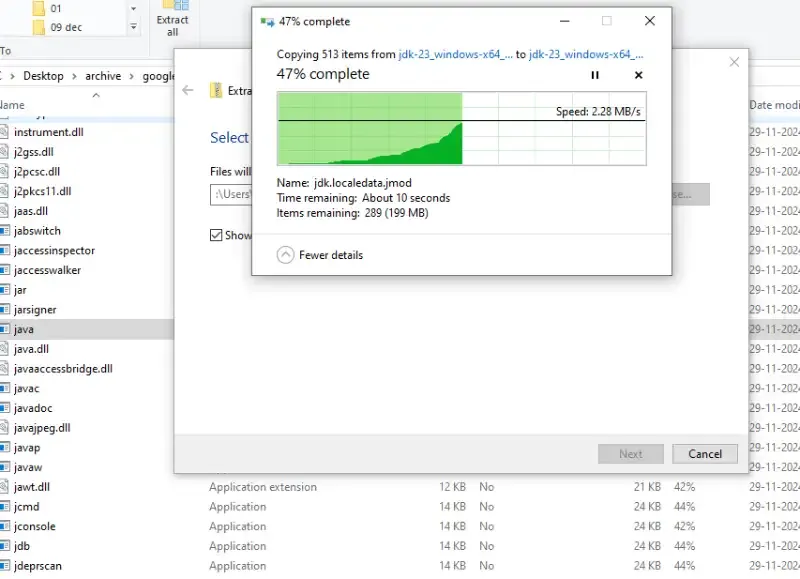
Locate the downloaded .exe file (e.g. jdk-23-windows-x64_bin.exe) and make the double click to begin the Installation process. Follow the installation wizard prompts to complete the installation process.
Once the installation gets completed, you need to configure environment variables to notify the system about the directory in which the JDK files are located.
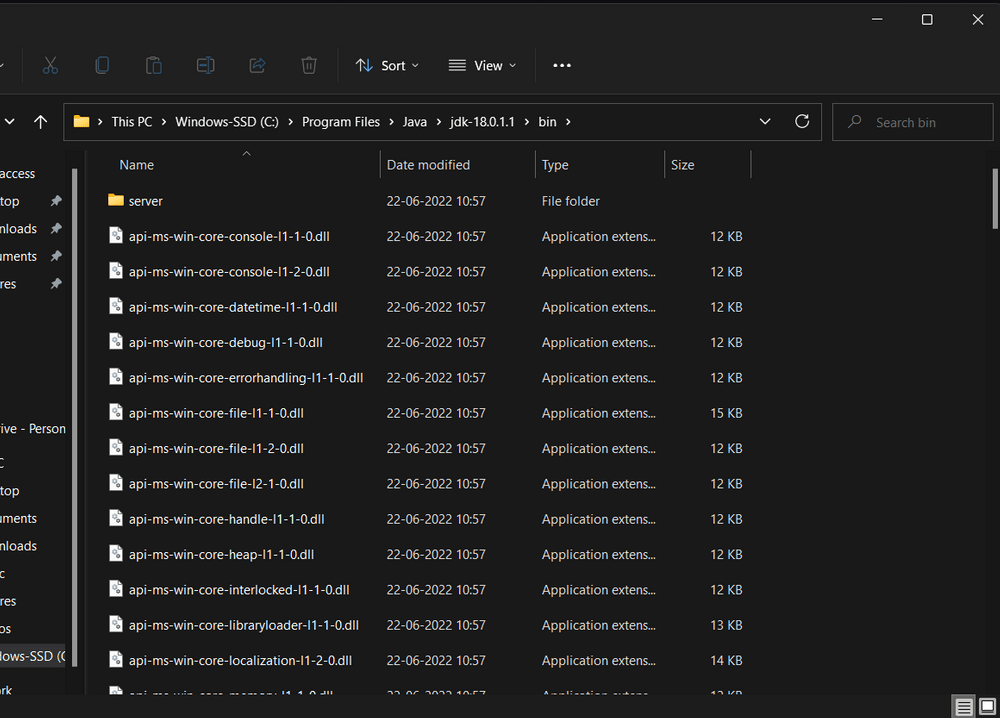
Proceed to C:\Program Files\Java\jdk-{YOUR_JDK_VERSION}\bin (replace {-} with your JDK version)
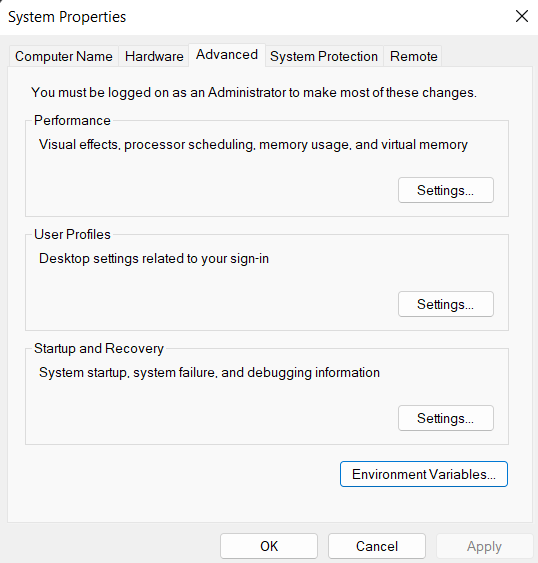
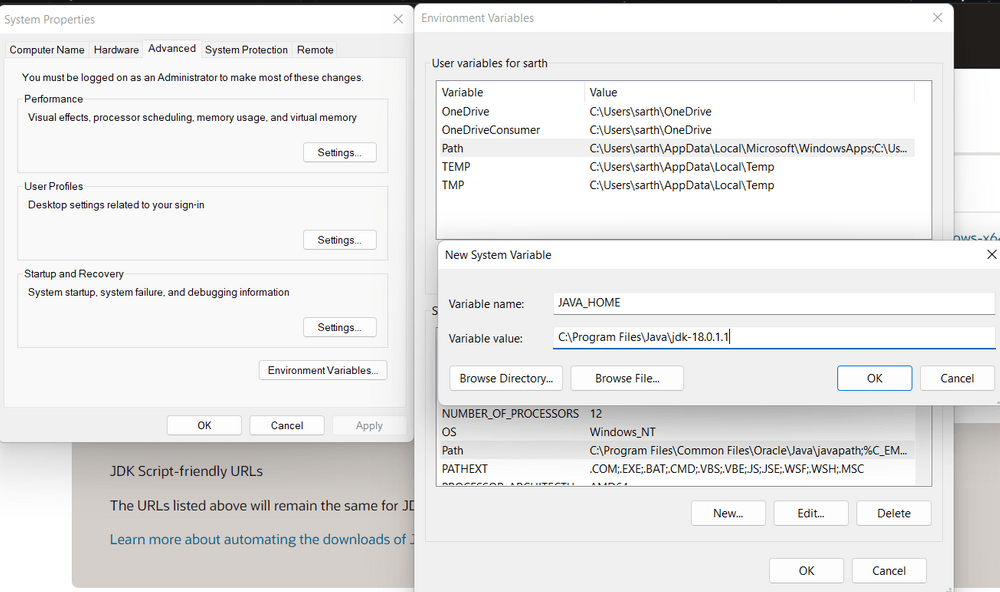
Step 2.1: To set the Environment Variables, you need to search Environment Variables in the Task Bar and click on “Edit the system environment variables”.
Step 2.2: Under the Advanced section, Click on "Environment Variables".
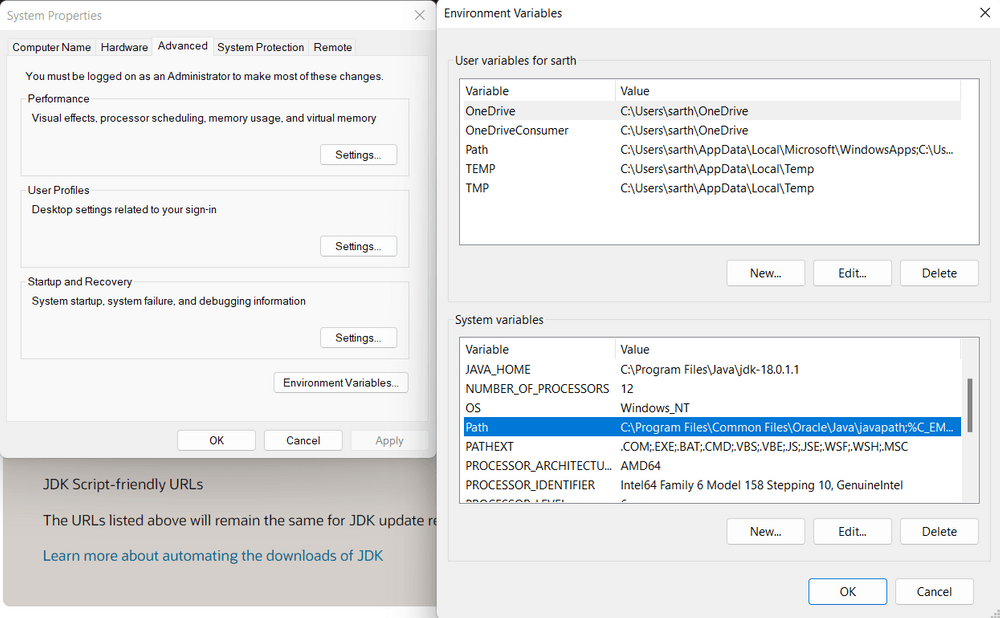
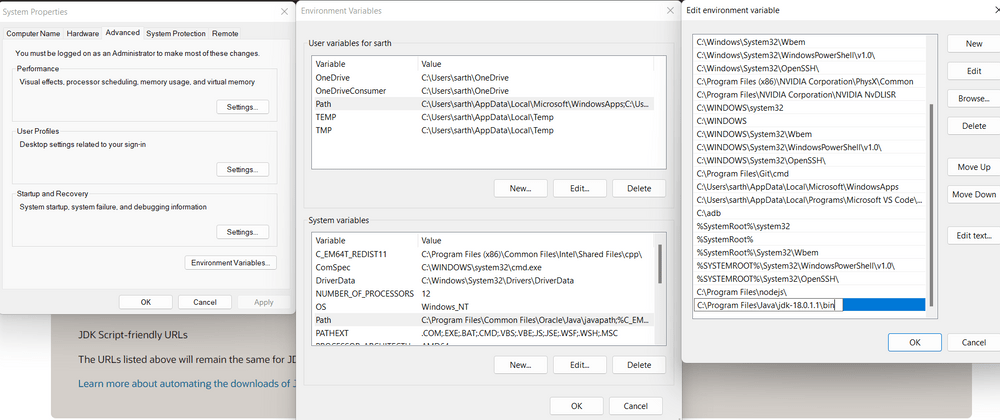
Step 2.3: Under System variables, select the "Path" variable and click on "Edit". Click on "New" then paste the Path Address i.e. C:\Program Files\Java\jdk-{YOUR_JDK_VERSION}\bin. Click on "OK".
Step 2.4: Now, in the Environment Variables dialogue, under System variables, click on "New" and then under Variable name: JAVA_HOME and Variable value: paste address i.e.
C:\Program Files\Java\jdk-{YOUR_JDK_VERSION}. Click on OK => OK => OK.
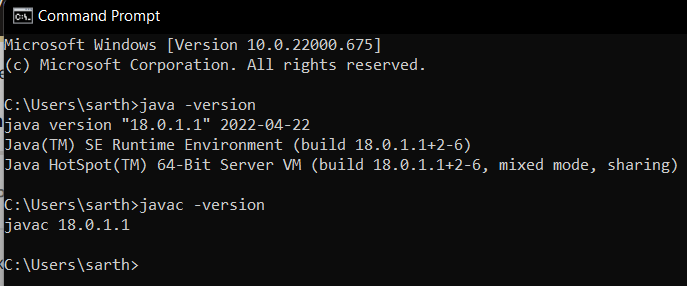
Open Command Prompt and enter the following commands:
java -version
javac -version
Follow the steps below to install the Java software Development Kit on a Linux environment. These instructions are applicable to various Linux distributions such as Ubuntu, Fedora and CentOS.
Note: We have used Kali Linux distributions here.
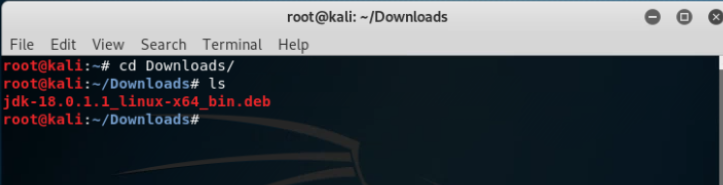
To install the downloaded JDK File using terminal, Open terminal and change your directory to downloads by using the command:
$ cd downloads
To list files and packages present in the directory, Type
$ ls
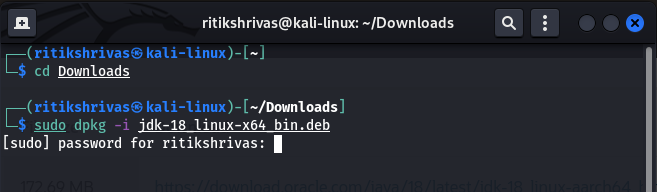
Step 1.1: Now we use Debian Package Manager to configure our downloaded file for installation by typing
$ sudo dpkg -i jdk-{YOUR_JDK_VERSION} (replace {-} with your version)
Enter your password as we have run an elevated prompt, i.e. the sudo or superuser do command, which is a quick way to grant specific users permission to perform specific system commands at the system's root (most powerful) level.
Step 1.2: Now, Type the following commands to proceed with the installation
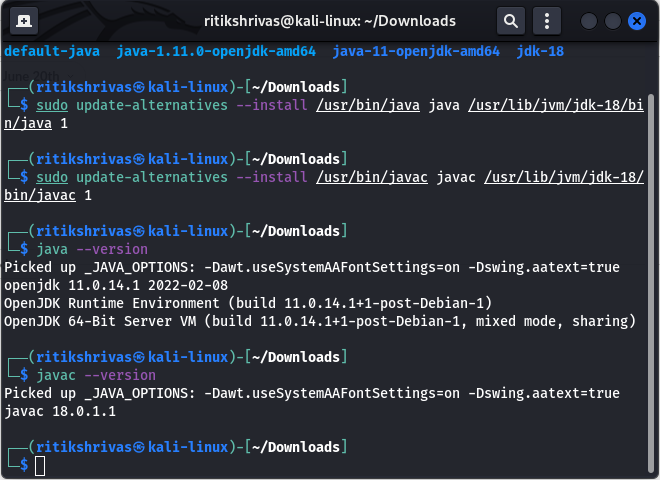
$ sudo update-alternatives --install /usr/bin/java java /usr/lib/jvm/jdk-{YOUR_JDK_VERSION}/bin/java 1
$ sudo update-alternatives --install /usr/bin/javac javac /usr/lib/jvm/jdk-{YOUR_JDK_VERSION}/bin/javac 1
Open the terminal and enter the following commands
$ java --version
$ javac --version
After the installation is complete, we have to configure environment variables to notify the system about the directory in which jdk files are located. To find the Location of the JDK Files, run this command and copy the File Location.
$ sudo update-alternatives --config java
In order to set the environment variable, you need to edit the environment file using the following command:
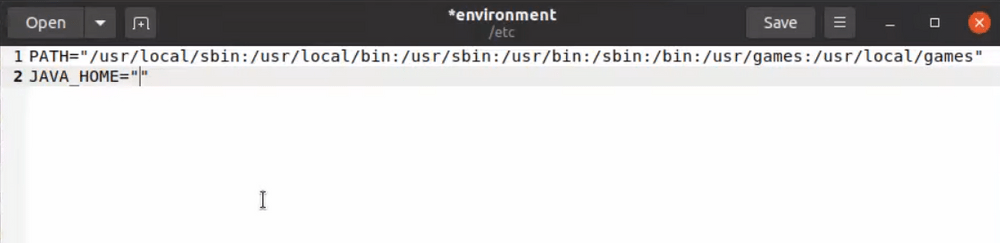
$ sudo gedit /etc/environment
Step 3.1: Proceed to add JAVA_HOME=” /usr/lib/jvm/jdk-{YOUR_JDK_VERSION}”
Proceed to save and close the file.
Step 3.2: Now we have to refresh the environment file by using this command:
$ source/etc/environment
And echo the JAVA_HOME Path
$ echo $JAVA_HOME
Follow the steps below to install the Java Development Kit (JDK) on macOS. These instructions are compatible with various versions of macOS, including Mojave, Catalina, Big Sur, Monterey, Ventura, Sonoma the latest macOS Sequoia.
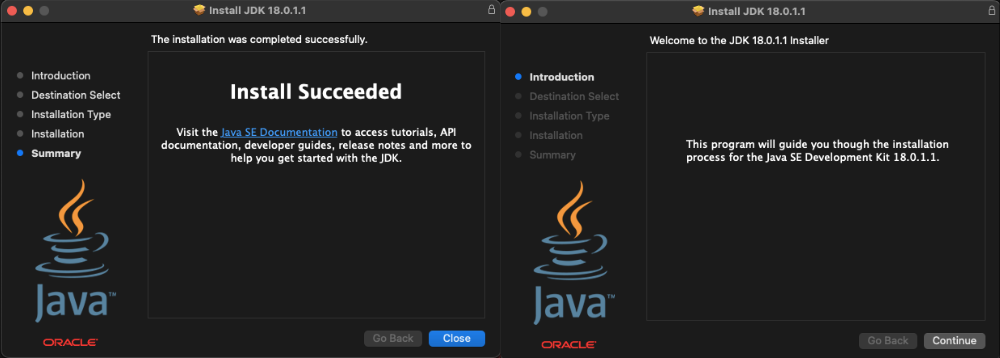
Proceed to Install the JDK kit by following the bootstrapped steps:
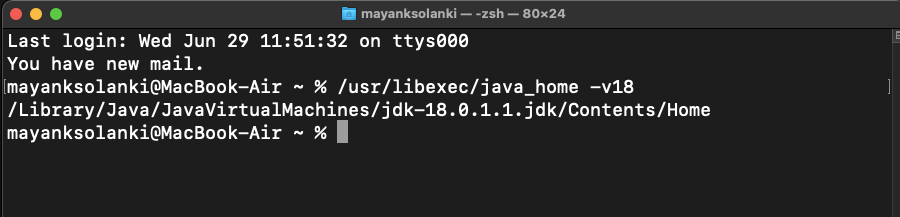
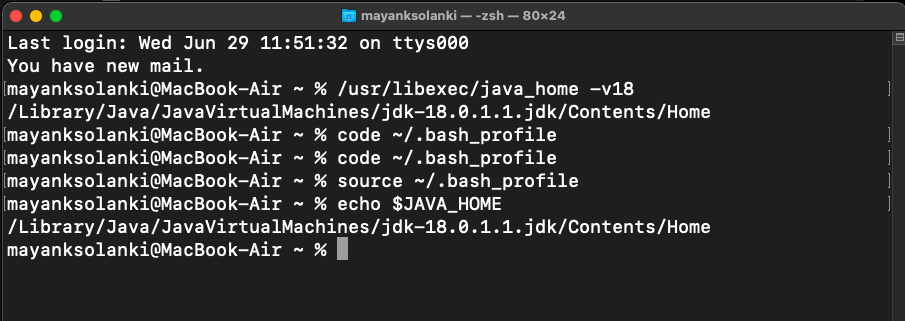
Open the terminal and pass the following commands. To find the Location of the JAVA_HOME, run this command:
$ /usr/libexec/java_home -v{YOUR_VERSION}
Step 2.1: We have to set this output as our JAVA_HOME Environment Variable. You can use any command or code editor to edit the file, here we are using VS Code
$ code ~/. bash_profile
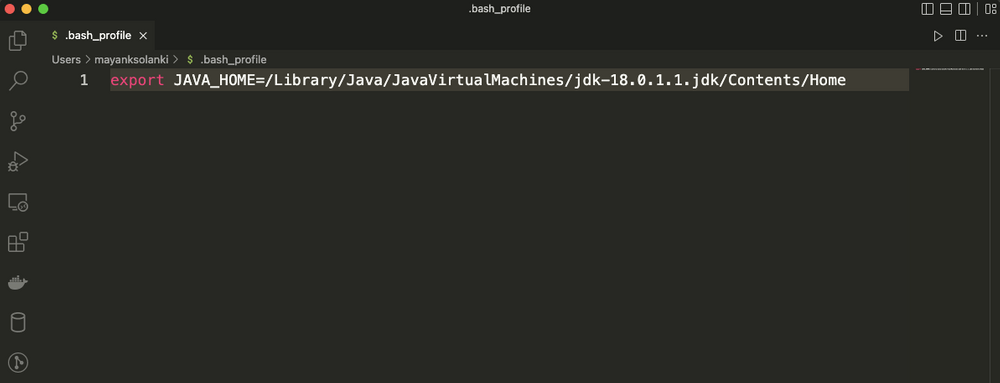
Step 2.2: At the very bottom, we have to export the path we obtained earlier i.e.
$ export JAVA_HOME=/Library/Java/JavaVirtualMachines/jdk-{YOUR_VERSION}.jdk/Contents/Home
Step 2.3: Now we have to refresh the environment file by using this command:
$ source ~/.bash_profile
And echo the JAVA_HOME variable
$ echo $JAVA_HOME
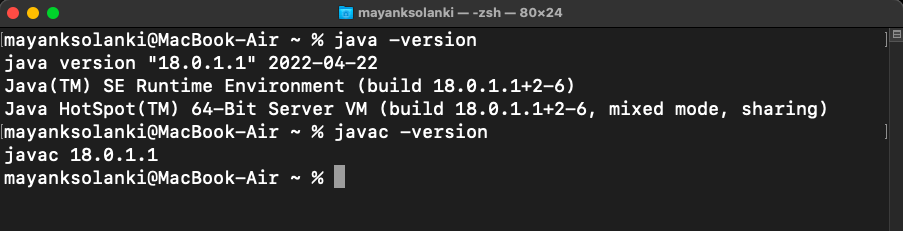
In the terminal, enter the following commands
$ java -version
$ javac -version
The Advantages of JDK are listed below:
The disadvantages of JDK are listed below: