|
VOOZH | about |
|
VOOZH | about |
The Command Prompt is a tool in Windows for executing commands, troubleshooting issues, and automating tasks. Whether you're using Windows 11, 10, 8, or 7, this guide covers all the methods to open Command Prompt quickly and efficiently.
Command prompt is widely used not only to navigate, open, or close a folder, but it's also essential to troubleshoot Windows problems. So let's understand the top 10 methods to open the Windows command line seamlessly.
cmd or Command Prompt.Win + R to open the Run dialog.cmd and press Enter.Ctrl + Shift + Esc to open Task Manager.cmd and click OK.Win + E).cmd in the address bar and press Enter.Win + X to open the Power User Menu.Win + S.cmd and press Enter.cmd.exe and click Next.F8 (Windows 7) or Shift + F8 (Windows 10/11) during boot.Commands like ip.config, scf, powercfg, chkdsk etc. requires Administrator Permission to succesfully run in Command Prompt. In such cases you need to run Command Prompt on an Administrative mode to get the privilege to run those command line prompt, follow the below steps:
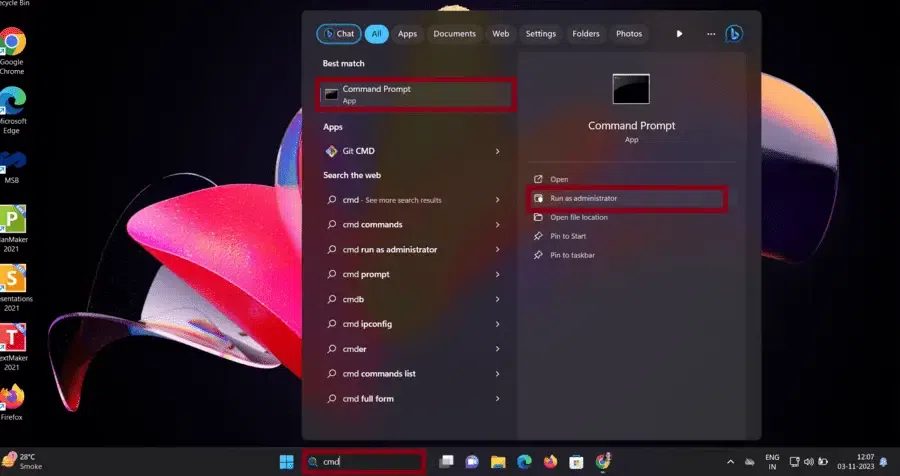
Type cmd in search bar. Right-Click on Command Prompt and select Run as administrator option or Use the Power User Menu (Win + X) and select Command Prompt (Admin).
Also, you will see a pop up window of " User Account Control " to allow this app make changes in your device, To continue, enter an admin username and password. Click Yes to proceed.
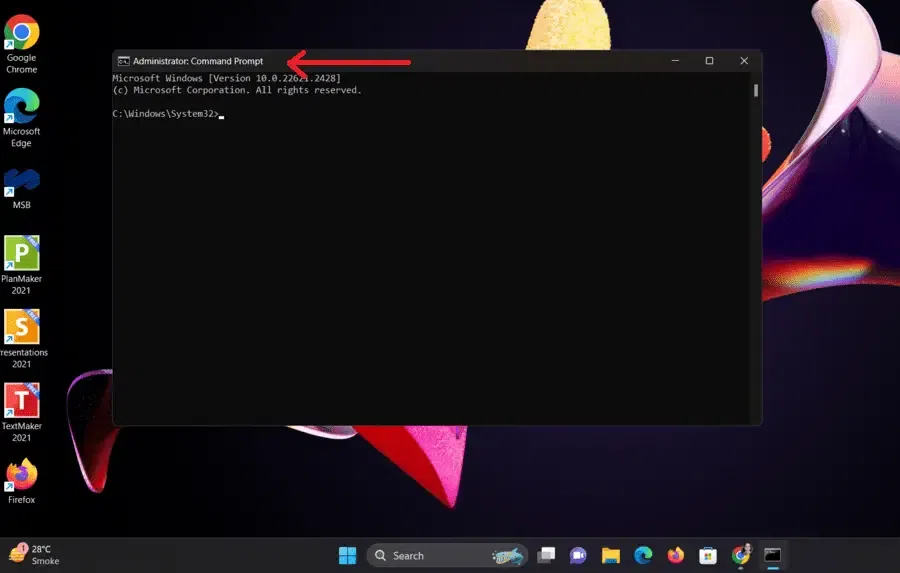
Note: You will notice Administrator : command Prompt written in Cmd window, indicating that you are using cmd as an Administrator.
You can run some of the basic commands to test the command prompt:
There are certain issues and errors that might occur while trying to access the command prompt, here are some of the most common error that might occur and how to get rid of them:
You can try these methods if you're unable to open CMD as an admin
Open System Properties using sysdm.cpl > Environment Variables > Find path > Click Edit > Add
C:\Windows\System32Check if the folder exists by running:
cd C:\Users\THIS PC\DocumentsReset Path Variables in Environment Variables.
Make a right click on the CMD > Properties > Change Start In: to %GFGPROFILE%
These simple steps will fix most Command Prompt issues in Windows 11, 10, 8, and 7.