|
VOOZH | about |
|
VOOZH | about |
Mobile application development industries play a major role in today’s generation as many businesses are looking forward to building a mobile application for their enterprise. A developed application needs to be published on Google Play Store for the intended audience to download and use it.
👁 How-To-Create-and-Upload-Your-App-To-Google-Play-StoreIn order to create and upload your app on Google Play Store, make sure you are ready with the following things beforehand.
Now that you are ready with the above-mentioned things, follow the steps given below to upload an app to Google Play Store. Make sure that you follow the steps in the given order only so as to avoid any mistakes while publishing your application.
Steps to Create and Upload Your App to the Google Play Store
In order to publish your app on Google Play Store, you need to create your Google Play developer account on Google Play Console.
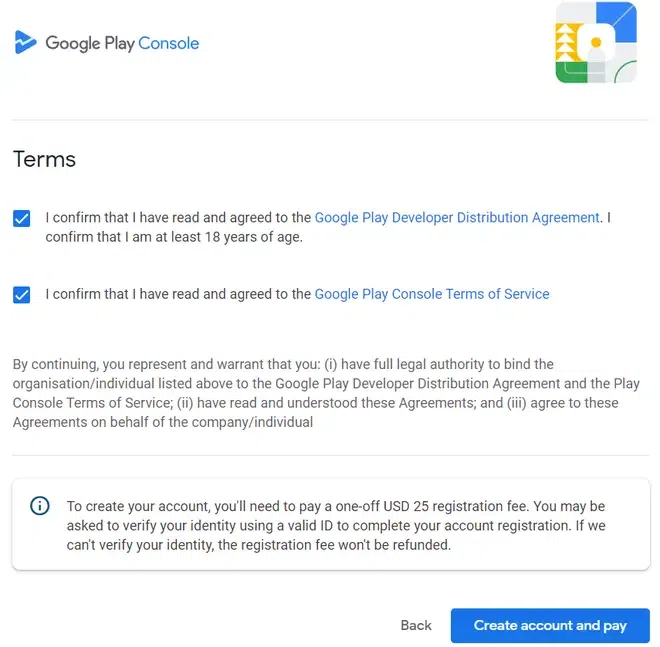
Google Play Developer Console is a platform created by Google for the developers of Android to publish their applications on the Google Play Store and track their performance. Android developers wishing to publish their apps on Google Play Store need to pay a one-time fee of $25. The payment could be done either using a credit card, debit card, or online payment methods. It usually takes around 48 hours for your developer’s account to be reviewed and activated.
For Google Play Console Sign-in, you can use your Email ID. After that, you will be asked whether you are an individual developer or an organization, and based on your choice, you will be asked to fill in some details about yourself or your organization. Click on Create account and pay and complete the payment process.
The next important step is to connect your developer account with your Google merchant account if your application involves in-app purchases. Click on Set up a merchant account in order to create a merchant account.
Once your merchant account has been created, your Google Play Console will get automatically linked to it and after that, you can easily manage, monitor, and analyze the app sales.
In case you already have an existing account, you can simply go to the Downloadreports and then to the Financial section.
After setting up your account, the next you need to do is, create an app.
To create an application,
After that, you will be asked to fill out some details regarding your app.
After filling in these details, make sure that your app falls under the Google policies of the Developer program and abides by US Export Laws. Once you have read and agreed to the terms and conditions, click on Create App.
After that, you will be directed to the dashboard of your application where you will see Set up your app option after scrolling a bit. Click on View Tasks. One by one, enter the details about your app.
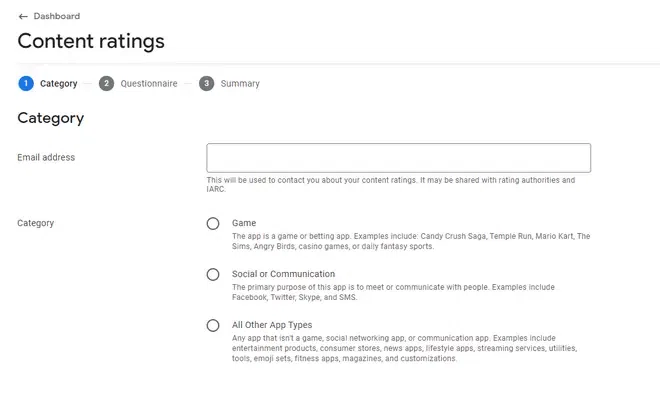
You need to fill out a content rating questionnaire. This is an important step as without it, Google will mark your app as an underrated app and will take off from Google Play Store. Click on the Start questionnaire button and get started. The questionnaire is divided into three sections: Category, Questionnaire, and Summary. Starting with the Category section, you are required to enter some basic details like the Email address which will be used to contact you regarding your content ratings, and Category asking about the type of your application whether it is a game, social, or any other type of app.
Click on the Next button.
Next comes the Questionnaire section where you are asked more about your application.
Make sure all the details are filled with the right information and cross-check it in the Summary section. Click on Submit to save.
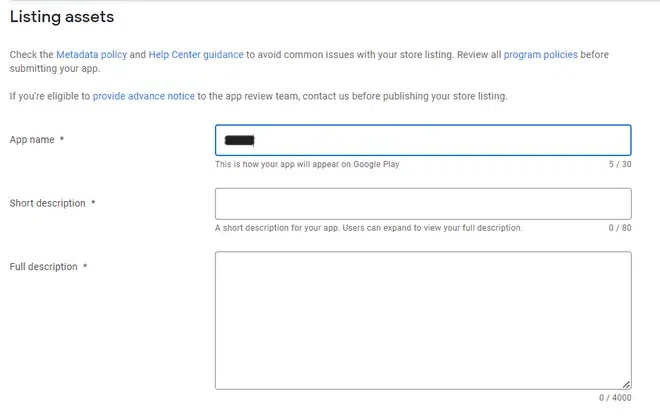
After this, you are required to upload the graphics of your application like app icons, screenshots, and videos which will increase the user engagement of your application.
In the dashboard, go to the Release your App option. Here, you are required to finally upload APK to Google Play Console upload your app to the Google Play Console, and submit it for review before it goes live.
Go to Select countries and regions and choose all the countries you wish your app to be available.
Go to the Select Testers section and choose the type of testing:
Now, click on Create a new release option and upload the app bundles and fill in the release details. After confirming all the details, add the app to the platform.
Then, Go to the App Releases tab -> select Manage Production -> Select Edit Release -> Click on Review -> Click on Start rollout to Production -> Select Confirm.
Your app is now successfully uploaded and submitted for review. It usually takes around 7 days for your app to be approved by Google and go live on Google Play Store.
Once the app is live, you must have a promotion and marketing strategy ready so that you can start advertising your app to the intended audience. Make sure to analyze the data insights and analytics and upgrade your application by releasing new versions with bugs fixed and new features to keep the audience engaged. The above steps were the final steps to publish your apps on the play store. Uploading your app on the play store is a one-time process but to get better reviews and top results you should continuously bring updates and fix the bugs from time to time.