|
VOOZH | about |
|
VOOZH | about |
An ImageButton in Android is a specialized Button that displays an image instead of text while functioning like a regular button. When clicked, it triggers an action just like a standard button. Android provides various button types, including ImageButton, ToggleButton, and more. To set an image on an ImageButton, you can use the android:src attribute in the XML layout file or the setImageResource() method in the Kotlin code.
You can create an ImageButton in Android using two approaches:
In this article, we will create an ImageButton programmatically using Kotlin.
To create a new project in Android Studio please refer to How to Create/Start a New Project in Android Studio.
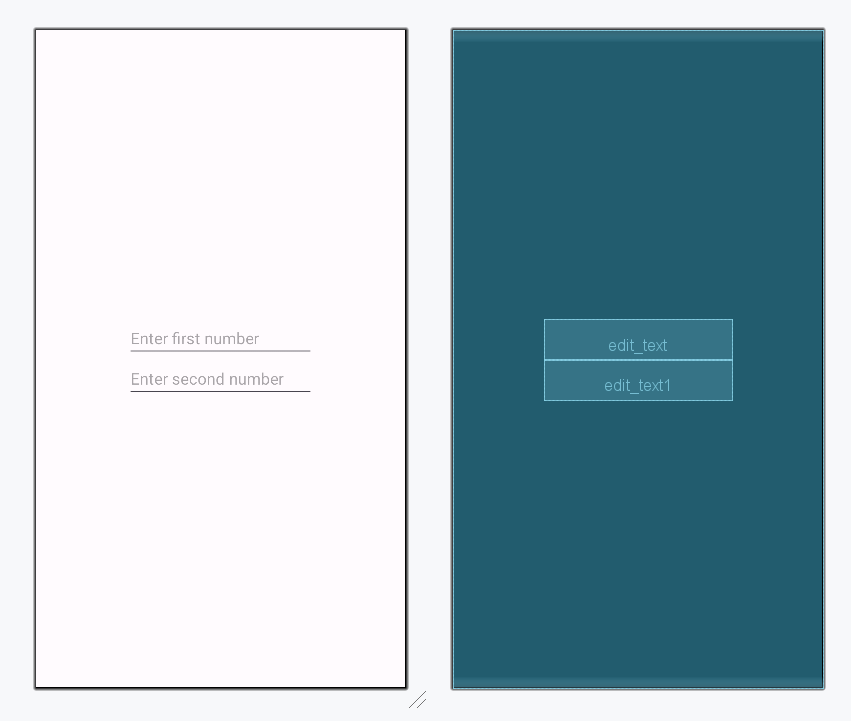
In this file, we will add only the EditText and set attributes for both of them to access into the Kotlin file.
activity_main.xml:
We will declare a variable imageButton to create ImageButton.
val imageButton = ImageButton(this)
imageButton.layoutParams = LinearLayout.LayoutParams(
 ViewGroup.LayoutParams.WRAP_CONTENT,
 ViewGroup.LayoutParams.WRAP_CONTENT
)
then, set the image resource for the button using
imageButton.setImageResource(android.R.drawable.ic_menu_close_clear_cancel)In the end, add the button into LinearLayout using
val linearLayout: LinearLayout = findViewById(R.id.main)
linearLayout.addView(imageButton)
Other process similar to manually adding the Image Button in the layout.
MainActivity.kt