|
VOOZH | about |
|
VOOZH | about |
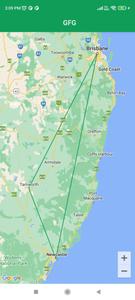
Google Maps is used in many Android applications. While using Google Maps there are many modifications that you will get to see while using Maps in this app. When we have used Google Maps in different apps such as OLA and Uber, we will see lines and routes drawn on our Maps. In this article, we will look at drawing Polyline on Google Maps in Android using Jetpack Compose.
To create a new project in Android Studio please refer to How to Create/Start a New Project in Android Studio. While choosing the template, select Empty Compose Activity. If you do not find this template, try upgrading the Android Studio to the latest version. We demonstrated the application in Kotlin, so make sure you select Kotlin as the primary language while creating a New Project.
Navigate to app > java > your app’s package name > ui.theme > Color.kt file and add the below code to it.
Navigate to build.gradle file and add the below dependency in the build.gradle file.
implementation("com.google.android.libraries.maps:maps:3.1.0-beta")
implementation("com.google.maps.android:maps-v3-ktx:2.2.0")
implementation("androidx.fragment:fragment:1.3.2")Navigate to app > AndroidManifest.xml file and add the below code in the application tag for adding the API key.
<meta-data
 android:name="com.google.android.geo.API_KEY"
 android:value="Enter your API key" />
Check out the below article on How to Generate API Key for Using Google Maps in Android?
Navigate to app > res > Right click on it > New > Directory and name it as layout. Now right-click on that directory and click on New > Layout resource file. Create a new xml file and name it map_layout and add the below code to it. Comments are added in the code to get to know it in detail.
Navigate to app > java > your app's package name > Right click on it > New > Kotlin class and name it as MapUtils and add the below code to it. Comments are added in the code to get to know it in detail.
Navigate to app > java > your app's package name > MainActivity.kt file and add the below code to it. Comments are added in the code to get to know it in detail.