|
VOOZH | about |
|
VOOZH | about |
Jetpack Compose is a new toolkit provided by Google. This is useful for designing beautiful UI designs. After the successful installation of the Android Studio Canary version, we are moving towards the creation of a new Project. In this article, we will take a look at How to create a new project in the Android Studio Canary Version using Jetpack Compose.
After launching up your Android Studio Canary version for the first time you will get to see the below screen.
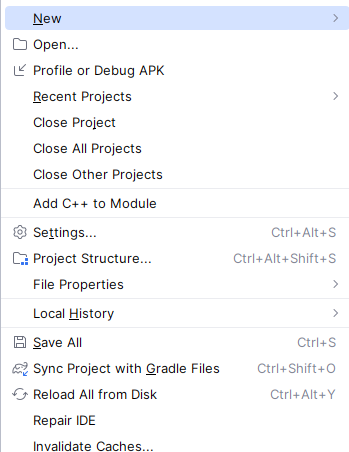
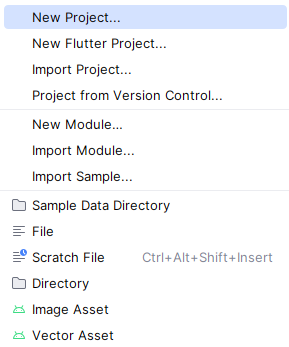
Step 1: Click on the first option to start with New Project
Then Click New Project to create a new android application Project.
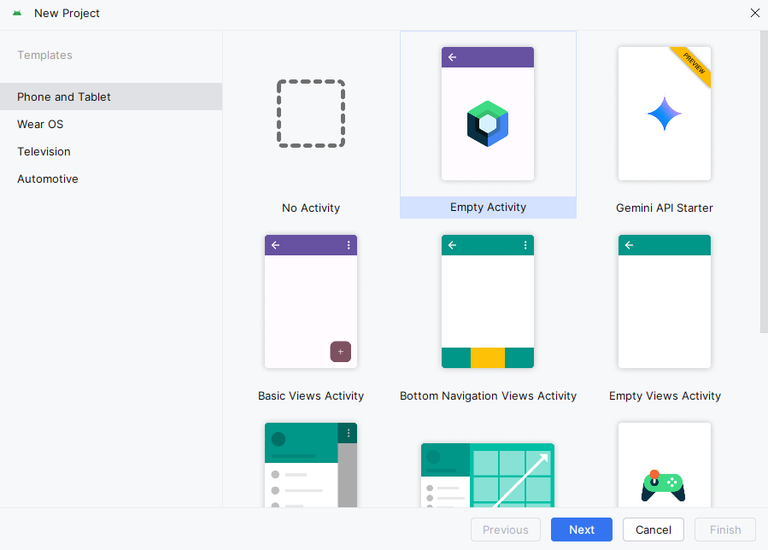
Step 2: After clicking on Create New Project you will get to see the below screen.
On this screen make sure to select Phone and Tablet as a default selection and then click on Empty Compose Activity in the right section and then click on the Next option.
Step 3: After selecting Empty Compose Activity you will get to see the below screen.
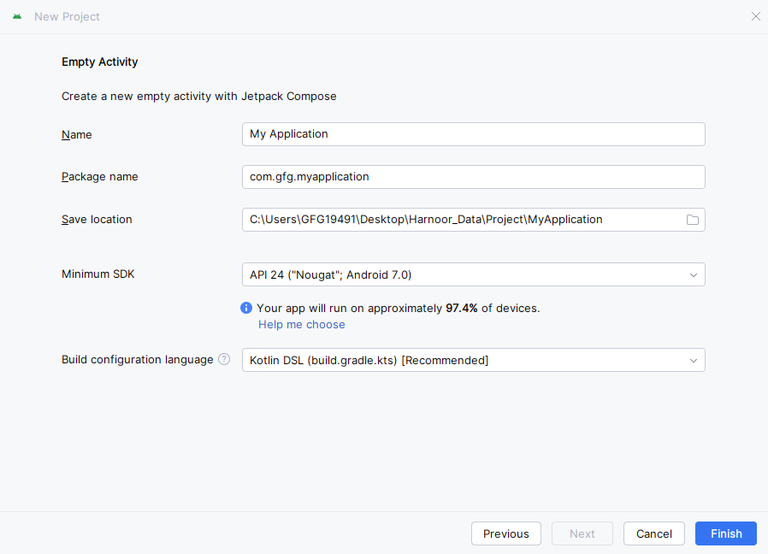
After click on next, you will get to see the below screen. On this screen give a name to your application in the first text box which represents the Name of the project. Select your minimum SDK for Marshmallow (6.0). The 84.9% of devices indicates the % of devices on which our app will works. After giving the name and selecting the minimum SDK click on the Finish option to create a new project.
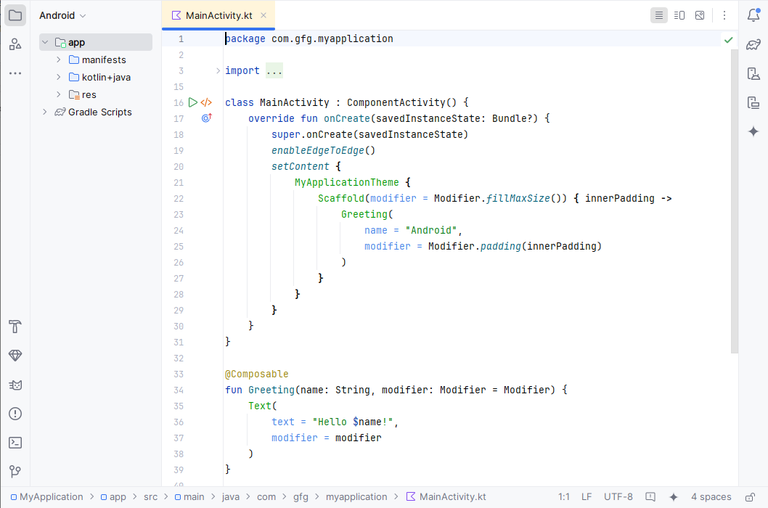
After clicking on Finish the default application will be created and now you can start writing your code.