|
VOOZH | about |
|
VOOZH | about |
Almost every app uses some kind of navigation, allows users to move from one screen to another. In this article, we will learn to implement Navigation in Jetpack Compose using Compose way. We will build a simple app demonstrating Jetpack compose navigation, It will have three screens(Home, Profile, and Settings). It will navigate to Settings Screen with some data and to Profile Screen without any data. A sample video is given below to get an idea about what we are going to do in this article.
To create a new project in the Android Studio, please refer to How to Create a new Project in Android Studio with Jetpack Compose.
Note: Select Kotlin as the programming language.
Open build.gradle(app) and add this line inside dependencies.
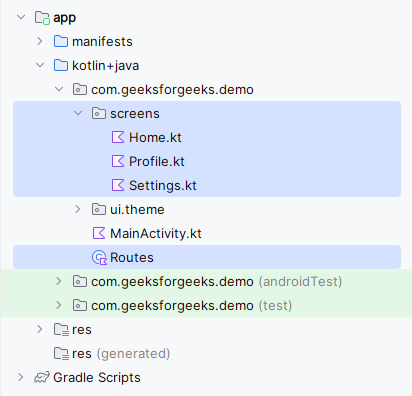
implementation("androidx.navigation:navigation-compose:2.8.8")Create a file with the name Routes. Add the following code. It will contain the route names of all screens.
Routes.kt:
It will have three screens, so we need to create three composable. Create a package with name screens and create three files (Home.kt, Profile.kt, Settings.kt).
Create a function with the name ScreenMain in MainActivity.kt which will contain NavHost and the Composable for navigation. Refer to the comments in the code for better understanding. And finally, call this Composable from setContent in onCreate of MainActivity. Further, you can add animations when opening the screens using Compose Animation APIs.
MainActivity.kt: