|
VOOZH | about |
|
VOOZH | about |
Setting a hostname is a fundamental step in configuring a Linux system. The hostname acts as an identifier for your machine on a network, making it easier to manage and communicate with other devices. In this article, we'll explore the importance of having a well-defined hostname and the process of setting it permanently in a Linux environment.
A hostname not only gives the recognition of your system but also has a crucial role in networking. Whether you're on a local network or the internet, you should have a clear and identifiable hostname for the administration of your Linux machine.
You can set a temporary hostname using the hostname command while a permanent hostname configuration stays the same even after reboots. This article lets you know how to configure a permanent hostname, understand the relevant configuration files, and the necessary steps to apply the changes.
Also Read: Linux Commands Cheat Sheet
Linux allows you to set hostnames both temporarily, for immediate use, and permanently, ensuring the name persists across reboots.
Step 1: Check the Current Hostname
First, you need to check the current hostname of the device by using the hostname command in terminal
hostnameOutput:
Ensure you know the current hostname before making any changes. This command displays the current hostname of your Linux machine. We can see that the hostname of our machine is Kali.
Step 2: Check File Directories
You need to check the contents of these two file directories "/etc/hostname and /etc/hosts" and you will erase some content in these files and rewrite it in the next step.
cat /etc/hostname
cat /etc/hosts
Output:
Inspect the contents of these files to confirm the current hostname.
Step 3: Edit /etc/hostname using Vi Editor
Use the sudo vi /etc/hostname command to enter into the vi editor and change the contents in the /etc/hostname file after entering into the vi editor follow these steps:
here we are changing our hostname to GeeksforGeeks
sudo vi /etc/hostnameOutput:
Step 4: Edit /etc/hosts using Vi Editor
Use the sudo vi /etc/hosts command to enter into the vi editor and change the contents in the /etc/hosts file after entering into the vi editor follow these steps:
here we are changing our hostname to GeeksforGeeks
sudo vi /etc/hostsOutput:
Step 5: Save the Hostname Permanently
Now save the hostname permanently by using the sudo hostname <name> command and replace the <name> with the hostname with the hostname you entered in the "/etc/hostname and /etc/hosts" files. We can see GeeksforGeeks has set to the hostname permanently
sudo hostname <name>Output:
👁 Screenshot-2024-01-03-202229-(1)
Step 6: Verify Hostname Changes
You can also verify the hostname changes using hostname and hostnamectl commands in the terminal. Ensure that the changes are reflected in the system.
hostname
hostnamectl
Output:
Step 7: Verify After Reboot
Reboot the system and recheck the hostname to confirm the changes have been applied after a restart.
Step 1: Check the Current Hostname
First, you need to check the current hostname of the device by using the hostname command in terminal
hostnameOutput:
This command displays the current hostname of your Linux machine. We can see that the hostname of our machine is Kali.
Step 2: Set the Hostname Temporarily
Here we are setting the temporary hostname as GeeksforGeeks using the command sudo hostnamectl set-hostname <name> and entering the sudo password. Replace <name> with your desired hostname. This change is temporary and will be lost after a system reboot.
sudo hostnamectl set-hostname <name>Output:
Step 3: Verify Hostname Changes
You can verify the change in hostname by using the hostname or hostnamectl command in the terminal, which will display the temporary hostname we created.
hostname
hostnamectl
Output:
👁 Screenshot-2024-01-03-202229(1)-(1)
Ensure that the changes are reflected in the system.
Step 1: Open Settings
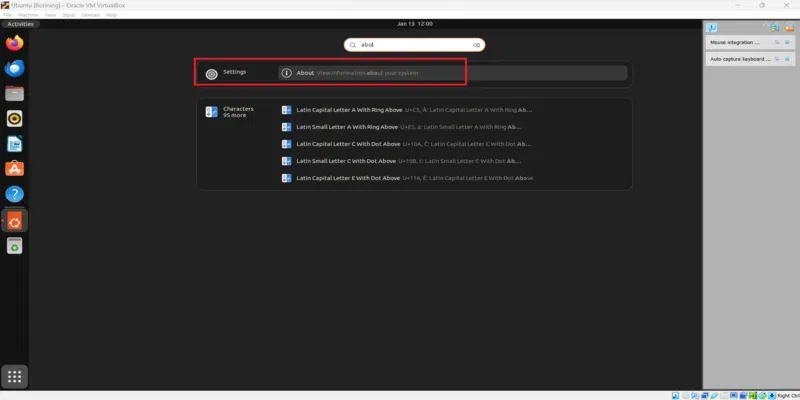
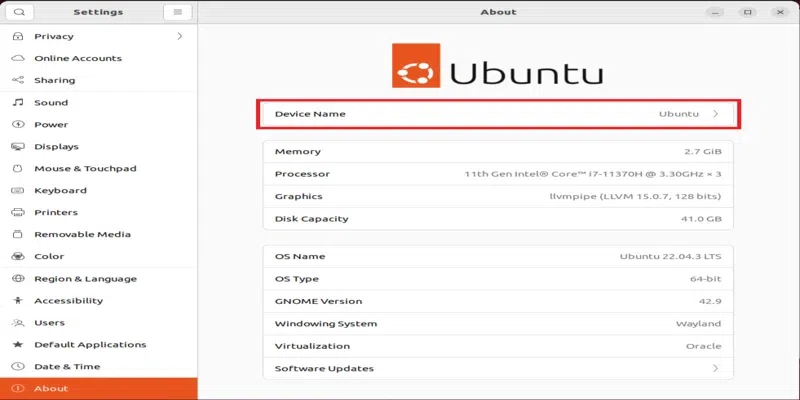
Open the Applications menu and search for the "About" option then, open it. You will find various settings such as Device Name, Memory, etc.
Step 2: Rename the Hostname
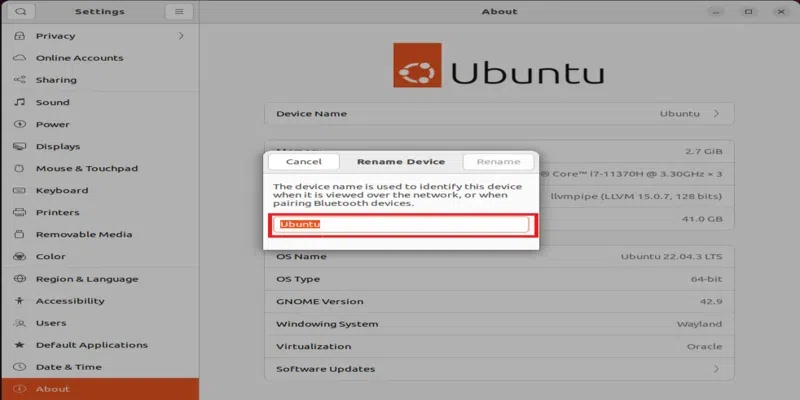
Click the arrow mark next to the Device Name. A window will appear, allowing you to rename the device. Rename it accordingly. We are changing our machine's hostname from "Ubuntu" to "GeeksforGeeks."
Step 3: Restart
Save the new hostname by clicking "Rename," and the hostname is permanently changed to the new name, here it is changed to "GeeksforGeeks." Restart the machine to ensure the new hostname is set.
Note: Changing the hostname from GNOME settings may not take effect immediately, so a restart of the Linux machine is necessary. This method is not always reliable.
Step 1: Check the Current Hostname
First, you need to check the current hostname of the device by using the hostname command in terminal
hostnameStep 2: Set the Hostname
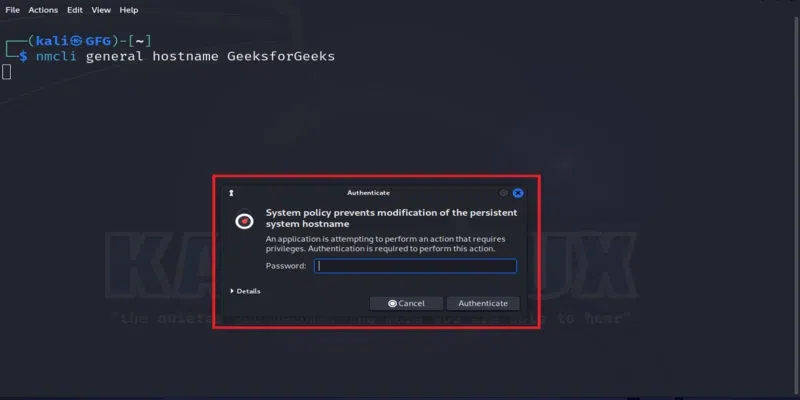
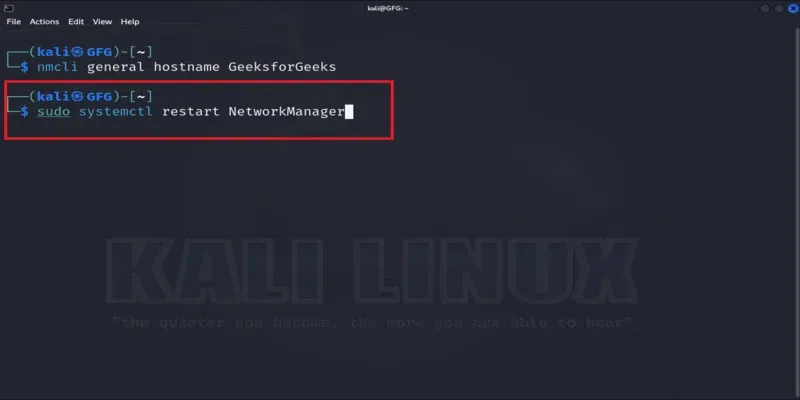
Set the hostname using Network Manager TUI with the 'nmcli general hostname <new_name>' command in the terminal, and replace '<new_name>' with your desired new hostname. Here we are setting our new hostname to GeeksforGeeks from GFG.
nmcli general hostname GeeksforGeeksStep 3: Privilege Access
After running the previous step, it will prompt for administrator access. Provide the necessary permission by authenticating with your machine's password.
Step 4: Restart NetworkManager
After setting the hostname, restart NetworkManager using 'sudo systemctl restart NetworkManager' and restart your machine to apply the changes permanently.
sudo systemctl restart NetworkManagerStep 5: Verification
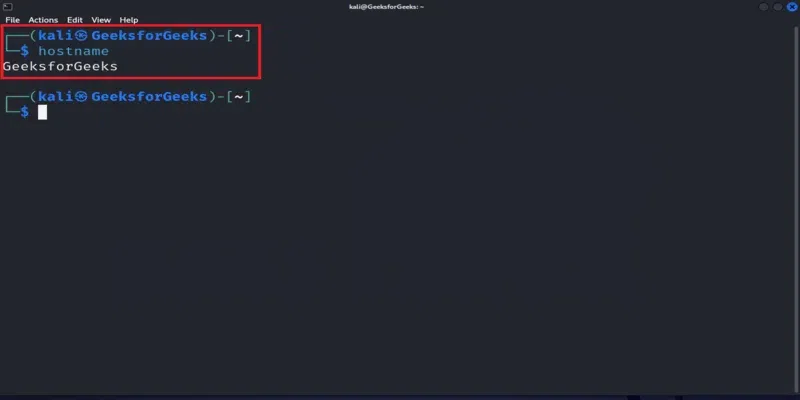
You can verify the changes using the hostname command in the terminal:
hostnameIn conclusion, setting a hostname in Linux includes both temporary and permanent steps. It is essential for customization and system identification. While temporary changes are used for immediate needs, making permanent adjustments ensures that the chosen hostname stays the same even after reboots. We can change the hostname temporarily by using the sudo hostnamectl set-hostname <name> command and permanently by changing the hostname to "/etc/hostname and /etc/hosts" It will reflect changes in the hostname even after the reboot. You can also use GNOME and NetworkManager TUI to set the hostname permanently. You can follow the simple steps in the article to change the hostname of a Linux machine permanently

.png)
.png)
.png)
.png)
.png)
.png)
.png)
.png)
.png)
-(1).png)