|
VOOZH | about |
|
VOOZH | about |
The dir command is one of the most useful commands while navigating the command line, and is present in its different forms in several operating systems. In this article, we will look at the Dir command and learn several use cases for it.
dir command in Windows OS is a built-in function that allows the user to do the following task:
The general syntax of the dir command is:
dir [path] [options]This command is used to list all files and directories in the current one:
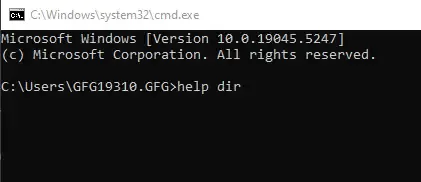
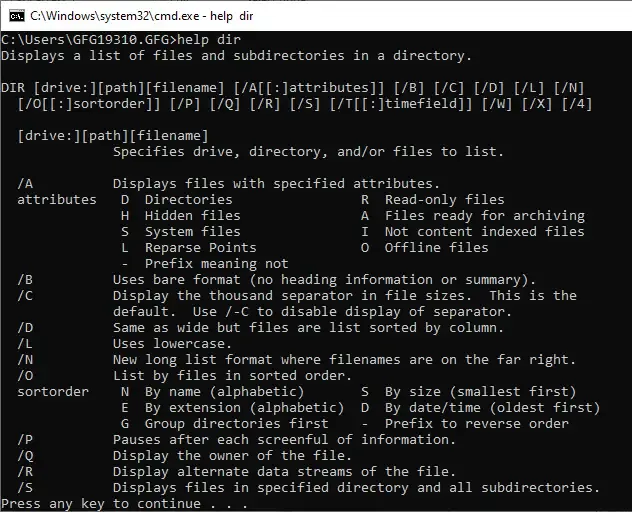
help dirOutput :
Displays a list of files and subdirectories in a directory.

DIR [drive:][path][filename] [/A[[:]attributes]] [/B] [/C] [/D] [/L] [/N]
 [/O[[:]sortorder]] [/P] [/Q] [/R] [/S] [/T[[:]timefield]] [/W] [/X] [/4]

 [drive:][path][filename]
 Specifies drive, directory, and/or files to list.

 /A Displays files with specified attributes.
 attributes D Directories R Read-only files
 H Hidden files A Files ready for archiving
 S System files I Not content indexed files
 L Reparse Points O Offline files
 - Prefix meaning not
 /B Uses bare format (no heading information or summary).
 /C Display the thousand separator in file sizes. This is the
 .
.Usage explanation:
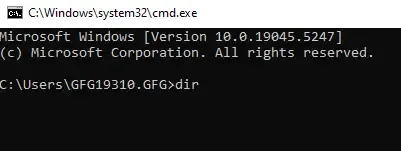
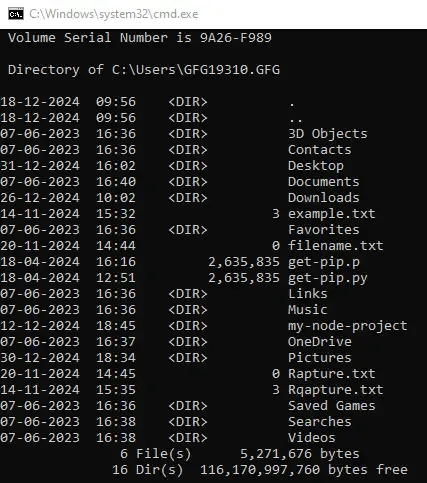
The command is mainly used for displaying the list of files and subdirectories in a directory. This could be done by executing the Dir command without any arguments.
DirWhich would produce an output similar to this.
Output
Directory of C:\Users

09/26/2020 11:34 AM <DIR> .
09/26/2020 11:34 AM <DIR> ..
09/02/2020 07:07 PM 1, 000 applese
09/24/2020 08:59 PM <DIR> Public
10/20/2020 06:39 PM <DIR> Soap
 1 File(s) 1, 000 bytes
4 Dir(s) 13, 879, 459, 840 bytes freeThe output of the dir command in this enable users to specify a directory to view its contents. The syntax for this command is as follows:
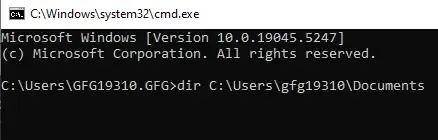
Input
dir C:\Users\gfg19310\DocumentsOutput
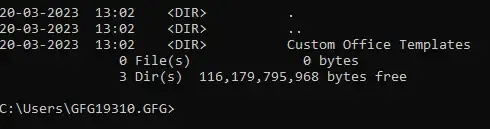
Directory of C:\Users\gfg19310\Documents

20-03-2023 13:02 <DIR> .
20-03-2023 13:02 <DIR> ..
20-03-2023 13:02 <DIR> Custom Office Templates
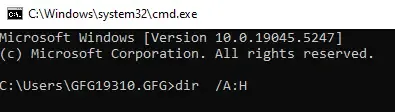
Here, we will use /A option with the H attribute to include hidden files along with it. Here's the syntax:
Input
dir /A:HOutput
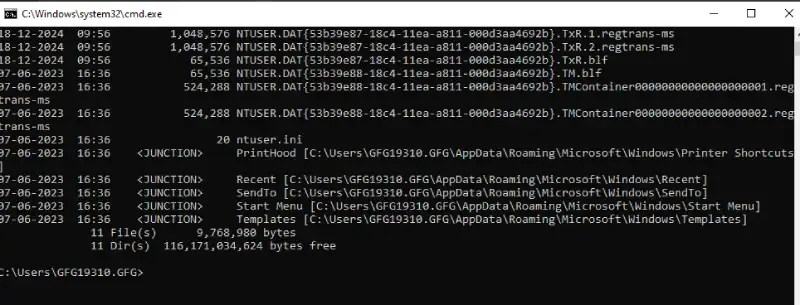
07-06-2023 16:36 <DIR> AppData
07-06-2023 16:36 <JUNCTION> Application Data [C:\Users\GFG19310.GFG\AppData\Roaming]
07-06-2023 16:36 <JUNCTION> Cookies [C:\Users\GFG19310.GFG\AppData\Local\Microsoft\Windows\INetCookies]
07-06-2023 16:36 <JUNCTION> Local Settings [C:\Users\GFG19310.GFG\AppData\Local]
07-06-2023 16:36 <JUNCTION> My Documents [C:\Users\GFG19310.GFG\Documents]
07-06-2023 16:36 <JUNCTION> NetHood [C:\Users\GFG19310.GFG\AppData\Roaming\Microsoft\Windows\Network Shortcuts]
11-12-2024 05:46 3,670,016 NTUSER.DAT
07-06-2023 16:36 688,128 ntuser.dat.LOG1
07-06-2023 16:36 1,085,440 ntuser.dat.LOG2
02-01-2025 10:40 1,048,576 NTUSER.DAT{53b39e87-18c4-11ea-a811-000d3aa4692b}.TxR.0.regtrans-ms
18-12-2024 09:56 1,048,576 NTUSER.DAT{53b39e87-18c4-11ea-a811-000d3aa4692b}.TxR.1.regtrans-ms
18-12-2024 09:56 1,048,576 NTUSER.DAT{53b39e87-18c4-11ea-a811-000d3aa4692b}.TxR.2.regtrans-ms
18-12-2024 09:56 65,536 NTUSER.DAT{53b39e87-18c4-11ea-a811-000d3aa4692b}.TxR.blf
07-06-2023 16:36 65,536 NTUSER.DAT{53b39e88-18c4-11ea-a811-000d3aa4692b}.TM.blf
07-06-2023 16:36 524,288 NTUSER.DAT{53b39e88-18c4-11ea-a811-000d3aa4692b}.TMContainer00000000000000000001.regtrans-ms
07-06-2023 16:36 524,288 NTUSER.DAT{53b39e88-18c4-11ea-a811-000d3aa4692b}.TMContainer00000000000000000002.regtrans-ms
07-06-2023 16:36 20 ntuser.ini
07-06-2023 16:36 <JUNCTION> PrintHood [C:\Users\GFG19310.GFG\AppData\Roaming\Microsoft\Windows\Printer Shortcuts]
07-06-2023 16:36 <JUNCTION> Recent [C:\Users\GFG19310.GFG\AppData\Roaming\Microsoft\Windows\Recent]
07-06-2023 16:36 <JUNCTION> SendTo [C:\Users\GFG19310.GFG\AppData\Roaming\Microsoft\Windows\SendTo]
07-06-2023 16:36 <JUNCTION> Start Menu [C:\Users\GFG19310.GFG\AppData\Roaming\Microsoft\Windows\Start Menu]
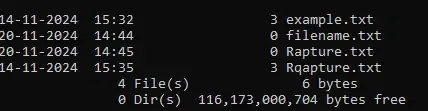
07-06-2023 16:36 <JUNCTION> Templates [C:\Users\GFG19310.GFG\AppData\Roaming\Microsoft\Windows\Templates]To display files with a specific extension (e.g., .txt): Here's a sample
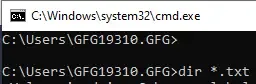
Input
dir *.txtOutput
Directory of C:\Users\GFG19310.GFG

14-11-2024 15:32 3 example.txt
20-11-2024 14:44 0 filename.txt
20-11-2024 14:45 0 Rapture.txt
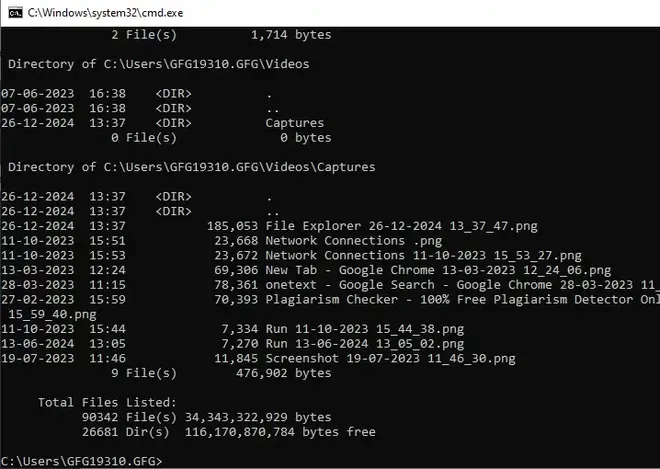
14-11-2024 15:35 3 Rqapture.txtTo include all subdirectories and their contents, use the following command:
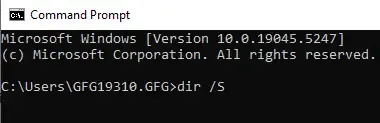
Input
dir /SOutput
Directory of C:\Users\GFG19310.GFG\Saved Games

07-06-2023 16:36 <DIR> .
07-06-2023 16:36 <DIR> ..
 0 File(s) 0 bytes

Directory of C:\Users\GFG19310.GFG\Searches

07-06-2023 16:38 <DIR> .
07-06-2023 16:38 <DIR> ..
08-11-2022 16:52 855 winrt--{S-1-5-21-1623517014-2252875782-278851815-1404}-.searchconnector-ms
07-06-2023 16:37 859 winrt--{S-1-5-21-2245693176-3959787992-2909979321-1244}-.searchconnector-ms
 2 File(s) 1,714 bytes

Directory of C:\Users\GFG19310.GFG\Videos

07-06-2023 16:38 <DIR> .
07-06-2023 16:38 <DIR> ..
26-12-2024 13:37 <DIR> Captures
 0 File(s) 0 bytes

Directory of C:\Users\GFG19310.GFG\Videos\Captures

26-12-2024 13:37 <DIR> .
26-12-2024 13:37 <DIR> ..
26-12-2024 13:37 185,053 File Explorer 26-12-2024 13_37_47.png
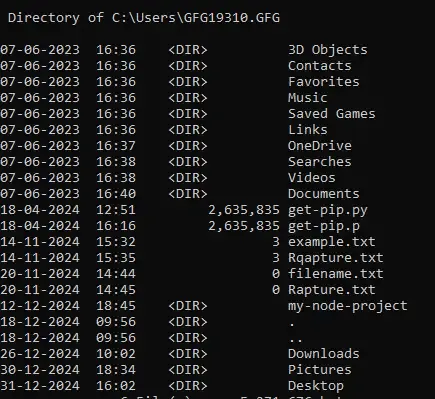
11-10-2023 15:51 23,668 Network Connections .pngWe can fetch data based on date, size or name. Let's check them out:
Input
dir /O:DOutput
Directory of C:\Users\GFG19310.GFG

07-06-2023 16:36 <DIR> 3D Objects
07-06-2023 16:36 <DIR> Contacts
07-06-2023 16:36 <DIR> Favorites
07-06-2023 16:36 <DIR> Music
07-06-2023 16:36 <DIR> Saved Games
07-06-2023 16:36 <DIR> Links
07-06-2023 16:37 <DIR> OneDrive
07-06-2023 16:38 <DIR> Searches
07-06-2023 16:38 <DIR> Videos
07-06-2023 16:40 <DIR> Documents
18-04-2024 12:51 2,635,835 get-pip.py
18-04-2024 16:16 2,635,835 get-pip.p
14-11-2024 15:32 3 example.txt
14-11-2024 15:35 3 Rqapture.txt
20-11-2024 14:44 0 filename.txt
20-11-2024 14:45 0 Rapture.txt
12-12-2024 18:45 <DIR> my-node-project
18-12-2024 09:56 <DIR> .
18-12-2024 09:56 <DIR> ..
26-12-2024 10:02 <DIR> Downloads
30-12-2024 18:34 <DIR> Pictures
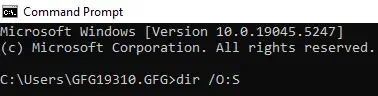
31-12-2024 16:02 <DIR> DesktopInput
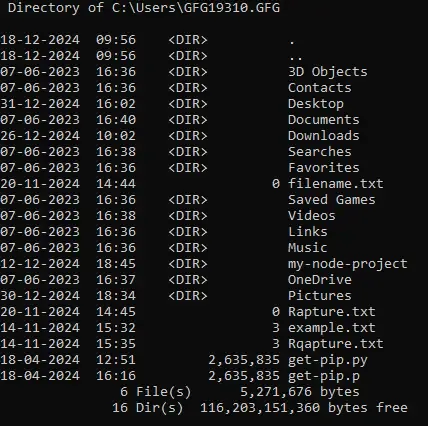
dir /O:SOutput
Directory of C:\Users\GFG19310.GFG

18-12-2024 09:56 <DIR> .
18-12-2024 09:56 <DIR> ..
07-06-2023 16:36 <DIR> 3D Objects
07-06-2023 16:36 <DIR> Contacts
31-12-2024 16:02 <DIR> Desktop
07-06-2023 16:40 <DIR> Documents
26-12-2024 10:02 <DIR> Downloads
07-06-2023 16:38 <DIR> Searches
07-06-2023 16:36 <DIR> Favorites
20-11-2024 14:44 0 filename.txt
07-06-2023 16:36 <DIR> Saved Games
07-06-2023 16:38 <DIR> Videos
07-06-2023 16:36 <DIR> Links
07-06-2023 16:36 <DIR> Music
12-12-2024 18:45 <DIR> my-node-project
07-06-2023 16:37 <DIR> OneDrive
30-12-2024 18:34 <DIR> Pictures
20-11-2024 14:45 0 Rapture.txt
14-11-2024 15:32 3 example.txt
14-11-2024 15:35 3 Rqapture.txt
18-04-2024 12:51 2,635,835 get-pip.py
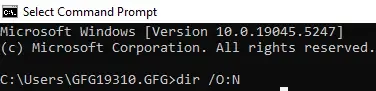
18-04-2024 16:16 2,635,835 get-pip.pInput
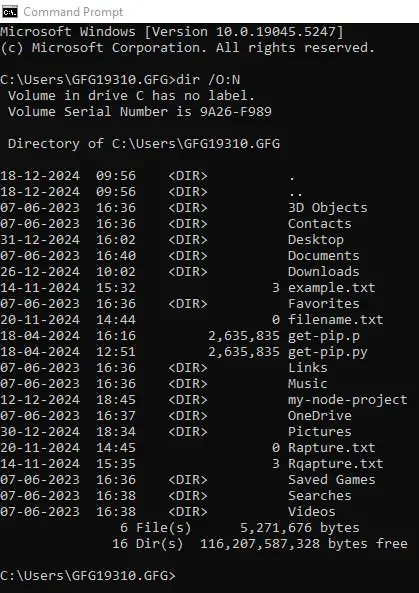
dir /O:NOutput
Directory of C:\Users\GFG19310.GFG

18-12-2024 09:56 <DIR> .
18-12-2024 09:56 <DIR> ..
07-06-2023 16:36 <DIR> 3D Objects
07-06-2023 16:36 <DIR> Contacts
31-12-2024 16:02 <DIR> Desktop
07-06-2023 16:40 <DIR> Documents
26-12-2024 10:02 <DIR> Downloads
14-11-2024 15:32 3 example.txt
07-06-2023 16:36 <DIR> Favorites
20-11-2024 14:44 0 filename.txt
18-04-2024 16:16 2,635,835 get-pip.p
18-04-2024 12:51 2,635,835 get-pip.py
07-06-2023 16:36 <DIR> Links
07-06-2023 16:36 <DIR> Music
12-12-2024 18:45 <DIR> my-node-project
07-06-2023 16:37 <DIR> OneDrive
30-12-2024 18:34 <DIR> Pictures
20-11-2024 14:45 0 Rapture.txt
14-11-2024 15:35 3 Rqapture.txt
07-06-2023 16:36 <DIR> Saved Games
07-06-2023 16:38 <DIR> Searches
07-06-2023 16:38 <DIR> VideosThis command is used where too many files exists, we can use the /P option to get results one page at a time. Here's the command:
Input
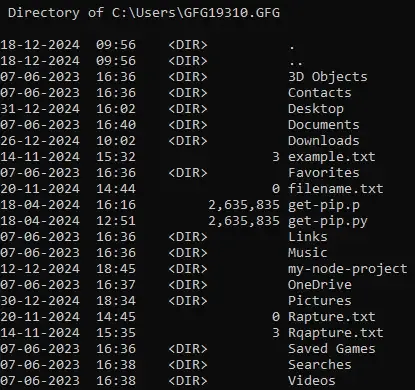
dir /POutput
Directory of C:\Users\GFG19310.GFG

18-12-2024 09:56 <DIR> .
18-12-2024 09:56 <DIR> ..
07-06-2023 16:36 <DIR> 3D Objects
07-06-2023 16:36 <DIR> Contacts
31-12-2024 16:02 <DIR> Desktop
07-06-2023 16:40 <DIR> Documents
26-12-2024 10:02 <DIR> Downloads
14-11-2024 15:32 3 example.txt
07-06-2023 16:36 <DIR> Favorites
20-11-2024 14:44 0 filename.txt
18-04-2024 16:16 2,635,835 get-pip.p
18-04-2024 12:51 2,635,835 get-pip.py
07-06-2023 16:36 <DIR> Links
07-06-2023 16:36 <DIR> Music
12-12-2024 18:45 <DIR> my-node-project
07-06-2023 16:37 <DIR> OneDrive
30-12-2024 18:34 <DIR> Pictures
20-11-2024 14:45 0 Rapture.txt
14-11-2024 15:35 3 Rqapture.txt
07-06-2023 16:36 <DIR> Saved Games
07-06-2023 16:38 <DIR> Searches
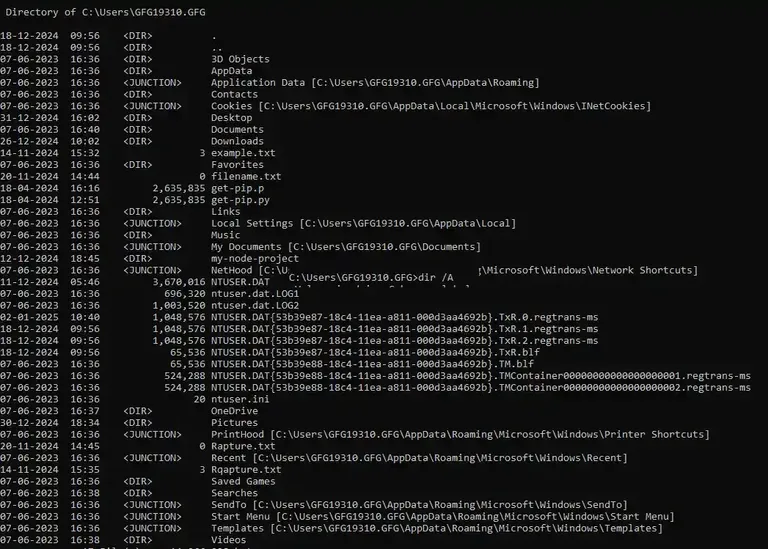
07-06-2023 16:38 <DIR> VideosWe can also include attributes such as read-only files and archives using the following command:
Input
dir /AOutput
Directory of C:\Users\GFG19310.GFG

18-12-2024 09:56 <DIR> .
18-12-2024 09:56 <DIR> ..
07-06-2023 16:36 <DIR> 3D Objects
07-06-2023 16:36 <DIR> AppData
07-06-2023 16:36 <JUNCTION> Application Data [C:\Users\GFG19310.GFG\AppData\Roaming]
07-06-2023 16:36 <DIR> Contacts
07-06-2023 16:36 <JUNCTION> Cookies [C:\Users\GFG19310.GFG\AppData\Local\Microsoft\Windows\INetCookies]
31-12-2024 16:02 <DIR> Desktop
07-06-2023 16:40 <DIR> Documents
26-12-2024 10:02 <DIR> Downloads
14-11-2024 15:32 3 example.txt
07-06-2023 16:36 <DIR> Favorites
20-11-2024 14:44 0 filename.txt
18-04-2024 16:16 2,635,835 get-pip.p
18-04-2024 12:51 2,635,835 get-pip.py
07-06-2023 16:36 <DIR> Links
07-06-2023 16:36 <JUNCTION> Local Settings [C:\Users\GFG19310.GFG\AppData\Local]
07-06-2023 16:36 <DIR> Music
07-06-2023 16:36 <JUNCTION> My Documents [C:\Users\GFG19310.GFG\Documents]
12-12-2024 18:45 <DIR> my-node-project
07-06-2023 16:36 <JUNCTION> NetHood [C:\Users\GFG19310.GFG\AppData\Roaming\Microsoft\Windows\Network Shortcuts]
11-12-2024 05:46 3,670,016 NTUSER.DAT
07-06-2023 16:36 696,320 ntuser.dat.LOG1
07-06-2023 16:36 1,003,520 ntuser.dat.LOG2
02-01-2025 10:40 1,048,576 NTUSER.DAT{53b39e87-18c4-11ea-a811-000d3aa4692b}.TxR.0.regtrans-ms
18-12-2024 09:56 1,048,576 NTUSER.DAT{53b39e87-18c4-11ea-a811-000d3aa4692b}.TxR.1.regtrans-ms
18-12-2024 09:56 1,048,57 ..You can also check the file size (in bytes) using the following command:
Input
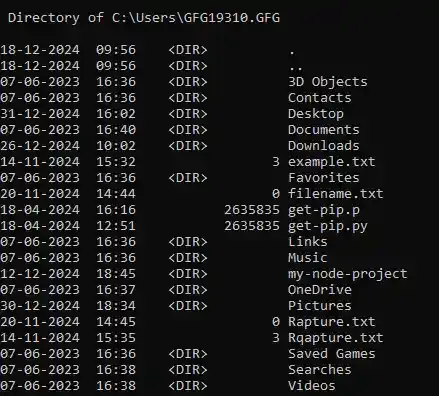
dir /-COutput
Directory of C:\Users\GFG19310.GFG

18-12-2024 09:56 <DIR> .
18-12-2024 09:56 <DIR> ..
07-06-2023 16:36 <DIR> 3D Objects
07-06-2023 16:36 <DIR> Contacts
31-12-2024 16:02 <DIR> Desktop
07-06-2023 16:40 <DIR> Documents
26-12-2024 10:02 <DIR> Downloads
14-11-2024 15:32 3 example.txt
07-06-2023 16:36 <DIR> Favorites
20-11-2024 14:44 0 filename.txt
18-04-2024 16:16 2635835 get-pip.p
18-04-2024 12:51 2635835 get-pip.py
07-06-2023 16:36 <DIR> Links
07-06-2023 16:36 <DIR> Music
12-12-2024 18:45 <DIR> my-node-project
07-06-2023 16:37 <DIR> OneDrive
30-12-2024 18:34 <DIR> Pictures
20-11-2024 14:45 0 Rapture.txt
14-11-2024 15:35 3 Rqapture.txt
07-06-2023 16:36 <DIR> Saved Games
07-06-2023 16:38 <DIR> Searches
07-06-2023 16:38 <DIR> VideosThe above-mentioned syntaxes is for general usage. Now, let's see some of the advanced usage syntax along with their examples.
We can redirect the output to a text file (dir command) using the syntax below:
Input (file name: rapture.txt)
dir /S > rapture.txtOutput
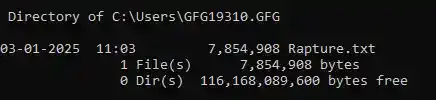
A file name with the provided name will be created containing the directory list.You can search for any file by its name (or even partial name), following this syntax:
Input (file name: rapture - taken as a partial name "rapt")
dir *rapt*Output
Directory of C:\Users\GFG19310.GFG

03-01-2025 11:03 7,854,908 Rapture.txt
 1 File(s) 7,854,908 bytes
0 Dir(s) 116,168,089,600 bytes freeThis syntax will summarise the total count of a file including directory:
Input
dir /WOutput
| Option | Description |
|---|---|
/P | Fetch results one page at a time |
/S | Includes all files in subdirectories. |
/A | Displays files with specified attributes (e.g., /A:H for hidden files). |
/O | Sorts output (e.g., /O:D for date, /O:N for name). |
/B | Displays output in bare format (file names only, without additional details). |
/L | Displays names in lowercase. |
/T | Displays time attributes (e.g., /T:C for creation time). |
/Q | Displays file ownership information. |
The dir command is vastly used among users for managing and exploring directories through different ways and patterns in Windows OS. You can give it all a try and organize your work smoothly.