|
VOOZH | about |
|
VOOZH | about |
The Windows Command Prompt (CMD) is a powerful tool that many users overlook, but knowing a few useful CMD commands for Windows can make your daily tasks much more efficient. From navigating the file system to managing network settings, these daily use CMD commands can help streamline your workflow and solve common problems quickly. In this article, we'll explore some of the best CMD commands for Windows that every user should know.
Table of Content
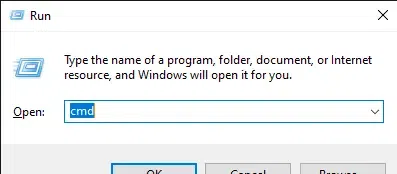
To get started with CMD commands, you first need to open the Command Prompt.
Step 1: Press `Win + R` to open the Run dialogue box.
Step 2: Type `cmd` and press `Enter`.
Use `ipconfig` to display your network configuration and refresh DHCP and DNS settings.
ipconfigCheck your connection to a remote server using the `ping` command.
ping [website or IP address]Example:
ping google.comList the contents of a directory with the `dir` command.
dir(IV) `cd`
Change the current directory using the `cd` command.
cd [path]Example:
cd C:\Users\YourUsername\Documents Clear the CMD screen with the `cls` command.
clsShut down your computer with the `shutdown` command.
shutdown /sDisplay a list of currently running processes with the `tasklist` command.
tasklistScan and repair system files using the `sfc` command.
sfc /scannowCheck your disk for errors with the `chkdsk` command.
chkdsk [drive letter]:Example: chkdsk C:Get detailed system configuration information with the `systeminfo` command.
systeminfoMastering these useful CMD commands for Windows can significantly enhance your productivity and give you greater control over your system. Whether you're troubleshooting a network issue, managing files, or simply navigating your directories, these daily use CMD commands are essential tools for any Windows user. By incorporating these commands into your routine, you'll be able to perform tasks more efficiently and with greater confidence.