How to Create a Bootable USB Flash Drive in Windows Using CMD
Last Updated : 12 Jul, 2025
Want to install a new Windows operating system using a USB drive and looking for a way to make it bootable? You can do it easily with a built-in tool on your computer—CMD (Command Prompt) without using any third-party software.
In this guide, we’ll show you 12 easy steps to create a bootable USB flash drive using CMD. You'll learn how to format the drive, set it up properly, and prepare it to install Windows (or even Linux). Let’s get started!
CMD is a built-in tool in Windows that provides full control over disk operations. It allows you to format drives, mark partitions as active, and prepare USB devices for booting all without downloading any software.
Steps to Create a Bootable Windows USB Using CMD
Here are the 12 steps to create a bootable USB flash drive using Command Prompt:
Step 1: Open CMD as Administrator
Run the Command Prompt in Administrator mode. There are two ways to do the same:
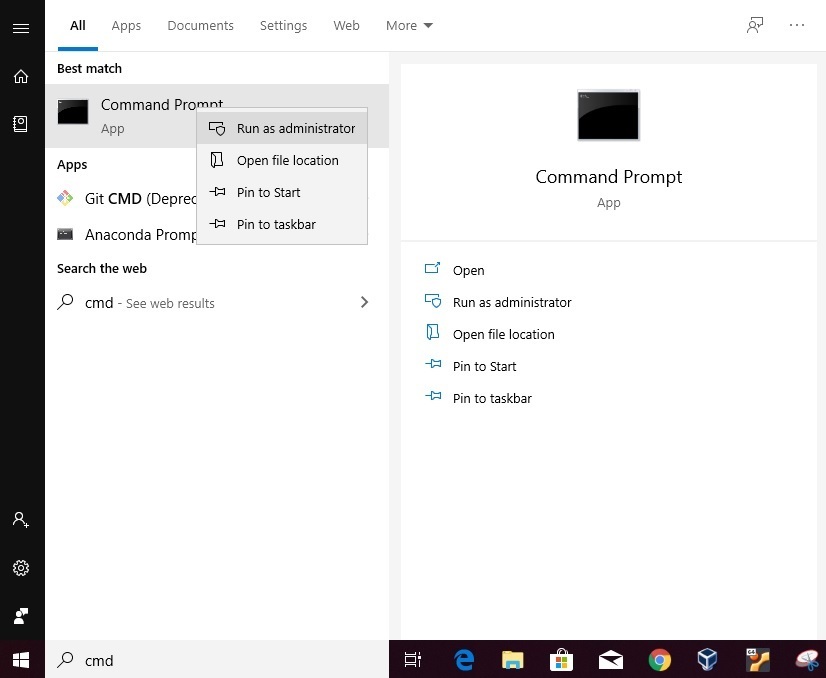
Press Start , Search for CMD , right-click on it, and select Run as Administrator. 👁 Boot-USB-using-CMD-00
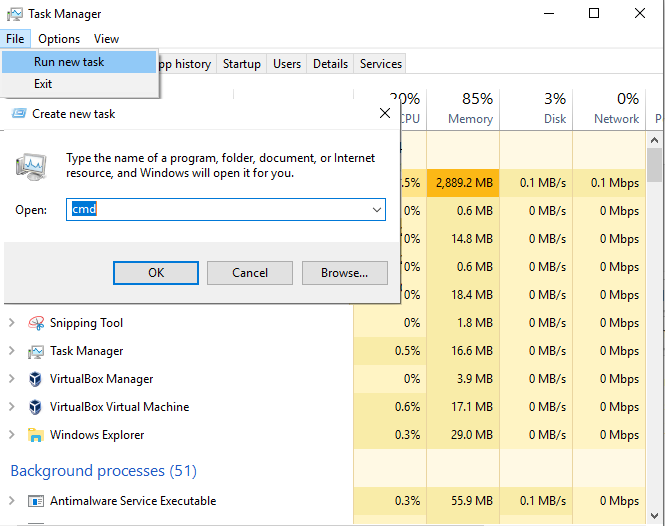
Or, press ctrl + shift + Esc to Open Task Manager, click on File -> Run new task, search for CMD and press enter. 👁 Boot-USB-using-CMD-001
Step 2: Connect the USB Drive
Insert the USB Device that you want to make bootable.
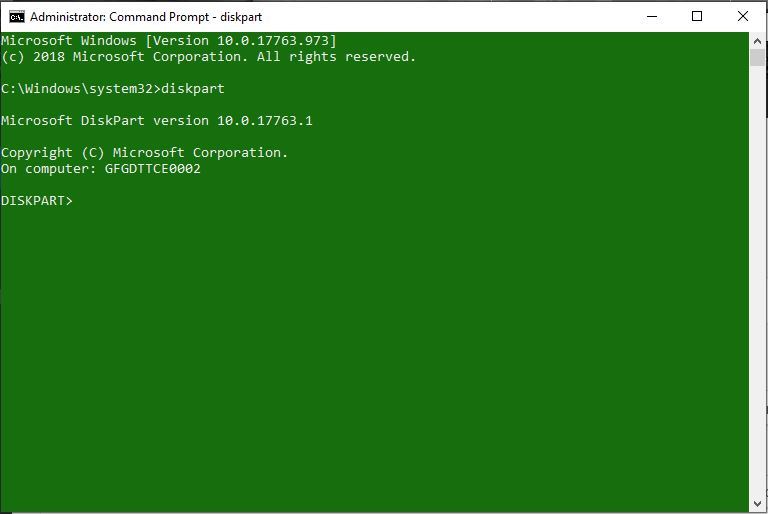
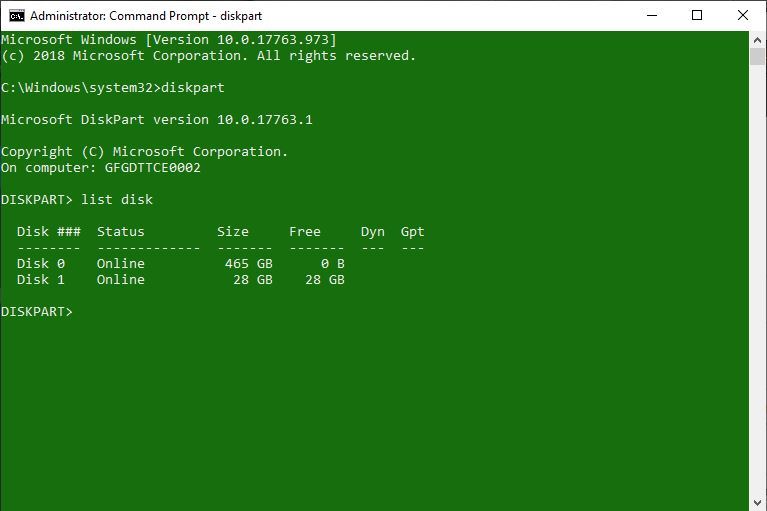
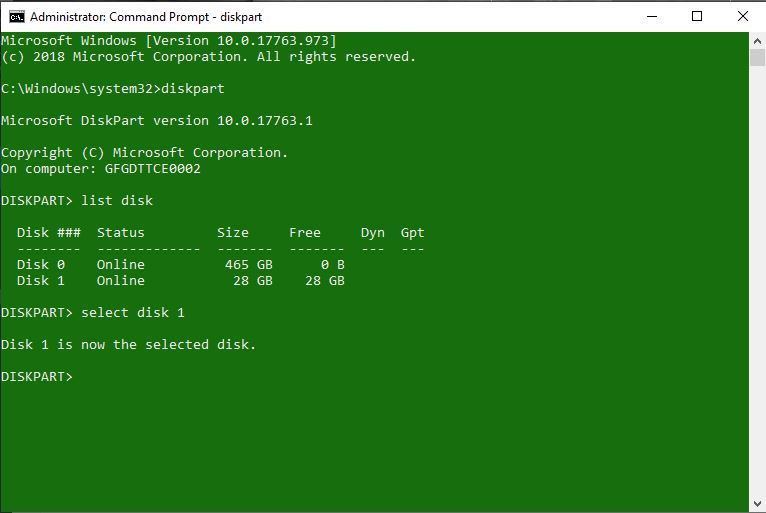
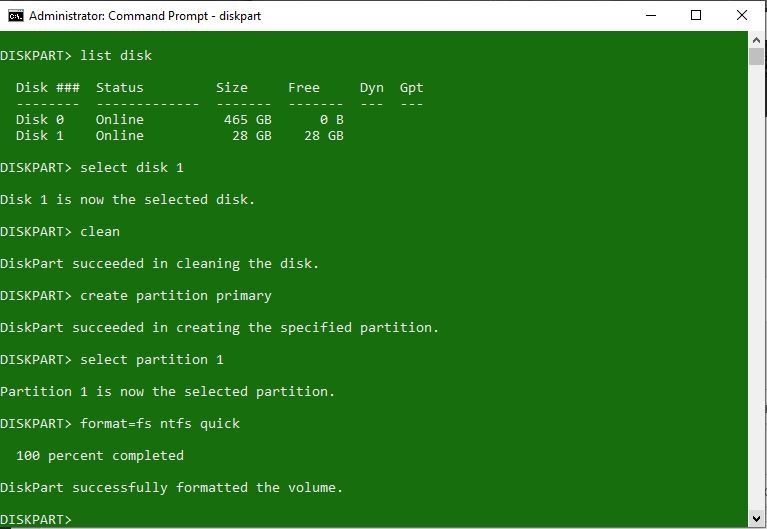
Identify your USB disk from the list. Usually, it's labeled as Disk 1. Select it using:
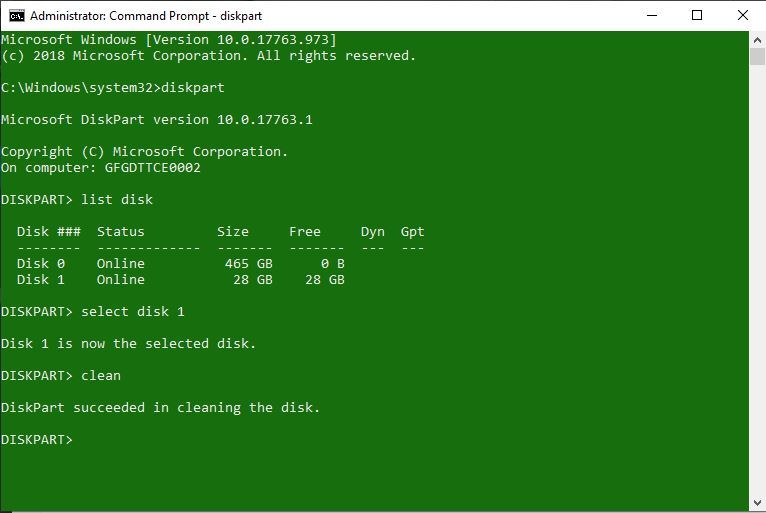
Note: Generally, it is marked as Disk 1, it might vary from system to system. Make sure not to select any other available disk as it will get formatted.
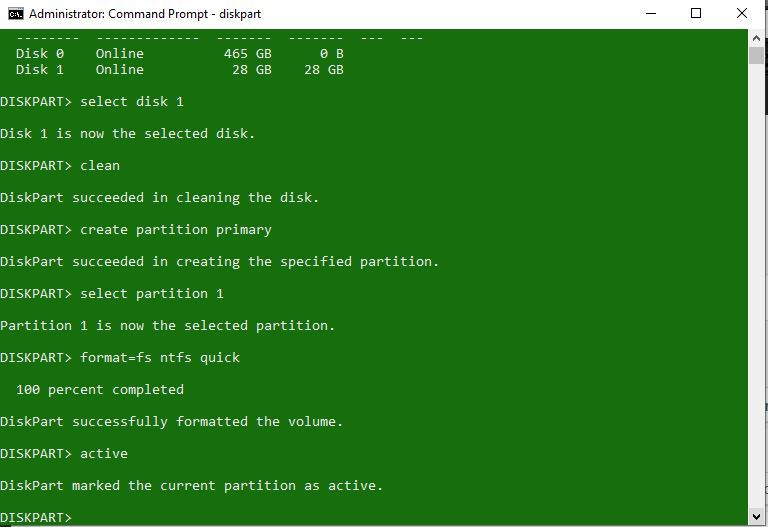
Before making the disk bootable, you need to format it as NTFS if you are using legacy BIOS. This can be done with the use of a command format fs=ntfsquick and press Enter.
Note: If you are using Unified Extensible Firmware Interface or in simple words UEFI BIOS then you must type in the following command instead. Most modern systems are UEFI systems, you can check your system manufacturer's website to know whether your system is legacy BIOS or UEFI BIOS.
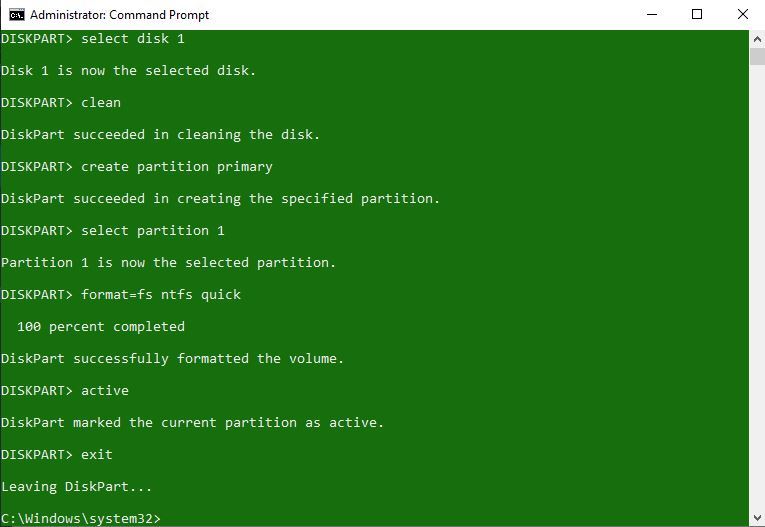
Now copy all the data from the OS installation disk to your USB drive that is just been made bootable.
Conclusion
Creating a bootable USB flash drive using CMD is a reliable and efficient way to install or repair your Windows (or Linux) system. It gives you full control, doesn’t require third-party software, and works across both BIOS and UEFI systems. Follow these steps, and you’ll have a fully functional bootable USB ready to go!