|
VOOZH | about |
|
VOOZH | about |
The Command Prompt in Windows is a tool that allows users to perform a wide range of tasks, from basic file management to advanced system commands. However, many users are unaware of the numerous Command Prompt hacks for Windows that can enhance productivity and simplify complex tasks. In this guide, we'll explore some of the best CMD hacks for Windows, uncovering hidden features and useful tips that can make your experience with the command line more efficient and enjoyable.
Talking about the command prompt, let's check out some interesting Tricks you can do in the Command prompt.
It is the most useful command to encrypt or decrypt the folders or files without using any third-party apps
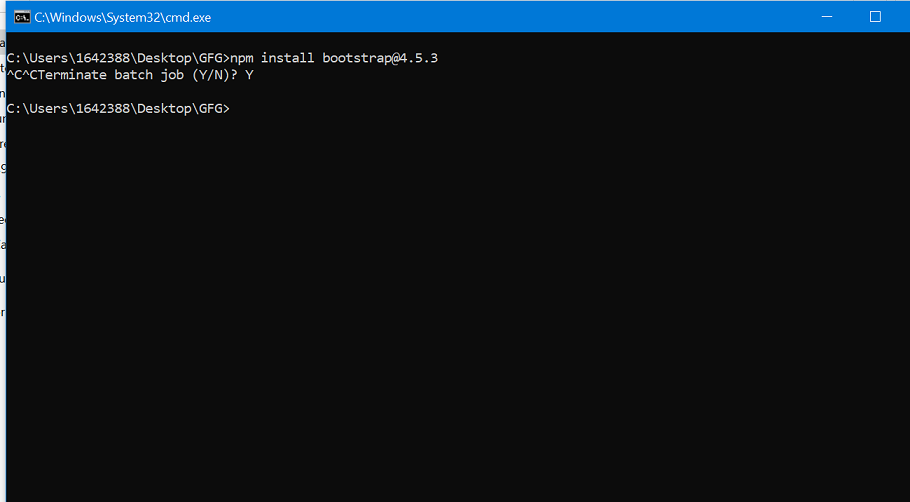
To undo some action, we use CTRL + Z. But in case of command prompt. You can't undo with CTRL + Z. To stop/abort a command from executing, simple press CTRL + C to stop it. However, this shortcut key can't actions that are undoable example "format" and "chkdsk" commands. For detailed information on how to abort commands in cmd article click here
CTRL + C👁 Image
or
Ctrl+ Pause/break
This displays crucial network details like IP address, subnet mask, and gateway, helping you troubleshoot and understand your computer's network configuration.
👁 View-Your-Computer's-Important-Network-Information
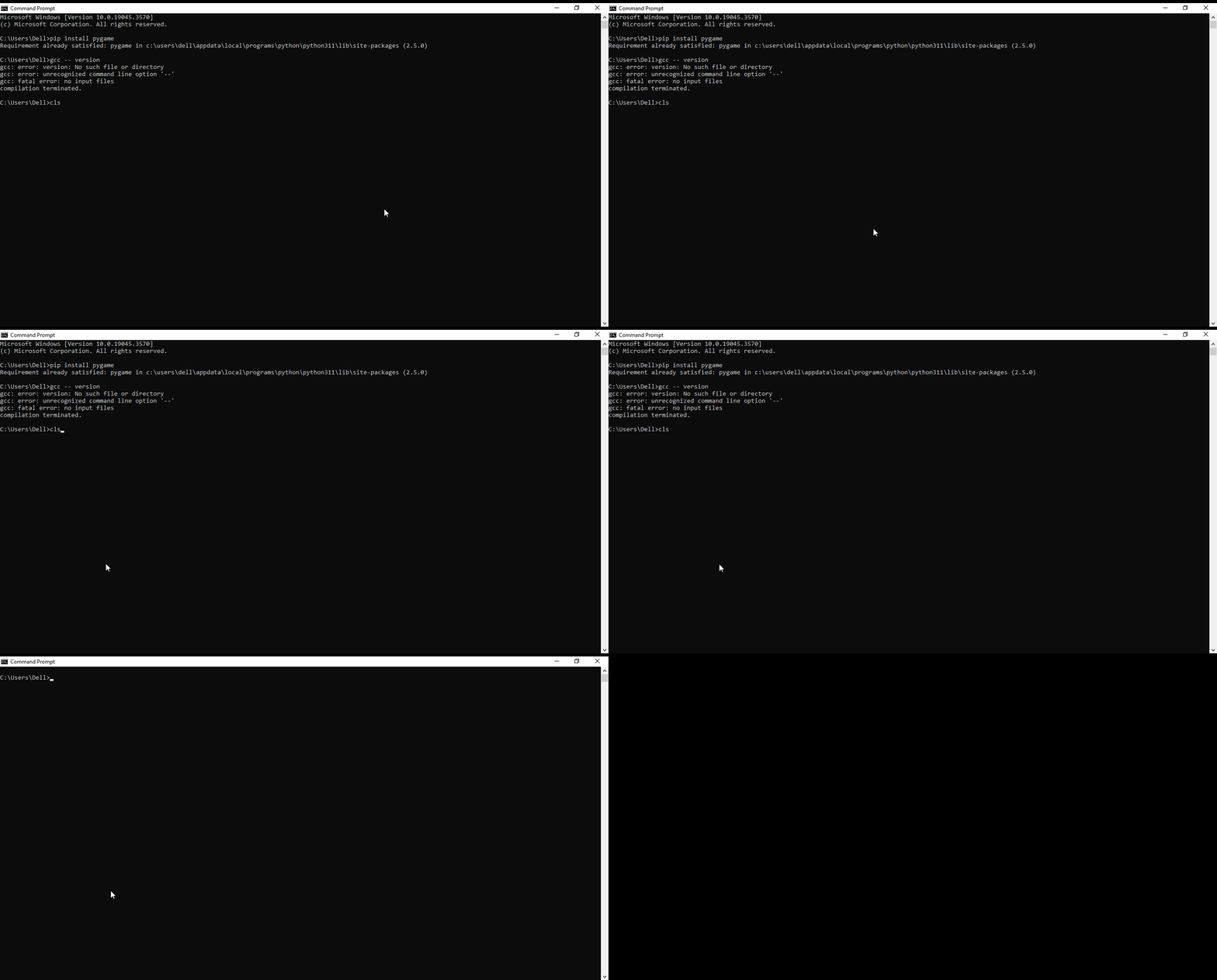
If you simple want to clear current input command text, Simple press ESC key. To clear the entire screen, don't close and reopen the cmd, instead use “cls” command or "CTRL + L" shortcut key. The result is shown below.
👁 Clear-CMD-Screen-Using-the-cls-command_2So these are some Command Prompt hacks for Windows. Try out these commands and make your interaction with cmd more fun and joyful!
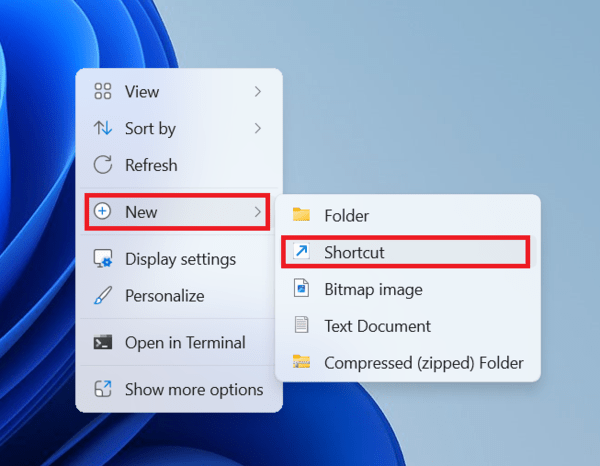
Step 1: Right-click on empty space on the desktop and select New > Shortcut.
👁 Create-Desktop-Shortcut_1Step 2: Now type the location of the item, simple type cmd.exe, and click Next.
Step 3: Provide a name for your shortcut like Command Prompt and click Finish.
The Task Manager desktop shortcut is created and will appear on your Windows desktop.
Step 4: Now Right-click on the cmd desktop shortcut and select Properties
Step 5: Now, go to Advance Settings and check the Run as administrator box and click OK.
Unlock the power of Command Prompt with these hacks for Windows. Learn how to abort, cancel, stop, terminate, interrupt, halt, and end commands efficiently using CMD. Take your Windows experience to the next level with these Command Prompt tricks.
Hence you have successfully created cmd desktop shortcut that automatically open as run as administrator.