|
VOOZH | about |
|
VOOZH | about |
The DATEDIF function in Google Sheets calculates the difference between two dates. It helps measure durations like years, months, or days between a start and an end date, making it ideal for tasks like age calculation or project timelines.
The DATEDIF formula in Google Sheets calculates the difference between two dates based on a specified unit.
=DATEDIF(start_date, end_date, unit)Determines the type of difference to calculate (e.g., years, months, or days).
| Unit | Description | Example Formula | Result (Dates: 01/01/2020 - 03/15/2023) |
|---|---|---|---|
"Y" | Full years between the two dates. | =DATEDIF(A1, B1, "Y") | 3 |
"M" | Full months between the dates. | =DATEDIF(A1, B1, "M") | 38 |
"D" | Total days between the dates. | =DATEDIF(A1, B1, "D") | 1169 |
"YM" | Months excluding full years. | =DATEDIF(A1, B1, "YM") | 2 |
"MD" | Days excluding full months/years. | =DATEDIF(A1, B1, "MD") | 14 |
"YD" | Days excluding full years. | =DATEDIF(A1, B1, "YD") | 73 |
This Google Sheets DATEDIF tutorial will help you easily calculate date difference in Google Sheets for various time units like days, months, or years. Follow these steps:
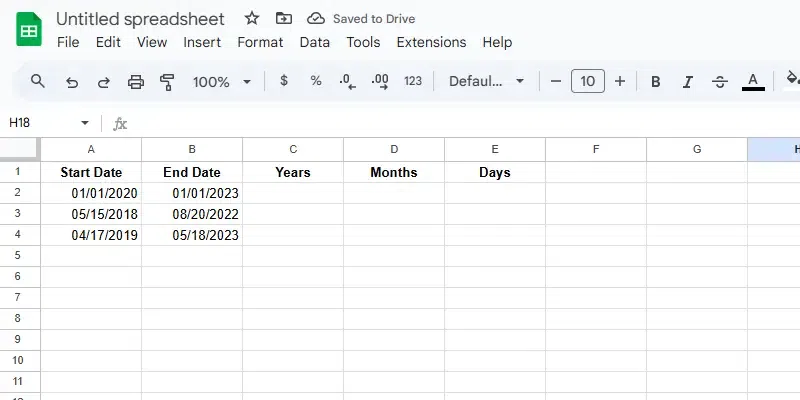
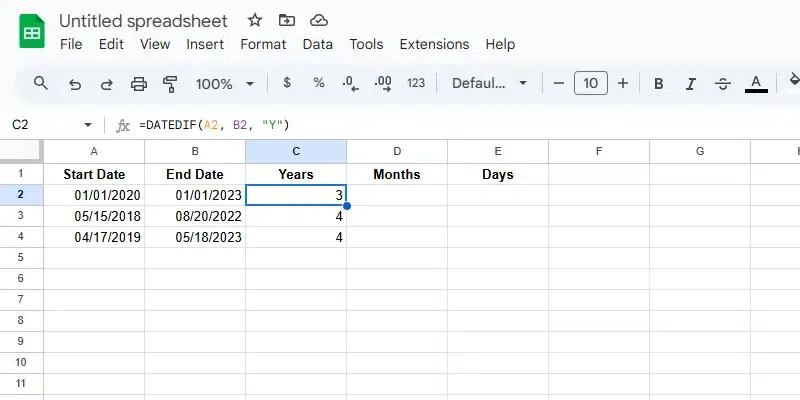
01/01/2020, 05/15/2018, 04/17/2019).01/01/2023, 08/20/2022, 05/18/2023).C2).=DATEDIF(A2, B2, "Y")This calculates the number of complete years between the two dates.
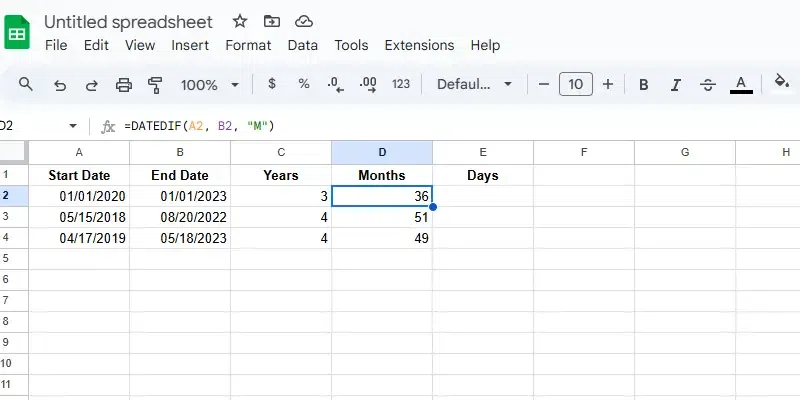
D2).Enter the formula:
=DATEDIF(A2, B2, "M")This returns the total number of months between the two dates, including years as months.
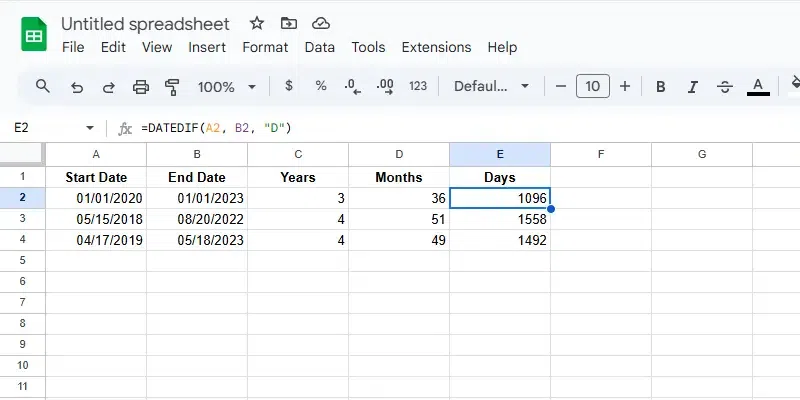
E2).Enter the formula:
=DATEDIF(A2, B2, "D")This calculates the total number of days between the two dates.
The Google Sheets DATEDIF Function is not just for basic date calculations; it offers powerful features for advanced scenarios:
Use the DATEDIF function in combination with TODAY() to calculate age dynamically.
A1).=DATEDIF(A1, TODAY(), "Y")This calculates the age in years, updating automatically as time passes. You can also calculate months or days with "YM" and "MD" units for more detailed age tracking.Track time remaining until deadlines using DATEDIF:
TODAY()) and the deadline date in another.=DATEDIF(TODAY(), B1, "D")This calculates the days left until the deadline. Combine it with conditional formatting to highlight tasks approaching their deadlines.Compare project durations with DATEDIF:
=DATEDIF(A1, B1, "D")This calculates the total number of days for each project. You can also compare durations in months or years by changing the unit to "M" or "Y". Visualize the results using bar charts for better comparisons.Using the DATEDIF formula in Google Sheets can sometimes lead to errors. Here are common issues and their solutions:
1/4/1900, instead of a number.#NUM!."Y": Full years."M": Full months."D": Total days."YM": Months excluding full years."MD": Days excluding months and years."YD": Days excluding years (useful for calculating days since the last birthday).9/30/15 and 2/28/16, the function counts 4 months, even though February ends on the 28th."YM", ensure the result cell is formatted as a number. By addressing these common errors and following these fixes, you can ensure accurate and effective use of the DATEDIF function in Google Sheets.
Also Read: