|
VOOZH | about |
|
VOOZH | about |
How to Start a Group Chat on Discord- Quick Steps
- Open Discord App or Web App
- Go to the Friends Tab
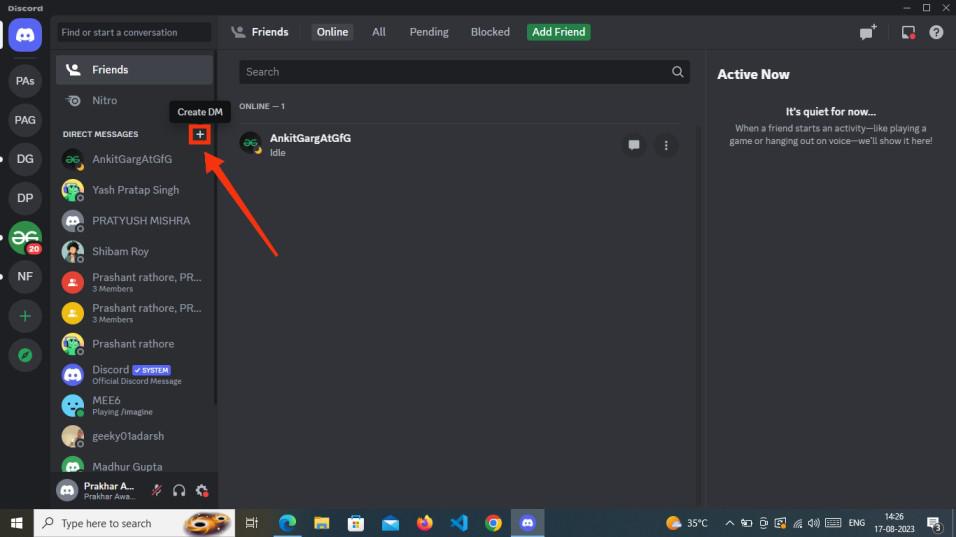
- Click on '+' create DM Icon
- Select Friends > Click Start DM
- Start Group Chat
Discord has emerged as a popular platform that offers a variety of features to bring communities and friends together. One of the best features of Discord is the ability to create group chats, allowing users to engage in discussions, collaborate, and socialize within a designated space. Creating a group chat in Discord is a powerful way to stay connected with friends, coordinate gaming sessions, or collaborate on projects within a more private setting.
In this article, we will go through the process of making group chats on Discord with some effective steps, both on Desktop and Mobile.
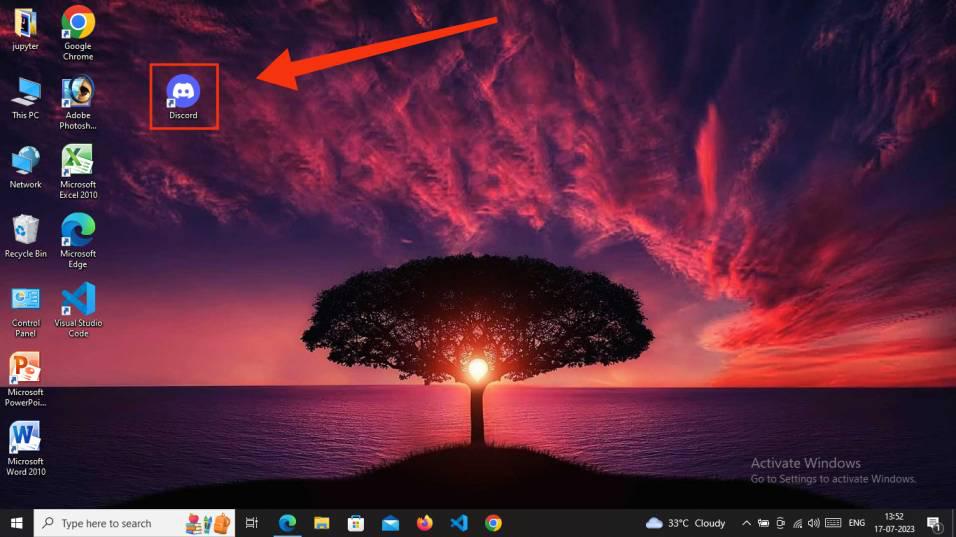
Launch the Discord App on your Desktop or open Discord Web App.
If you do not have the Discord app installed, you can simply access Discord directly through any web browser on your desktop.
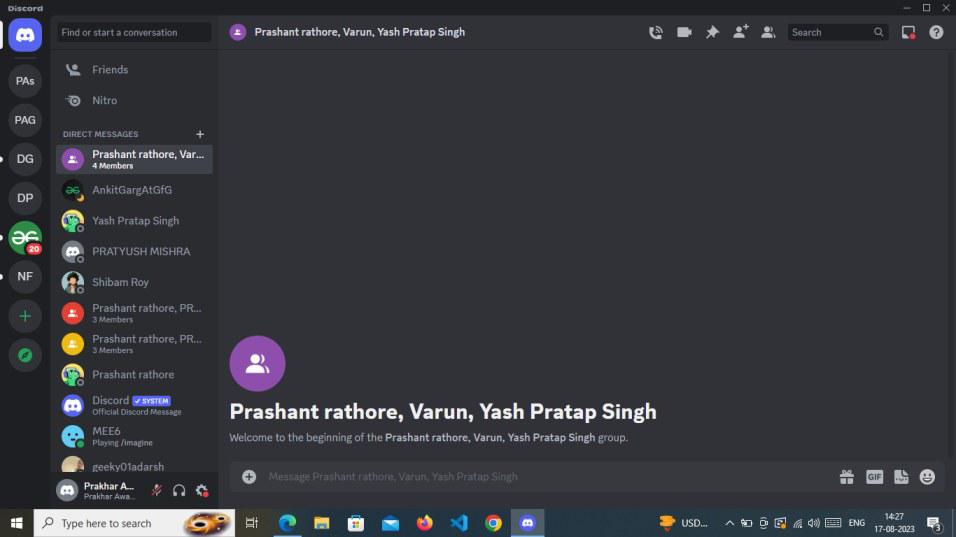
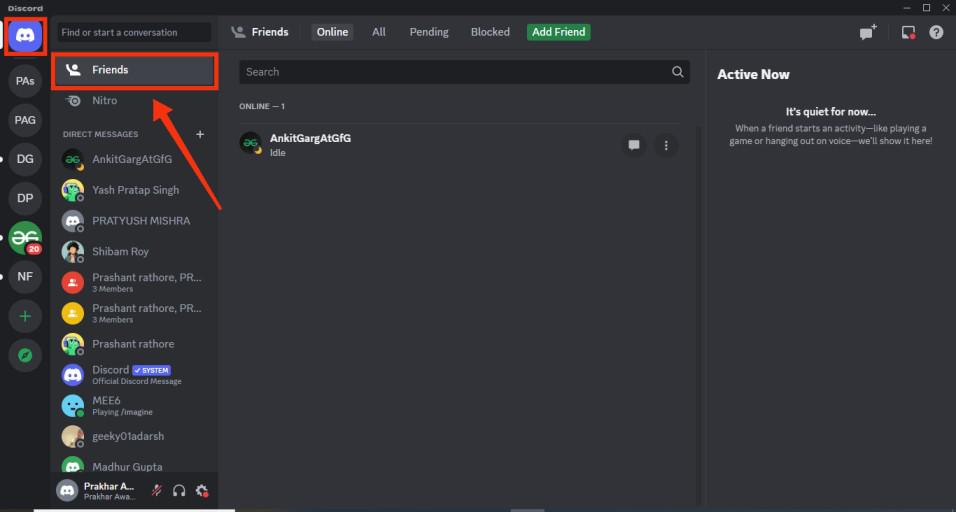
After opening the Discord app find the "Friend" tab on the top left corner of the Discord's interface and give it a click to open a Friend's menu.
In the Friends tab go to the Direct Messages and click on the '+' icon to create DM. This will open you a list of your existing Friends.
Upon clicking the "Create DM" icon, you'll have the opportunity to choose friends and form a group. Now, pick the friend you wish to include in your group, and then proceed by selecting "Create Group DM."
Your group has been successfully established, and you're now ready to initiate a group chat with your friends.
Launch the Discord App on your Desktop or open Discord Web App.
If you do not have the Discord app installed, you can simply access Discord directly through any web browser on your desktop.
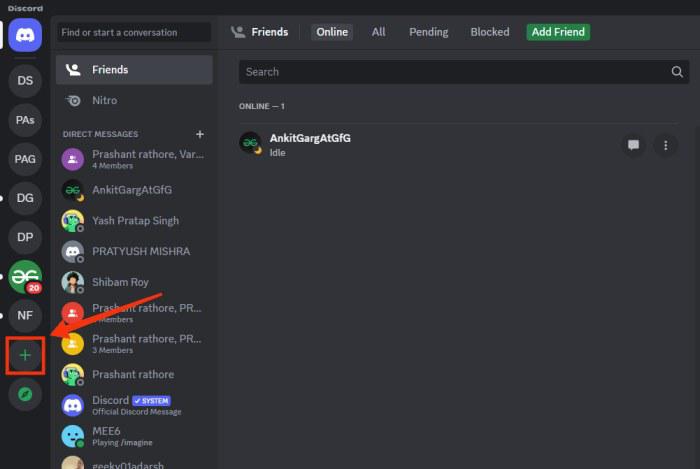
You can either create a new server or choose an existing one to set up a group chat within a designated text channel.
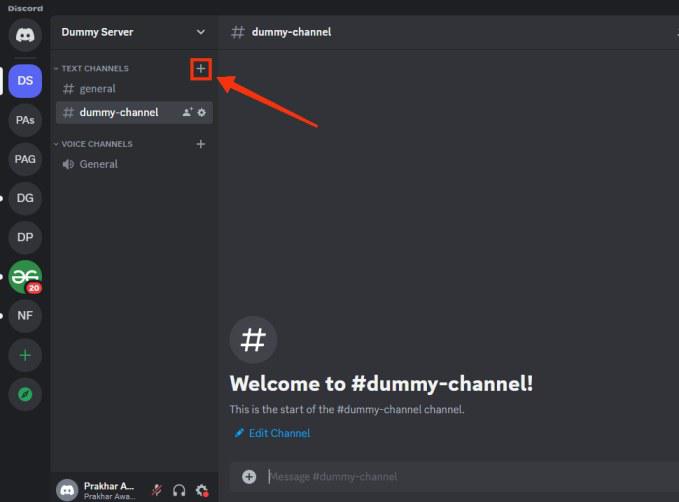
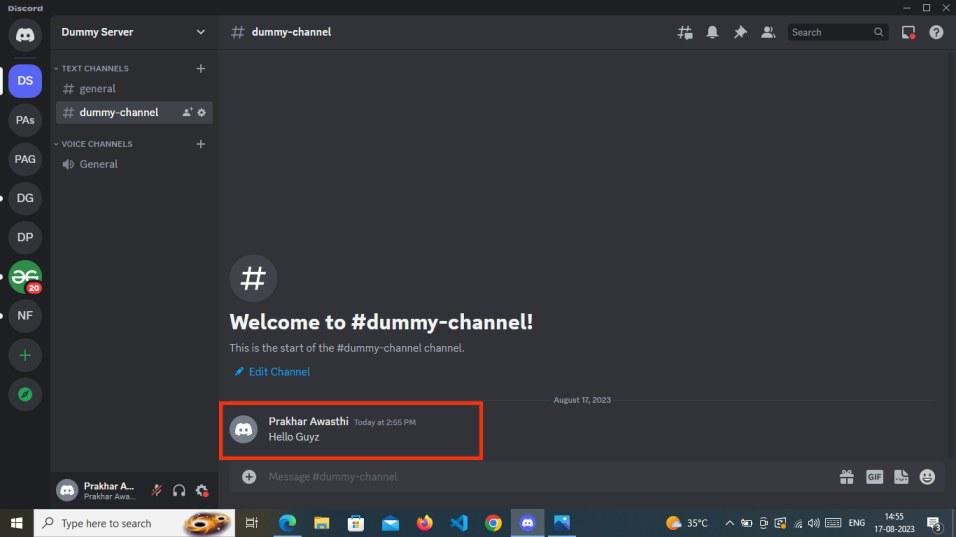
Once you've established a fresh server or chosen an existing one, the next step involves crafting a text channel within the newly designated server. To do so, simply click on the '+' icon located adjacent to the Text Channels section, enabling you to generate a new channel.
Now, decide on the type of channel you want to use; group chats can take place in both voice and text channels. Select your preferred channel type and then proceed to click the "Create Channel" button.
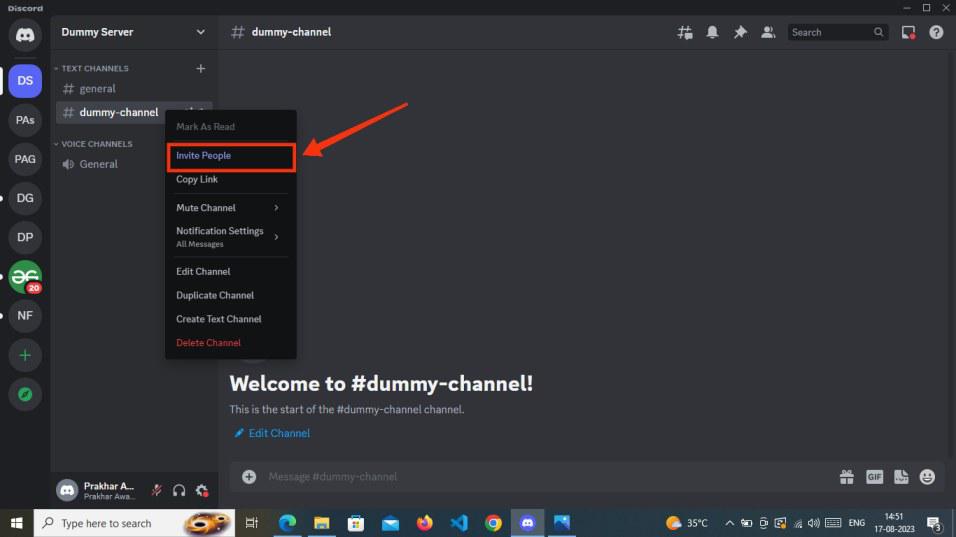
To open a dropdown menu for the channel you've created, simply right-click on it. From there, choose the "Invite People" option to send invitations to your friends.
Within the Invite friends to Dummy server, share invites to the desired individuals, or alternatively, you can opt to copy the invitation link by clicking the "Copy" button.
Your Discord group chat has now been successfully established, allowing you to engage in conversations with your friends.
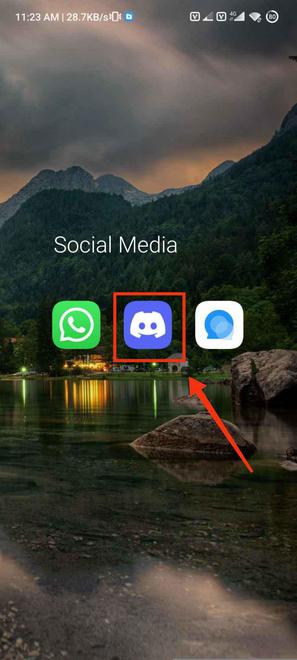
Click on the Discord Icon to open the Discord Mobile App.
Click on the Add Direct Messages icon located at the top right corner of the interface to start a group chat.
After opening a friends menu select your desired friends you want to add in your group and click "Start" to begin the Group chat.
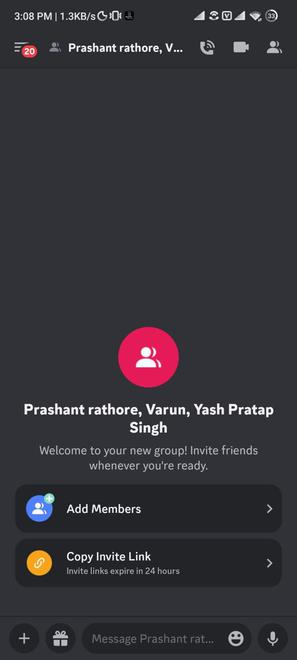
Your group has now been created and you can start your group chat with your friends.
Click on the Discord icon to open the app on your Mobile.
Now, either create a new server or select an existing one to set up a text channel for group direct messaging (DM).
Proceed to create a channel within your freshly created server or in the existing server. Click on the '+' icon situated adjacent to the Text Channels section to generate a new channel.
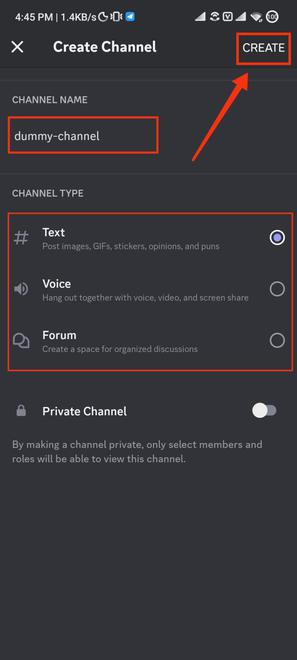
Customize your channel by selecting the desired channel type and assigning a name to it. Once you've done that, click the "Create" button to finalize the process.
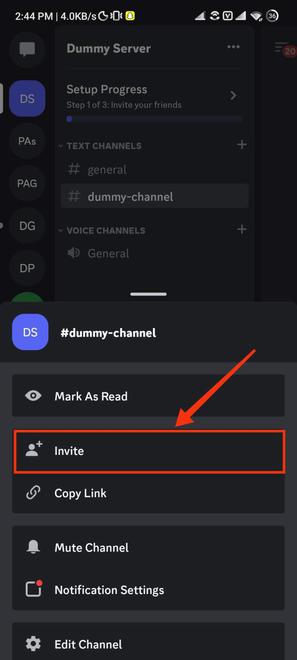
After your channel is created locate your channel and tap and hold it until drop-down menu appears.
Now from the drop-down menu appears select the "Invite" option to open the invite section of Discord.
After clicking on the Invite button you will be given your friends list and you can invite them directly by clicking "Invite" button present next to their name or you can copy the invitation link.
Your group has now been created and is all set to make group chats.
Making Group chat in Discord provides many advantages of instant communication and building communities. Making a group for a group chat can be done in two ways first you can make groups in Direct Messages second you can create groups in channels. In order to create a group in DMs just go the Friends tab and click on the DMs icon '+', after that select your members of the group and click "Start".
If you want to create groups in a channel, then first you have to create a server or you can also join any server. After that create a channel in the server and right on it and select "Invite" to invite the people to your channel. This is how you can make group chats in Discord.
Also Read: How to Create a Poll in Discord

.jpg)