|
VOOZH | about |
|
VOOZH | about |
Google Forms is a simple and effective tool for creating online surveys, quizzes, and feedback forms. It allows users to collect responses easily, customize form designs, and analyze data in real time without requiring any technical knowledge.
Google Forms is one of the most popular online tools for creating surveys, polls, and quizzes. It offers a variety of question types, quiz modes, custom themes, and add-ons, making it a go-to choice for most survey creators. With Google Forms, you can:
Creating surveys using Google Forms is an easy process that allows you to collect valuable information for various purposes. Here's the step-by-step procedure to make a survey in Google Forms, given below for your reference:
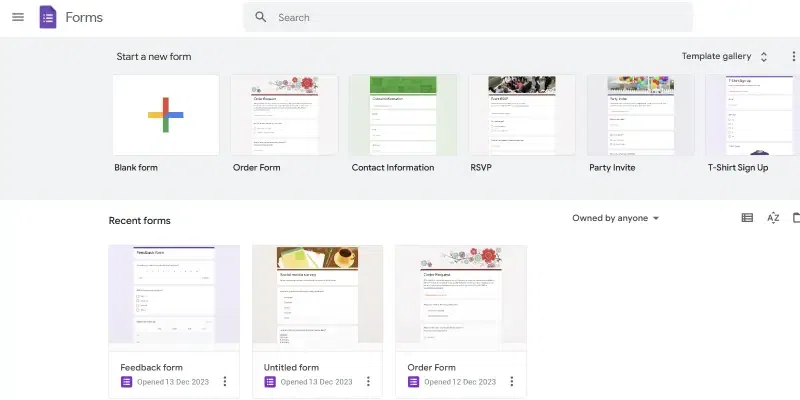
On your browser, go to the official website of Google Forms.
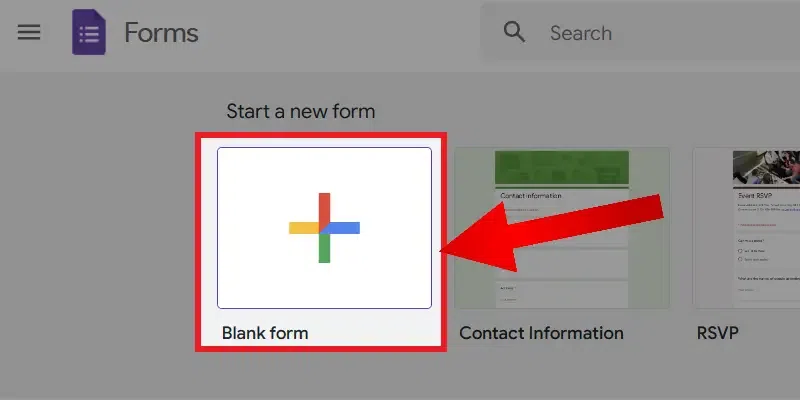
On the homepage of Google Forms, you can see an option called Start a new form. Under that, click on Blank Form to create a new blank form.
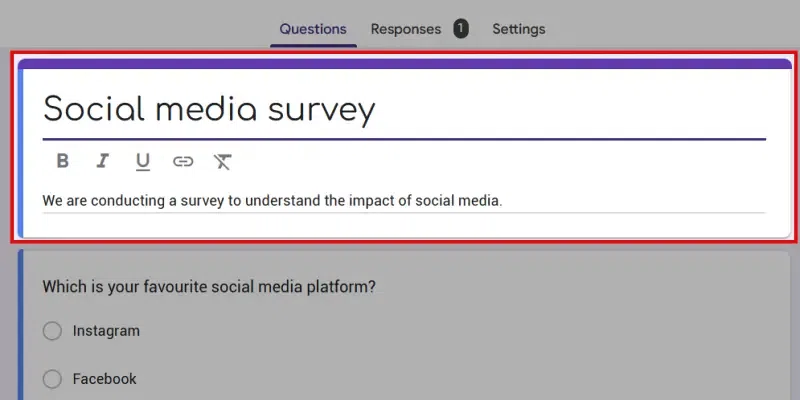
After creating a new form, enter the title and description of your survey.
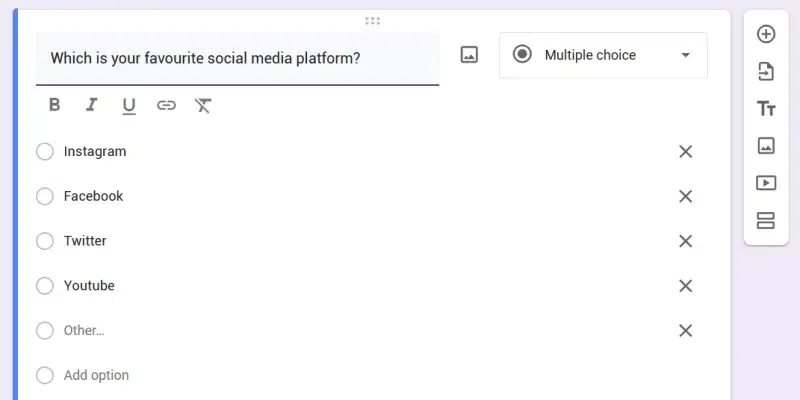
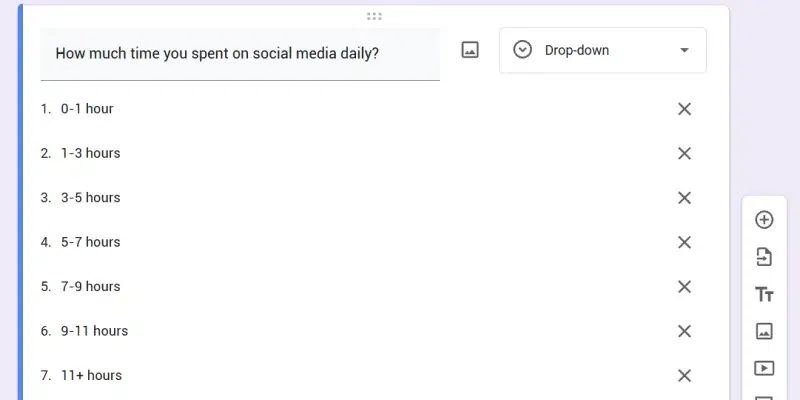
You need to select the question and select the answer type of questions.
Here is another example of a dropdown menu question.
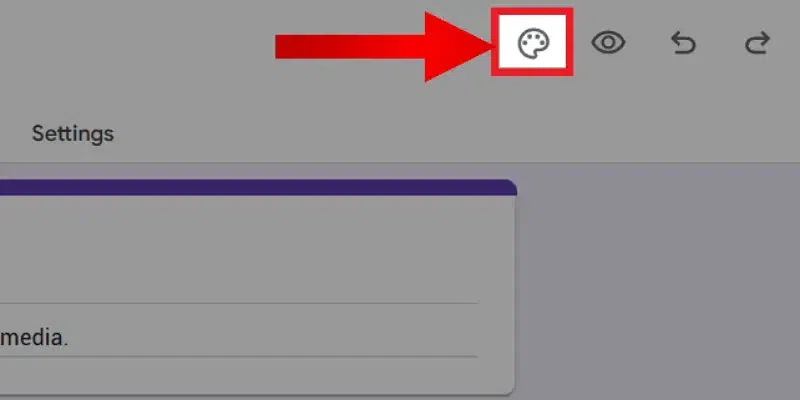
After adding all the questions, you can customize the theme of your survey to make it more attractive. Click on the customize button located at the top of the Google form to open the customize window.
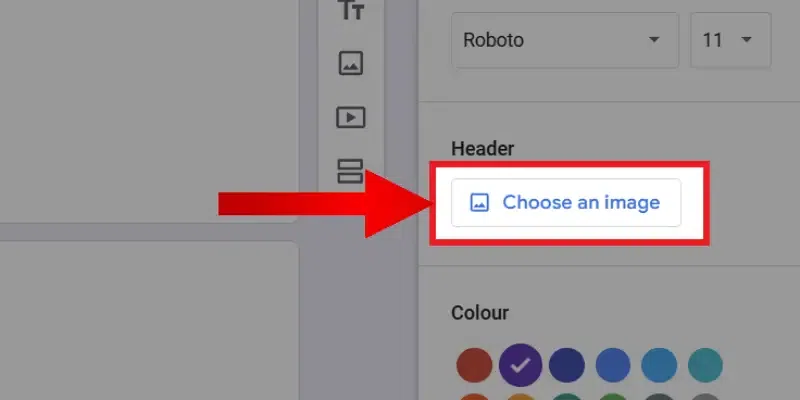
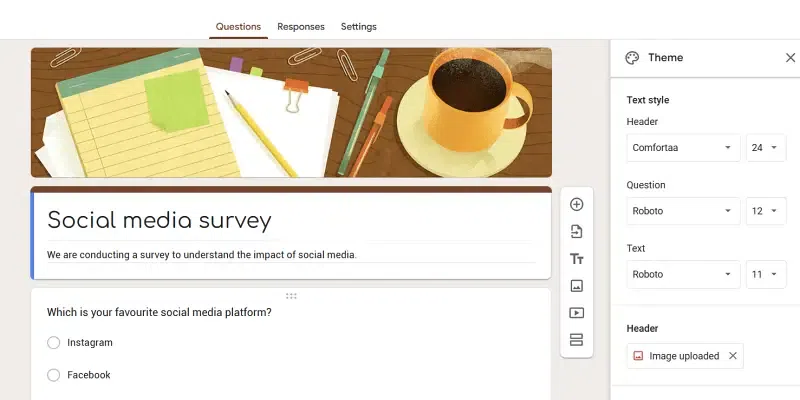
Change fonts, colors, and headers to make it attractive. You can also pick a new header image—which you can choose from Google's pictures or use your own.
Here is the Google form with a header image.
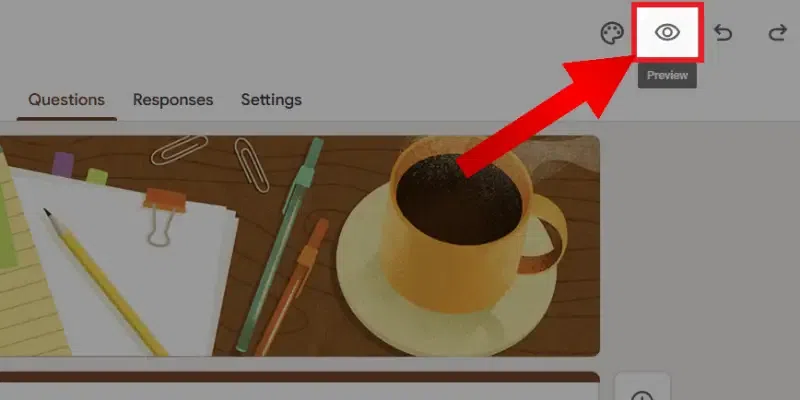
After completing all the customizations, click on the Preview button at the top of Google Forms to preview the survey we made. It will open a new tab with our survey. Go through all the questions and options, to find out any errors or typos in the form.
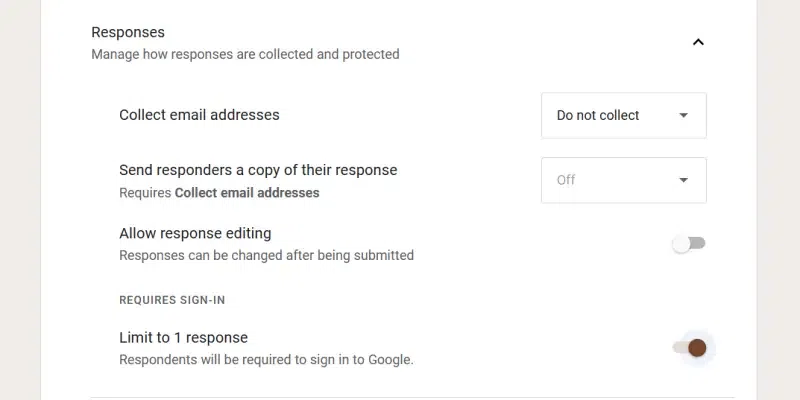
Go to the Settings tab and tweak some changes like limiting one response per user to make sure a user only submits a survey one time. You can also change other settings if required.
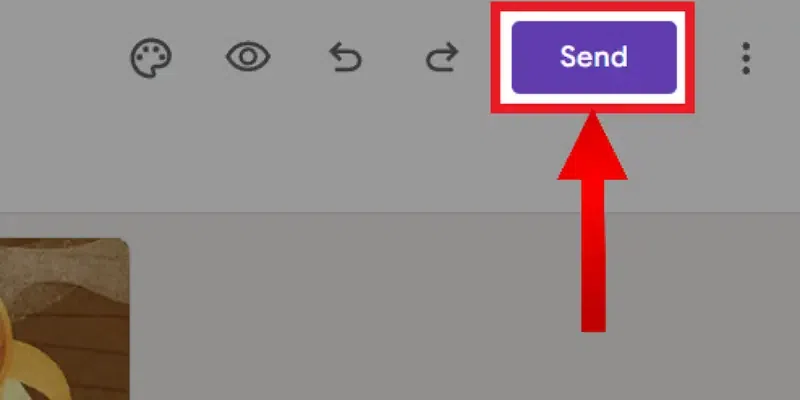
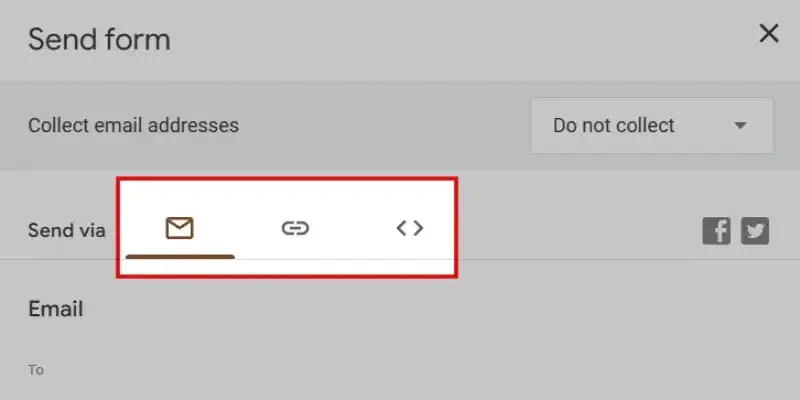
Now you can publish the survey. To publish the survey, click on the Send button in the top right corner of Google Forms. There are different ways to publish a Google Form. You can send it via email, send it by link, or embed it to your website. Choose it according to your needs.
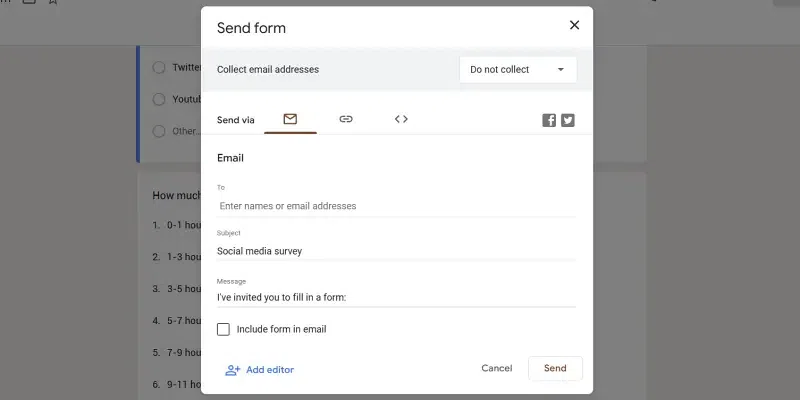
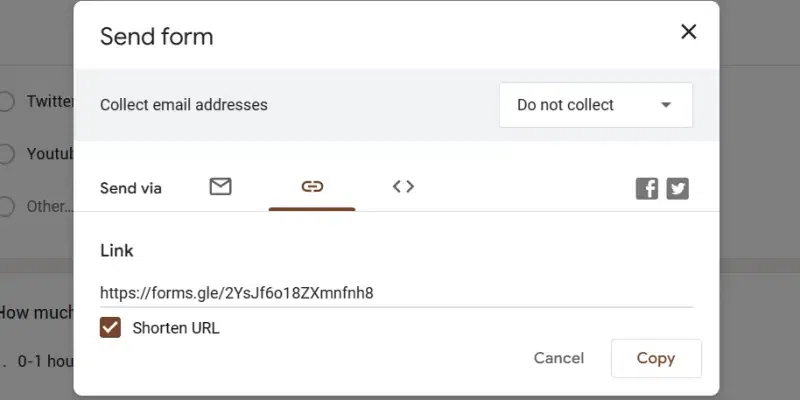
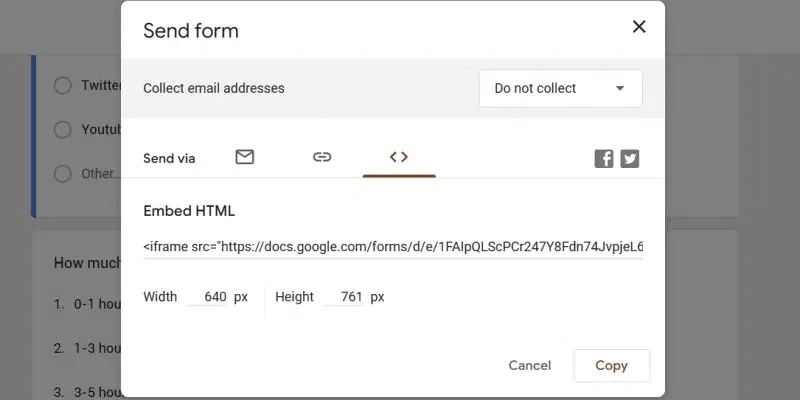
Clicking on the Send button will open a pop-up asking the ways to send the form. You can change ways to send by clicking on the option next to send via.
The below screenshot shows sending the form via email. The user needs to enter recipients' email addresses and click send to publish form via email.
Another way to publish the form is to share it via a link. It is most preferred by users. You need to copy the link and share it with users using your social media pages or websites.
A third way to publish the form is to embed the form on your website. Copy the embedded HTML and paste it into your website source code to publish a survey via embedding in a website.
Now, you have successfully created a survey using Google Forms
Also Read:How to create a Quiz in Google Forms