|
VOOZH | about |
|
VOOZH | about |
Creating an announcement channel on Discord mobile is quick and easy. To start, go to your server, tap the "+" icon, and choose "Announcement Channel" from the list of channel options. This will let you broadcast important updates.
However, if you're experiencing issues like the Discord announcement channel not showing, ensure you have the right permissions or check your server settings. You can also enable others to follow your announcements and share them in their servers.
👁 How To Make Announcement Channel In Discord
Additionally, Discord announcement copy and paste features allow you to effortlessly share messages across multiple channels without retyping them. In this article, we’ll walk you through setting up the correct Discord announcement channel permissions, ensuring that only admins can post, and show you how to follow an announcement channel on Discord mobile.
Table of Content
Announcement channels are particularly useful for disseminating crucial information to all members without the clutter of regular conversation. These channels can be leveraged by server administrators to share news, updates, and alerts efficiently, ensuring that important messages reach their intended audience without getting lost in the noise.
Discord Announcement Channels work as bulletin boards run by server admins where they can easily share news with everyone in the group. What makes them extra cool is that they're not just limited to one group – the messages can travel to other groups too! By hitting the "Follow" button on an announcement channel, people from different groups can see the messages directly, making it super easy to stay in the loop without joining a bunch of servers.
If your Discord announcement channel is not showing, double-check your Discord announcement channel permissions to ensure they are properly configured. To streamline updates, you can use a Discord announcement bot and learn how to make an announcement channel in Discord on mobile for easy on-the-go management. First, we will know how to create a announcement channel on Discord.
Here are the steps on how to make a announcement channel on Discord on the desktop:
To launch the Discord application on your desktop, locate the Discord icon and give it a click or you can simply access Discord directly through any web browser on your desktop.
To create an announcement channel in Discord you need a server in which you can create an announcement channel, so just go to your server and right-click on the server’s Icon to open the drop-down menu.
From the drop-down menu appears of the server select “Server Settings” among all the options to open the server settings of the server.
To create an announcement channel in Discord your server should be a community server so select the “Enable Community” tab from the server settings and then click on “Get Started” to make your server a community server.
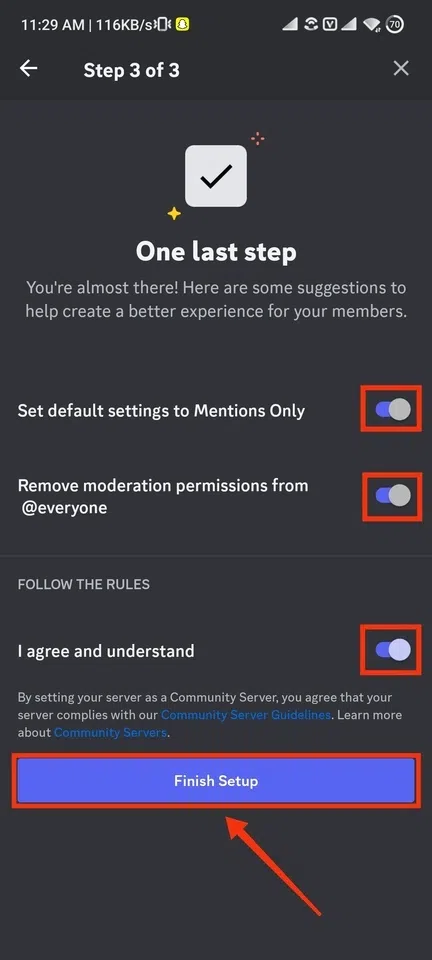
To make a community server you need to complete three steps which will make your server a community server.
After setting up the community server you need to create an announcement channel so click on the "+" icon located next to the text channel title.
Once your server is set up as a community server, you gain access to additional Discord features. To create a new channel, click on the "+" icon, and a window will pop up prompting you to choose the channel type and provide a name. Opt for "Announcement" as the channel type, assign a name to your channel, and don't forget to click the "Create" button to finalize the process.
Once you've successfully set up the announcement channel, find your announcement channel and start typing the announcement you want to share. It's as easy as that! Simply input your announcements and news directly into the channel to keep everyone in the loop.
Note: The ability to post the latest news, announcements, and updates in this channel is exclusive to the server admin. Nevertheless, admins have the option to delegate this access to moderators and users, allowing them to share updates in the channel as well.
Also Read:How to Make a Welcome Channel on Discord
Now we will discuss how to make an announcement channel on Android and iPhone as well.
To launch the Discord app on your mobile, locate the Discord icon and give it a click.
You need to open your server in which you want to make a stage and click on three dots present next to the server’s name.
Click on the Settings icon to open the server settings.
After coming to the server settings find the “Community Server” option and give it a click.
In the Enable Community tab you can build your community and make your server a community server, to do so click on “Get started”.
To make your server a community server you have to complete three steps.
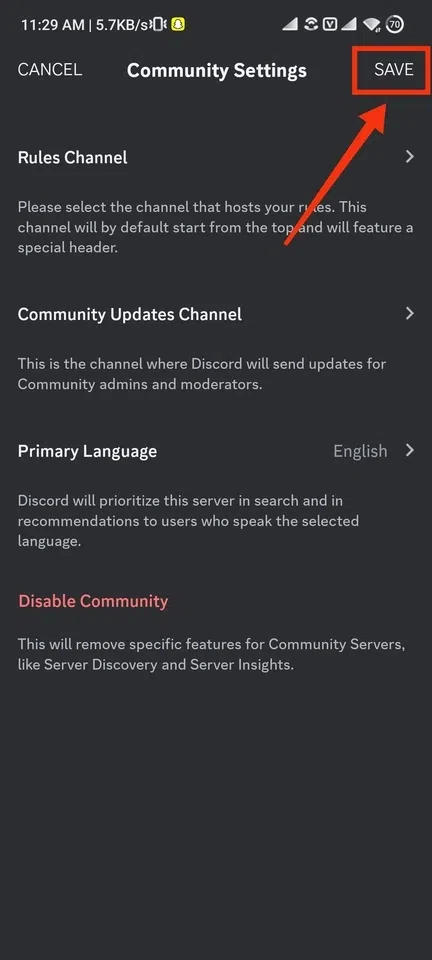
Now review all the changes, edit according to your needs, and click on the “Save” button.
Now you have to create your channel for the announcement to do so click on the "+" icon present next to the Text Channels title.
Once you've activated the community setup, a channel type called "announcement" will become available. Create a channel by choosing the announcement channel type, where you'll need to provide a name and specify the channel type. Finally, click on the "Create" button to complete the process.
After creating a channel for announcement navigate to the channel and start typing your rules and then send them to the channel.
Also Read:
- How To Make A Channel Read Only In Discord
- How to Make a Forum Channel Discord
In conclusion, understanding how to make an announcement channel in Discord is crucial for maintaining effective communication within your community. Whether you're figuring out how to make an announcement channel in Discord on mobile or ensuring your Discord announcement channel permissions are correctly configured, this feature allows for seamless updates.
If your Discord announcement channel is not showing, troubleshooting the settings or incorporating a Discord announcement bot can streamline the process. By mastering how to make an announcement channel in Discord, you'll be able to keep your community informed, engaged, and even allow others to follow your announcements across various servers.



.webp)
.webp)
.webp)
.webp)
.webp)
.webp)
.webp)
.webp)
.webp)
-660.jpg)
.webp)
.webp)
.webp)
.webp)