|
VOOZH | about |
|
VOOZH | about |
Discord is a powerful communication platform offering voice, video, and text chat for communities, with features like Discord bots and Discord servers to enhance your experience. Setting up a welcome channel in Discord is a great way to greet new members and make them feel at home. If you're learning how to make a welcome channel on Discord mobile or preparing for how to make a welcome channel on Discord in 2024, this article has you covered.
If you want to automate the process then you can use bots like Carl-bot to easily set up a welcome channel in Discord with Carl-bot, or explore options to make a welcome channel without MEE6. Additionally, using a Discord welcome bot and customizing your Discord welcome message template can enhance your community’s experience. Don’t forget to take advantage of the Discord welcome screen to provide new members with essential server information!
👁 How-to-Create-a-Welcome-Channel-on-Discord
Table of Content
A Discord server's welcome channel is created with the primary purpose of welcoming new members when they join the Discord server. Furthermore, this channel can also serve as an announcement channel for disseminating information regarding events or server updates. Essentially, the welcome channel acts as the initial point of contact for individuals who join the Discord server.
Here are some ideas for creating a welcome channel in Discord, organized for clarity:
Here are the steps on how to make a welcome channel discord.
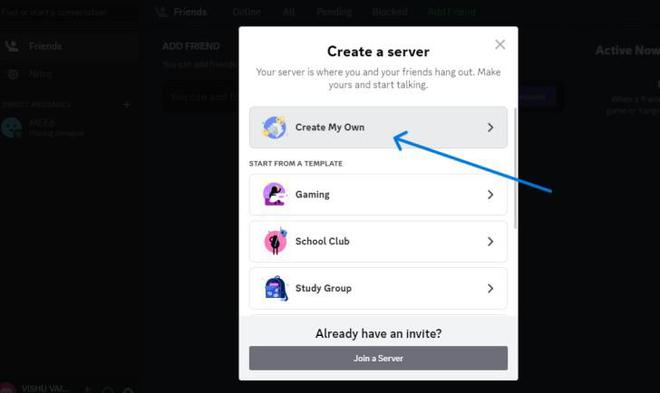
Open the Discord app and create a server by clicking on the "+" icon from the bottom of the server list.
Launch the Discord App Click on Create a Server and Select Create my own.
Note: If you already have created a server then you can skip these steps and can directly move to Step 4.
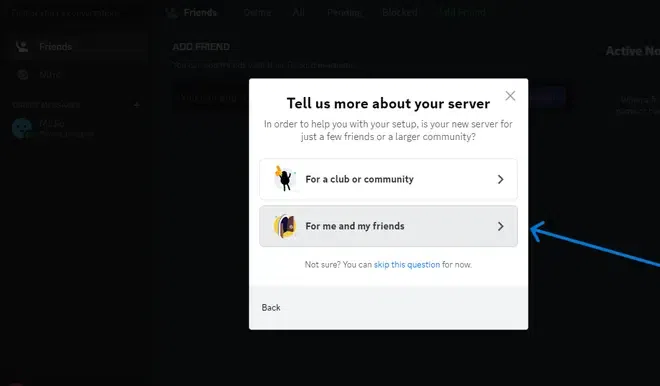
Now, select the channel type that suits your needs. In this instance, We've opted for 'For me and my friends'.
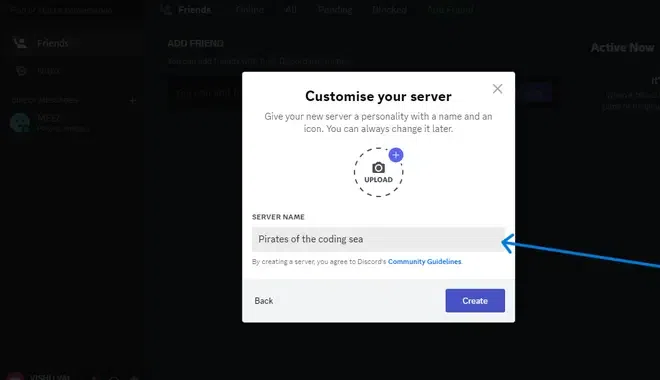
Enter a server name, upload a profile picture, and then proceed by clicking the 'Create' button.
Note: In this example we have named the server as "Pirates of the coding sea".
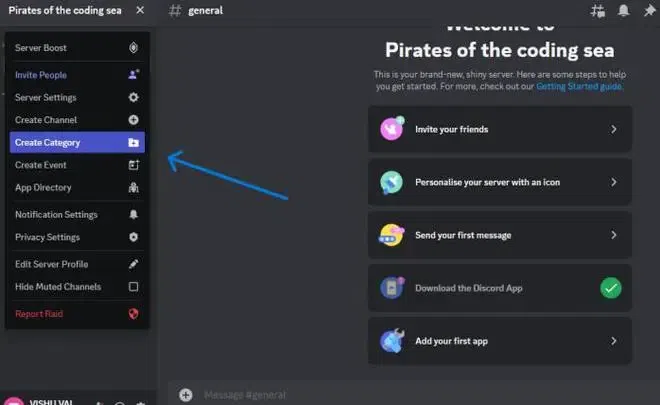
Next, select the server name, triggering a dropdown menu. From there, opt for 'Create Category'.
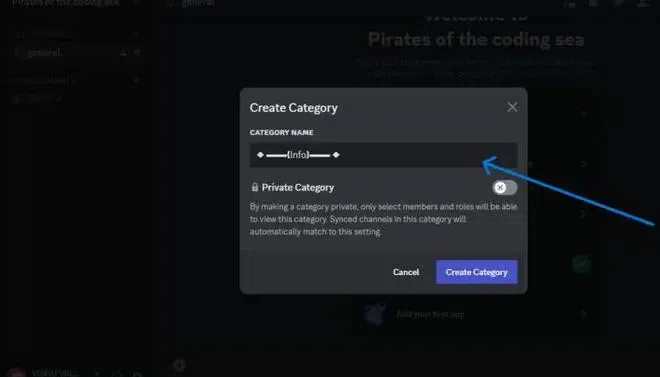
Once you've clicked on 'Category,' enter a suitable name for it, like 'Info' in this example. Then, proceed by clicking the 'Create Category' button, and you'll observe a new category on your server.
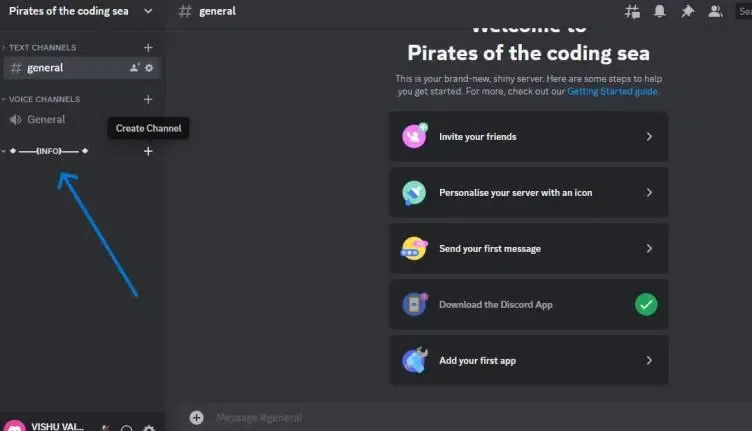
Now, having successfully created a category, click on the plus (+) icon to initiate the channel creation process.
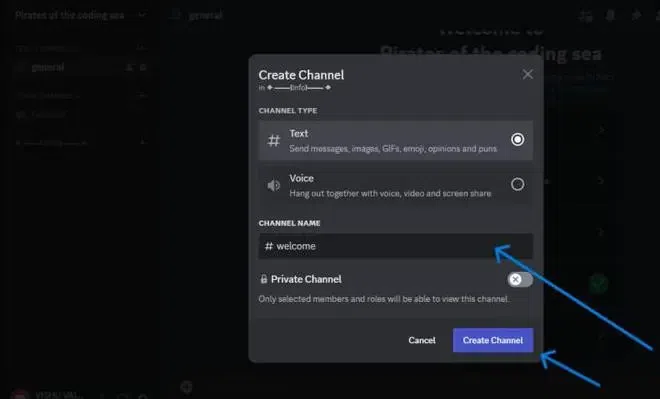
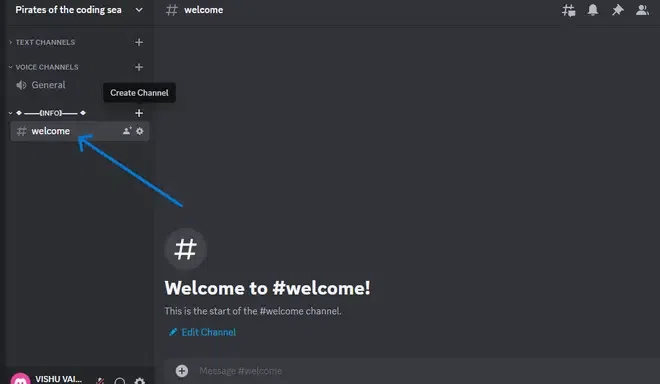
Select "Text" as the Channel Type, change the Channel Name to "Welcome," and finish by clicking the "Create Channel" button.
You will now see a Welcome Channel displayed within the Category you've recently established.
Also Read:How to Make a Goodbye Channel in Discord
Now after creating a welcome channel in Discord now we will send a message in Discord.
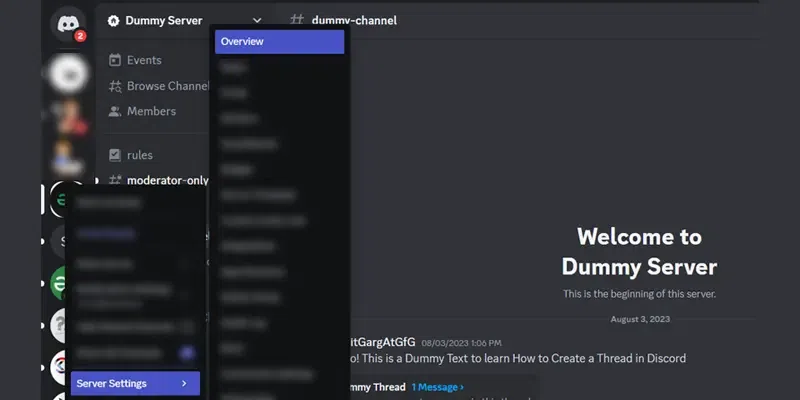
Go to the Server settings of the server in which you Welcome Channel lies.
👁 How to Set up a Discord Welcome Channel
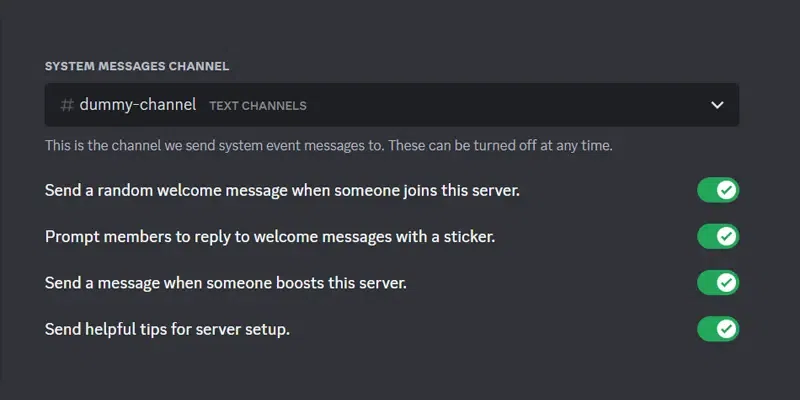
In the Server Settings select the overiew tab from the left side of the pane and enable System Messages channel which will help you to send the mesages in the Welcome Channel.
👁 How to Set up a Discord Welcome Channel
You can create a Welocme in Discord with the help of a bot. Popular Discord bot MEE6 provides server owners and admins with several capabilities. By warning, muting, and banning users who break the rules, it aids in server management. To display community data, give links, or start certain operations, custom commands can be made. MEE6 can automatically filter out specific words, set up welcome and goodbye greetings, and play music in voice channels. Users can designate jobs based on their interests as well.
Here are the steps on how to setup a Welcome Channel on Discord using a Bot.
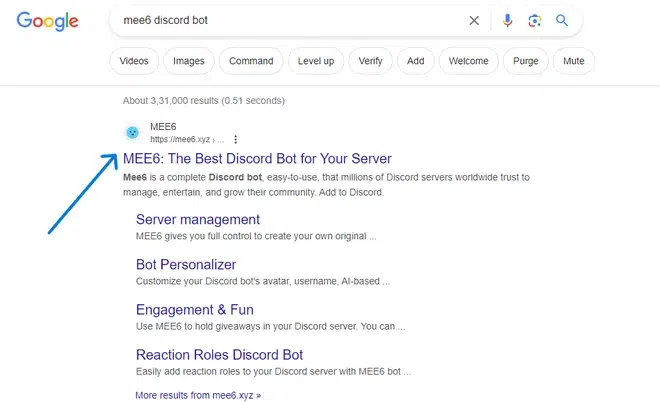
Access your web browser, search for the MEE6 Discord bot, and navigate to its official website. Afterward, log in to the site using your Discord account.
Note: In this example we have choosen MEE6 to integrate a bot to a discord server to create a better welcome experience for new members.
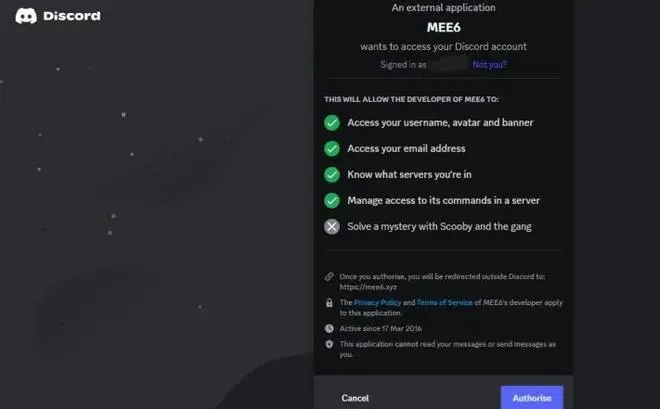
You'll be prompted to grant permission for access to your Discord account. To proceed, simply click on the "Authorize" button.
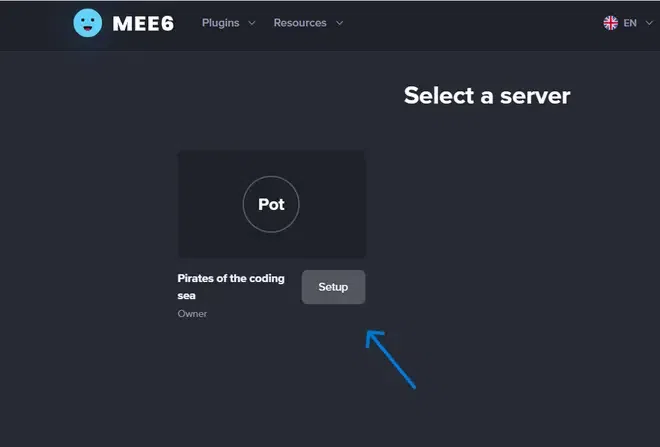
Next, click on the "Setup" option to access the settings and make modifications in MEE6. This is also where you can link your Discord server.
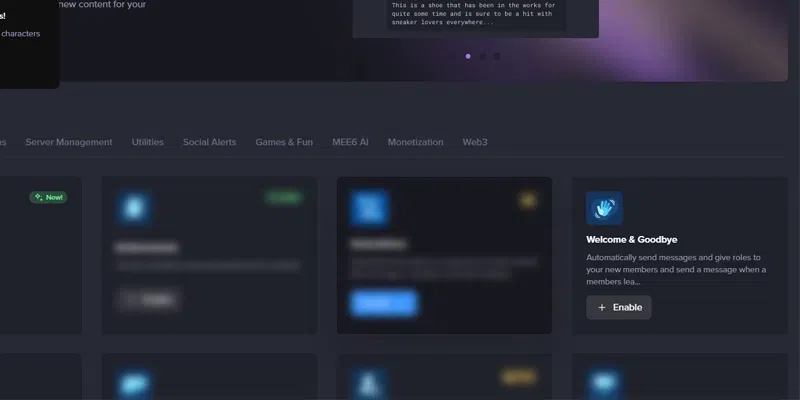
Once you've done that, you'll be taken to the MEE6 home screen. From there, you can enable the "Welcome & Goodbye" plugin.
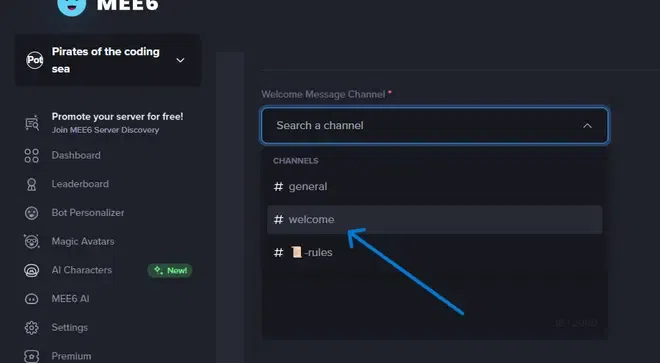
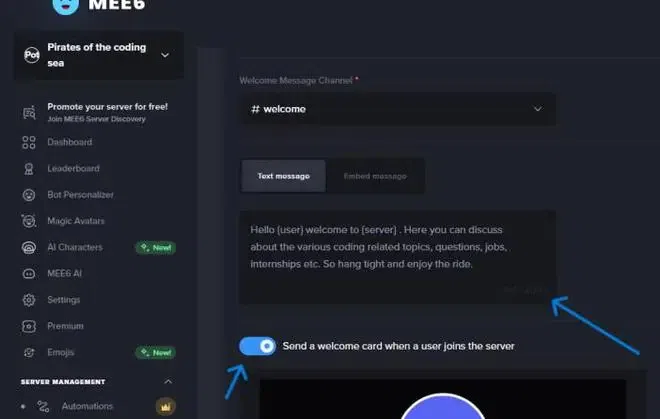
Choose a channel where you'd like MEE6 to extend welcomes and goodbyes to your server members.
Once you've selected the channel, enter your desired welcome message and activate the "Send a welcome card when a user joins the server" option. You can further customize the welcome card to match your channel's theme and design.
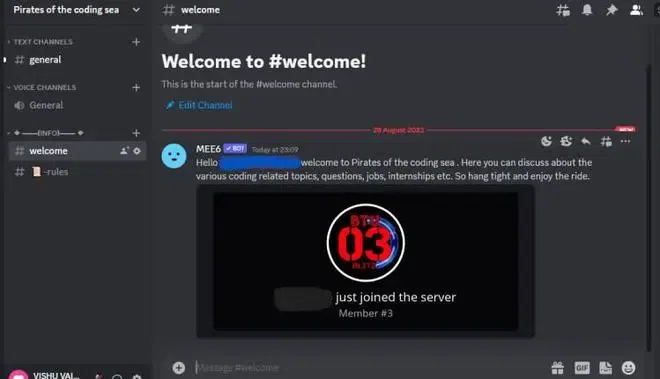
Now after setting up all the above steps, preview the changes in your welcome channel.
Creating a Welcome Channel in your Discord server can enhance the new member's experience. Discover the benefits of creating a Welcome Channel for your server's new members.
When a user joins a Discord server, they are often greeted with a welcome message automatically posted in the welcome channel. This message can provide a warm welcome, introduce them to the server's rules and guidelines, and offer information about the server's purpose and structure.
The welcome channel can also encourage new members to introduce themselves and engage with the existing community. This helps in building a sense of belonging and fostering connections among members.
In addition to welcoming new members, the welcome channel can double as an announcement channel. Server administrators or moderators can use it to share important updates, news, event notifications, or changes in the server rules. Announcements posted in this channel are visible to all members, making it a central hub for server-wide communication.
The welcome channel can serve as an information hub, containing links to important resources, FAQs, or guides that can help new members get acquainted with the server and its features.
Server owners and administrators have the flexibility to customize the welcome channel by adding bot commands, auto-responses, or custom embeds to make the introduction more engaging and informative.
Since the welcome channel is often the first thing new members see when they join a server, it's important to make a positive first impression. A well-organized and informative welcome channel can set the tone for a user's experience on the server.
Also Read:
Setting up a welcome channel on Discord is crucial for creating a warm community environment. Whether you're figuring out how to make a welcome channel on Discord mobile or looking ahead to how to make a welcome channel on Discord in 2024, the process is straightforward. You can easily set up a welcome channel on Discord with Carl-bot or explore alternatives like how to make a welcome channel on Discord without MEE6. Using a Discord welcome bot and customizing your Discord welcome message template will ensure every new member feels included. Don't forget to enhance your server with the Discord welcome screen to share important information right when users join.
First, invite Carl-bot to your server, then go to its dashboard and configure the welcome message under the "Welcome" tab. Set the channel where you want the message to appear.
Create a new text channel, name it "Welcome," and manually add a welcome message in the channel description or pinned messages to greet new members.
Simply create a text channel called "Welcome" and write your welcome message manually. You can pin the message or set it as the channel topic for visibility.
Add a bot like Carl-bot or MEE6 to your server, configure its welcome settings, and specify the welcome channel for automatic greeting messages.
Open the Discord app, create a new text channel, name it "Welcome," and set up a manual or bot-powered welcome message through the channel settings.