|
VOOZH | about |
|
VOOZH | about |
Collaborating in Google Docs is more effective with the @mention feature, allowing users to directly tag teammates for feedback or task assignments. Whether you're managing a shared document or working on a group project, knowing how to mention someone in Google Docs helps improve communication and ensures everyone stays updated. From inline tagging in Google Docs to assigning tasks through comments, these features are designed to make teamwork more organized.
This guide will walk you through two straightforward methods to mention a user in Google Docs for real-time collaboration—inline mentions and comment-based mentions. Additionally, we'll share tips on making the most of @mentions and the key advantages they bring to collaborative document editing.
Tag a user in Google Docs to collaborate more effectively. There are two ways to notify users in Google Docs: Inline Tagging and Mentions in Comments.
Inline tagging in Google Docs is a simple way to notify others and collaborate effectively. Here’s how to tag someone in Google Docs and share the document for feedback:
Start by opening an existing or new Google Doc from your Google Drive.
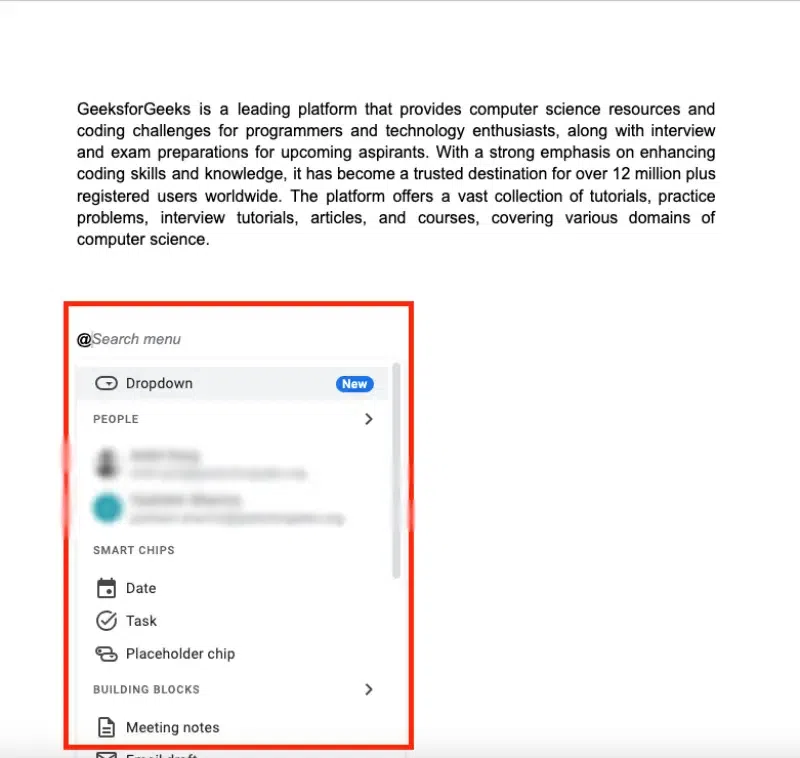
In the document, type the "@" symbol where you want to mention someone. This will open up the mention feature.
After typing the "@" symbol, start typing the person's name or email address. Google Docs will suggest contacts from your Google address book.
Click on the person’s name from the suggestions. This will insert their name into the document.
If the person doesn’t already have access to the document, a prompt will appear asking you to share the document. Click the "Share" button to give them access. If they already have access, no further action is needed.
If you don’t want to share the document immediately, click "Dismiss." You can always share it later by clicking the "Share" button at the top right.
Once you’ve mentioned someone, hover over their name. A menu will appear offering options for further actions.
From the menu, you can:
Note: Currently, mentions are only available in the desktop version of Google Docs. The feature does not work in the mobile app.
To collaborate in Google Docs using @mention, you can tag someone directly in a comment. This method helps you notify users in Google Docs about specific feedback or tasks.
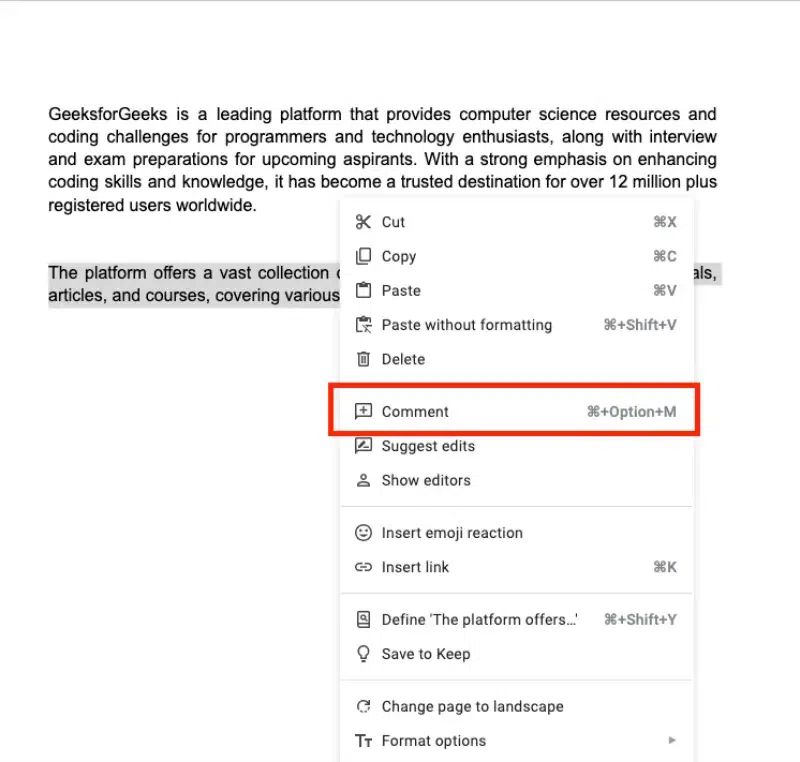
To start mentioning someone in a comment, first, select the part of the document where you want to add the comment.
After highlighting the text, right-click and choose the "Comment" option from the context menu. A comment box will appear on the right side of the document.
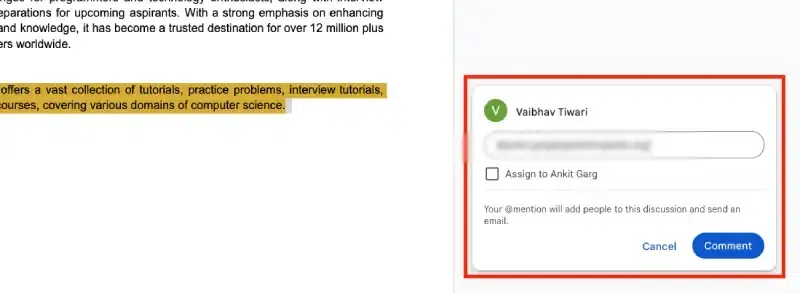
In the comment box, type the "@" symbol followed by the name or email address of the person you want to mention.
Shortcut keys: Click on the comment icon in the right margin or use the keyboard shortcutCtrl + Alt + MorFor Mac: CMD + Option+ M.
As you type, Google Docs will show suggestions based on the first letters of the name or email. Click on the name of the person you want to tag.
Once you’ve added the person’s name, click "Comment" to send it. The mentioned user will get a notification about the comment.
Now, the user is mentioned in the comment, and they can respond easily.
@ to assign tasks directly within the document. For example, type @Name followed by a note or comment, and assign the action to the person mentioned.@ and selecting the file you want to attach. This keeps all resources accessible within the document.@ to mention and link calendar events. For instance, typing @Meeting Name will bring up the event and add it to the document for reference.@ for smart chips to insert links to people, files, or calendar events, enhancing collaboration and context.@John Please review this section ensures the task is assigned and clear.These advanced tips can make your use of @mentions in Google Docs more efficient and collaborative.
Using the @mention feature in Google Docs is an excellent way to improve collaboration and maintain effective communication. By tagging teammates directly or assigning tasks through comments, you can ensure clarity and quicker responses within shared documents. Integrating these real-time collaboration tools into your workflow helps teams stay aligned and work more efficiently, no matter the project.
Related Articles: