|
VOOZH | about |
|
VOOZH | about |
How to Insert a Google Slides into Google Docs - Quick Steps
- Open Google Slides > Copy the slide you want (Edit > Copy).
- Open Google Docs > Paste it into your document (Edit > Paste).
- Link > Choose Link to presentation when prompted.
- Adjust > Resize or crop if needed and click Update to sync changes.
Integrating Google Slides into Google Docs adds value by merging presentation visuals directly into text documents. Whether you need to share live updates or include static visuals, embedding slides makes it easier to create documents that are both informative and visually appealing.
In this guide, we’ll walk you through two practical methods for embedding Google Slides into Google Docs: using a live slide link and the "@mention" feature. Additionally, you’ll find helpful tips for maximizing the effectiveness of embedded slides in your documents.
Table of Content
Want to insert a live Google Slide into your Google Doc that updates automatically whenever you make changes? This method is a great way to keep your content fresh and interactive. Here's how you can do it in just a few simple steps:
First, open the Google Slide deck that contains the slides you want to embed into your Google Doc.
In the left panel of the Google Slide presentation, click on the slide you want to embed. Go to the top menu and select Edit > Copy to copy the slide to your clipboard.
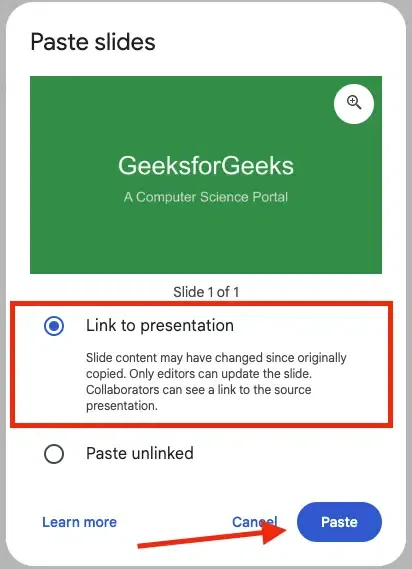
Next, open the Google Doc and position the cursor where you would like to place the Google Slide then do Right Click to paste the slide into your document.
After pasting, a prompt will appear asking if you want to Link to presentation. Select Link to presentation. This ensures that your slide is not just an image but an active link that will update with any changes made in the original slide deck.
Once embedded, the slide will behave like any other image within your document. You can resize, crop, or add borders to fit the layout of your document.
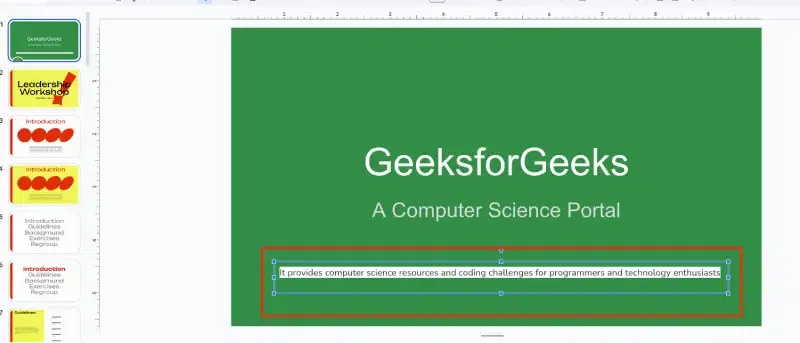
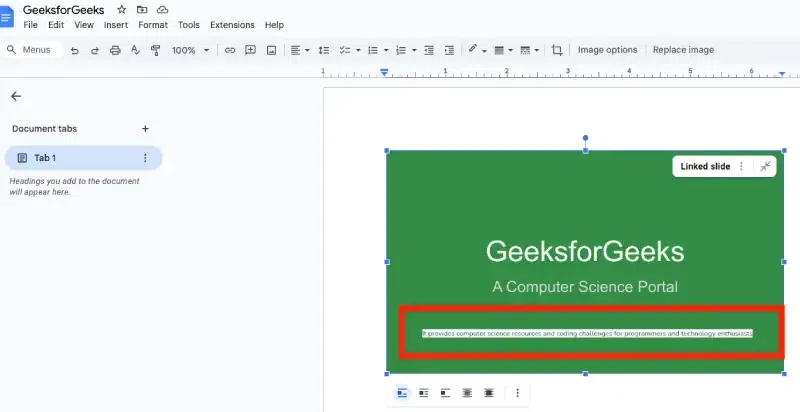
After you’ve inserted the slide into your Google Doc, if any changes are made to the original Google Slide, Then it will show on google doc.
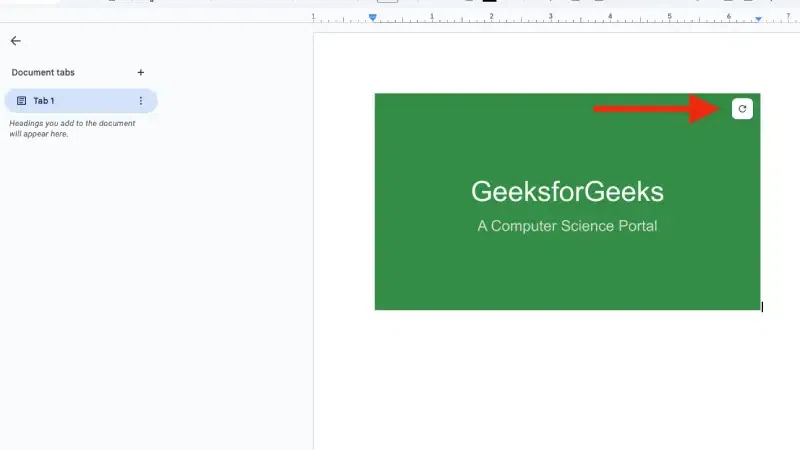
Click on the Update icon in the top right corner of the embedded slide. This will trigger a small dialog box to appear next to the image.
In the dialog box that appears, you will see the "Update" option. Click on the Update button, and the image will automatically update to reflect the latest changes made in the original Google Slide presentation.
When you clicked then image will update on google doc and it reflects new changes which you have done in Google slides.
Tip: Ensure that your document is open and that you are pasting in the correct location.
This method allows you to insert a preview of your slide within the document without needing to copy-paste the slide manually. It’s particularly useful for creating interactive previews.
Before you begin, make sure you have the exact title of your Google Slides presentation.
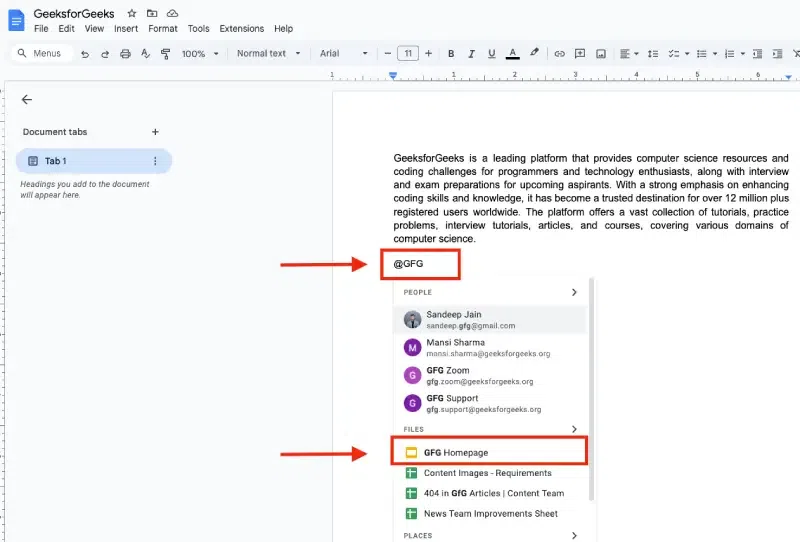
Start by typing @ in your Google Docs document. It immediately after the @, type the title of your Google Slides presentation.
As you type, a drop-down menu will appear showing matching titles. Choose the correct slideshow from the list that appears.
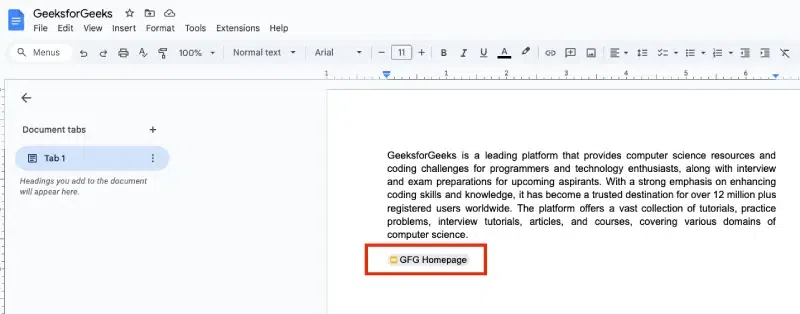
Once the slideshow is embedded as a "chip" in your document, you can choose to "Show preview". The slideshow will appear in a small, separate window, slightly to the right of your document, allowing you to view it without leaving the page.
This method is a quick and easy way to integrate a Google Slides preview into your Google Docs without converting the entire document into a slideshow. Hover the embedded google slide to preview like this:
Tip: This feature is helpful when you want readers to see a small version of your slide deck directly within the document.
When embedding slides into your Google Docs, keep these tips in mind for an optimal experience:
Embedding Google Slides into Google Docs is a practical way to combine dynamic content with detailed textual information. By following the methods shared in this guide, you can enhance collaboration and make your documents more interactive and engaging. Use the tips provided to ensure your slides are presented effectively, helping you achieve clear and impactful communication.
Also Read: