|
VOOZH | about |
|
VOOZH | about |
In today's digital age, managing your business's online presence is crucial for attracting and retaining customers. Google Business Profile (formerly known as Google My Business) is an essential tool for boosting your business visibility on Google Search and Maps. However, having duplicate listings can confuse customers and harm your SEO efforts. This guide will show you how to merge two Google Business Profile pages to ensure your business information is accurate and streamlined.
Table of Content
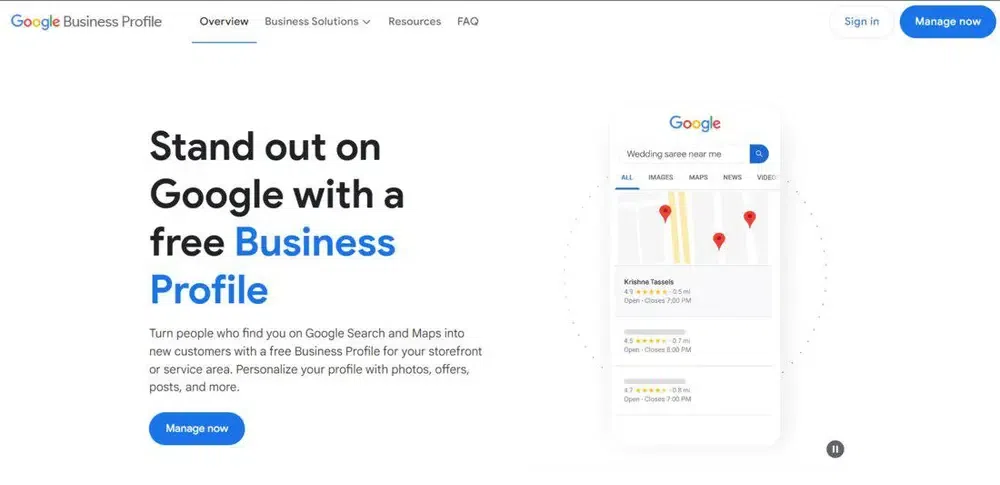
A Google Business Profile displays your business information on Google Search and Maps. It includes details like your business name, address, phone number, and customer reviews. Having accurate and consistent information in your business profile is vital for attracting customers and improving your SEO.
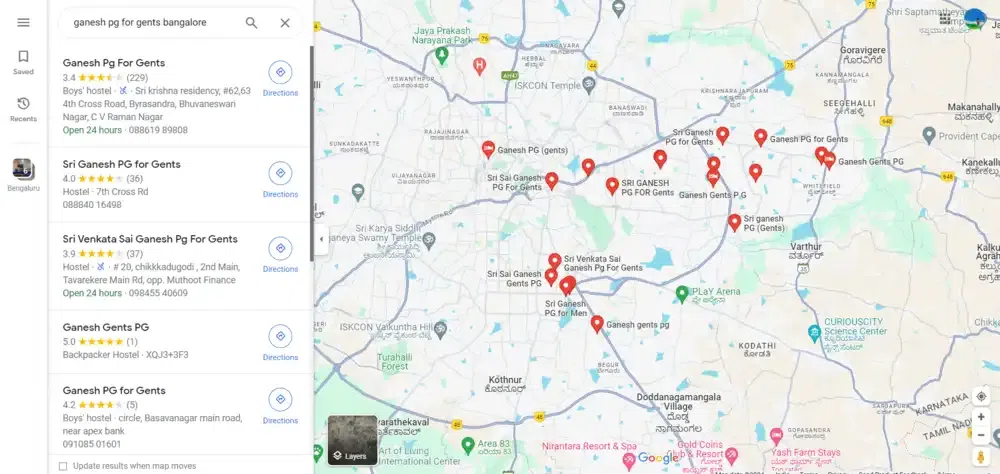
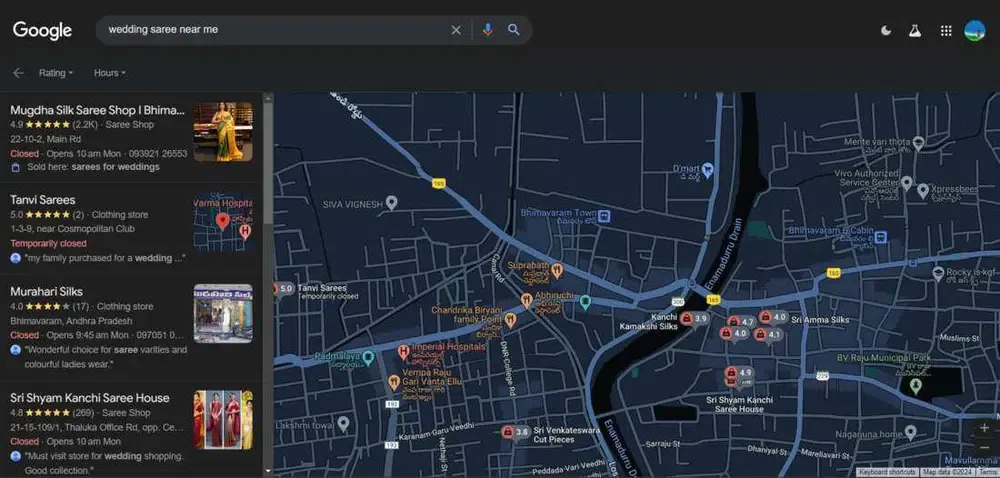
Perform Searches: Conduct a Google Search and Google Map Search to find all relevant business listings.
Compare Details: Pay attention to business names, addresses, and phone numbers to identify duplicates
Request Ownership: For listings you don't own, click "Claim this business" and follow the steps to request ownership.
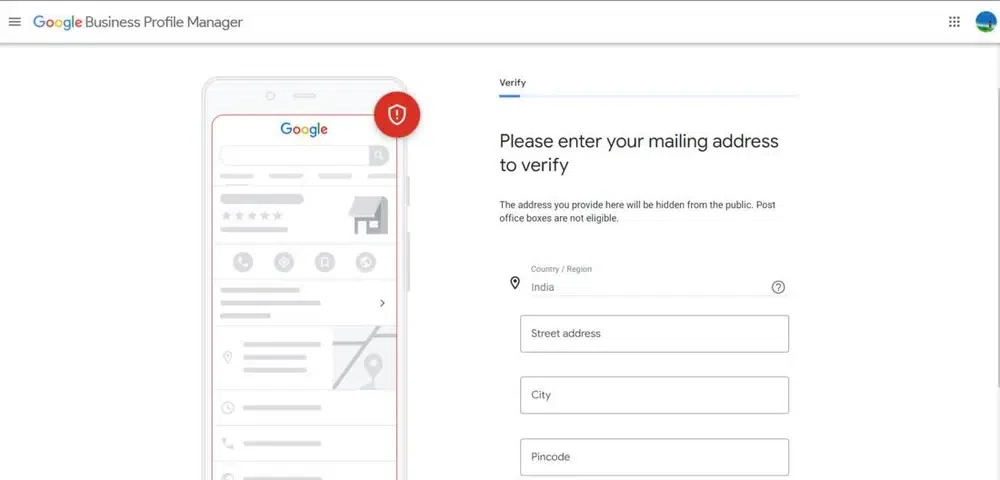
Provide Verification: Google may ask for verification through a phone call or postcard sent to your business address.
Before merging, make sure the information in both listings is accurate and consistent.
Check business details: Ensure both listings have the same business name, address, and contact information.
Update information: If necessary, update the listings so they match. This will make the merge process smoother.
Choose the Primary Listing: Select the listing with the most accurate and comprehensive information, reviews, and photos.
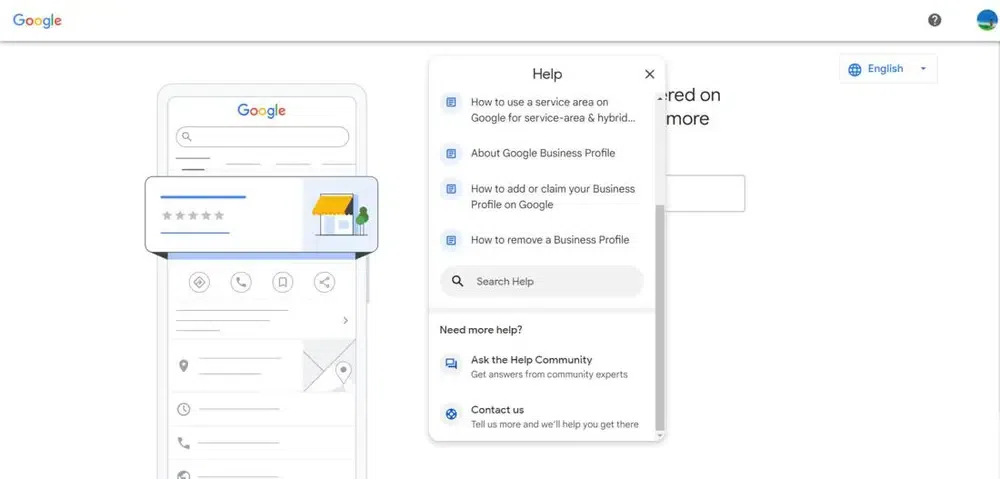
To initiate the merge, you need to contact Google Business Profile support.
Select 'Contact Us': Navigate to the 'Contact Us' section to get in touch with Google support.
Choose the correct options: Select options related to "manage my listing" and "duplicate listings."
When contacting support, be prepared to provide detailed information about the duplicate listings.
Business details: Include the names, addresses, and phone numbers of both listings.
Ownership proof: Have proof of ownership ready, such as utility bills or business licenses.
Specify the primary listing: Clearly state which listing you want to keep as the primary one.
After submitting your request, monitor your email for responses from Google support.
Respond promptly: Reply to any queries from Google support quickly to avoid delays.
Check the status: Regularly check the status of your request in the Google Business Profile dashboard.
Once the merge is complete, ensure all information is accurate.
Verify the merged listing: Check the Google Business Profile dashboard to ensure all information, including reviews and photos, has been transferred correctly.
Update missing information: Add any necessary details that might not have been included during the merge.
After the merge, it’s important to keep an eye on your listing to ensure it remains accurate and effective.
Review performance: Use Google Business Profile insights to see if the merge has improved your visibility and customer interactions.
Update regularly: Keep your listing current with updated photos, posts, and responses to reviews.
While merging listings is often the best course of action, there are instances where deleting a listing might be more appropriate. This can help in maintaining an accurate and focused online presence.
If you decide that deleting a duplicate listing is the best option, follow these steps:
Access your account dashboard.
Choose the listing you want to delete.
Click on the listing and select the "Remove Listing" option.
Follow the prompts to confirm that you want to delete the listing.
In some cases, having multiple Google Business Profile listings might be beneficial. Here are a few scenarios where this makes sense:
If your business operates in multiple locations, it’s logical to have separate listings for each location. This helps customers find the most relevant location and ensures accurate information is provided for each site.
For businesses that offer services in different geographic areas, having multiple listings can help target local customers more effectively. This is particularly useful for businesses like real estate agencies, law firms, and home services.
Large businesses with distinct departments (e.g., a university with different faculties) may benefit from having separate listings for each department. This allows each department to manage its own reviews, photos, and updates, providing more specific information to customers.
Merging duplicate Google Business Profile pages is essential for maintaining a cohesive and accurate online presence. By consolidating listings, you ensure customers receive consistent information, improve your search rankings, and enhance the overall customer experience. Whether you choose to merge or delete duplicate listings, keeping your profile updated is key to your business’s success. Follow these steps to effectively manage your Google Business Profile listings and create a strong, professional online presence.

.webp)