
Computers are connected in a network to exchange information or resources with each other. Two or more computers are connected through network media called a computer network. There is a number of network devices or media are involved to form a computer network.
Computer loaded with Linux Operating System can also be a part of network whether it is a small or large network by its multitasking and multiuser natures. Maintaining the system and network up and running is a task of the System / Network Administrator’s job.
[ You might also like: 22 Linux Networking Commands for Sysadmin ]
In this article, we are going to review frequently used network configuration and troubleshoot commands in Linux.
1. ifconfig Command
ifconfig (interface configurator) command is used to initialize an interface, assign IP Address to interface and enable or disable interface on demand.
With this command, you can view IP Address and Hardware / MAC address assign to interface and also MTU (Maximum transmission unit) size.
# ifconfig

eth0 Link encap:Ethernet HWaddr 00:0C:29:28:FD:4C
 inet addr:192.168.50.2 Bcast:192.168.50.255 Mask:255.255.255.0
 inet6 addr: fe80::20c:29ff:fe28:fd4c/64 Scope:Link
 UP BROADCAST RUNNING MULTICAST MTU:1500 Metric:1
 RX packets:6093 errors:0 dropped:0 overruns:0 frame:0
 TX packets:4824 errors:0 dropped:0 overruns:0 carrier:0
 collisions:0 txqueuelen:1000
 RX bytes:6125302 (5.8 MiB) TX bytes:536966 (524.3 KiB)
 Interrupt:18 Base address:0x2000

lo Link encap:Local Loopback
 inet addr:127.0.0.1 Mask:255.0.0.0
 inet6 addr: ::1/128 Scope:Host
 UP LOOPBACK RUNNING MTU:16436 Metric:1
 RX packets:8 errors:0 dropped:0 overruns:0 frame:0
 TX packets:8 errors:0 dropped:0 overruns:0 carrier:0
 collisions:0 txqueuelen:0
 RX bytes:480 (480.0 b) TX bytes:480 (480.0 b)
ifconfig with interface (eth0) command only shows specific interface details like IP Address, MAC Address, etc. with -a option will display all available interface details if it is disabled also.
# ifconfig eth0

eth0 Link encap:Ethernet HWaddr 00:0C:29:28:FD:4C
 inet addr:192.168.50.2 Bcast:192.168.50.255 Mask:255.255.255.0
 inet6 addr: fe80::20c:29ff:fe28:fd4c/64 Scope:Link
 UP BROADCAST RUNNING MULTICAST MTU:1500 Metric:1
 RX packets:6119 errors:0 dropped:0 overruns:0 frame:0
 TX packets:4841 errors:0 dropped:0 overruns:0 carrier:0
 collisions:0 txqueuelen:1000
 RX bytes:6127464 (5.8 MiB) TX bytes:539648 (527.0 KiB)
 Interrupt:18 Base address:0x2000
Set IP Address and Gateway in Linux
Assigning an IP Address and Gateway to the interface on the fly. The setting will be removed in case of a system reboot.
# ifconfig eth0 192.168.50.5 netmask 255.255.255.0
Enable or Disable Specific Interface
To enable or disable a specific Interface, we use the example command as follows.
Enable eth0
# ifup eth0
Disable eth0
# ifdown eth0
Setting MTU Size
By default MTU size is 1500. We can set the required MTU size with the below command. Replace XXXX with size.
# ifconfig eth0 mtu XXXX
Set Interface in Promiscuous Mode
The network interface only received packets belonging to that particular NIC. If you put the interface in the promiscuous mode it will receive all the packets. This is very useful to capture packets and analyze them later. For this, you may require superuser access.
# ifconfig eth0 - promisc
Update: The ifconfig command is replaced by the IP command in most modern Linux distributions.
2. Ping Command
Ping (Packet INternet Groper) command is the best way to test connectivity between two nodes. Whether it is Local Area Network (LAN) or Wide Area Network (WAN).
Ping uses ICMP (Internet Control Message Protocol) to communicate to other devices. You can ping hostname or ip address using the below commands.
# ping 4.2.2.2

PING 4.2.2.2 (4.2.2.2) 56(84) bytes of data.
64 bytes from 4.2.2.2: icmp_seq=1 ttl=44 time=203 ms
64 bytes from 4.2.2.2: icmp_seq=2 ttl=44 time=201 ms
64 bytes from 4.2.2.2: icmp_seq=3 ttl=44 time=201 ms

OR

# ping www.tecmint.com

PING tecmint.com (50.116.66.136) 56(84) bytes of data.
64 bytes from 50.116.66.136: icmp_seq=1 ttl=47 time=284 ms
64 bytes from 50.116.66.136: icmp_seq=2 ttl=47 time=287 ms
64 bytes from 50.116.66.136: icmp_seq=3 ttl=47 time=285 ms
In the Linux ping command keep executing until you interrupt. Ping with -c option exit after N number of requests (success or error respond).
# ping -c 5 www.tecmint.com

PING tecmint.com (50.116.66.136) 56(84) bytes of data.
64 bytes from 50.116.66.136: icmp_seq=1 ttl=47 time=285 ms
64 bytes from 50.116.66.136: icmp_seq=2 ttl=47 time=285 ms
64 bytes from 50.116.66.136: icmp_seq=3 ttl=47 time=285 ms
64 bytes from 50.116.66.136: icmp_seq=4 ttl=47 time=285 ms
64 bytes from 50.116.66.136: icmp_seq=5 ttl=47 time=285 ms

--- tecmint.com ping statistics ---
5 packets transmitted, 5 received, 0% packet loss, time 4295ms
rtt min/avg/max/mdev = 285.062/285.324/285.406/0.599 ms
3. Traceroute Command
traceroute is a network troubleshooting utility that shows the number of hops taken to reach a destination also determines packets traveling path. Below we are tracing the route to the global DNS server IP Address and able to reach destination also shows the path of that packet is traveling.
# traceroute 4.2.2.2

traceroute to 4.2.2.2 (4.2.2.2), 30 hops max, 60 byte packets
 1 192.168.50.1 (192.168.50.1) 0.217 ms 0.624 ms 0.133 ms
 2 227.18.106.27.mysipl.com (27.106.18.227) 2.343 ms 1.910 ms 1.799 ms
 3 221-231-119-111.mysipl.com (111.119.231.221) 4.334 ms 4.001 ms 5.619 ms
 4 10.0.0.5 (10.0.0.5) 5.386 ms 6.490 ms 6.224 ms
 5 gi0-0-0.dgw1.bom2.pacific.net.in (203.123.129.25) 7.798 ms 7.614 ms 7.378 ms
 6 115.113.165.49.static-mumbai.vsnl.net.in (115.113.165.49) 10.852 ms 5.389 ms 4.322 ms
 7 ix-0-100.tcore1.MLV-Mumbai.as6453.net (180.87.38.5) 5.836 ms 5.590 ms 5.503 ms
 8 if-9-5.tcore1.WYN-Marseille.as6453.net (80.231.217.17) 216.909 ms 198.864 ms 201.737 ms
 9 if-2-2.tcore2.WYN-Marseille.as6453.net (80.231.217.2) 203.305 ms 203.141 ms 202.888 ms
10 if-5-2.tcore1.WV6-Madrid.as6453.net (80.231.200.6) 200.552 ms 202.463 ms 202.222 ms
11 if-8-2.tcore2.SV8-Highbridge.as6453.net (80.231.91.26) 205.446 ms 215.885 ms 202.867 ms
12 if-2-2.tcore1.SV8-Highbridge.as6453.net (80.231.139.2) 202.675 ms 201.540 ms 203.972 ms
13 if-6-2.tcore1.NJY-Newark.as6453.net (80.231.138.18) 203.732 ms 203.496 ms 202.951 ms
14 if-2-2.tcore2.NJY-Newark.as6453.net (66.198.70.2) 203.858 ms 203.373 ms 203.208 ms
15 66.198.111.26 (66.198.111.26) 201.093 ms 63.243.128.25 (63.243.128.25) 206.597 ms 66.198.111.26 (66.198.111.26) 204.178 ms
16 ae9.edge1.NewYork.Level3.net (4.68.62.185) 205.960 ms 205.740 ms 205.487 ms
17 vlan51.ebr1.NewYork2.Level3.net (4.69.138.222) 203.867 ms vlan52.ebr2.NewYork2.Level3.net (4.69.138.254) 202.850 ms vlan51.ebr1.NewYork2.Level3.net (4.69.138.222) 202.351 ms
18 ae-6-6.ebr2.NewYork1.Level3.net (4.69.141.21) 201.771 ms 201.185 ms 201.120 ms
19 ae-81-81.csw3.NewYork1.Level3.net (4.69.134.74) 202.407 ms 201.479 ms ae-92-92.csw4.NewYork1.Level3.net (4.69.148.46) 208.145 ms
20 ae-2-70.edge2.NewYork1.Level3.net (4.69.155.80) 200.572 ms ae-4-90.edge2.NewYork1.Level3.net (4.69.155.208) 200.402 ms ae-1-60.edge2.NewYork1.Level3.net (4.69.155.16) 203.573 ms
21 b.resolvers.Level3.net (4.2.2.2) 199.725 ms 199.190 ms 202.488 ms
4. Netstat Command
Netstat (Network Statistic) command displays connection info, routing table information, etc. To display routing table information use option as -r.
# netstat -r

Kernel IP routing table
Destination Gateway Genmask Flags MSS Window irtt Iface
192.168.50.0 * 255.255.255.0 U 0 0 0 eth0
link-local * 255.255.0.0 U 0 0 0 eth0
default 192.168.50.1 0.0.0.0 UG 0 0 0 eth0
For more examples of Netstat Command, please read our earlier article on 20 Netstat Command Examples in Linux.
Update: The netstat command is replaced by the ss (socket statistics) command in most modern Linux distributions.
5. Dig Command
Dig (domain information groper) query DNS related information like A Record, CNAME, MX Record, etc. This command is mainly used to troubleshoot DNS-related queries.
# dig www.tecmint.com; <<>> DiG 9.8.2rc1-RedHat-9.8.2-0.10.rc1.el6 <<>> www.tecmint.com
;; global options: +cmd
;; Got answer:
;; ->>HEADER<
For more examples of Dig Command, please read the article on 10 Linux Dig Commands to Query DNS.
6. Nslookup Command
nslookup command is also used to find out DNS-related queries. The following examples show A Record (IP Address) of tecmint.com.
# nslookup www.tecmint.com
Server: 4.2.2.2
Address: 4.2.2.2#53

Non-authoritative answer:
www.tecmint.com canonical name = tecmint.com.
Name: tecmint.com
Address: 50.116.66.136
For more Nslookup Command, read the article on 8 Linux Nslookup Command Examples.
7. Route Command
route command also shows and manipulates the ip routing table. To see the default routing table in Linux, type the following command.
# route

Kernel IP routing table
Destination Gateway Genmask Flags Metric Ref Use Iface
192.168.50.0 * 255.255.255.0 U 0 0 0 eth0
link-local * 255.255.0.0 U 1002 0 0 eth0
default 192.168.50.1 0.0.0.0 UG 0 0 0 eth0
Adding, deleting routes and default Gateway with following commands.
Add Route in Linux
# route add -net 10.10.10.0/24 gw 192.168.0.1
Delete Route in Linux
# route del -net 10.10.10.0/24 gw 192.168.0.1
Add Default Gateway in Linux
# route add default gw 192.168.0.1
8. Host Command
host command to find a name to IP or IP to name in IPv4 or IPv6 and also query DNS records.
# host www.google.com

www.google.com has address 173.194.38.180
www.google.com has address 173.194.38.176
www.google.com has address 173.194.38.177
www.google.com has address 173.194.38.178
www.google.com has address 173.194.38.179
www.google.com has IPv6 address 2404:6800:4003:802::1014
Using -t an option to find out DNS Resource Records like CNAME, NS, MX, SOA, etc.
# host -t CNAME www.redhat.com

www.redhat.com is an alias for wildcard.redhat.com.edgekey.net.
9. Arp Command
ARP (Address Resolution Protocol) is useful to view/add the contents of the kernel’s ARP tables. To see the default table use the command as.
# arp -e

Address HWtype HWaddress Flags Mask Iface
192.168.50.1 ether 00:50:56:c0:00:08 C eth0
10. Ethtool Command
ethtool is a replacement for mii-tool. It is to view, setting speed and duplex of your Network Interface Card (NIC). You can set duplex permanently in /etc/sysconfig/network-scripts/ifcfg-eth0 with ETHTOOL_OPTS variable.
# ethtool eth0

Settings for eth0:
 Current message level: 0x00000007 (7)
 Link detected: yes
11. Iwconfig Command
iwconfig command in Linux is used to configure a wireless network interface. You can see and set the basic Wi-Fi details like SSID channel and encryption. You can refer man page of iwconfig to know more.
# iwconfig [interface]
12. Hostname Command
The hostname is to identify in a network. Execute the hostname command to see the hostname of your box. You can set hostname permanently in /etc/sysconfig/network. Need to reboot box once set a proper hostname.
# hostname

tecmint.com
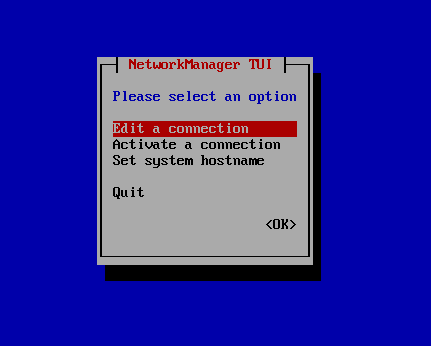
13. Nmcli and Nmtui Tools
The Nmcli and Nmtui tools are used to configure network settings and also used to manage network devices, create, modify, activate/deactivate, and delete network connections in Linux systems.
# nmcli
# nmtui
This article can be useful for day to day use of Linux Network administrators in Linux / Unix-like operating systems. Kindly share through our comment box if we missed out.
If this article helped you solve a problem, consider buying a coffee. It helps keep TecMint free, supports the authors, and keeps the project going.






Got Something to Say? Join the Discussion... Cancel reply