|
VOOZH | about |
|
VOOZH | about |
TrueFoundry recognized in Gartner Hype Cycle for Platform Engineering 2026. Read the full report →
Join our VAR & VAD ecosystem — deliver enterprise AI governance across LLMs, MCPs & Agents. Become a Partner →
Get instant access to a live TrueFoundry environment. Deploy models, route LLM traffic, and explore the full platform — your sandbox is ready in seconds, no credit card required.
Blazingly fast way to build, track and deploy your models!
In this guide, we’ll show you how to deploy a Langgraph agent on TrueFoundry, a platform designed to simplify AI deployment with minimal DevOps or MLOps expertise. TrueFoundry automates infrastructure management, scaling, and monitoring, allowing you to focus on deriving insights rather than handling deployment complexities. With just a few clicks, you can transform natural language requests into SQL queries and dynamic charts, making data exploration seamless and intelligent. No manual querying required!
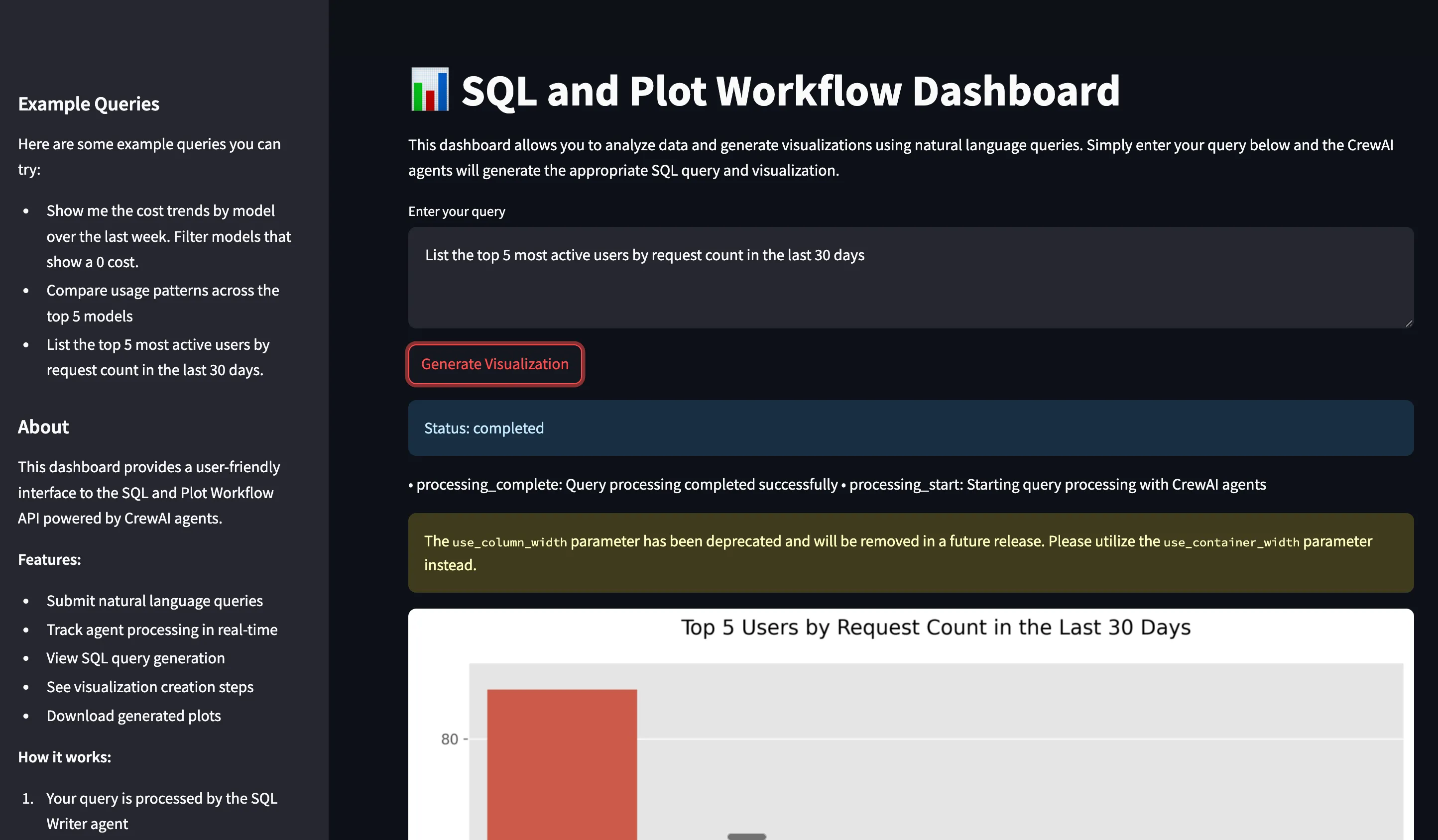
If you would like to try this out directly, please visit the TrueFoundry platform and navigate to Live Demos and Langgraph-Streamlit: Live demo of our agent workflow
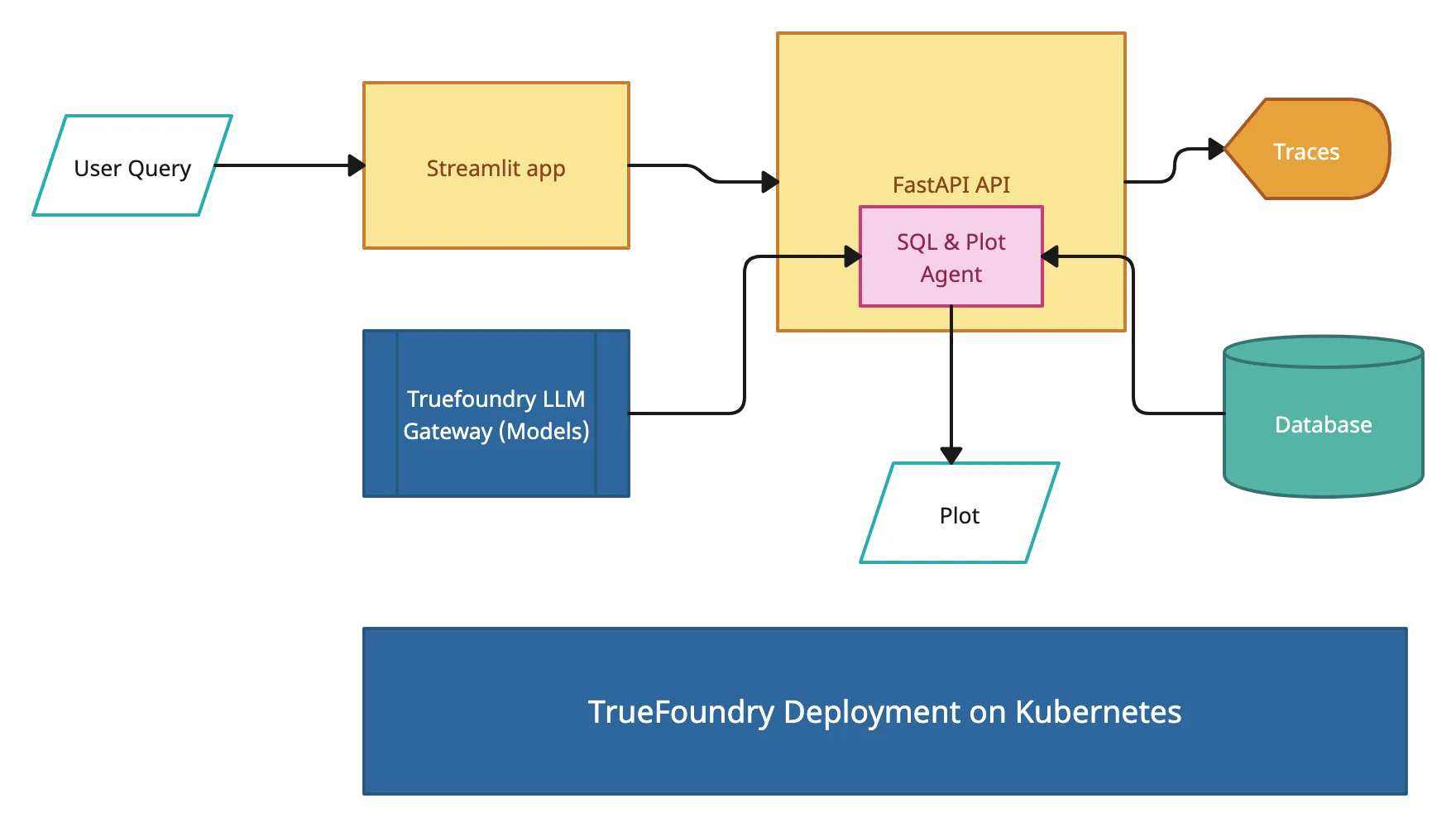
This project consists of several key components working together:
Query Agent
Visualization Agent: A second AI agent that
FastAPI Backend: RESTful API that
Streamlit Frontend: User interface that
Clone the Repository
First, navigate to the TrueFoundry Getting Started Examples repository and clone it:
git clone <https://github.com/truefoundry/getting-started-examples.git>Navigate to the Plot Agent Directory
Change into the plot_agent directory:
cd getting-started-examples/plot_agent/langgraph_plot_agentEnvironment Setup
To create and activate a virtual environment:
python -m venv venv
source venv/bin/activate # On Windows: venv\Scripts\activate
Install dependencies
pip install -r requirements.txtEnvironment Configuration
Copy the example environment file:
```bash
cp .env.example .env
```
Create a .env file with your credentials
# Truefoundry LLMGateway Configuration if using Truefoundry LLM Gateway for calling models
LLM_GATEWAY_BASE_URL=your_llm_gateway_base_url_here
LLM_GATEWAY_API_KEY=your_llm_gateway_api_key_here
# OPENAI API Configuration if not using Truefoundry LLM Gateway
OPENAI_API_KEY=<your_openai_api_key_here>
# ClickHouse Database Configuration
CLICKHOUSE_HOST=your_clickhouse_host_here
CLICKHOUSE_PORT=443CLICKHOUSE_USER=your_clickhouse_user_here
CLICKHOUSE_PASSWORD=your_clickhouse_password_here
CLICKHOUSE_DATABASE=default
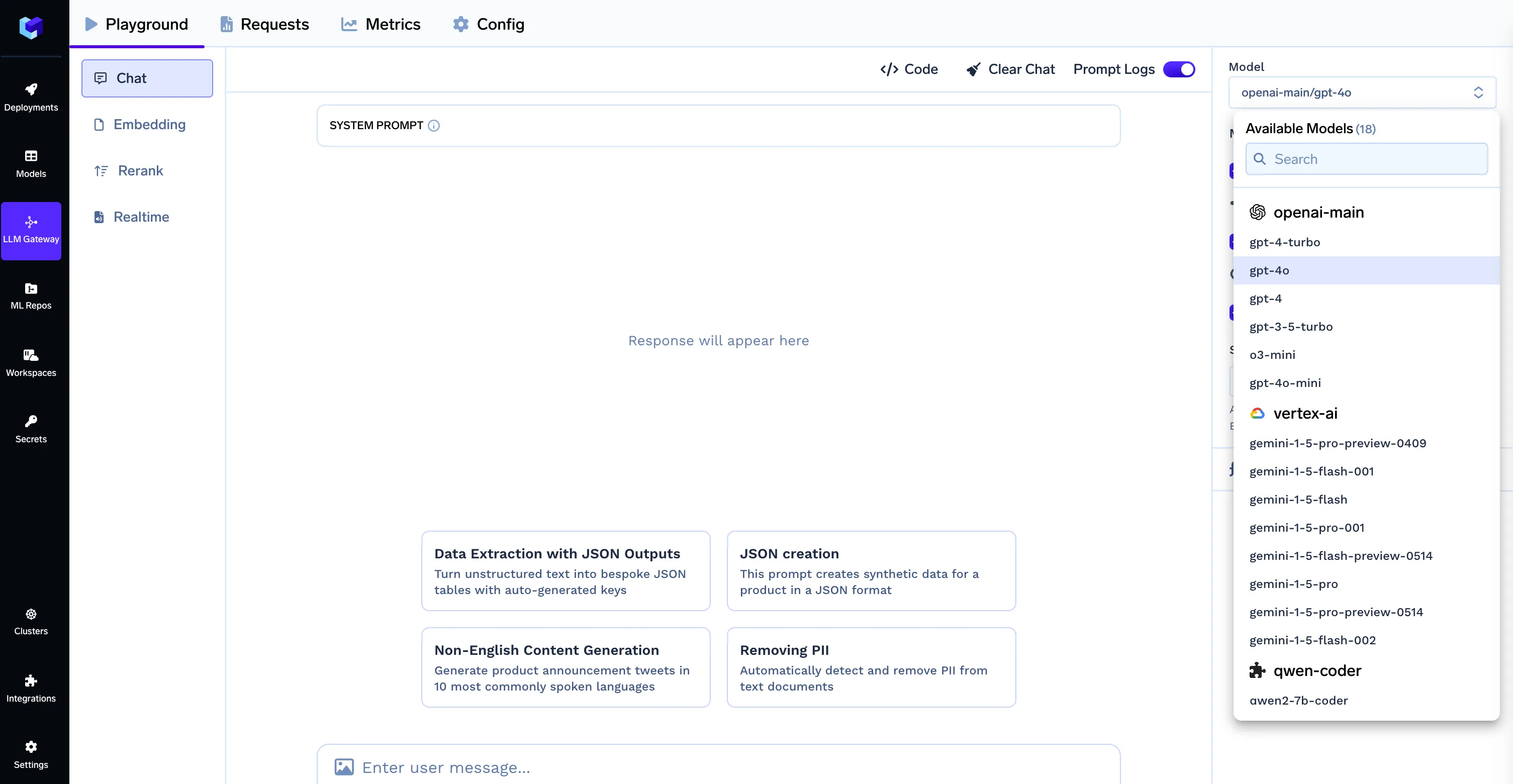
Note: When using the TrueFoundry LLM Gateway, the model ID format should be provider-name/model-name (e.g., openai-main/gpt-4o). Make sure your .env file contains the correct LLM Gateway credentials as shown in the Environment Configuration section.
To get clickhouse credentials, create an account on clickhouse, sign in and create a service. After clicking the service you will see a connect button on the middle of left sidebar, which you can click to see the credentials as shown below. You can either create a database by uploading your files or use a predefined one.
The project uses two LangGraph agents, which also makes it a useful practical reference when evaluating AutoGen vs LangGraph for multi-agent workflow design. if you prefer to use only openai then replace:
model=OpenAIChat(
 id="openai-main/gpt-4o", # Format: provider-name/model-name
 api_key=os.getenv("LLM_GATEWAY_API_KEY"),
 base_url=os.getenv("LLM_GATEWAY_BASE_URL")
 ),
With:
model=OpenAIChat(
 id="gpt-4o", # Specify model here
 api_key=os.getenv("OPENAI_API_KEY")
 ),
Here’s how they’re configured in a setup where Langflow vs LangGraph often comes up for orchestration choices.
classState(TypedDict):
messages: Annotated[list[AnyMessage], add_messages]
tools_list= [execute_clickhouse_query, create_plot]
def tools_condition_modified(state):
 ans = tools_condition(state)
 human_messages_id = [m.id for m in state["messages"] if m.type == "human"]
if ans == "tools":
return"tools"else:
return"__end__"def create_agent():
 builder = StateGraph(State)
 llm = ChatOpenAI(
 model=os.getenv("MODEL_ID"),
 api_key=os.getenv("LLM_GATEWAY_API_KEY"),
 base_url=os.getenv("LLM_GATEWAY_BASE_URL"),
 streaming=True # Enable streaming for the LLM
 )
 llm.bind_tools(tools_list)
 # Define nodes: these do the work
 builder.add_node("assistant", llm)
 builder.add_node("tools", ToolNode(tools_list))
 # Define edges: these determine how the control flow moves
 builder.add_edge(START, "assistant")
 builder.add_edge("tools", "assistant")
 builder.add_conditional_edges(
"assistant",
 tools_condition_modified,
 )
 builder.add_edge("assistant", "__end__")
 agent = builder.compile()
return agent
agent = create_agent()
Start FastAPI server:
python api.pyStart Streamlit UI (new terminal):
streamlit run app.pyPrerequisites
Install TrueFoundry CLI:
pip install -U "truefoundry"Login to TrueFoundry:
tfy login --host "<https://app.truefoundry.com>"# In the generated deploy.py file, locate the env section and add your variables:
env={
# If using OPENAI
"OPENAI_API_KEY": "your_openai_api_key",
# If using LLM_GATEWAY
"LLM_GATEWAY_API_KEY": "your_llm_gateway_api_key",
"LLM_GATEWAY_BASE_URL": "your_llm_gateway_base_url",
"CLICKHOUSE_HOST": "your_clickhouse_host",
"CLICKHOUSE_PORT": "443",
"CLICKHOUSE_USER": "your_user",
"CLICKHOUSE_PASSWORD": "your_password",
"CLICKHOUSE_DATABASE": "default",
"MODEL_ID": "gpt-4o" }, Make sure to replace the placeholder values with your actual credentials. Without these environment variables, your application will not function correctly.
python deploy.pyYour SQL and Plot Workflow API is now deployed and running on TrueFoundry!
curl -X POST -H "Content-Type: application/json" \
 -d '{"query": "Show me the cost trends by model over the last week"}' \
https://Langgraph-plot-agent-demo-8000.aws.demo.truefoundry.cloud/query
If everything is set up correctly, you should receive a response like:
{
"job_id": "123e4567-e89b-12d3-a456-426614174000",
"status": "processing",
"message": "Query is being processed. Check status with /status/{job_id}"} curl -X POST "https://plot-agent-8000.your-workspace.truefoundry.cloud/query" \
-H "Content-Type: application/json" \
-d '{"query": "Show me the cost trends by model over the last week"}'curl -X POST http://localhost:8000/query \ -H "Content-Type: application/json" \
-d '{"query": "Show me the cost trends by model over the last week. Filter models that show a 0 cost."}'
{
"job_id": "123e4567-e89b-12d3-a456-426614174000",
"status": "processing",
"message": "Query is being processed. Check status with /status/{job_id}"}
curl -X GET http://localhost:8000/status/123e4567-e89b-12d3-a456-426614174000
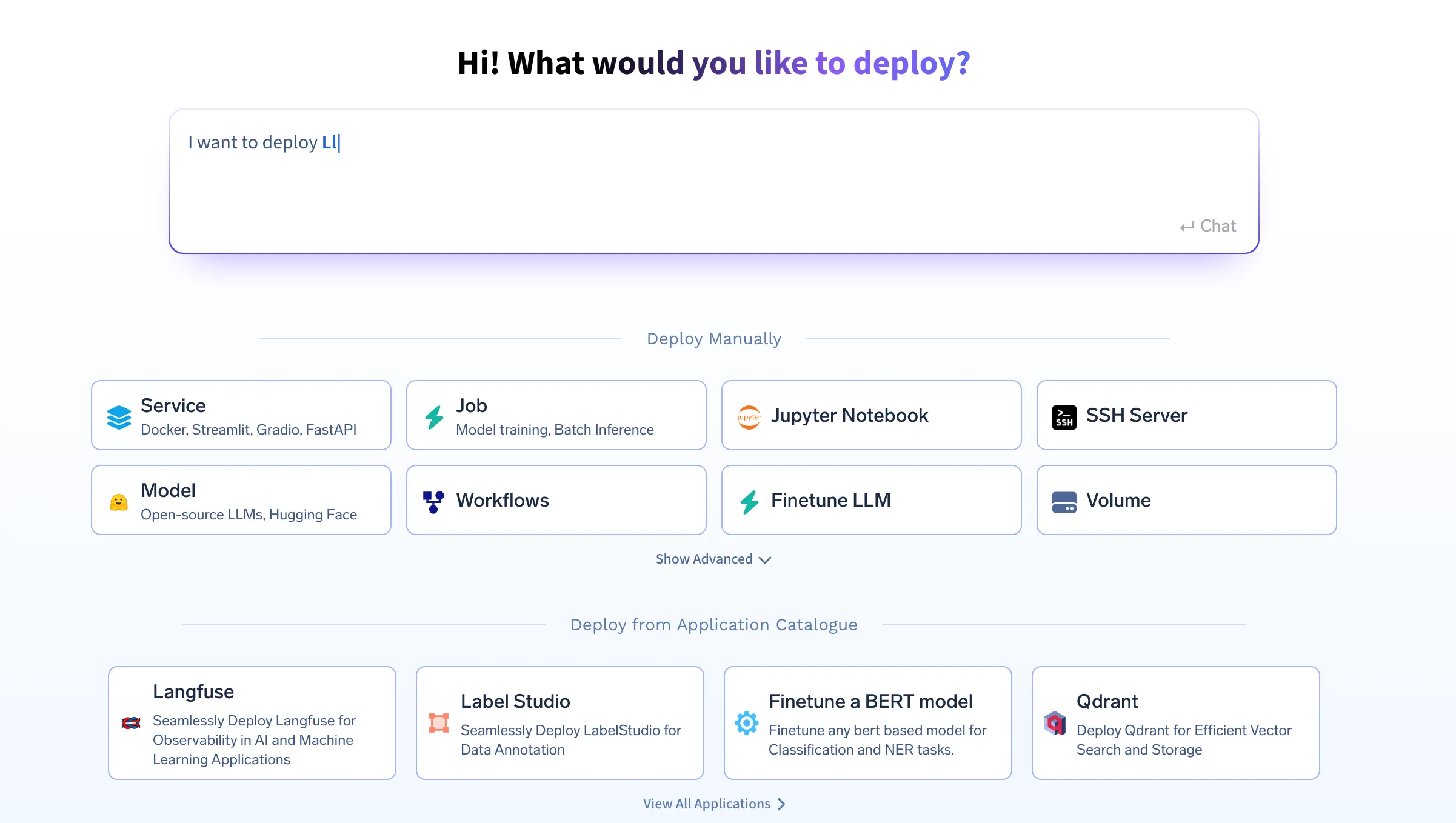
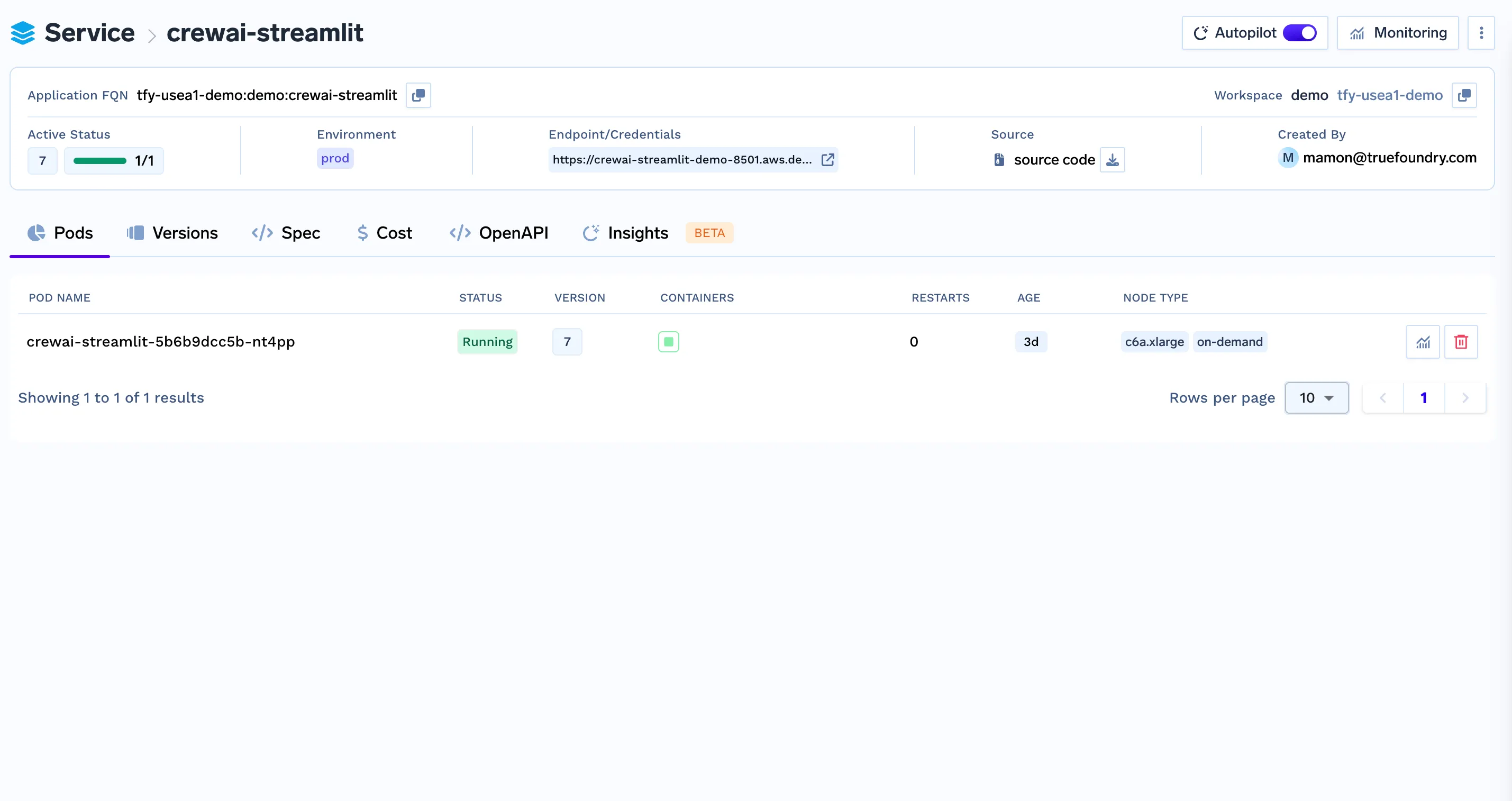
curl -X GET http://localhost:8000/plot/123e4567-e89b-12d3-a456-426614174000 --output plot.png To ensure proper communication between FastAPI and Streamlit, you need to deploy Streamlit as a separate service on the TrueFoundry platform.
from fastapi.middleware.cors import CORSMiddleware
app.add_middleware(
 CORSMiddleware,
 allow_origins=["*"],
 allow_credentials=True,
 allow_methods=["*"],
 allow_headers=["*"],
) Your Streamlit application should use an environment variable to point to the FastAPI backend: In your Streamlit environment configuration:
FASTAPI_ENDPOINT="https://langgraph-plot-agent-demo-8000.aws.demo.truefoundry.cloud"Then, modify your Streamlit app to read this environment variable:
import os
FASTAPI_ENDPOINT = os.getenv("FASTAPI_ENDPOINT", "http://localhost:8000")
This ensures that Streamlit dynamically references the correct FastAPI instance.
4. Use seperate ports
If deploying locally or if TrueFoundry does not handle port conflicts automatically, ensure FastAPI and Streamlit run on separate ports.
Example:
FastAPI: https://langgraph-plot-agent-demo-8000.aws.demo.truefoundry.cloud
Streamlit: https://langgraph-streamlit-demo-8501.aws.demo.truefoundry.cloud
To run Streamlit on a different port locally:
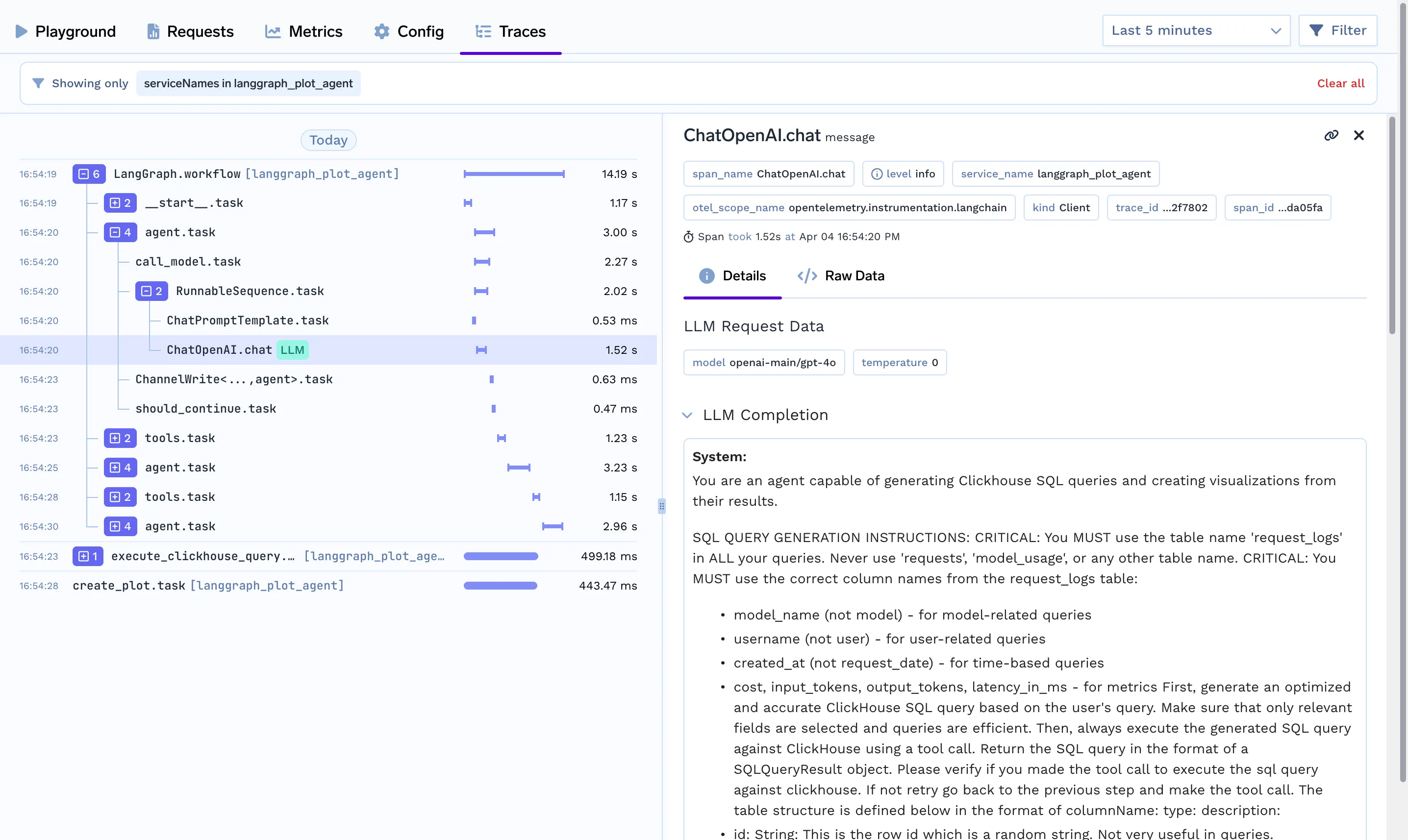
streamlit run app.py --server.port 8501Tracing helps you understand what’s happening under the hood when an agent run is called. You get to understand the path, tools calls made, context used, latency taken when you run your agent using Truefoundry’s tracing functionality by add very few lines of code.
You need to install the following
pip install traceloop-sdkAnd then add the necessary environment variables to enable tracing
"TRACELOOP_BASE_URL": "<your_host_name>/api/otel" # "https://internal.devtest.truefoundry.tech/api/otel""TRACELOOP_HEADERS"="Authorization=Bearer%20<your_tfy_api_key>"In your codebase where you define your agent, you just need these lines to enable tracing
from traceloop.sdk import Traceloop
Traceloop.init(app_name="langraph")After deploying both services, make sure to:
.env file with the correct FastAPI endpoint.This ensures your SQL and Plot Workflow API functions properly across both services.
TrueFoundry AI Gateway delivers ~3–4 ms latency, handles 350+ RPS on 1 vCPU, scales horizontally with ease, and is production-ready, while LiteLLM suffers from high latency, struggles beyond moderate RPS, lacks built-in scaling, and is best for light or prototype workloads.
Product
Company
Resources








.webp)
.webp)
.webp)
.webp)
.webp)
.webp)

.webp)
.webp)