
If you're a power user, whether you've built your own router with pfSense, dotted mesh nodes around your home, or just have one of the best Wi-Fi routers supplying your network with features, there is always something that can be tweaked or adjusted in the settings to get your home network even better. Whether that's relatively simple fixes like turning on QoS and adjusting it for your ISP's speeds, or more involved processes of finding out the best transmit power for your wireless, they all add up to a better experience for every device connected to your network.
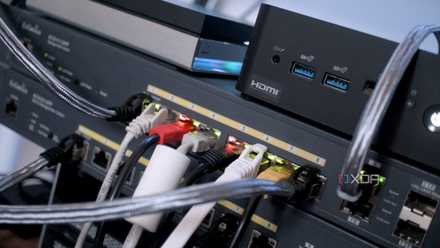
How I built a powerful custom router with pfSense
Get everything online on your home LAN with your very own router.
6 QoS
Give all the devices on your network exactly how much bandwidth they need
Quality of Service, or QoS as you'll most likely see it, is one of the most important settings to enable on your router. It's essentially a digital traffic cop, prioritizing data transfer between your connected devices so that latency-sensitive data like video conferencing or online gaming gets higher priority than bulk data transfer. That way, even when multiple devices are using the network, they all seem smooth to the user, and no one device can hog all the available bandwidth.
On some routers, like those in the best mesh Wi-Fi systems, QoS will be adaptive, so the user doesn't have to do anything other than enable it, and it will monitor the bandwidth available and adjust levels accordingly. But really, it's not that hard to set up on more basic routers, all you need are the numbers from a speed test to set as incoming and outgoing bandwidth levels.

5 reasons why you should set up QoS prioritization on your router for better internet
How to get better internet with no new hardware
5 Transmit power
Tweaking this will give all your devices a better signal
We all know that it's the antennas on our routers that supply the wireless signal we use. The transmission strength of the signal is generated by the power supplied to the antenna, and you might think that a higher number would be better in all situations. Except, Wi-Fi doesn't behave like that, and a higher transmission strength could make the signal worse. If it's too high, not only could it be interfering with other devices, but it could also make it so you think your devices aren't working correctly.
That's because turning up the transmit power makes the router able to reach out further to your devices, but Wi-Fi is a two-way street, and you haven't increased the transmit power of your devices, leading them to connect to the router but not be able to transmit. Turn the transmit power down as far as you can, and if you need more coverage, think about Wi-Fi extenders or mesh nodes to make up the coverage gaps.

How to configure a router: Your guide to the most important settings
Looking to set up a new router? These are the most important settings to make the most of it.
4 SSID and Wi-Fi password
Please don't leave it on the defaults
Wherever you got your Wi-Fi router, be that from your ISP or bought from a store, please, please, please do not use the default Wi-Fi credentials. Just don't do it. They should be one of the first things anyone changes when they plug in a router, and there are some very good reasons for this. It's not just that the employees of the router manufacturer could have a list of all the passwords, or that many routers use a simple algorithm (via RouterSecurity.org) to create the Wi-Fi password based on the serial number or MAC address.
Some routers even use part of the MAC address as the actual password, which is seriously silly (via Hackaday). Those are all good reasons to change the SSID that's broadcast and the password to access it, but you also want to have a SSID that will be more recognizable to you, so it stands out in the sea of FiOSxxx or Xfinity SSIDs around you.

4 reasons your ISP's router is holding you back
The router supplied by your ISP will get you online, but you're missing out if you keep connecting that way
3 Security
Disable WPS, uPnP, and NAT-PMP, and set strong Wi-Fi encryption
Many of the settings in our router are there for convenience, so that the less technically inclined can get advanced features without having to dive into the configuration pages. If you're a power user, you either already know how to change these settings manually, or can find out how and learn. Some things that can be a security issue while having ways to configure alternatives manually include:
- UPuP: which was designed to manage port forwards automatically.
- WPS: which was created to do away with Wi-Fi passwords by pressing a button, but has a history of security issues.
- NAT-PMP: an alternative to UPnP designed by Apple.
These can all be turned off without worry, and while you're in the router's admin pages, make sure the Wi-Fi connection is using either WPA2 or WPA3 if available, so that you're using the strongest level of consumer encryption on your wireless connection.
How to check if someone is stealing your Wi-Fi
Check if someone is stealing your Wi-Fi with these simple methods and learn how to kick them out
2 Disable WAN Administrator Access
Security beats convenience every time
Here's a question for you. Do you actually need to touch your router's administration page from outside your home network? Because leaving remote administrator access enabled is a really tempting target for anyone who automatically portscanned the internet and found your router. Just like limiting who can access your NAS outside your network, you don't need to get admin access to your router when you're away from home in most cases. And if you find you do, turning off WAN admin access and using a VPN or reverse proxy to look like you're on your home network is the way to go.
1 Create separate networks to group devices
Not just for guests, but separate IoT devices as well
It's always a wise decision to set up a guest network for visitors, so you don't have to hand them the Wi-Fi password that you use on your devices. That's just smart security practices, and it also means they can't see your network-attached storage devices or other things that you'd rather they don't access. But it's also a good idea to set up separate networks for groups of your own devices, so that any issues are isolated.
This could be as simple as adding your smart home devices to one network because, really, the only thing they need to talk to is the internet and the apps on your smartphone. But you could go further, adding multiple VLANs to add your game consoles to one, or any other grouping of networked devices that makes sense. That way, not only do you gain some level of hardening against attacks, you also can fix issues more quickly once you know which of the VLANs is at fault.

4 reasons you need to set up a guest network on your Wi-Fi
Add guest Wi-Fi with no new hardware
Tweaking these advanced router settings will make your home network better
From limiting the number of ways an attacker can get onto your network, to changing the default settings that you might not have thought of, these tips will make your home network more secure. Some of them will make it perform better as well so that every device can get its fair share of bandwidth when necessary. The best part is that none of these tweaks cost money to implement, so you can change them and get on with your day.