
If you regularly move files between folders, manage multiple drives, or manage complex directory structures, the default Windows File Explorer just isn't enough. It's because it doesn't support multiple-panes to ease out your work. Yeah, there's always an option to open multiple windows of the Explorer, but that just doesn't work smoothly, as not all windows can remain active simultaneously, limiting the actions you can perform. So, that's where dual-pane or multi-pane third-party file managers will help you.
These are lightweight yet productive apps that let you view and manage two or more folders side by side in the same window, so you don't have to juggle between multiple windows. Many such apps also come packed with advanced features like tabbed browsing, FTP support, batch renaming, customizable view, and more. Among the vast options of such file managers, here are a few of the best ones.
The ultimate guide to File Explorer on Windows 11
File Explorer is one of the most essential tools in Windows 11, but you may not know everything about it. Let's take a closer look.
5 Total Commander
The veteran file manager that still holds its ground
Total Commander is one of the oldest and most revered dual-pane file managers. Originally known as Windows Commander, this tool has built a cult following thanks to its no-nonsense interface and powerful feature set. And it's not just popular for dual-pane — you get amazing features like built-in support for FTP connections, allowing direct server file transfers without additional software, and more.
At first glance, the UI looks like it's stuck in the early 2000s. But under the hood, it's incredibly capable. You get fast file transfers, archive handling for ZIP, RAR, and 7z files, customizable keyboard shortcuts, and plugin support to expand its capabilities even further.

What File Explorer alternative are you using?
We've talked about File Explorer alternatives quite a bit here on XDA, and I've personally already found one of my favorites in OneCommander, which I wrote about in the article I've linked here. But there are surprisingly a ton of options available if you want to change your file manager on Windows 11. From Total Commander to Directory Opus, I've heard of a ton of options mentioned by our readers and while looking around for myself. So, if you've replaced the default File Explorer, what are you using? Or are you one of the people who feel that Microsoft's solution does everything it needs to do just fine? I'd love to hear people's thoughts.
For those who prefer keyboard-driven workflows, Total Commander is a dream. With just the keyboard, you can zip through folders, launch commands, compare directories, or synchronize files.
However, it's not free (there's a 30-day trial), but for many hardcore users, it's well worth the license fee. If you don't care much about the interface and prioritize performance and flexibility, Total Commander is built just for you.
Total Commander
4 Directory Opus
A premium, all-in-one file management powerhouse
Directory Opus is what I like to call the all-rounder of file managers. It doesn't just replace File Explorer — it obliterates it with features. You get a slick dual-pane layout, tabbed navigation, customizable themes, batch file operations, scripting with VBScript or JScript, image viewers, metadata editors, and even built-in archive management.
Unlike Total Commander, Opus has a more modern and user-friendly interface, making it easier for newcomers to get into. The learning curve is still there, but it's easier to catch up thanks to the visual UI and excellent documentation.

6 reasons you should be using Directory Opus to manage your files on Windows
Supercharge your file management
One standout feature is its support for file collections—virtual folders where you can group files from different locations. This makes organizing large projects a breeze.
It's a paid tool with a free trial, but if you're serious about mastering your file system, it's a worthwhile investment. It's literally a full-featured replacement for Windows File Explorer.
Directory Opus
3 FreeCommander XE
A powerful free option with just enough of everything
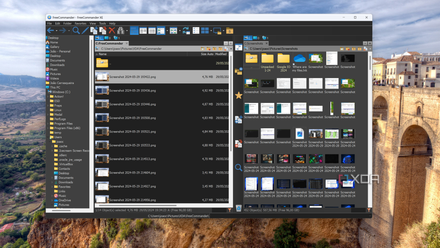
FreeCommander XE is a great entry point if you're new to dual-pane file managers or just want something that does the job without costing anything. Despite being free, it includes features like dual-pane navigation, tabbed browsing, file comparison, folder syncing, and built-in archive support.
The interface is clean and functional, and you can tweak the toolbar, layout, and color themes to your liking. It may not be as slick as Directory Opus or as robust as Total Commander, but it holds its own.
FreeCommander hands-on: A File Explorer replacement with potential (and a few problems)
This File Explorer replacement isn't it for me
There are even portable versions available, so you can carry it around on a USB stick for quick file management on the go.
FreeCommander XE
2 XYplorer
Feature-rich, portable, and blazing fast
XYplorer brings the best of dual-pane file management with a focus on speed, portability, and functionality. Unlike some tools that require installation, XYplorer is fully portable, i.e., you can run it off a USB drive without any setup.
It comes with a dual-pane view, tabbed browsing, powerful search functions, scripting capabilities, batch renaming, file tagging, color coding, and preview support for images, audio, and video. You can split the panes either vertically or horizontally whatever way you prefer.

You've never heard of these programs, but you'll never want to use Windows Explorer again after using them
OneCommander and Everything to the rescue
What sets XYplorer apart is its responsiveness. It loads fast, handles directories with thousands of files smoothly, and doesn't choke on complex operations. The interface is also very customizable, with options to add scripts or automate tasks.
There's a free version (XYplorerFree), but the Pro version unlocks everything, including advanced automation features.
XYplorer
1 Q-Dir
Lightweight, multi-pane file management with zero cost
Q-Dir (short for Quad-Directory Explorer) takes dual-pane one step further by offering four panes in a single window. Don't worry — you can customize it to show just two panes or three panes, but if you love side-by-side-by-side-by-side workflows, this one's for you.
Despite being ultra-lightweight, Q-Dir supports drag-and-drop, color filters, folder tabs, and bookmarks. It also has decent support for high-DPI displays and can be run as a portable app.

6 reasons why you should use Q-Dir to manage your files
Q-Dir surpasses Windows file explorer with multiple viewing panes, color-coded file types, and other excellent features.
It's not as feature-rich as Directory Opus or as extensible as Total Commander, but it's impressively capable of basic file operations. If you want a no-nonsense multi-pane file manager for your Windows system, Q-Dir is perfect.
Q-Dir
Enhance your workflow with a dual-pane file manager
Windows File Explorer is no doubt a fine file manager and has evolved over the years with each Windows edition. However, if your work requires managing files quickly between different folders, then these dual or multi-pane file managers would work better for you. Try the one that you think would best complement your work, and you'll see how your workflow is enhanced, and you will become more productive.