
The idea of setting up a NAS was simple — I wanted a central place to host all my data and safely back up my devices. I have used tons of tools to make that possible, but the thing is that the NAS also needs its own safety net. A NAS isn’t immune to failures; its drives can fail, folders can get corrupted, and accidental deletion remains a problem when you have many people accessing the NAS.
After playing with a bunch of tools to make my NAS the ultimate backup system, here are six tools that stuck around.
6 Time Machine
A boon for Mac users
My primary work machine is a MacBook, making it a critical piece of hardware in my tech setup. That’s the reason I wanted the most reliable way of backing it up every week. While I did shop around, I ended up using the built-in Time Machine tool for securely backing up my laptop to the NAS.
It was a nice relief that Time Machine natively supports network storage devices for backups. However, I wasn’t very fond of the built-in scheduling options, so I use a third-party tool to trigger a backup task every weekend. I have been using this setup for years, and I only need to check in on it every couple of months to ensure nothing is broken. That’s it.

I set up a Raspberry Pi as a Time Machine backup server for my Macs, and so can you
Relive the old days of Apples's networked Time Capsule using a much more affordable SBC and your choice of external storage device
5 Synology Active Backup
Or its equivalents from other brands
Unlike Mac, I haven’t had good luck with Windows’ native backup tool. The option to back up my Windows machine to my NAS was too convoluted. What came to my rescue was Synology’s own Active Backup tool. It is designed for businesses, allowing them to back up dozens of PCs in a single go, but who says I can’t use it for a single PC?
It has worked for me far more reliably than even Time Machine. You just need to install the app on both your NAS and your PC, link the two up, pick how you want to back things up, and you’re set. If you don’t own a Synology, check your NAS brand’s first-party tools for a similar option.

How to back up your Windows 11 PC
Want to keep a full copy of your PC in case something goes wrong? Or just back up your files? It's made easy with Windows 11's system tools.
4 Hyper Backup
To safeguard data on your NAS
While a NAS is the backup tool for your laptops and phones, your NAS also needs to back things up. It’s ideal that you have an off-site backup for your NAS to keep your data safe in case something happens to your primary NAS. For that, not everyone can afford to own or maintain a second NAS, so the next best option is cloud backup.
Synology — and a lot of other brands — offer first-party tools that directly integrate with a lot of mainstream cloud services like Google Drive and OneDrive. It safely maintains an updated copy of your NAS on the cloud as an extra safety layer.
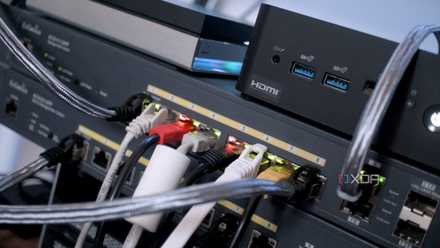
6 differences between NAS and traditional network backups
The problem of at-scale data implements backup strategies differently.
3 Rsync
When you don’t need the extras
Rsync is a scrappy little workhorse that is not flashy but gets the job done. It doesn’t look like much and requires a few lines of code in terminal to set up, but after that, it just works. I use it in situations where I don’t necessarily need a heavier, all-inclusive solution.
Being a simple tool, it works quite reliably. The biggest perk is that it works across platforms — Linux boxes, Raspberry Pi projects, and even older hardware can speak rsync. And it’s quite efficient at that — it only copies what has changed since the last backup and not everything over and over.
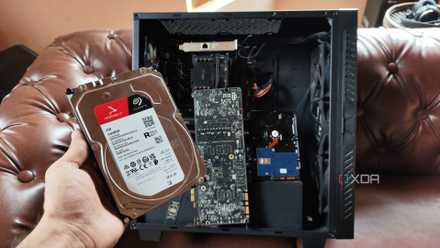
Your NAS should snapshot more often, and here's what I do and why
Snapshots are a solid way to safeguard your precious data
2 Duplicati
Free up your backups
I use a lot of proprietary tools for backups, making it possible that I get locked into one ecosystem. Duplicati is an open-source alternative that helps me mitigate that risk quite effectively. It’s got a built-in encryption tool that encrypts your data before transferring it anywhere. And it plays nicely with just about any cloud service you name.
The interface is friendlier than you’d expect from open-source software, and recovery options are quite straightforward. It may not be as polished as other commercial alternatives, but the flexibility it affords you is unmatched. It works as an additional protection for some of my folders that need to be backed up often to cloud services other tools don’t work with.
1 Synology Photos
It’s my media backup trump card
This is another time I found the best tool for photo backup bundled with my NAS itself. I stuck with Synology Photos for its great organizing tools, similar to Google Photos, and a handy smartphone app, which is essential for quickly accessing your photos anywhere. It has given me zero trouble in the years I have extensively used it.
If you own a Synology NAS, this would be my default recommendation for all kinds of photo backup. It should be one of the first apps you start using. For everyone else, you have plenty of third-party tools available on the market, including several feature-rich ones like PhotoSync, PhotoPrism, and more.
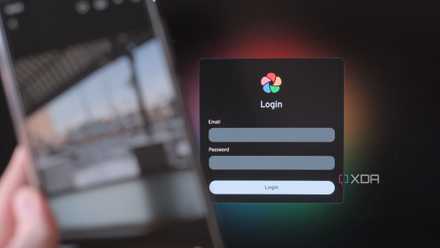
I self-hosted a Google Photos alternative with a Synology NAS — here's how it went
Build your own photo management platform with a NAS!
Create your backup strategy
Not having a backup strategy shouldn’t be an option. While this setup works for me and my varied needs, you can try out multiple tools to create a solution that is unique to your setup. The ones I use are mostly free, but even if you find a tool worth paying for to keep your data safe, I’d suggest you take the bet. It’s that important to have a backup system in place.
TerraMaster F4-424 Max
- CPU
- Intel Core i5-1235U
- Memory
- 8GB DDR5 non-ECC SODIMM (up to 64GB)
- Drive Bays
- 4 HDD bays + 2 NVMe SSD slots
- Ports
- 2x USB Type-A (10Gbps), 1x USB Type-C (10Gbps), 1x HDMI 2.0, 2x 10GbE RJ45
The TerraMaster F4-424 Max is a premium hybrid NAS enclosure that combines a solid Intel Core i5-1235U processor with ultra-fast 10GbE ports and ample storage capacity. It also supports up to 64GB RAM and is as amazing for home lab workloads as it is for storing your precious data,