
The BIOS, much like the Windows Registry, is a part of the system we rarely configure. It seems fairly technical, and with all the warnings doing the rounds, it feels like something best left untouched. For a long time, I didn't change much in the BIOS, except for capping the battery charge level and a few other simple settings. But as I dug more into it, I found out that there are a bunch of other settings, which, if optimized, could boost the PC's performance. And these are not those risky overclocking tweaks we have all heard about. These are simple changes anyone can make, usually without introducing instability.
4 Enable XMP
Makes your RAM run faster
One of the biggest bottlenecks to a system's performance is RAM. It's also the most common piece of advice to speed up an old computer. But few know that even the RAM that's already installed doesn't run the rated speed. Instead, the motherboard defaults to a lower level to prioritize compatibility over performance. For most of you, this shouldn't be a problem. But if you want to maximize performance, enabling XMP (Extreme Memory Profile) or EXPO (Extended Profiles for Overclocking) will do the trick. When enabled, XMP or EXPO lets your RAM run at its designed speed without being throttled by the motherboard.
To enable XMP or EXPO:
- Turn off the PC.
- Power it back on and enter the BIOS. (See manufacturer's manual for details.)
- Once you are in, look for an XMP option. For some of you, it will be right there on the main screen if you are in Ez Mode on the Asus ROG BIOS, while others may have to look into the different sections. It varies by manufacturer, so check their official website for the exact steps.
- Finally, enable XMP, and if it asks you to select a profile, go with XMP 1, and save the changes.
Now, see if there's a noticeable improvement in performance or any impact on stability. If it all goes fine for a couple of days, you can try the XMP 2 profile for even faster speeds, should one be available.

4 reasons you should enable AMD EXPO/Intel XMP on your PC
XMP or EXPO is a one-click boost in RAM performance that you should never ignore
3 Turn on Re-Size BAR Support
Delivers an instant boost in performance
Another BIOS setting you can enable is Re-Size Base Address Register (BAR), which allows your CPU to access the entire GPU memory. In the absence of this, the CPU can only request it in small chunks. This setting is primarily aimed at gamers, but other everyday users can benefit from it too, especially when it comes to video editing or rendering.
To enable Re-Size Bar Support, simply look for the Re-Size Bar Support option and set it to Enabled.
2 Optimize the fan speed
Because overheating can limit performance
Overheating is a silent performance killer. When the system temperature rises and reaches critical levels, it reduces the performance to protect the components from damage. You may have often seen the fans running at full speed, coupled with a slow system speed. It's called thermal throttling, and the system is trying to bring the temperature back to normal levels.
While many recommend going with the default configuration, you could adjust the fan speed to keep the temperature rise under check. That requires optimizing the fan curve. To do that, look for the fan control section within the BIOS. Select from one of the available presets like Optimized, Cool, or Ultra Performance, or set it up manually.
When you opt for manual configuration, you can set a custom fan speed for each temperature level. Apart from the heat dissipation, adjusting the fan curve can also help keep system noise in check. The Quiet preset is designed for that.
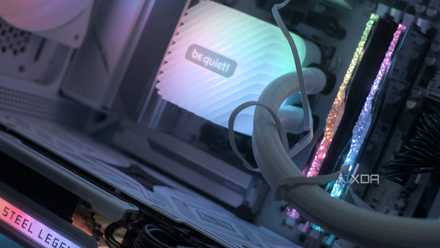
5 hidden BIOS tweaks to slash your power usage and temperatures
Achieve a cooler system without losing performance
1 Turn on MultiCore Enhancement or PBO
Allows all cores to run at maximum frequency
MultiCore Enhancement or Precision Boost Overdrive is a slightly risky tweak, but one worth trying. When configured, it removes the default power limits and lets CPU cores run at their maximum frequency. The performance boost you will notice depends on how many cores are needed and whether they were previously limited.
To enable the feature, you will find it under Ai Tweaker in the Advanced Mode or some similar sections relating to the CPU. Enable it, and if available, pick an option with a temperature limit. MultiCore Enhancement can lead to higher system temperatures due to increased heat dissipation. I recommend you monitor the temperature and disable the feature if the temperature remains consistently above the safe threshold.
Quick BIOS tweaks will boost speed without spending a dime
The BIOS, if used right, can be a game-changer for your PC, saving you from a few hardware upgrades. But you still have to be careful. Making too many changes in a short period can introduce instability, especially when done wrong. If you are an everyday Windows user, always wait for a few days after reconfiguring a setting to assess its real impact, and then move to the next one. Because system stability is more critical than performance.