
Docker Swarm is a crafty method that creates and controls a cluster of PCs. I have a single Pi running multiple containers, but the hardware tends to budge under heavy load. I considered leveraging cluster computing by bundling many systems, including a spare laptop. The idea was to learn and experience cluster management firsthand and deploy resilient containers. Even if one node goes down, I can access the service without any issue.
It sounds simple at first, but I was surprised by the post-setup part. Running a simple service that is accessible from any machine on your local network isn't an easy task. Let's explore how you can set up Docker Swarm and use it to create a pure or hybrid Raspberry Pi cluster.

What is Docker Swarm?
Looking for an easy way to manage your hardcore containerization tasks? Docker Swarm is perfect for you!
Initial Setup seems easy
But it isn't
I experimented with K3s some time back, and it wasn't as smooth as I expected. On the other hand, Docker Swarm requires nothing much except a clean installation of Docker on the devices you wish to use in the cluster.
In the beginning, I was just curious to see how many nodes I could add, so I added one virtual machine and a Raspberry Pi to my Ubuntu PC master node. Before proceeding, update all packages on each system and then run the official Docker installation commands on them. Note that all these systems are running 64-bit versions of Linux operating systems, and you should do the same.
Once done, you can start creating the Docker Swarm environment. All it takes is a simple command, but first, verify your Docker installation and run a sample 'Hello World' container on each machine.
Type the following command to initialize Docker Swarm on your master node.
docker swarm init
The above command produces a join token that you must use on all nodes you want to add to the swarm. If everything's correct, you'll get an " added to the swarm” message.
You can view all the connected nodes with the docker node ls command, which puts an asterisk next to the current node you're using. Once you reach this part, your nodes are ready for a ride. You can use a few commands to manage, add, or remove the containers, but why subject yourself to such hardship when you have Portainer around?

You can manage your self-hosted containers like a pro with Portainer - here's how
Need a beginner-friendly GUI that's laden with all the essential features to manage your containers? Portainer has your back!
A web interface for your Swarm
Portainer makes it easy
Portainer is the first Docker container that you must deploy on your Swarm. Since I love freeware, I'll use the community edition download command for Docker Swarm (not the standalone edition). It downloads the YML manifest, and then the second command creates a Portainer instance for all correct swarm nodes. It's instant replication because it uses the global mode, making deploying one container for each service remarkably easy.
curl -L https://downloads.portainer.io/ce-lts/portainer-agent-stack.yml -o portainer-agent-stack.yml
docker stack deploy -c portainer-agent-stack.yml portainer
The best part is that each node can access the containers on any other node. If I want to access the Portainer instance on my Pi from my laptop node, it's possible. If one of the devices disconnects on that node, the swarm will recreate that service on another device, which is the best part. Portainer will present the cluster with combined stats. In my case, it showed 24 CPU cores and 12GB RAM.
You can use the visualizer in the Portainer's Swarm section to get a real-time glimpse of what happens when you deploy services or stacks. The latter is useful if you want to deploy a combination of apps as a single packaged service. In my case, I tried running a few monitoring services on the swarm, and it ended up being pretty good.

Forget about Portainer, I use this simple tool to manage all my Docker containers on my NAS
I use Dockge to manage all my Docker containers, and I won't look back (except in some instances).
Monitoring the swarm
Dashboards make it easy
Portainer has a stack for Docker Swarm in its templates section. You can select swarm monitoring, add the name and password for the cluster, and hit deploy. Downloading and preparing all these tools will take some time, but you can monitor their status in the services section. After every container status changes to running, you can visit the Grafana dashboard on port 3000.
I don't need to reiterate how good Grafana is, but I also wanted to check another visualizer for the swarm. I picked the
swarm-dashboard from GitHub and deployed it as a stack on port 8080. It's a simple stack with Prometheus and Cadvisor, and it worked without any links. I found another cool GitHub project: a dashboard to check your internet connection metrics. I deployed it as a stack, and that also worked fine.

Figuring out storage
GlusterFS it is
Imagine having many resilient services that can work on any node, but not having a common storage. The problem is tricky because we want an option all nodes can use, and that's where GlusterFS comes in. You can use NFS or any other kind, but I wanted to try out how this worked.
Creating a GlusterFS volume isn't complicated if you do the steps correctly. First, you must modify the host file so that the nodes can access and prove each other, and then install the application on all the nodes. After that, you must bring all of them together in a pool and then create a GlusterFS volume.
Then I made a few changes to the fstab file, which made the volume automatically mount at boot, then mounted the volume to a directory. It creates a shared storage, easily viewable by the df -h command.
If you add a file to this volume, it'll automatically sync across all nodes, which is practically the main selling point of any shared storage service. Note that the GlusterFS volume will adopt the smallest maximum available storage space on all the nodes. My nodes had over 50 GB of space, but one had only 10 GB available, so the volume initialized with 10GB of space.
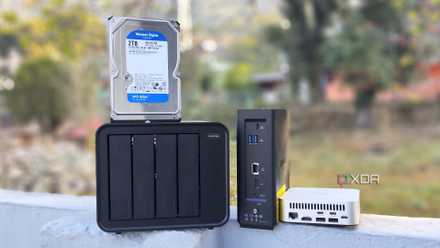
5 household gadgets I've retired after getting a decent NAS
There's a lot more you can do with a NAS besides using it as a file-sharing and backup server
Swarm possibilities are endless
With everything in place, you can create and run services that need persistent storage on any node. Even if one goes down, you can access the service and the data from another node. Docker applies load balancing and migrates the service when needed.
A good use case would be deploying File Browser or NextCloud as a service and accessing the data from a common storage location. Deploying and managing a cluster is comparatively easy with Docker, so give it a try.