
When it comes to PC hardware and performance, you'll find countless conflicting opinions, depending on how many forums or videos you check out. From choosing the right components and optimizing them correctly to maximizing performance, it can often get tricky to have a north star of your own. This leads to numerous misconceptions and bad purchase decisions that are not always easy to come back from. Hence, I've compiled the most common PC performance misconceptions you need to be aware of.

6 things the PC community should stop complaining about
It's high time PC users got rid of these age-old complaints
8 High-end PCs can't survive without liquid cooling
Far from the truth
This one naturally gained traction as AIO liquid coolers kept getting more affordable, and modern CPUs kept becoming more power-hungry. Many PC builders gravitated toward liquid coolers due to their supposedly superior performance, esthetics, and lower noise levels. However, air coolers never really went out of fashion. High-quality air coolers continued to excel at cooling even high-performance CPUs, often while keeping the system more silent.
Most users aren't using, say, a Core i9-14900K or Core Ultra 9 285K on their PC, and don't require a 360mm AIO to keep things cool. Almost all non-flagship CPUs can be easily cooled with decent air coolers, and people often don't need to spend over $50 on the cooler. Liquid cooling has its place, and it's honestly unavoidable on certain builds, but it's far from the necessity the community makes it out to be, even for high-performance systems.

5 reasons liquid cooling isn't always better than air cooling
Liquid cooling has some advantages, but it isn't always the best choice in every scenario.
7 Synthetic benchmarks are enough to test overclocks
Real-world testing can uncover hidden instabilities
If you're still in the habit of overclocking your CPU or GPU, you probably use a bunch of benchmarking and stress testing tools to take your new OC settings for a spin. While this is one of the best practices when overclocking your hardware, it's not as comprehensive as you might believe. Benchmarking tools stress your CPU, GPU, or memory for a small amount of time, and if it passes the test, it's believed to be stable. However, this is always a preliminary step.
The real test for your hardware is real-world use, i.e., long gaming or rendering sessions (or any other intensive workloads). These scenarios will often reveal the instabilities that benchmarking tools can miss. The cascading effects of an overclock on the rest of your system are often unmasked during real-world testing, and you should avoid premature conclusions after running a few synthetic tests. These tools run predictable workloads that differ from many diverse, real-world use cases.

5 reasons to overclock your GPU instead of buying a new one
Consider overclocking your GPU before rushing for another GPU upgrade
6 You should always avoid Bronze-rated PSUs
Give some love to Bronze units
Whenever your budget permits, you should buy the best power supply you possibly can, not in terms of wattage, but rather reliability and efficiency. In 2025, Gold-rated power supplies aren't nearly as expensive as they used to be. For instance, I bought a Bronze-rated power supply in 2017 because opting for a Gold unit would have exceeded my budget. That said, Bronze units need not be shunned like they are by most PC builders.
Provided the model you're buying is from a reputable brand and is known to be reliable, an 80+ Bronze rating doesn't mean your PC will be at risk. It just means it would be slightly less power-efficient. If it has enough wattage, good construction, and saves you some money when you're on a tight budget, there's no harm in buying a Bronze unit, even in 2025.

What are PSU Ratings? 80 Plus and Cybenetics explained
When choosing a new PSU for your PC, it is crucial to make sure that it has a proper rating.
5 All SSDs are the same, as long as they're NVMe
Not even close
Most people know that even a SATA SSD is way better than a spinning hard drive for system responsiveness and gaming load times. And NVMe SSDs have become affordable enough that people are comfortable skipping SATA drives altogether when switching from hard drives. However, many people still buy an NVMe SSD without considering the multitude of differences that exist between different models.
Besides the obvious difference in the PCIe interface — PCIe 4.0 being the most recommended for most users right now — there are tons of other differences that can throw off the average user. For instance, two NVMe drives belonging to the same PCIe generation can have different read/write speeds. Additionally, the SSD you buy might not have a DRAM cache, which can come in handy during certain workloads. Even the endurance of different drives can also differ a lot.
Some entry-level SSDs like WD Green, and even WD Blue, aren't recommended unless you have no other option. It's better to spend slightly more on a decent, well-reviewed drive than risk your data and waste your investment.

How to choose an SSD: What is NAND, TLC, PCIe, and SATA?
Find out everything there is to know about your SSD.
4 The more RAM, the better
When less is more
It feels obvious that having as much memory on your PC is always going to be better than having less. 64GB RAM does look better than 32GB, doesn't it? However, increasing the amount of memory in your system can come with a few riders that can catch you unawares. Consider this: you're running a 2x16GB DDR5-6000 kit on your PC, and want to upgrade to 64GB of total memory. So, you order an identical kit, expecting to enjoy 6,000MT/s speed with 4 DIMMs on your motherboard.
In reality, you most likely won't be able to run your RAM faster than 5,200–5,600MT/s. This is because the more RAM slots you populate on your motherboard, the lower the guarantee that the DIMMs will run at the advertised maximum speed, XMP/EXPO or not. The Integrated Memory Controller (IMC) on most CPUs just isn't equipped to handle four DIMMs at high frequencies. Single-channel and dual-channel DIMMs behave slightly differently in this case, but most people can ignore those differences.
This isn't to say you can't run 64GB of RAM at 6,000MT/s or even 6,400MT/s. Installing a 2x32GB kit doesn't stress the CPU's IMC as much, and you can easily run your RAM with the XMP/EXPO you want. In a nutshell, the more RAM capacity you install, the lower the maximum frequency becomes for stable operation. You need to strike a balance to ensure a stable system.

6 myths about AMD EXPO and Intel XMP you shouldn't believe
If you are unsure whether or not to use EXPO/XMP, then knowing that these are myths should dispell some of your fears.
3 Low GPU or high CPU usage is always a bottleneck
Ease up on the bottleneck talk
The topic of bottlenecks is filled with misinformation and needless fearmongering. Even if you manage to avoid the online bottleneck calculators, you'll easily find random people on Reddit claiming the smallest "error" in your CPU-GPU pairing is the worst thing in the world. And the worst rule of thumb regarding PC bottlenecks has to do with CPU and GPU usage. Low GPU usage isn't always the critical problem it's made out to be. Similarly, high CPU usage doesn't always mean that you have a CPU bottleneck.
CPU and GPU utilization are useful metrics when spotting a bottleneck, but you need to ensure that other variables aren't polluting your conclusions. For instance, less than 90% GPU usage in a game might happen not due to a CPU bottleneck, but because the scene in question is not too demanding, or the game engine isn't optimized well. On the other hand, close to 90% CPU usage is perfectly normal in CPU-bound titles, especially open-world games with tons of NPCs and strategy titles.

3 ways to spot a CPU bottleneck — and 4 ways to fix it
CPU bottlenecks are tough to spot if you don't know where to look.
2 High CPU temps equal overheating
Modern CPUs like it hot
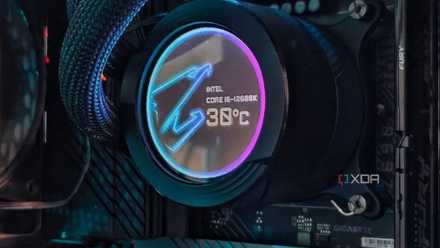
While you want your CPU to run as cool as possible (within realistic ranges), modern processors like to run hot. Manufacturers like to optimize chips to deliver as much performance as possible, and cooling hardware is responsible for keeping the silicon below the throttling temperature. This means the high CPU temps that you notice in HWiNFO, even during idle scenarios, aren't always a sign of something wrong with your CPU cooler, thermal paste, or case airflow.
This behavior is just something you need to get used to, provided you've already installed a decent air or liquid cooler, optimized your fan curves, and ensured proper airflow inside your case. As long as your CPU isn't frequently touching 90℃ in gaming or other regular workloads, you don't need to worry about high CPU temperatures. Overheating is a term that's casually thrown around, but you should confirm the regular behavior of your particular CPU before jumping to conclusions.
How hot is too hot for a CPU: Understanding the operating temperature of your processor
CPUs tend to run hot, especially the modern ones with higher power limits. But just how hot is too hot to handle?
1 The PCIe interface your GPU is using doesn't matter
It doesn't, until it does
Conventional wisdom dictates that the performance difference between your GPU using PCIe 3.0, PCIe 4.0, or PCIe 5.0 is negligible. And, in most cases, this is absolutely true. You don't stand to lose more than 1-3% of performance by dropping from PCIe 5.0 to PCIe 3.0. That said, the bus interface your GPU is using becomes critical when your VRAM is a bottleneck.
GPUs with 8GB of VRAM are susceptible to a massive performance drop when running at PCIe 3.0, which is the maximum that older PCs still support. The moment your card runs out of VRAM on PCIe 3.0, the game starts dipping into system RAM, which immediately tanks performance. This is less of an issue on PCIe 5.0 because of the faster bandwidth of the newer interface. Hence, users with older or budget systems should consider the PCIe support of their PC seriously if they're running an 8GB VRAM GPU.

Your GPU's PCIe generation doesn't matter — except when it does
PCIe 3.0 doesn't affect your GPU performance, unless you run out of VRAM
PC performance doesn't always work the way you think it does
The misconceptions people have about PC hardware and how components work together stem from the deluge of information they need to deal with. While it's possible to let someone else choose the components for you or buy a trusted pre-built PC, you need to get your hands dirty if you want to know the ins and outs of your build. The only way to do that is to consume content from multiple sources, and create informed opinions for yourself.