
A lot of people just buy a new NAS, set it up the first time for the basic stuff, and then forget about most of the things it can actually do. And it stays like that for the longest time. Everything from shared folders and Plex servers to backups and surveillance worked just fine. It isn’t until you dig a little deeper that you realize how much of your NAS stays untouched, even though some of those hidden features can really transform how enjoyable your setup can be. The best part is that none of it is even remotely complicated.
Here’s every little feature that could enhance your NAS experience by a lot.
Snapshots
Your invisible safety net
Snapshots are one of those things you assume only power users use, and you realize their value only after you delete a folder by mistake and try to bring it back. A snapshot is basically a moment in time where your data was frozen and preserved for future use. And it doesn’t take up a lot of resources either, or require you to copy a lot of data manually.
The NAS simply remembers what things looked like before you messed something up. I didn’t pay attention to snapshots for years because everything felt stable enough until a bad sync job wiped out a chunk of my files randomly. Restoring them took seconds thanks to snapshots — otherwise it would’ve been nearly impossible and quite frustrating to live with the fact that I'd lost precious data.
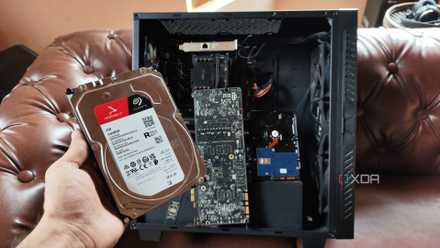
Your NAS should snapshot more often, and here's what I do and why
Snapshots are a solid way to safeguard your precious data
SSD caching
The upgrade that makes your NAS fast
SSD caching isn’t the first thing that comes to mind when we talk about NAS performance, but it makes a noticeable difference in everyday use. Before enabling it, my NAS behaved like a meager storage box: it worked, but browsing frequently accessed folders or rescanning Plex libraries felt a bit sluggish. Once I added a read cache, those little annoyances started to fade.
If you add a write cache, those multi-gigabyte transfers stop feeling like a drag. None of these turns your NAS into a monster workstation, but it smooths out the rough edges, and that’s the part people often miss. SSD caching isn’t about big numbers; it’s about removing friction from things you do every single day. And considering how cheap SSDs have become, it feels like a no-brainer.

An all-SSD NAS is the best home lab upgrade you can make
These compact little storage rigs pair well with home server projects
User permissions
For things showing up where they shouldn’t
Setting up shared folders is just the first step; permissions are where most people lose control of their NAS. I used to keep almost everything wide open on my network because it felt convenient, and only my family had access. Then a folder meant only for one device appeared on another, and I thought it could happen with even more private files.
Having proper user permissions in place isn’t about locking things down like a data center; it’s about predictable behavior. The wrong device (or people) shouldn’t accidentally see a folder meant for someone else. Someone on your network shouldn’t stumble into a directory they shouldn’t be able to tweak. For that, you have to start naming users properly, assign access controls, and turn off public shares when you don’t need them.
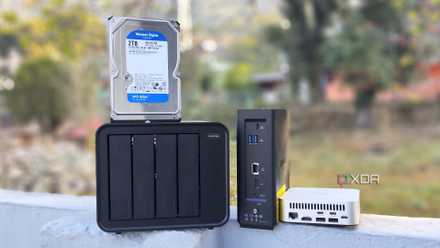
5 household gadgets I've retired after getting a decent NAS
There's a lot more you can do with a NAS besides using it as a file-sharing and backup server
Built-in backup tools
Your NAS can back itself up, you know
There’s this false sense of security that RAID creates. You think your data is safe just because you have redundancy, but RAID has little to do with actual backups that save your data. Your NAS can still lose everything to data corruption, user error, ransomware, or a dying controller. That’s where built-in backup tools come in.
Synology has Hyper Backup, TrueNAS has replication tasks, Unraid has plugins that schedule backups — all without needing manual scripts or complicated setups. I had to simply set up a weekly backup job, and I was done with my anxiety around data safety for good. It gave me the realization that if things went sideways, I had a version of my data handy. It’s quite ironic that we trust a NAS for backup but forget that the NAS itself also needs one.
Why my NAS backups failed, and what I wish I’d noticed sooner
How small oversights nearly erased months of data
Drive health monitoring
Your drives warn you long before they fail
Hard drives almost never die suddenly. They start complaining in subtle ways, with signs like rising temperatures, longer read times, reallocated sectors creeping up, etc. The NAS catches all of this, but you only benefit if you actually enable alerts. For the longest time, I didn’t. I assumed everything was fine because nothing looked wrong.
Then one day, I opened the health tab randomly and saw a drive that had been throwing warnings for weeks. I got lucky because it hadn’t failed yet, but it easily could have. Enabling email or push notifications, especially for critical errors, takes just a couple of clicks and turns your NAS into a self-aware device.

4 ways to tell you should replace your NAS drives
Keep an eye out for early signs of drive failure
These small features make your NAS feel complete
Using a NAS isn’t just about dumping files onto a storage box every few days. The more time you spend with it, the more you realize that it becomes better when you turn on a handful of often-ignored features. Backups and snapshots give your data a second life, while health monitoring protects you from “sudden” failures. The best thing is that none of this is complicated or meant only for power users.
TerraMaster F4-424 Max
- CPU
- Intel Core i5-1235U
- Memory
- 8GB DDR5 non-ECC SODIMM (up to 64GB)
- Drive Bays
- 4 HDD bays + 2 NVMe SSD slots
- Ports
- 2x USB Type-A (10Gbps), 1x USB Type-C (10Gbps), 1x HDMI 2.0, 2x 10GbE RJ45
The TerraMaster F4-424 Max is a premium hybrid NAS enclosure that combines a solid Intel Core i5-1235U processor with ultra-fast 10GbE ports and ample storage capacity. It also supports up to 64GB RAM and is as amazing for home lab workloads as it is for storing your precious data,