
Building a network-attached storage (NAS) system is much like a desktop PC since mostly the same parts are used, albeit with slightly different drives. Just like a desktop PC, there are some mistakes one can easily make without realizing it, and I've been there a few times with my earlier custom NAS builds. Here are some things you should bear in mind to ensure you avoid any potential pitfalls!
4 Don't use desktop-class drives
It's not worth the savings
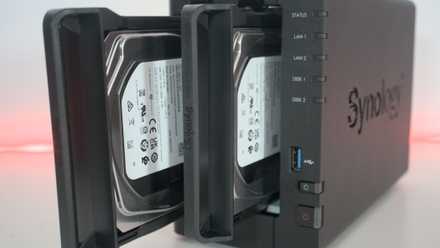
The price of NAS-rated drives is notably higher than that of normal equivalents you'd typically install inside a desktop or laptop PC. This is for a few good reasons. A NAS drive differs in that it operates at lower power draws, has a longer warranty, and produces less heat and fewer vibrations. This is to allow the drive to perform better when used inside a system with multiple spinning disks, especially when used as part of a redundant array of independent disks (RAID). They're also better at running 24/7, which is what you'll likely task your NAS with doing.
A desktop drive, specifically a hard drive, needs to perform different tasks. It's not active continuously, isn't usually hit as hard with data writes, and doesn't need to endure vibrations from a few other drives within the same chassis. You can get away with using standard drives inside a NAS, though it's not recommended. SSDs are slightly different in that they don't produce vibrations like a mechanical HDD, but NAS SSDs have their own advantages, including higher endurance and better internal components.

5 ways NAS HDDs are different from regular hard drives
Although they're a bit more expensive, NAS drives have some advantages over their ordinary counterparts
3 Not planning for backups
Always back up the backups
The 3-2-1 backup rule will become a close friend once your NAS is up and running. At the beginning, I wasn't overly concerned about backing up data on the NAS, at least not outside of attaching an external drive every so often to make a direct copy. That was a poor move, and luckily, I didn't lose anything when life took control and I missed a few backup calendar entries. Thankfully, nothing was lost, and the wife didn't send me to the garden shed for losing some photos and videos.
My backup strategy now consists of automatic copies of all my server instances, as well as the connected DIY NAS. Everything is stored on a separate turnkey enclosure, which is also replicated with a copy that's physically stored in a different location on the property, which should shield us from natural disasters. If a worst-case scenario hits, a final copy is located in cold storage. I don't wish to lose a single bit of data, and this strategy ensures I'm always protected. This is especially important when handling other people's data as well as my own.
How to follow the 3-2-1 backup rule for NAS and protect your data
Keep it secret, keep it safe
2 Underestimating storage space needs
Especially running services
We can never know precisely how much storage space we'll require for stashing media, games, and more, and this is especially evident with NAS. Thankfully, unlike your smartphone or laptop, where storage may be soldered to the mainboard, a NAS can usually be upgraded with larger drives. Unfortunately, this requires SATA ports and plenty of them. If you purchase a motherboard with too few SATA links (and PCI channels for expansion cards), you're likely to run into trouble when it comes to expanding the capacity.
Opting for the largest drives is a sure way to make use of all available space, but they don't come cheap. If you're starting out with a DIY NAS, you will likely not have the available budget for a few drives costing north of $1,000. Always consider how many available storage connections your system has and what type of content you will use the NAS for. If it's media, such as movies and shows, this can fill up even the largest HDDs quickly at higher resolutions. The same goes for gaming, if you plan to use network storage for your libraries.
I switched to an open source NAS OS and I couldn't be happier
Rockstor gives me everything I could want from a NAS OS.
1 Picking the wrong OS
All of them are good, but some are truly great
I wrote about how you should always focus on the specifications of a prebuilt turnkey NAS over the OS, but it's almost inverted for DIY solutions. The choice of hardware matters less since most desktop-class components are more than good enough for storage and a few Docker containers. It's the operating system that matters more since they can vary significantly. TrueNAS is an entirely different beast from Unraid, and OpenMediaVault may be better suited to other tasks. It's worth testing each option out to find the OS you prefer.
We've tried just about every OS there is that can run a NAS, from Windows and TrueNAS to Proxmox and Ubuntu. There's no wrong answer, though we'd certainly recommend using one specifically designed for networked storage over another best suited to a desktop environment, but the choice of OS boils down to what you prefer to use, and most platforms can be adjusted to work with numerous clients on the network. If we had to recommend a NAS OS for beginners, it would be OpenMediaVault or Unraid.

Building your own NAS? These 5 operating systems are the best
If you prefer building your own NAS from scratch, here are five operating systems you need to check out
Building a NAS is great for the home
Tired of relying on cloud storage and wish to use something that offers slightly better value than a turnkey enclosure? Consider building your own NAS. It's an excellent home project that can kickstart your home lab with the ability to run custom Docker containers and launch your own services. Cancel your Spotify and Netflix to stream all your owned media through Jellyfin. Back up all your devices using Immich. Run your own Microsoft 365 platform with Nextcloud. The possibilities are almost endless.