
Most people treat their Wi-Fi router like a water heater— an appliance you plug in, set up once, and tuck it in some obscure corner out of sight, which it never leaves until it breaks. However, the default settings on most ISP-provided boxes and even high-end consumer gear are designed for maximum compatibility, not maximum performance. This "set it and forget it" mentality is often the root cause of those strange lag spikes, dropped connections during Zoom calls, or smart plugs that refuse to connect to the network.
If you’ve already rebooted the router, checked your ISP speeds, ensured your firmware is up-to-date, and exhausted device-level debugging options, you might shift blame to the home network. It isn't black magic, but just a rather dense web of configuration settings that ensures devices interact with each other smoothly. Sometimes, simple issues need a little mediation for remediation. On the bright side, tinkering with a router doesn't cost a dime, and is easily reset if you mess up.
Old devices slow new ones down
Check Airtime Fairness settings
If your recently built gaming PC or 4K TV starts to stutter or buffer on the home network, especially when you connect an older smart plug or a legacy laptop, your network could be stuck giving all devices equal priority. As a part of the Quality of Service settings (QoS) on your router, you'll find an option for Airtime Fairness, which could fix these frustrating speed bottlenecks when enabled. Standard Wi-Fi protocols usually operate on a "packet fairness" basis, meaning every device gets an equal number of opportunities to send data. This typically means your newer devices that can transmit data in microseconds must still wait for slower Wi-Fi 4 smart bulbs to finish sending a similar amount of data.
The nanoseconds surely add up, and without Airtime Fairness, your fast devices are forced to wait in line while the slow device drags the entire network speed down to its level. Enabling Airtime Fairness changes the rules to allocate equal time to every device rather than equal data opportunities. This prevents older, slower devices from monopolizing the router's attention, ensuring your high-bandwidth devices get the throughput they were designed for.

I set up QoS to manage bandwidth for my home connection and you can too
Quality of Services helps manage the network traffic to reduce buffering and slowdowns with video calls or streaming multimedia on your home network.
Choosing interference-free channels doesn't help
Channel selection is just half the battle
I've seen networks where 2.4 GHz devices (smart home gear, older phones) frequently disconnect, suffer from high latency, or show "Connected, No Internet" in the network status, and the problem is notoriously difficult to replicate. What's typically happening here is that interference from other channels and crowded networks is intermittently disrupting comms between your router and its clients. You may have selected suitable interference-free channels when setting up the network, but in at least one case, I've had the 2.4GHz band switch to the 40MHz channel width. While this widens the frequency allowing for faster data transfer, it opens up the network to more interference too.
By bonding two narrower 20MHz channels together to get 40MHz, but more than doubling your chances of collision and interference. Locking this setting to 20 MHz reduces your theoretical top speed—which doesn't matter for a lightbulb or thermostat—but significantly increases connection stability. Most routers do this by default, but if the setting is available and you're struggling even after selecting channels with low interference, sticking to 20MHz should do the trick.
When WPA3 is a big ask
Encryption for older connected devices
Continuing the theme of issues with older devices misbehaving on home networks, it is rare but not impossible to come across a router occasionally that seems ignorant of backwards compatibility standards. Typically, newer routers let almost all devices connect, including older ones. However, a friend recently called me worried sick when his older devices refused to connect to the network even on 2.4GHz after he changed encryption to the latest WPA3 standard.
Turns out it handles encryption differently than its predecessors. While it's more secure, the silicon inside cheap IoT devices often isn't updated to work with it. Worse, some smart devices see the WPA3 advertisement from the router and simply give up, failing the handshake entirely. I've found that switching from WPA3 to WPA2/WPA3 Transition Mode or WPA2-AES fixes this issue since the former broadcasts both standards simultaneously and the latter is widely supported and secure enough for home use. At least it'd ensure your smart home gear or new router aren't reduced to paperweights.
The bane of band steering
Decide what's best for your devices by yourself
After a bunch of settings you should switch on or not mess with, here's one that's better left switched off. Band steering is the router tech that switches your client device to the faster 5GHz band once it is within reliable range, and pops it onto the 2.4GHz one for better transmission over longer distances as needed. Sometimes, though, the router's logic is too "sticky," keeping you latched onto the slower, long-range 2.4 GHz signal even when you have a strong enough signal for high-speed 5 GHz.
Disabling band steering easily fixes it, and the feature is also called Smart Connect in some cases. Additionally, you can separate the 5GHz band and assign it a distinct SSID, so your device sees a different Wi-Fi network to connect to. This can be great for a NAS or HTPC near the router you'd need to run on the faster band at all times while banishing your printer and smart plugs to the 2.4 GHz network.
Custom DNS
So many problems with one little fix
In my own home network, I tried to do everything right: decongested bands, separate 5GHz network, VLAN for the IoT stuff, and even guest Wi-Fi, but a few problems persisted for a while before I got to their source. I would have full-strength Wi-Fi, but web pages would hang for 5–10 seconds before they start loading, or I'd frequently get stuck in automated CAPTCHA loops. After exhausting every client device-level debugging method, I found the culprit to be the one thing I didn't change from the ISP default — my DNS. They're notoriously slow, outdated, and prone to outages.
A DNS server is the phonebook for the internet, translating a URL from your address bar into an IP address, and switching to a high-performance public DNS makes the internet feel "snappier" because the lookup happens instantly. Using a reputable public DNS also eliminates CAPTCHA loops triggered because your ISP's shared IP address pool has a bad reputation or is flagged by security networks like Cloudflare. Understandably, switching your DNS shouldn't be a go-to solution for the aforementioned issues until you've exhausted all the other potential culprits like browser extensions, device configuration, and router placement.
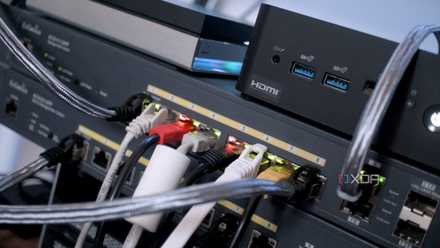
How I used VLANs to separate my smart home devices — and why you should too
Why I now always use VLANs to separate smart home devices.
Climb the debugging ladder with care
Home networking is a multi-variable beast. Fixing your channel widths won't help if your ISP is having an outage, and changing your DNS won't fix a router placed inside a metal cabinet. However, as you ascend the ladder of debugging steps—from rebooting to changing cables to tweaking these advanced settings—you often find that the solution isn't buying a $500 mesh system, but simply unchecking a box that wasn't meant for your devices.