
A mesh network is often considered a silver bullet for all kinds of Wi-Fi problems. The most common mesh setup consists of a primary node connected to one or more satellite nodes to create an uninterrupted Wi-Fi net around the home. While a mesh network is designed to overcome the limitations of a standard router by eliminating dead zones and extending Wi-Fi coverage without major downsides, you might not need it (yet) in your home network. Before spending $200–$400 on mesh Wi-Fi, you should inspect and fix the existing deficiencies in your current network. Optimal router settings and position are free fixes that could make an expensive mesh setup redundant. And a better router will still be cheaper than mesh while solving your range issues. Lastly, repurposing an old router into a wired access point could be the only fix your network needs.

6 myths you probably still believe about mesh networking
If you've been on the fence about getting a mesh network, or you're set on getting one, make sure you have all the details first.
Optimized router settings
You have to do it just once
Most people skip this free network fix either due to ignorance or the belief that it won't do much for their Wi-Fi performance. It's possible you haven't touched your router's settings since the day it was installed. Maybe it's not your fault — ISP-provided routers often block most settings from user access. However, it still pays to check which settings you can still change. You never know if a few tweaks will be enough to make your Wi-Fi great again. I recommend starting with the channel selection and width, since most people's networks use the same crowded channels. Use an app like Wi-Fi Analyzer to check if your network is on a channel crowded by neighboring networks. If it is, switching to 20 MHz on the 2.4 GHz band and 80 MHz on the 5 GHz band can make your connection feel snappy. A narrower channel will limit the bandwidth, but if it's relatively less crowded, you'll notice faster performance overall.
The other important setting to look into is Quality of Service (QoS). It's a collection of settings that can prioritize traffic for certain devices, so that bandwidth saturation from tons of devices doesn't play spoilsport. You'll probably want to prioritize your gaming PC, smart TV, and work laptop, among others. While you're tweaking your router's settings, I'd also recommend updating the firmware if your current version is outdated. You may never think about it, but your router's firmware can fix bugs, improve performance, and result in a more stable Wi-Fi network. Besides, it's also important to keep your router safe from security exploits.
5 underrated tools for keeping tabs on your PC hardware
Some lesser-known tools to monitor and diagnose your system
A better router location
Use all of your Wi-Fi signal, not just half of it
Another network fix that doesn't cost anything is moving your router to a more centralized location in the house. Similar to the router's settings, most people never change its location once the ISP installs it. The technician may have installed the router where it was most convenient, depending on the cable entry into your home. However, that doesn't mean you can't explore other locations in the house or at least the same room. Your router's signal emanates in a donut shape perpendicular to each antenna. If it's kept in a corner of your living room, you're only benefiting from half the signal. Moving the router to the middle of the apartment will help spread the signal out more efficiently, possibly reaching the spots that you had deemed dead zones.
To the extent that you can manage it, move your router to a spot in the house that has a line of sight to most of the rooms. This way, you'll ensure minimal signal obstruction and maximum Wi-Fi speed for almost all of your devices. You could extend the incoming fiber cable and mount the router on a spot on the wall that's roughly in the center of the house. Many ISPs are willing to relocate the router inside your house, so you could call yours and see if they'll do the dirty work for you.
My router was in the wrong spot for 3 years: here's how I found out and fixed it
Good features cannot stand in for poor placement.
A modern router to fix your Wi-Fi range
It could be free if your ISP agrees
Your Wi-Fi's range issues might just need a slightly better router, not a full-fledged mesh setup. Chances are that your ISP has dumped a Wi-Fi 5 router on you, and you've been using compromised hardware for years. Wi-Fi 5 isn't terrible, but even a standard Wi-Fi 6 router can be a significant improvement, considering features like OFDMA and advanced MU-MIMO, higher maximum speeds, and longer range. Wi-Fi 6 optimizes speed and coverage by using both the 2.4 GHz and 5 GHz bands, reduces latency, and improves network efficiency in crowded areas. It's also ideal when multiple devices are competing for the same bandwidth. Your ISP will already have Wi-Fi 6 routers in stock, but hasn't upgraded you yet simply because you haven't asked.
I got my ISP to replace my Wi-Fi 5 router with a Wi-Fi 6 model, so the switch cost me nothing. The new router got rid of the dead zone inside the house, solving the biggest gripe I had with my network. You might have to pay for a router upgrade if your ISP doesn't budge, but it will still cost less than half that of a mesh network. You can buy an affordable Wi-Fi 6 router for around $60–$80, convert the ISP's router to bridge mode, and enjoy your modern router's capabilities. For a little more, a Wi-Fi 6E router could prove to be worth it, thanks to the additional 6 GHz channel for reduced congestion and latency.
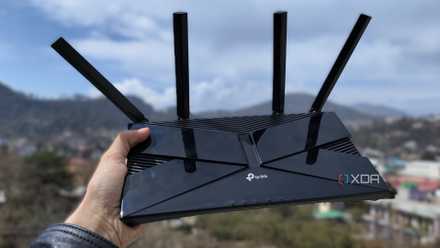
TP-Link Archer AX21
- Supported standards
- 802.11ac, 802.11ax, 802.11b, 802.11g, 802.11n
The TP-Link Archer AX21 is one of the best-selling Wi-Fi 6 routers, with a low price, solid features, and reliable hardware. It has an AX1800 dual-band connection and easy setup and management with the TP-Link Tether app.

My ISP finally replaced my Wi-Fi 5 router, but Wi-Fi 6 doesn't feel any different
Wi-Fi 6 extended the Wi-Fi range, but it wasn't the radical upgrade I had imagined
Old routers turned into wired access points
Fast and reliable
Mesh nodes can be connected to the primary node with a wired backhaul, but most people never do that. They use the default wireless backhaul instead, which isn't as effective. You can create your own mesh network by repurposing old routers into wired access points, enjoying an equally great signal no matter where you are in the house. It's possible to buy access points, but that's an expensive and needless exercise if you have an old router (or two) lying around.
Your "old" router probably supports Wi-Fi 5 and has Gigabit Ethernet ports — that's really all you need to turn it into a dedicated access point (AP). Disable DHCP on it, connect it via Ethernet to your main router, flash a custom firmware like DD-WRT and OpenWRT, and install it close to the dead zone in the house. You now have your very own custom AP on the same SSID broadcasting a lossless signal, thanks to the wired link to the main router. You could do the same with another old router if you want excellent coverage in another area of the house. Your devices will switch seamlessly between the main router and the APs based on signal strength. If you don't have old routers lying around, you can source a couple of Wi-Fi 5 or Wi-Fi 6 routers from the used market on the cheap.
Your old router is a better dedicated access point than any mesh extender you can buy
Good Wi-Fi starts with good architecture.
Your network probably doesn't need mesh Wi-Fi
People are quick to jump to mesh Wi-Fi to solve their Wi-Fi woes, but it's overkill and too expensive for most setups. Unless you have a truly massive space or an otherwise restricted signal inside the house, your Wi-Fi issues can be fixed with cheaper or free tweaks. Moving our router to a central location inside the house, optimizing its settings, upgrading the router, and turning old routers into wired APs are only some of the possible solutions. Each one of these will cost significantly less than mesh Wi-Fi and still benefit your network speed and range.