
We'd be lying if we said that we aren't always looking for ways to make our PCs run faster and perform better. While the more enthusiastic PC users would always advocate installing a Linux distro on your PC to make it less resource-hungry, there remains the matter of nearly 70% of the global desktop user base being on Windows, myself included.
Now I may have my fair share of complaints about Microsoft's operating system, but it's still my daily driver. In the middle of my love-hate relationship with Windows was a quick little experiment I did, exploring the different power plans of Windows 11 and how it supplies power to my components under heavy and idle loads. Plus, it even involved digging out a power plan that Windows usually hides from you.

These 4 factors may be negatively impacting your FPS
You need more than just a high-end graphics card
Windows 11's default power plans are enough for almost all users
Balanced does a pretty great job overall
By default, Windows 11 comes with the three power plans that we are all used to by now. There's the "Power saver," which reduced the system's performance wherever it deems possible in order to save energy. Next, there's the good ol' "Balanced" power plan, which is what everyone and their dog runs, and it's also the recommended power plan by Windows.
Then there's the "High performance" power plan which is much less used, but much more debated across the internet. It aims to use more energy and deliver more power across the board, and yet, it's known to deliver rather underwhelming results when it comes to gaming performance improvements. However, could an "Ultimate" performance plan fare better? That's the question I asked myself when I turned it on.
The Ultimate Performance power plan is easy to unlock
I do see why they keep it hidden, though
In order to unlock the "Ultimate Performance" power plan in your Power Options menu, you must first open Command Prompt. Run an elevated CMD by choosing to run it as administrator from the Start Menu, and input the following line of code into it:
powercfg -duplicatescheme e9a42b02-d5df-448d-aa00-03f14749eb61 With that done, simply reopen the Power Options settings in the Control Panel, and beside Balanced and High Performance, you should now also see a power plan titled "Ultimate Performance." It "provides ultimate performance on higher end PCs," according to the official description, but in reality, it's just High Performance with its gloves off. The Ultimate Performance plan disables core parking, minimizes CPU idle states, and keeps clocks aggressively primed so that the system never hesitates to boost.
The idea here is simple: eliminate micro-latency caused by power-saving transitions. That's all it does, and it's really meant for workstations more than gaming rigs. This power plan favors consistency over efficiency, pushing your CPU to stay alert rather than to merely sip power. In practice, it increases heat and idle consumption, but it does ensure the processor is always ready to deliver maximum performance the instant a demanding workload kicks in.

3 reasons single-core CPU performance is still important
More cores don't always lead to a better CPU.
Gaming performance remained largely unchanged
Everything within the margin of error
With the Ultimate Performance power plan turned on, I tested four of the games I play the most on a weekly, if not daily basis. Between the four of them, I get all sorts of scenarios vis-à-vis CPU-bound and GPU-bound workloads. Fortnite remains the most CPU-bound title out of the four, and it's also the only one where I actually saw any real benefit to the Ultimate Performance power plan. My 1% lows improved remarkably in Fortnite after turning off all power-saving features through my power plan, but in the rest of the games, nothing changed all that much.
|
Game |
High Performance |
Ultimate Performance |
||
|
Avg. FPS |
1% low |
Avg FPS |
1% Low |
|
|
Fortnite (High) |
101 FPS |
72.3 FPS |
108 FPS |
83.4 FPS |
|
Cyberpunk 2077 (Ultra) |
102 FPS |
89 FPS |
100.6 FPS |
87 FPS |
|
Black Myth: Wukong (High) |
95 FPS |
78 FPS |
95 FPS |
78 FPS |
|
Forza Horizon 5 (Extreme) |
118 FPS |
96.8 FPS |
114 FPS |
91 FPS |
Three out of the four games support DLSS Frame Generation, but I chose not to use that setting as it takes even more load off the CPU. This helped me see more clearly whether removing the idle power settings from the CPU helped overall performance. The result, sadly, was rather unimpressive in all three titles. Seeing as they are single-player titles, Cyberpunk 2077, Black Myth: Wukong, and Forza Horizon 5 are all GPU-bound. Here, the difference in my average FPS and 1% lows fell within the margin of error regardless of which power plan I used.
In Fortnite, however, which is heavily CPU-bound owing to hundreds of real-time player actions, building physics, and hundreds of network updates every minute, things went a little differently. Both my average FPS and 1% lows jumped remarkably. However, the average FPS jump from 101 FPS to 108 FPS didn't feel as different as the jump in the 1% lows.
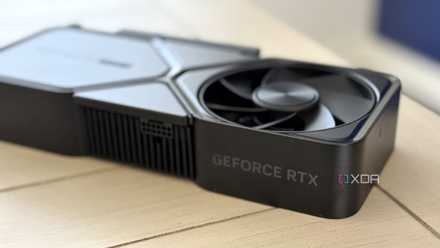
Nvidia's Dynamic Frame Generation might finally make it useful
Is it the way it's meant to be played?
The improved performance was welcome
It mattered in the game that counts
Out of the four regularly-played titles I tested, Fortnite is easily the only one I play daily, as I have been for the past eight years. It's online multiplayer format and heavily CPU-bound nature is perhaps what helped it draw more benefit from the Windows 11 Ultimate Performance power plan I toggled on, and I have no complaints. My 1% lows did get better, and that noticeably improved the dropped frames in crowded, player-dense areas across the map in different game modes.
At the same time, both my average FPS and 1% lows performed worse in Forza Horizon 5 with the Ultimate Performance plan switched on. That only cements what most of us already know — the performance plans in Windows barely affect the way your games perform. When applications have to draw CPU and GPU power, they do it as and when they please. Even though I'm not into any other majorly CPU-bound titles, I can't help but wonder if 1% lows in games like Marvel Rivals and Counter-Strike 2 would also improve.
By and large, though, there was barely an effect on the way my games performed, and the downside of increased power draw (and louder fan curves) is not something I'd recommend for everyone. For gamers who exclusively play online multiplayer titles, however, I could definitely see the Ultimate Performance power plan making a case for itself.
Windows 11 Pro
A USB installation drive and license key for Windows 11 Pro, with additional features like Hyper-V and Windows Sandbox support.
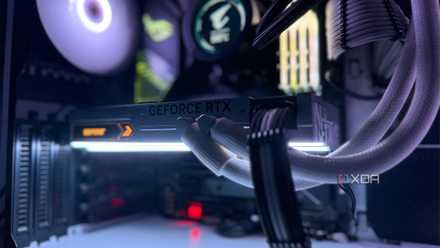
10 ways you can improve the performance of your aging gaming PC
It may not be time to throw out your PC yet! Here are 10 things you can do to improve the performance of your aging gaming PC
Should you switch on Ultimate Performance in Windows 11?
Windows manages resources such that you don't really need to add on extra power and stress to your components.
Short answer? No. Long answer? Sure, but only if you're going to be playing ultra-competitive online-only titles, or engaging in significant CPU-bound work like running simulations, 3D rendering, or compiling large software projects. Even then, Windows has a way of managing resources so that you don't really need to add on the extra power draw and stress on your components.
Regardless, it's there for you to activate and use should you want to. At the very least, you can try it out in your games. If your gaming library consists mostly of single-player titles, though, you're better off saving the five minutes it will take you to run the command line.