
I was running different Jellyfin clients across my devices, including Swiftfin and Infuse on Apple TV, Jellyfin client on desktop, and Findroid on an old Android phone. Configuring each app to display subtitles, adjust audio preferences, and set layout felt like a constant process.
Streaming content on various screens meant dealing with different layouts. I had accepted that this is how Jellyfin works with different clients on particular devices — until Moonfin showed me otherwise. Moonfin apps are available on smart TVs, mobile devices, desktops, and even streaming sticks like Roku. And ever since trying them, my media streaming preferences have changed.

I couldn’t get Jellyfin remote streaming working until I found this app
Setting up Tailscale was way quicker and easier than I expected.
The exhaustion of running multiple Jellyfin clients
Dealing with configuration inconvenience
Every Jellyfin client I tried was good, whether on desktop, on a smart TV, or on my phone. However, each client had a different take on the interface layout, audio preferences, subtitles, metadata handling, and other options. So the changes I committed to the Findroid app on Android didn’t apply to Infuse on Apple TV.
Over time, I realized that changing layout options, adjusting audio preferences, and customizing subtitles were getting tedious across multiple Jellyfin clients. That effort was exhausting for the same media library. Only then did I realize I was engaging in low-level friction of constantly tweaking rather than actually watching content.
I didn’t want to configure my preferences every time I wanted to stream content from my Jellyfin server across my TV, tablets, computer, and phone.
Jellyfin
- iOS compatible
- Yes
- Android compatible
- Yes
- Desktop compatible
- Yes
Jellyfin is one of the best Plex alternatives you can get, and that's thanks to its open-source nature and powerful set of features. There are apps for basically every platform and it's completely free to run your very own server.
Moonfin clients aim to make Jellyfin reach every platform
Maintains clients for multiple platforms
Most Jellyfin clients commit to one or two platforms, but Moonfin doesn't. That’s what got me interested, since it supports Android, Android TV, Fire TV OS, iOS, tvOS, Samsung Tizen, LG webOS, and Roku. Each platform gets a native build and not a web wrapper packaged with a different icon. For instance, the native tvOS app uses Swift and SwiftUI, while the Android TV app uses Kotlin with Jetpack Compose.
The Moonfin project keeps adding new features across clients for various platforms. Continuous development gives confidence that Jellyfin clients won’t be abandoned.
Besides, it's the only client so far to unify a library across multiple Jellyfin and Emby instances. So, the home screen shows content aggregated from multiple servers, and the playback requests the files directly from their respective locations. I never have to switch servers or manually specify file locations.
After using Moonfin for two weeks, I stopped checking where the file came from or where it is stored. Also, I never had to re-authenticate to play a movie or a show. However, I did install Seerr as a Docker container to manage the user authentication for my family.
As long as the media file’s location is properly mapped on the Jellyfin server, everything works.
Painting Jellyfin library with Moonfin’s plugin
Streamlining the interface
By default, Moonfin behaves like a standalone client for the Jellyfin server. It’s not a single-install replacement for everything. To make it store all the changes you make across platforms, I needed to install the Moonfin and File Transformation plugins.
Both plugins are required for cross-platform sync and injecting web UI elements into the Jellyfin web server.
After adding the repositories for both plugins in Jellyfin, I installed both plugins, and that was it. Once I enabled the plugins, they enabled me to inject interface elements into Jellyfin’s web interface and mobile app. That gave me consistent global experience and allowed me to configure my preferences just once.
After that, whenever I installed a new Moonfin client on any device, it picked up my preferences without touching anything. The subtitle behavior, audio preferences, and layout remain constant regardless of which Moonfin client I open. The new device went from installation to a fully configured setup in under a minute and was ready to use.
Should you switch to the Moonfin client for Jellyfin?
Promising with caveats
While Moonfin did manage to fit in comfortably in my home setup, the transition wasn’t without hiccups. I struggled to play large 4K Remux files, especially those with Dolby Vision and HDR. I never experienced that while using Infuse on Apple TV. If your library has many 4K Remuxes and Dolby Vision or HDR files, try out Infuse or Kodi on your devices.
One of the navigational oddities I experienced was while using the Settings options. On Apple TV, the remote’s back button doesn’t navigate back to the previous menu; it closes the app entirely. Similar experience with the left arrow key on the Moonfin desktop apps. So far, there’s no workaround for either issue.
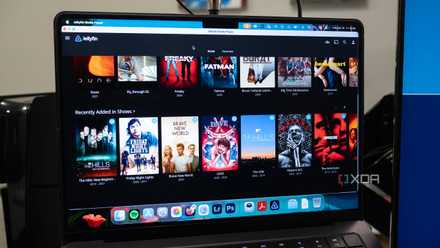
Jellyfin is 90% of Plex, and the missing 10% doesn't matter to me
Free and open source over greedy subscriptions
The best Jellyfin client is still getting better
I switched to Moonfin for a consistent cross-platform experience, and it delivers. Meanwhile, the limitations of Dolby Vision, HDR, and 4K Remux playback are real. For now, Infuse handles those better on Apple devices. Since Moonfin is being actively developed, those gaps will close. So I’m staying and watching that happen.
Moonfin
Moonfin is a collection of cross-platform clients for Jellyfin and Emby media servers.