
VS Code has been my default code editor for years, but lately, tools like Claude Code, Codex, and Google Antigravity have made it feel old-fashioned.
Microsoft’s new Agents view is its answer to that shift. It introduces a dedicated, agent-first workspace where I can assign high-level tasks, fix errors, and even run multiple agents in parallel using prompts.
I expected it to feel like another Copilot panel bolted onto VS Code. Instead, it changed the way I interacted with the editor.

Google Antigravity isn’t a VS Code killer; it’s a mental shift I wasn’t ready for in software development
Uncomfortable brilliance of Google Antigravity.
What is Agents view in VS Code?
Not another Copilot sidebar
The Agents view is Microsoft’s dedicated workspace for managing coding agents inside VS Code. I can access it by clicking the Agents icon in the top-right corner of the editor. Instead of opening another small chat panel beside my code, it launched a separate, agent-first window where conversations and tasks take center stage.
From there, I can select a workspace, describe what I want to build or fix, and let the agent handle the implementation. It can inspect the project, create or modify multiple files, run terminal commands, test its work, and correct errors along the way.
That makes it more capable than the autocomplete and basic chat tools I previously used with GitHub Copilot.
Agents view use cases
Quite useful in many cases
The Agents view becomes far more useful once I start using it as a proper development assistant. One of my favorite ways to use it is for planning. Before touching the codebase, I can ask the Plan agent to break a task into clear implementation steps. This gives me a chance to check its approach, correct any wrong assumptions, and refine the scope before it starts modifying files.
It is also well-suited to building new features. I can describe the result I want in plain language, and the agent can create the interface, connect the required logic, manage state, and update relevant tests.
This is helpful when I know what the feature should do, but do not want to spend time creating every file and component manually.
Prototyping is another area where the Agents view makes a lot of sense. I can ask different agents to explore separate versions of the same feature and compare the results.
I can also use it to build and test web apps without constantly switching between windows. The agent can launch the project, interact with the running app via the integrated browser, verify that a feature behaves correctly, and continue making adjustments based on its findings.
Finally, it can save a lot of time when something breaks. I can share a stack trace, a failed test, or an error message and ask the agent to investigate. The possibilities are endless here.
Supports more than one type of agent
Not limited to Copilot only
One of the biggest advantages of the Agents view is that I am not locked into a single agent for every task. Different agents demand different levels of reasoning, speed, and autonomy, and VS Code lets me switch agents depending on what I am trying to build.
For a simple web landing page, I used Copilot, and it handled the job without much trouble. I gave it the basic requirements, including the hero section, feature blocks, call-to-action buttons, and a responsive layout.
It generated the structure quickly, added the necessary styling, and gave me a solid starting point with minimal intervention.
However, the experience changed when I moved to a complex web app with several interconnected features. That is when I switched to Claude. It understood the project's broader structure more clearly and did a better job of connecting features without losing track of the requirements.
Instead of forcing one agent to handle everything, I could use Copilot for the lighter work and bring in Claude when the project required deeper reasoning.
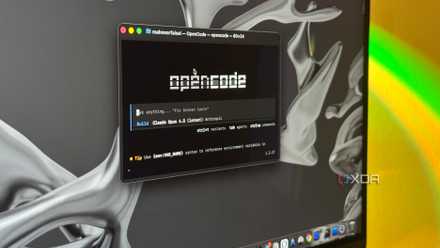
I tested Claude Code against 3 open-source alternatives, and one came surprisingly close
Claude might not be the only coding agent worth using.
Separation between agent-first and code-first work
Use any of them depending on the task
One of the smartest things about the Agents view is that it doesn’t try to replace the traditional coding experience inside VS Code.
When I am building something from scratch or handling a large task, I can stay in the Agents view and focus on the outcome. I describe what I want, let the agent inspect the project, and monitor its progress without jumping between files.
However, there are still plenty of moments when I want direct control. I may need to inspect a specific function, make a small UI adjustment, review a diff, or manually fix a tiny issue. In those situations, I can return to the normal editor and work directly with the code instead of forcing the agent to handle every minor change.
That balance is important because agentic coding is useful, but it is not always the best tool for every job.
VS Code finally joins the agentic race
The new Agents view doesn’t instantly make Claude Code, Codex, and Antigravity irrelevant, but it gives VS Code something it has been missing: an agent-first workflow inside the editor many developers already know.
I liked being able to start tasks, monitor multiple agents, and move between projects without abandoning my familiar extensions, settings, and development environment.
Of course, there are still areas Microsoft can refine, but it makes VS Code feel modern again.
If agentic coding has tempted you to move away from VS Code, give the Agents view a try before switching editors completely.
Visual Studio Code
Visual Studio Code or VS Code is an IDE developed by Microsoft for Windows, Mac, and Linux to write, edit, format, run, and debug code.