|
VOOZH | about |
|
VOOZH | about |
Home » Support » Quick Start Guide: Poll Everywhere
SKIP AHEAD TO
Poll Everywhere is a web and SMS text-messaging student response system. Use Poll Everywhere to create polls ahead of time and launch in your web browser during class to collect and display real-time responses that students provide with a laptop or mobile device.
In this guide for faculty and teaching teams, you’ll learn how to create a Poll Everywhere poll and deliver it during a class session.
Poll Everywhere provides end-user support as part of MIT’s Enterprise license. If you have questions about using Poll Everywhere and its features, you can contact them directly by:
Email polleverywhere@mit.edu for any questions related to Poll Everywhere, including:
A Presenter license is required to use this tool.
Poll Everywhere offers several types of activities you can use to interact with your students, including:
For step-by-step instructions on creating an activity in Poll Everywhere, refer to Create an Activity.
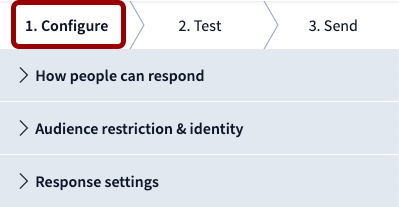
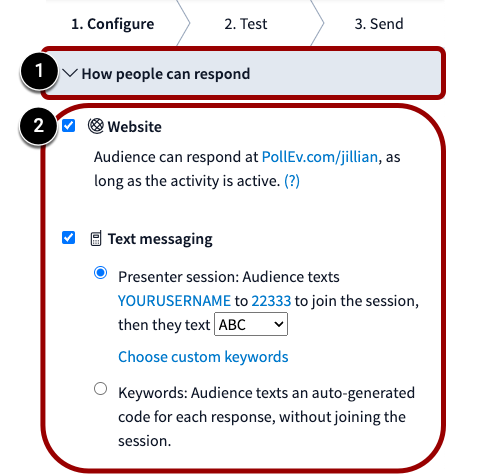
You can control how students respond to your poll. Set a response method by doing the following:
Tip: All activity types can receive responses via the web, but only open-ended and multiple-choice questions can accept text message responses.
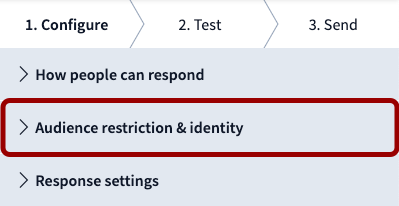
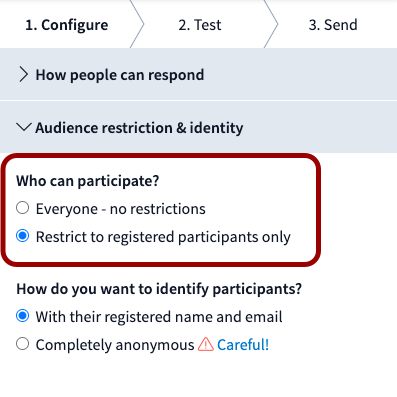
You can control who is able to participate in your poll:
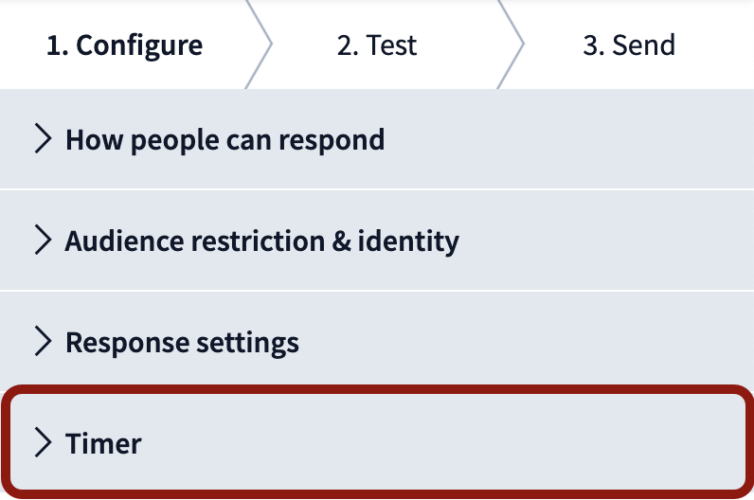
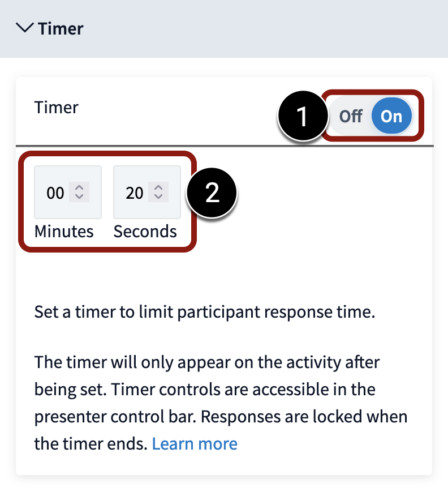
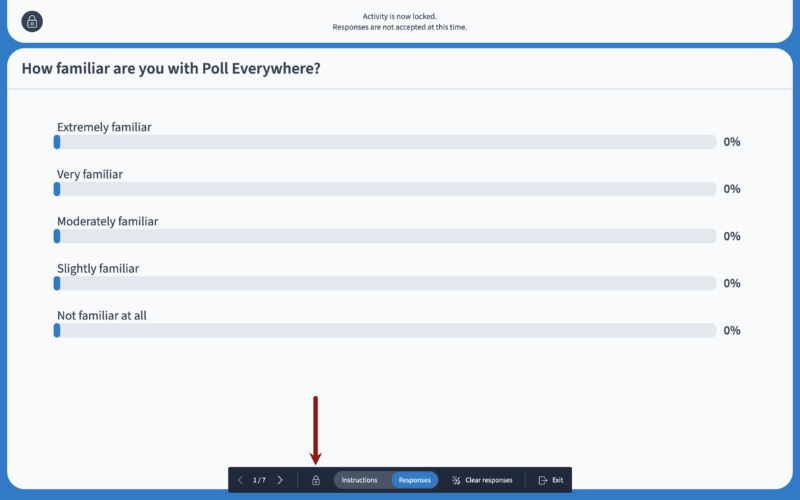
You can set a timer on an activity to limit the time participants have to respond:
To learn more about using a countdown timer, refer to the Countdown Timer guide.
Tip: MIT’s Enterprise license for Poll Everywhere allows up to 1000 responses per poll.
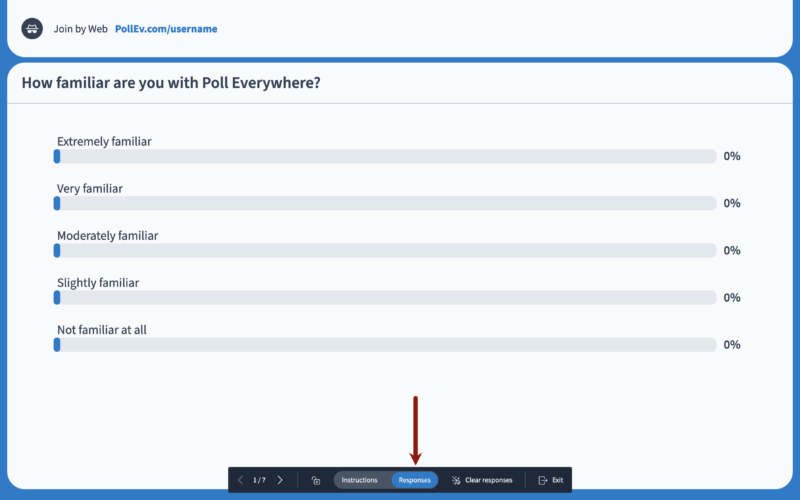
To stop students from seeing your poll on your Poll Everywhere response page, click the Deactivate button to deactivate the poll.
👁 Screenshot of the Deactivate button
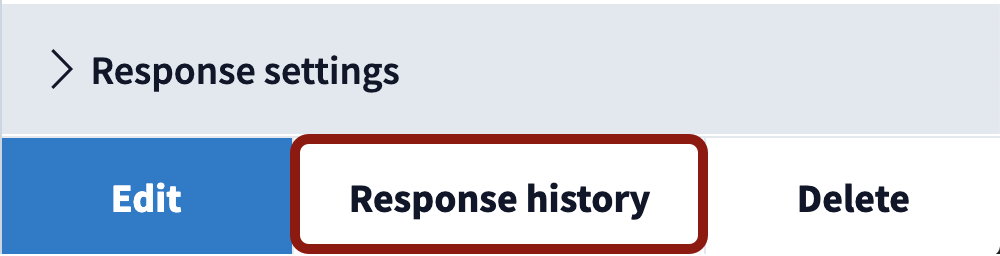
Poll Everywhere stores your responses for later review. You can review your responses by doing the following:
There are several different report types that can be created, saved in your Poll Everywhere account, or downloaded to your computer.
For an overview of the different report types, refer to the Introduction to Reporting guide.
For step-by-step instructions on creating a report in Poll Everywhere, refer to the Creating a Report guide.
© 2026 MIT Sloan Teaching & Learning Technologies.